---
title: What is a Search Widget and how is it used?
description: Learn how to create and configure a Participant Search Widget in the Race Roster Timer Dashboard to display searchable event results on a website.
---
[Skip to content](https://help.raceroster.com/en-us/knowledge-base/what-is-a-search-widget-and-how-do-i-use-it#main-content)
[Submit a knowledge article idea](https://help.raceroster.com/en-us/knowledge-base/kb-tickets/new?hsLang=en-us)

Open main navigation
Close main navigation
- [Submit a knowledge article idea](https://help.raceroster.com/en-us/knowledge-base/kb-tickets/new)
How can we help you?
- There are no suggestions because the search field is empty.
1. [Race Roster Knowledge Base](https://help.raceroster.com/en-us/knowledge-base?hsLang=en-us)
2. [Timers](https://help.raceroster.com/en-us/knowledge-base/timers?hsLang=en-us)
3. [Timing Tools](https://help.raceroster.com/en-us/knowledge-base/timers?hsLang=en-us#timing-tools)
May 14, 2026
# What is a Search Widget and how is it used?
The **Timing Tools Participant Search Widget** allows participants to search across previous event results and view a consolidated history of their performances.
By embedding the Search Widget onto a website, participants can search for their name and access a comprehensive list of their results from events included within the widget configuration.
This article outlines how to create and configure a Participant Search Widget from the Timer Dashboard.
---
### Accessing the Search Widget Tool
1\. Open the **[Timer Dashboard](https://timer.raceroster.com/)**
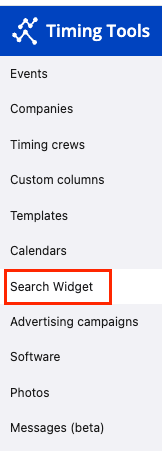
2\. From the **Timing Tools** left-hand navigation menu, select **Search Widget**.
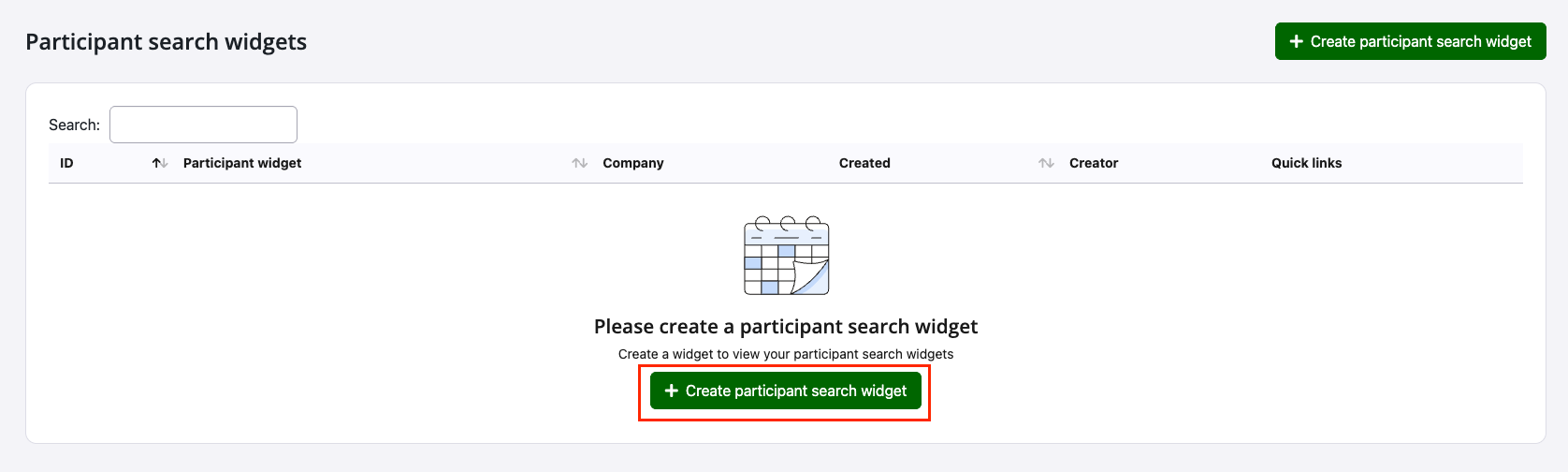
3\. Click the green **+ Create participant search** Widget button.
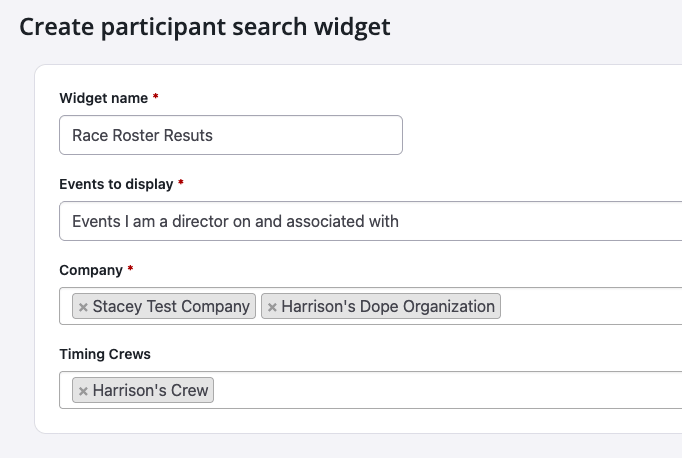
4\. Complete the following fields to determine which event results participants will be able to search.
- Widget name
- Event display selection:
- Events I am a director on
- Events I am a director on and associated with
- All associated events
- Timer Company (& Crew)
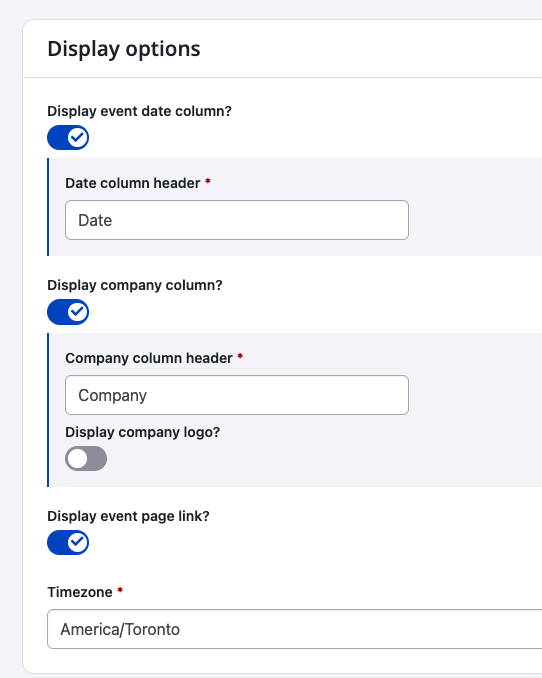
5. Choose which information should appear within the widget under **Display options.** Including:
- Display event date column (amend column header if required)
- Display Timer Company column (amend column header and add company logo if required)
- Display event page link
- Timezone display
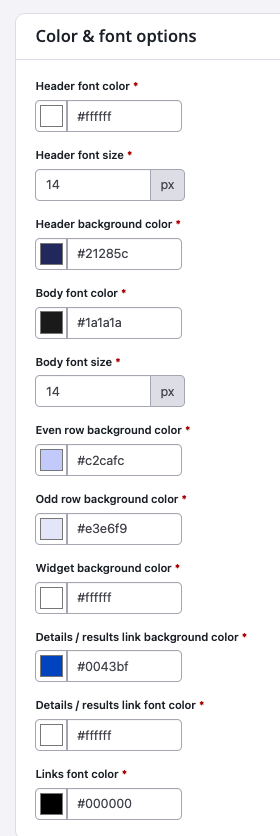
6\. Adjust **Colour & font options** to customize the appearance of the widget by configuring:
- Font colours
- Background colours
- Font sizes
- Additional display styling options
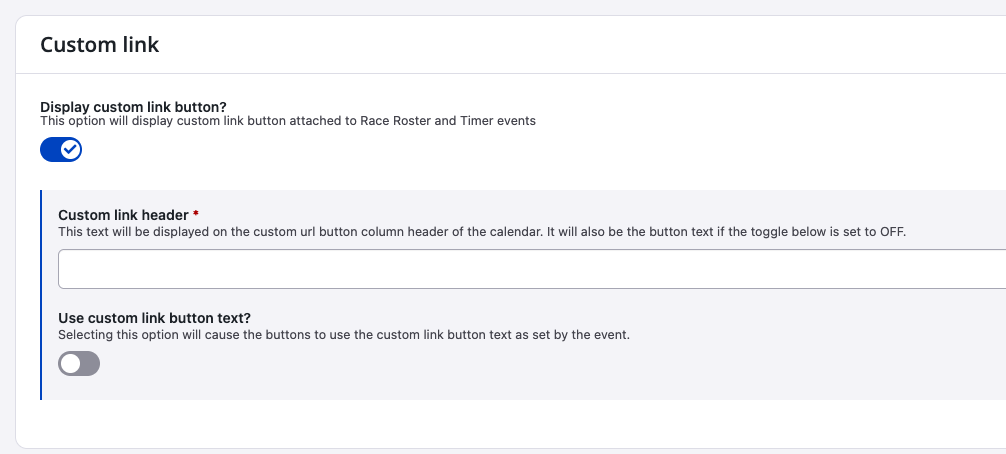
7\. Enable a **Custom link** button to display alongside Race Roster and Timer event listings. The **Custom link header** field controls the column heading and default button text. When **Use custom link button text** is enabled, each event’s individually configured custom button text will display instead of the default header text.
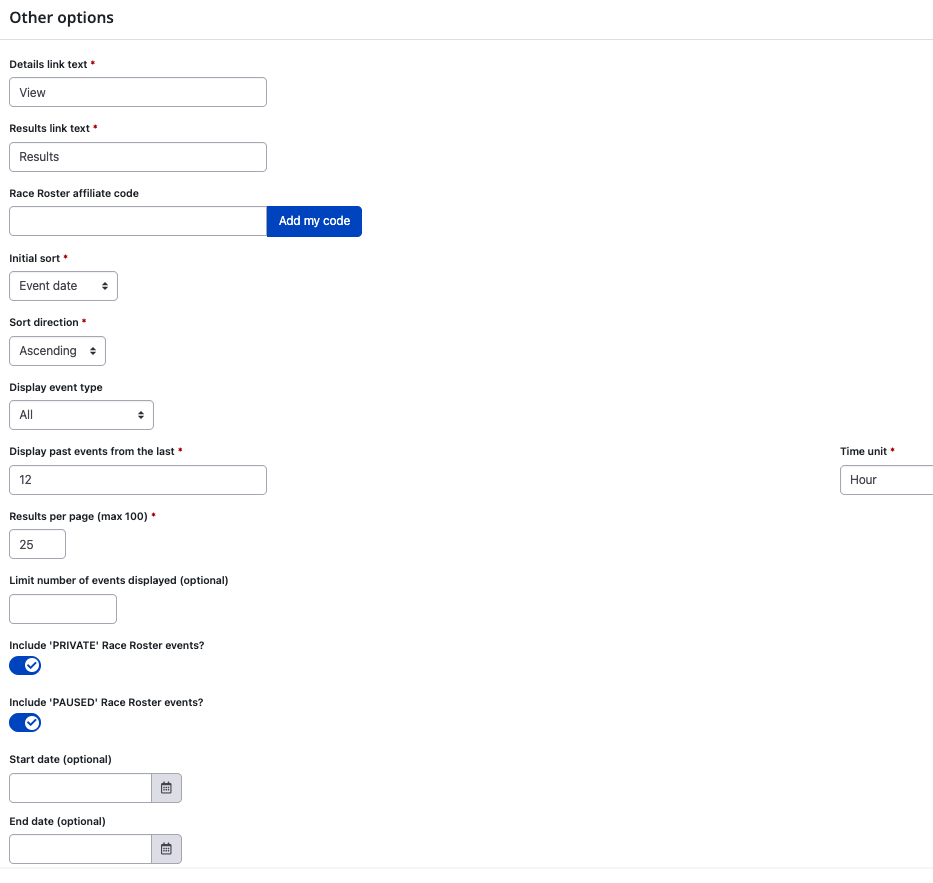
8\. Review **Other Options.** These additional settings include:
- Detail and Results link text
- Result sorting preferences
- Number of results displayed per page
- Date display settings
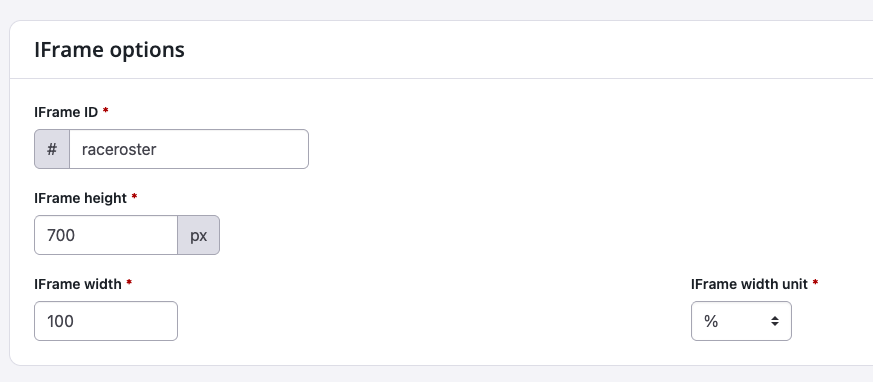
9\. Adjust **IFrame options** to configure the widget embed dimensions:
- IFrame height
- IFrame width
- IFrame width unit
- IFrame ID
10\. Click **Save** to create the widget.
---
### Copy the Embed Code
After saving, the page will display the **Embed Widget** code snippet.
Copy and paste this code into the desired website location where the Search Widget (visible in the **Preview**) should appear.
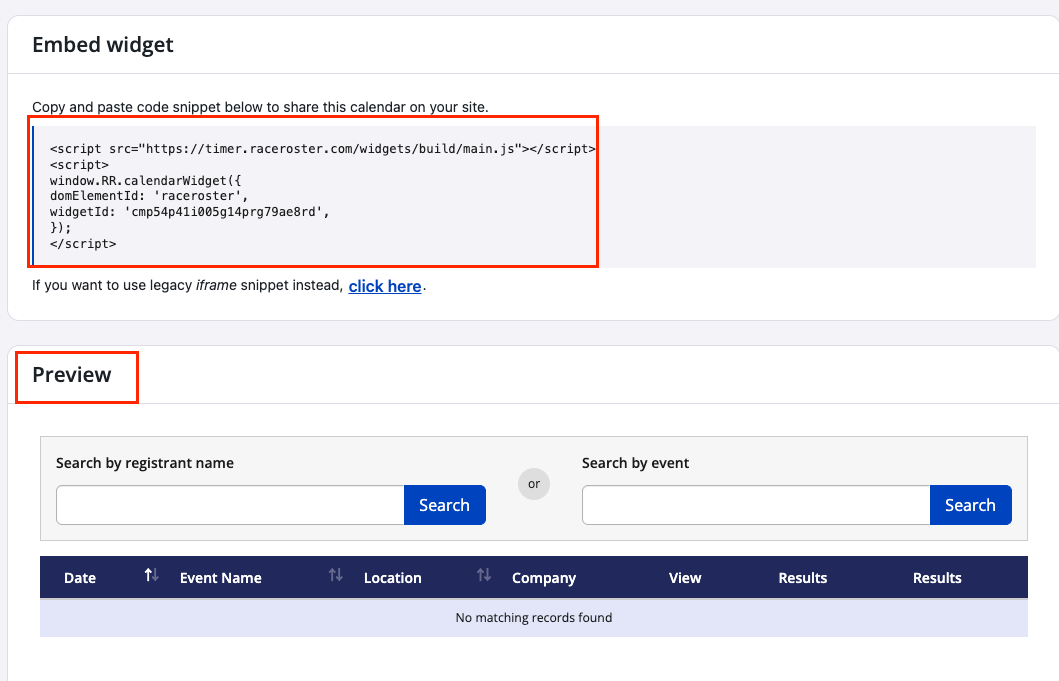
If any additional changes are made on the widget configuration page, ensure to scroll to the bottom of the page and click **Save** again to apply the updates.
- [Event Organizers and Race Directors](https://help.raceroster.com/en-us/knowledge-base/event-organizers-and-race-directors?hsLang=en-us#main-content)
- [Participant Management](https://help.raceroster.com/en-us/knowledge-base/event-organizers-and-race-directors?hsLang=en-us#participant-management)
- [Financials](https://help.raceroster.com/en-us/knowledge-base/event-organizers-and-race-directors?hsLang=en-us#financials)
- [Marketing & Promotions](https://help.raceroster.com/en-us/knowledge-base/event-organizers-and-race-directors?hsLang=en-us#marketing-promotions)
- [Email Campaigns, MailChimp Integration](https://help.raceroster.com/en-us/knowledge-base/event-organizers-and-race-directors?hsLang=en-us#email-campaigns-mailchimp-integration)
- [Products](https://help.raceroster.com/en-us/knowledge-base/event-organizers-and-race-directors?hsLang=en-us#products)
- [Team Management and Settings](https://help.raceroster.com/en-us/knowledge-base/event-organizers-and-race-directors?hsLang=en-us#team-management-and-settings)
- [Onsite App](https://help.raceroster.com/en-us/knowledge-base/event-organizers-and-race-directors?hsLang=en-us#onsite-app)
- [Registration Questions](https://help.raceroster.com/en-us/knowledge-base/event-organizers-and-race-directors?hsLang=en-us#registration-questions)
- [Fundraising Settings and Receipts](https://help.raceroster.com/en-us/knowledge-base/event-organizers-and-race-directors?hsLang=en-us#fundraising-settings-and-receipts)
- [Promo Codes, Discounts, and Gifting Codes](https://help.raceroster.com/en-us/knowledge-base/event-organizers-and-race-directors?hsLang=en-us#promo-codes-discounts-and-gifting-codes)
- [Virtual](https://help.raceroster.com/en-us/knowledge-base/event-organizers-and-race-directors?hsLang=en-us#virtual)
- [Results](https://help.raceroster.com/en-us/knowledge-base/event-organizers-and-race-directors?hsLang=en-us#results)
- [Access codes](https://help.raceroster.com/en-us/knowledge-base/event-organizers-and-race-directors?hsLang=en-us#access-codes)
- [Director Access and Settings](https://help.raceroster.com/en-us/knowledge-base/event-organizers-and-race-directors?hsLang=en-us#director-access-and-settings)
- [Pricing](https://help.raceroster.com/en-us/knowledge-base/event-organizers-and-race-directors?hsLang=en-us#pricing)
- [Event Page Settings](https://help.raceroster.com/en-us/knowledge-base/event-organizers-and-race-directors?hsLang=en-us#event-page-settings)
- [Your Dashboard](https://help.raceroster.com/en-us/knowledge-base/event-organizers-and-race-directors?hsLang=en-us#your-dashboard)
- [Sub-events](https://help.raceroster.com/en-us/knowledge-base/event-organizers-and-race-directors?hsLang=en-us#sub-events)
- [Other FAQs](https://help.raceroster.com/en-us/knowledge-base/event-organizers-and-race-directors?hsLang=en-us#other-faqs)
- [Volunteers](https://help.raceroster.com/en-us/knowledge-base/event-organizers-and-race-directors?hsLang=en-us#volunteers)
- [Create, Edit or Take Your Event Live](https://help.raceroster.com/en-us/knowledge-base/event-organizers-and-race-directors?hsLang=en-us#create-edit-or-take-your-event-live)
- [Waivers](https://help.raceroster.com/en-us/knowledge-base/event-organizers-and-race-directors?hsLang=en-us#waivers)
- [Reports](https://help.raceroster.com/en-us/knowledge-base/event-organizers-and-race-directors?hsLang=en-us#reports)
- [Participants and Fundraisers](https://help.raceroster.com/en-us/knowledge-base/participants-and-fundraisers?hsLang=en-us#main-content)
- [Participant FAQs](https://help.raceroster.com/en-us/knowledge-base/participants-and-fundraisers?hsLang=en-us#participant-faqs)
- [Fundraising](https://help.raceroster.com/en-us/knowledge-base/participants-and-fundraisers?hsLang=en-us#fundraising)
- [Gift Registrations](https://help.raceroster.com/en-us/knowledge-base/participants-and-fundraisers?hsLang=en-us#gift-registrations)
- [Sign In and Manage Registration](https://help.raceroster.com/en-us/knowledge-base/participants-and-fundraisers?hsLang=en-us#sign-in-and-manage-registration)
- [Transfer Registration](https://help.raceroster.com/en-us/knowledge-base/participants-and-fundraisers?hsLang=en-us#transfer-registration)
- [Access Codes](https://help.raceroster.com/en-us/knowledge-base/participants-and-fundraisers?hsLang=en-us#access-codes)
- [Teams](https://help.raceroster.com/en-us/knowledge-base/participants-and-fundraisers?hsLang=en-us#teams)
- [Security & Compliance](https://help.raceroster.com/en-us/knowledge-base/participants-and-fundraisers?hsLang=en-us#security-compliance)
- [Promo Codes](https://help.raceroster.com/en-us/knowledge-base/participants-and-fundraisers?hsLang=en-us#promo-codes)
- [Race Roster CRM](https://help.raceroster.com/en-us/knowledge-base/race-roster-crm?hsLang=en-us#main-content)
- [Organizations](https://help.raceroster.com/en-us/knowledge-base/race-roster-crm?hsLang=en-us#organizations)
- [Contact Management and Validation Lists](https://help.raceroster.com/en-us/knowledge-base/race-roster-crm?hsLang=en-us#contact-management-and-validation-lists)
- [Reporting](https://help.raceroster.com/en-us/knowledge-base/race-roster-crm?hsLang=en-us#reporting)
- [Events and Event Groups](https://help.raceroster.com/en-us/knowledge-base/race-roster-crm?hsLang=en-us#events-and-event-groups)
- [Campaigns and Marketing](https://help.raceroster.com/en-us/knowledge-base/race-roster-crm?hsLang=en-us#campaigns-and-marketing)
- [Non-profit Organizations](https://help.raceroster.com/en-us/knowledge-base/race-roster-crm?hsLang=en-us#non-profit-organizations)
- [Fundraising Coordinators](https://help.raceroster.com/en-us/knowledge-base/fundraising-coordinators?hsLang=en-us#main-content)
- [Resources](https://help.raceroster.com/en-us/knowledge-base/fundraising-coordinators?hsLang=en-us#resources)
- [Participant and Team Fundraising](https://help.raceroster.com/en-us/knowledge-base/fundraising-coordinators?hsLang=en-us#participant-and-team-fundraising)
- [Reporting](https://help.raceroster.com/en-us/knowledge-base/fundraising-coordinators?hsLang=en-us#reporting)
- [Timers](https://help.raceroster.com/en-us/knowledge-base/timers?hsLang=en-us#main-content)
- [Account settings](https://help.raceroster.com/en-us/knowledge-base/timers?hsLang=en-us#account-settings)
- [Results](https://help.raceroster.com/en-us/knowledge-base/timers?hsLang=en-us#results)
- [Timing Tools](https://help.raceroster.com/en-us/knowledge-base/timers?hsLang=en-us#timing-tools)
- [Bib Assignment](https://help.raceroster.com/en-us/knowledge-base/timers?hsLang=en-us#bib-assignment)
- [Participant Data and Reports](https://help.raceroster.com/en-us/knowledge-base/timers?hsLang=en-us#participant-data-and-reports)
- [The ASICS Runkeeper™ app](https://help.raceroster.com/en-us/knowledge-base/the-asics-runkeeper-app?hsLang=en-us#main-content)
- [The ASICS Runkeeper™ app](https://help.raceroster.com/en-us/knowledge-base/the-asics-runkeeper-app?hsLang=en-us#the-asics-runkeeper-app)
[](https://raceroster.com)
Copyright © 2026, Race Roster