
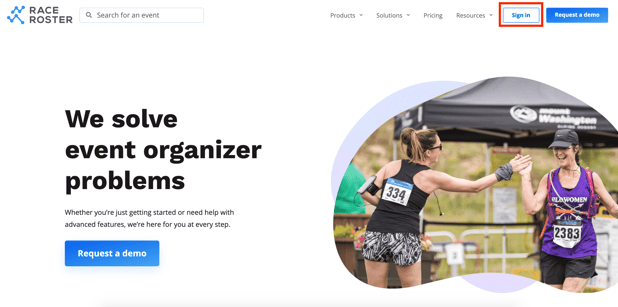
1. Go to raceroster.com or an event page and select Sign in at the top right.
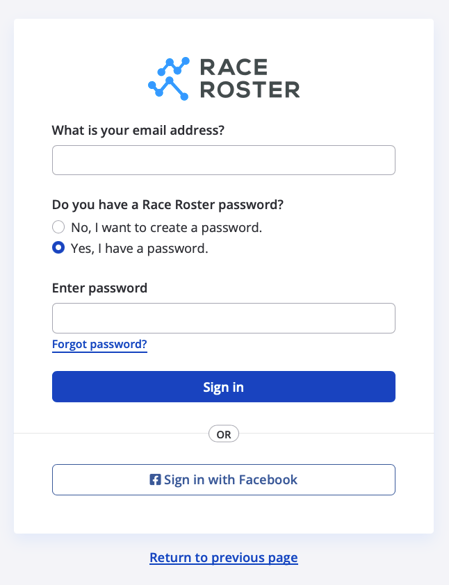
2. Select Yes, I have a passoword. and enter the email & password of the exisiting account.
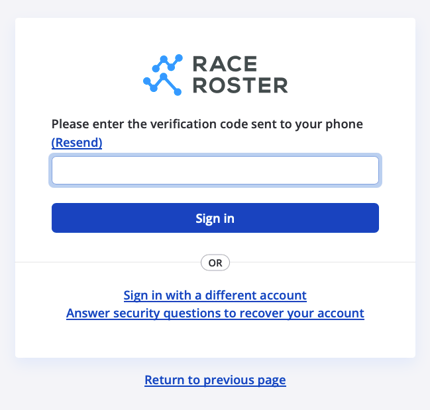
3. An account with staff access (event organizer, timer, club owner, organization owner and/or fundraising coordinator) will be prompted to complete the two-factor authentication (2FA) step by entering a verification code. Please reference the article Enabling Two-Factor Authentication (2FA) - Event Organizers and Users with Staff Access to set this up.
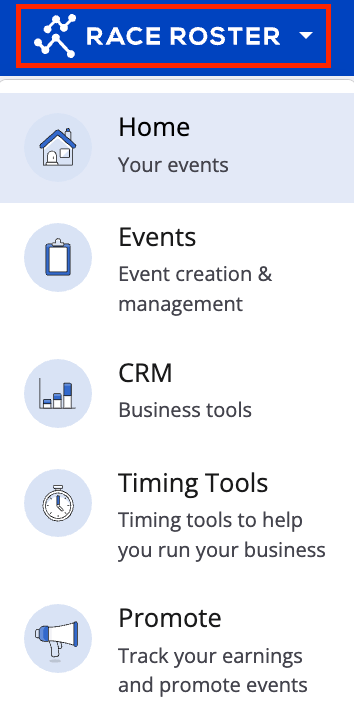
4. On the welcome page, all upcoming events & organizations that an organizer has staff access to will be listed, as well as recent & past registrations associated with the account. Select Race Roster at the top left of the page to use the kingdom switcher.
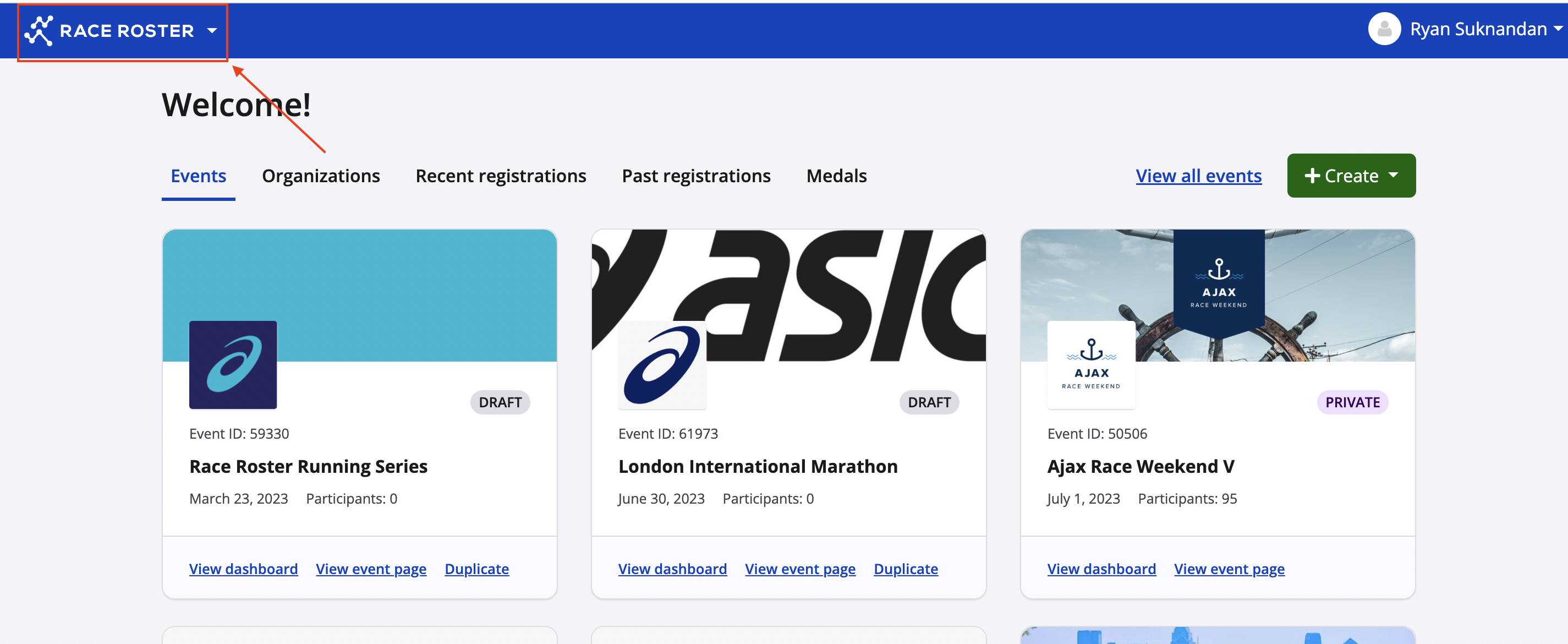
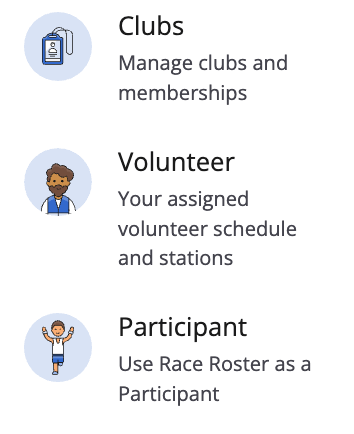
5. Using the kingdom switcher at the top of the page, an organizer can select which dashboad to view.
|
|
|
|
|
|
|
|
|
|
|
|
|
|
|
|
Events & organizations
Select Events from the kingdom switcher or View all events from the home page for all events the account has staff access to. Select View dashboard to edit an event. If an event date has passed, the dashboard can be accessed in the Completed tab.
-
The Event ID number & name is displayed in a white box along the top bar. Ensure to select the correct event and year to review.
- Select Event page to view the public view of the event page.

If an organizer selects the CRM, they can find the Org ID at the top of the page and use the box along the top bar to switch to a different organization if needed.
The top left of the page will indicate which dashboard an organizer is currently viewing. An organizer can change views/dashboards by selecting this and choosing a different dashboard from the kingdom switcher.
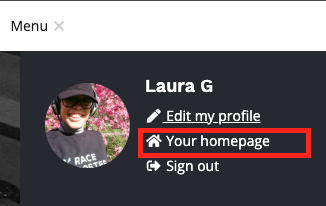
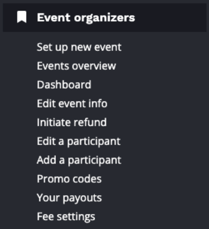
From the event page, an event organizer can select Menu at the top right to go back to the event dashboard, or select a setting in the dashboard to be redirected to. They can also select Your homepage to return to the account's welcome page.
For more instructions on event tools and configuration visit, the Create, Edit or Take Your Event Live section.