
1. Login to your dashboard as an Event Organizer
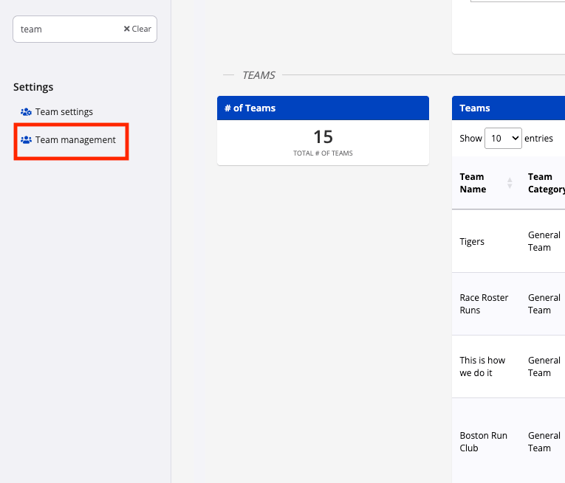
2. Navigate to the left of your screen and select Settings > Teams management from the drop-down menu
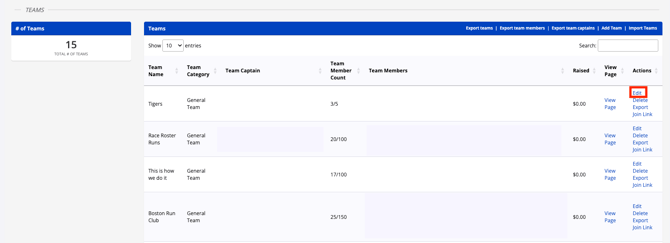
3. Find the the team that needs a discount applied and click Edit to create a discount for that team.
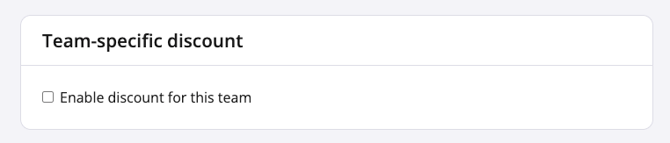
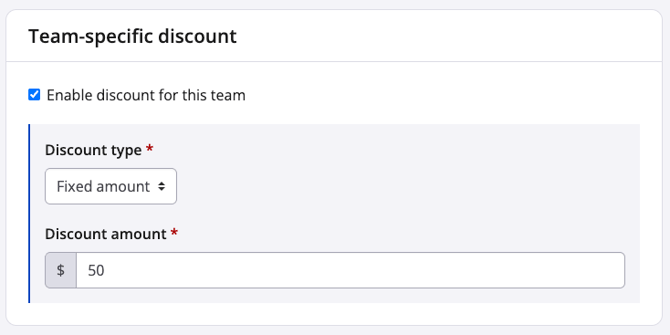
4. On this page, navigate to the Team specific discount section and select the type of discount.
-
Fixed amount
-
Percentage
5. Enter the discount amount
6. Click Save or Save & exit
When the discount is saved, a participant who joins that specific team during registration, whether via an existing team or a pre-selected team, the discount applies automatically at checkout.
Important notes:
- A team must be created before a discount can be associated with the team.
- Team category discounts and team-specific discounts do stack, meaning that someone who is part of a team that receives a team-specific discount will also receive a discount if there is a discount applied to their team category as well.
- Duplicating an event does not remap team-specific discounts to the new event's teams. If an EO duplicates an event, they'll need to reconfigure any team-specific discounts on the new copy.
For instructions on how to set up a team category discount, check out this article. F or more on specific team configurations, visit our Team Configuration knowledge archive.