---
title: How to copy event email campaigns from legacy to the new editor
description: The following is a guide to walk you through how you can recreate your legacy email campaigns using the new editor, Unlayer.
---
[Skip to content](https://help.raceroster.com/en-us/knowledge-base/how-to-transition-your-events-legacy-email-campaigns-to-the-new-editor#main-content)
[Submit a knowledge article idea](https://help.raceroster.com/en-us/knowledge-base/kb-tickets/new?hsLang=en-us)

Open main navigation
Close main navigation
- [Submit a knowledge article idea](https://help.raceroster.com/en-us/knowledge-base/kb-tickets/new)
How can we help you?
- There are no suggestions because the search field is empty.
1. [Race Roster Knowledge Base](https://help.raceroster.com/en-us/knowledge-base?hsLang=en-us)
2. [Event Organizers and Race Directors](https://help.raceroster.com/en-us/knowledge-base/event-organizers-and-race-directors?hsLang=en-us)
3. [Email Campaigns, MailChimp Integration](https://help.raceroster.com/en-us/knowledge-base/event-organizers-and-race-directors?hsLang=en-us#email-campaigns-mailchimp-integration)
September 11, 2026
# How to copy event email campaigns from legacy to the new editor
As of August 18, 2026, Race Roster is upgrading the event-level email campaign editor experience. Effective this date, all **new** campaigns created within the event email campaign tool will use a new editor, Unlayer. This new editor is the same one already used in CRM email campaigns—a design tool that is easier to use, contains more features, and ultimately helps you create polished campaigns faster.
**For any event email campaigns already created with our legacy editor, functionality and editability will remain as is.** For the time being, if you duplicate the email campaign, or duplicate the event, the resulting campaign will remain in the legacy editor.
As of January 1, 2027, campaigns using the legacy editor will no longer duplicate—neither within the same event, nor when you duplicate the event for a future year or as a template. However, they will still remain accessible in the existing events for you to reference when needed.
The steps below outline how you can take the contents of an existing, legacy email campaign and recreate them in a new campaign that uses the new editor. Farther down, an **FAQs section** appears.
---
### Copying from legacy to the new editor
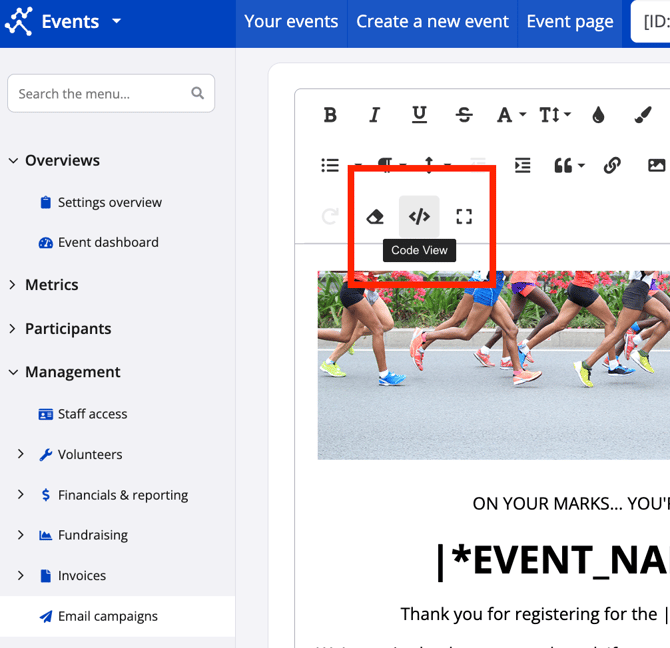
1\. Navigate to your event email campaigns and select to edit the legacy campaign you want to recreate. Then, select **Code view**.
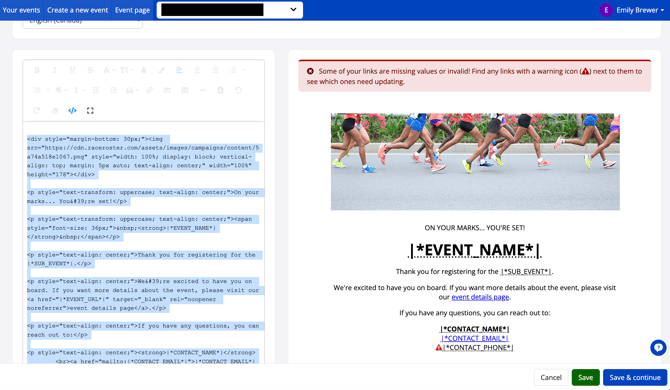
2\. Now viewing the contents in HTML, use your computer mouse or keyboard functionality to **select all and copy**.
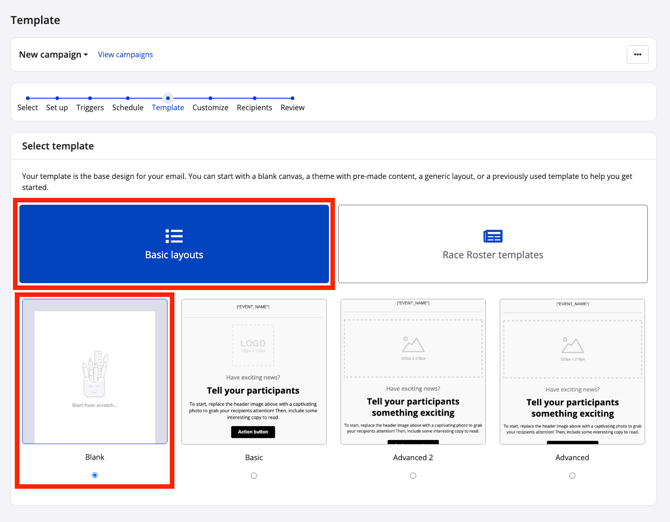
3\. Create a new email campaign in the desired event and navigate through all the creation steps according to your needs. In the template step, select the **blank template** and then click the blue **Save & continue** button.
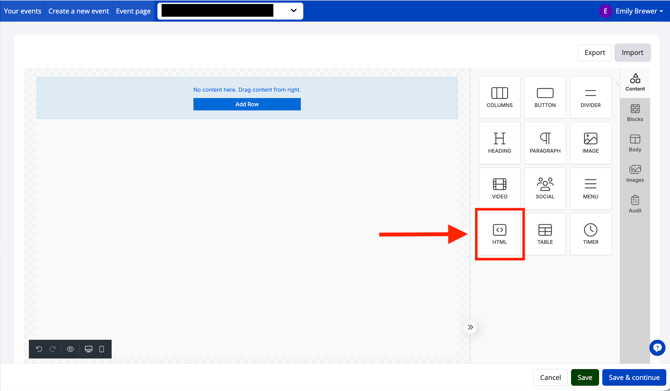
4\. Now in the edit step, select and drag in an **HTML block**.
5\. Using your computer mouse or keyboard functionality, **paste** the contents you had copied.
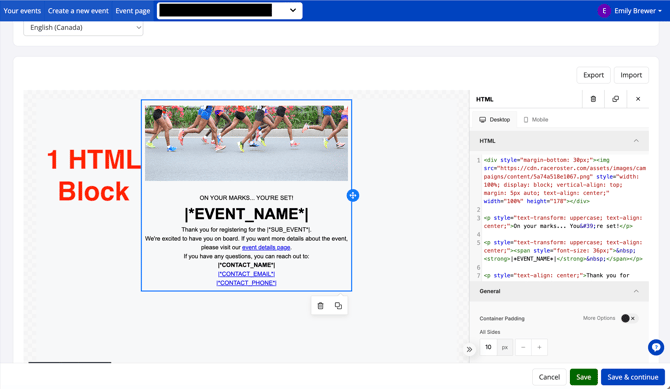
6\. Make further edits as needed. Be sure to proceed through the final few steps of email campaign creation so that you may launch.
**Tip:**
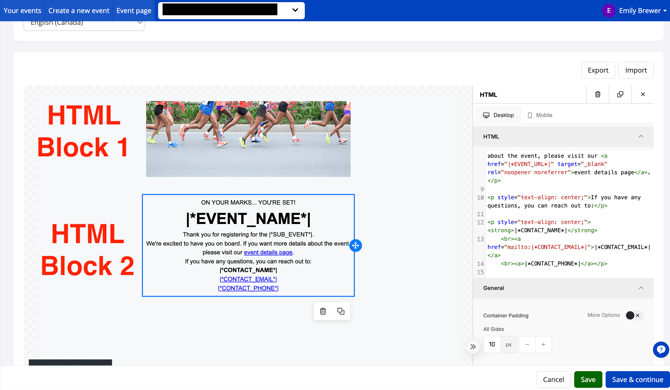
To make it easier to edit the campaign in the future, you may want to chop up the contents of your legacy email campaign into multiple HTML blocks. Please note that to edit the blocks, you will need to edit the HTML format. They do not convert into Unlayer blocks.
**Alternative approach:**
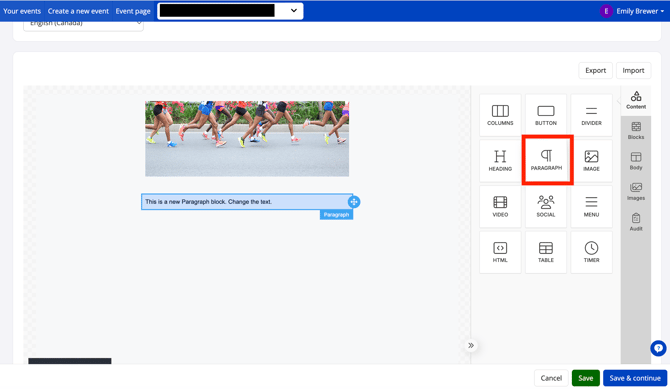
You may wish to recreate your legacy email campaign manually by dragging in blocks. For example, drag and drop an image block to reupload the image, and text blocks to copy and paste text from one email to the other. Although this will initially take longer to set up, in the long term you will have brought in the branding and design elements that your participants are used to receiving and wed them to the new, very handy Unlayer editor.
---
### FAQs
#### Q: What will happen to my existing campaigns?
A: As of August 17th 2026, all new campaigns will be created with the new editor. All your existing campaigns will remain in the legacy editor. If you copy a specific campaign, or copy an event with existing campaigns, these campaigns will remain in the legacy editor where they can continue to be edited and sent. On January 1, 2027, any campaigns using the legacy editor will no longer duplicate and if the event is copied, the campaign will not copy with it.
#### Q: Will my automated, ongoing campaigns continue to send?
A: Yes, existing campaigns will continue to send.
#### Q: How can I copy a campaign from one event and use it in another?
A: You can export the email JSON file from one campaign and import it into another. Follow the step-by-step process outlined in our other article, **[How to copy new editor email campaigns between events](https://help.raceroster.com/en-us/knowledge-base/how-to-copy-email-campaigns-between-events?hsLang=en-us)**.
#### Q: Why can’t I duplicate older campaigns into the new editor?
A: The two editors use completely different technology behind the scenes. Legacy campaigns were built with basic HTML, while our new editor uses a block-based system (JSON) to give you much more design flexibility. Trying to convert raw HTML into these modern design blocks is unreliable and can cause broken layouts or missing content.
#### Q: What happened to my custom templates?
A: To bring our email tool into parity with our CRM and align with how most users prefer to work, we have retired custom templates in favour of duplicating existing campaigns.
**How to manage go-to designs moving forward:** You can easily keep base designs on hand using your usual duplication workflow. Simply build a campaign, name it "\[Campaign Name\] - Template", and organize it into a campaign group titled "Templates." When you are ready to send a new email, just duplicate that campaign.
- [Event Organizers and Race Directors](https://help.raceroster.com/en-us/knowledge-base/event-organizers-and-race-directors?hsLang=en-us#main-content)
- [Participant Management](https://help.raceroster.com/en-us/knowledge-base/event-organizers-and-race-directors?hsLang=en-us#participant-management)
- [Financials](https://help.raceroster.com/en-us/knowledge-base/event-organizers-and-race-directors?hsLang=en-us#financials)
- [Marketing & Promotions](https://help.raceroster.com/en-us/knowledge-base/event-organizers-and-race-directors?hsLang=en-us#marketing-promotions)
- [Email Campaigns, MailChimp Integration](https://help.raceroster.com/en-us/knowledge-base/event-organizers-and-race-directors?hsLang=en-us#email-campaigns-mailchimp-integration)
- [Products](https://help.raceroster.com/en-us/knowledge-base/event-organizers-and-race-directors?hsLang=en-us#products)
- [Team Management and Settings](https://help.raceroster.com/en-us/knowledge-base/event-organizers-and-race-directors?hsLang=en-us#team-management-and-settings)
- [Onsite App](https://help.raceroster.com/en-us/knowledge-base/event-organizers-and-race-directors?hsLang=en-us#onsite-app)
- [Registration Questions](https://help.raceroster.com/en-us/knowledge-base/event-organizers-and-race-directors?hsLang=en-us#registration-questions)
- [Fundraising Settings and Receipts](https://help.raceroster.com/en-us/knowledge-base/event-organizers-and-race-directors?hsLang=en-us#fundraising-settings-and-receipts)
- [Promo Codes, Discounts, and Gifting Codes](https://help.raceroster.com/en-us/knowledge-base/event-organizers-and-race-directors?hsLang=en-us#promo-codes-discounts-and-gifting-codes)
- [Virtual](https://help.raceroster.com/en-us/knowledge-base/event-organizers-and-race-directors?hsLang=en-us#virtual)
- [Results](https://help.raceroster.com/en-us/knowledge-base/event-organizers-and-race-directors?hsLang=en-us#results)
- [Access codes](https://help.raceroster.com/en-us/knowledge-base/event-organizers-and-race-directors?hsLang=en-us#access-codes)
- [Director Access and Settings](https://help.raceroster.com/en-us/knowledge-base/event-organizers-and-race-directors?hsLang=en-us#director-access-and-settings)
- [Pricing](https://help.raceroster.com/en-us/knowledge-base/event-organizers-and-race-directors?hsLang=en-us#pricing)
- [Event Page Settings](https://help.raceroster.com/en-us/knowledge-base/event-organizers-and-race-directors?hsLang=en-us#event-page-settings)
- [Your Dashboard](https://help.raceroster.com/en-us/knowledge-base/event-organizers-and-race-directors?hsLang=en-us#your-dashboard)
- [Sub-events](https://help.raceroster.com/en-us/knowledge-base/event-organizers-and-race-directors?hsLang=en-us#sub-events)
- [Other FAQs](https://help.raceroster.com/en-us/knowledge-base/event-organizers-and-race-directors?hsLang=en-us#other-faqs)
- [Volunteers](https://help.raceroster.com/en-us/knowledge-base/event-organizers-and-race-directors?hsLang=en-us#volunteers)
- [Create, Edit or Take Your Event Live](https://help.raceroster.com/en-us/knowledge-base/event-organizers-and-race-directors?hsLang=en-us#create-edit-or-take-your-event-live)
- [Waivers](https://help.raceroster.com/en-us/knowledge-base/event-organizers-and-race-directors?hsLang=en-us#waivers)
- [Reports](https://help.raceroster.com/en-us/knowledge-base/event-organizers-and-race-directors?hsLang=en-us#reports)
- [Participants and Fundraisers](https://help.raceroster.com/en-us/knowledge-base/participants-and-fundraisers?hsLang=en-us#main-content)
- [Participant FAQs](https://help.raceroster.com/en-us/knowledge-base/participants-and-fundraisers?hsLang=en-us#participant-faqs)
- [Fundraising](https://help.raceroster.com/en-us/knowledge-base/participants-and-fundraisers?hsLang=en-us#fundraising)
- [Gift Registrations](https://help.raceroster.com/en-us/knowledge-base/participants-and-fundraisers?hsLang=en-us#gift-registrations)
- [Sign In and Manage Registration](https://help.raceroster.com/en-us/knowledge-base/participants-and-fundraisers?hsLang=en-us#sign-in-and-manage-registration)
- [Transfer Registration](https://help.raceroster.com/en-us/knowledge-base/participants-and-fundraisers?hsLang=en-us#transfer-registration)
- [Access Codes](https://help.raceroster.com/en-us/knowledge-base/participants-and-fundraisers?hsLang=en-us#access-codes)
- [Teams](https://help.raceroster.com/en-us/knowledge-base/participants-and-fundraisers?hsLang=en-us#teams)
- [Security & Compliance](https://help.raceroster.com/en-us/knowledge-base/participants-and-fundraisers?hsLang=en-us#security-compliance)
- [Promo Codes](https://help.raceroster.com/en-us/knowledge-base/participants-and-fundraisers?hsLang=en-us#promo-codes)
- [Race Roster CRM](https://help.raceroster.com/en-us/knowledge-base/race-roster-crm?hsLang=en-us#main-content)
- [Organizations](https://help.raceroster.com/en-us/knowledge-base/race-roster-crm?hsLang=en-us#organizations)
- [Contact Management and Validation Lists](https://help.raceroster.com/en-us/knowledge-base/race-roster-crm?hsLang=en-us#contact-management-and-validation-lists)
- [Reporting](https://help.raceroster.com/en-us/knowledge-base/race-roster-crm?hsLang=en-us#reporting)
- [Events and Event Groups](https://help.raceroster.com/en-us/knowledge-base/race-roster-crm?hsLang=en-us#events-and-event-groups)
- [Campaigns and Marketing](https://help.raceroster.com/en-us/knowledge-base/race-roster-crm?hsLang=en-us#campaigns-and-marketing)
- [Non-profit Organizations](https://help.raceroster.com/en-us/knowledge-base/race-roster-crm?hsLang=en-us#non-profit-organizations)
- [Fundraising Coordinators](https://help.raceroster.com/en-us/knowledge-base/fundraising-coordinators?hsLang=en-us#main-content)
- [Resources](https://help.raceroster.com/en-us/knowledge-base/fundraising-coordinators?hsLang=en-us#resources)
- [Participant and Team Fundraising](https://help.raceroster.com/en-us/knowledge-base/fundraising-coordinators?hsLang=en-us#participant-and-team-fundraising)
- [Reporting](https://help.raceroster.com/en-us/knowledge-base/fundraising-coordinators?hsLang=en-us#reporting)
- [Timers](https://help.raceroster.com/en-us/knowledge-base/timers?hsLang=en-us#main-content)
- [Account settings](https://help.raceroster.com/en-us/knowledge-base/timers?hsLang=en-us#account-settings)
- [Results](https://help.raceroster.com/en-us/knowledge-base/timers?hsLang=en-us#results)
- [Timing Tools](https://help.raceroster.com/en-us/knowledge-base/timers?hsLang=en-us#timing-tools)
- [Bib Assignment](https://help.raceroster.com/en-us/knowledge-base/timers?hsLang=en-us#bib-assignment)
- [Participant Data and Reports](https://help.raceroster.com/en-us/knowledge-base/timers?hsLang=en-us#participant-data-and-reports)
- [The ASICS Runkeeper™ app](https://help.raceroster.com/en-us/knowledge-base/the-asics-runkeeper-app?hsLang=en-us#main-content)
- [The ASICS Runkeeper™ app](https://help.raceroster.com/en-us/knowledge-base/the-asics-runkeeper-app?hsLang=en-us#the-asics-runkeeper-app)
[](https://raceroster.com)
Copyright © 2026, Race Roster