---
title: How to setup timer email campaigns with post-race results
description: Learn how to set up Timer Email Campaigns in Race Roster to send personalized post-race result emails using filters, triggers, and results merge tags.
---
[Skip to content](https://help.raceroster.com/en-us/knowledge-base/how-to-setup-timer-email-campaigns-with-post-race-results#main-content)
[Submit a knowledge article idea](https://help.raceroster.com/en-us/knowledge-base/kb-tickets/new?hsLang=en-us)

Open main navigation
Close main navigation
- [Submit a knowledge article idea](https://help.raceroster.com/en-us/knowledge-base/kb-tickets/new)
How can we help you?
- There are no suggestions because the search field is empty.
1. [Race Roster Knowledge Base](https://help.raceroster.com/en-us/knowledge-base?hsLang=en-us)
2. [Timers](https://help.raceroster.com/en-us/knowledge-base/timers?hsLang=en-us)
3. [Timing Tools](https://help.raceroster.com/en-us/knowledge-base/timers?hsLang=en-us#timing-tools)
May 14, 2026
# How to setup timer email campaigns with post-race results
The **Timer email campaign** tool is separate from Race Roster’s standard Email Campaign feature and is specifically designed for sending participant communications that include post-race results.
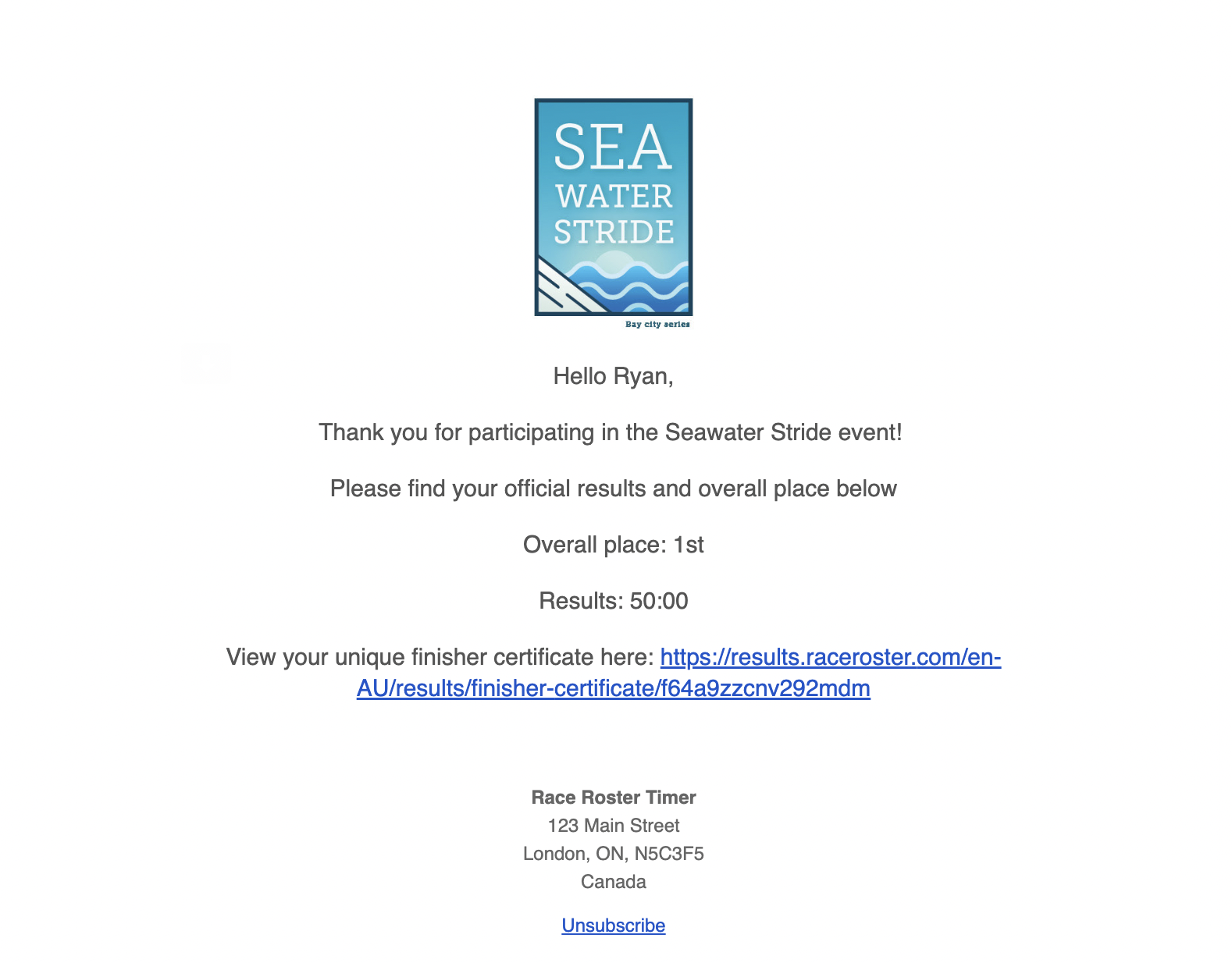
The Timer email campaign tool includes unique results merge tag that can populate participant result data directly into the email. This allows Event Organisers and Timers to efficiently distribute post-race communications after an event has concluded.
To set up a Timer Email Campaign, follow the steps below.
---
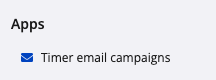
1\. Access **Timer email campaigns** from the event dashboard, navigate to **Apps → Timer Email Campaigns**. This option can be found in the left-hand side navigation menu.
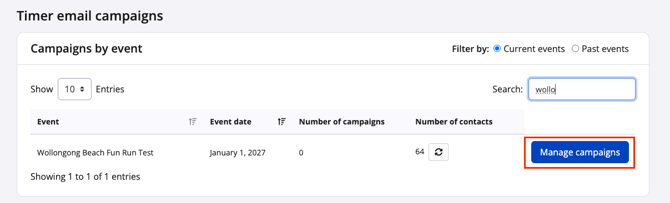
2\. The Timer email campaigns dashboard will display upcoming events where the user has staff access. Past events can also be viewed using the available filters Select the blue **Manage campaigns** button on the right-hand side of the relevant event.
3\. Before creating a campaign, a verified **sender** must first be configured, similar to the standard Race Roster Email Campaigns tool.
To create a sender:
1. Navigate to the **Senders** tab at the top of the page
2. Click **Create new sender**
3. Complete the sender verification process
Refer to the related support article on **[adding a sender for email campaigns](https://help.raceroster.com/en-us/knowledge-base/adding-a-sender-for-email-campaigns?hsLang=en-us)** for additional guidance.
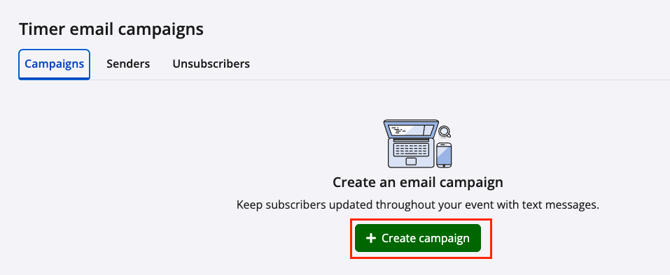
4. Once the sender has been verified return to the **Campaigns** tab and click the green **Create campaign** button. This will begin the Timer Email Campaign setup process.
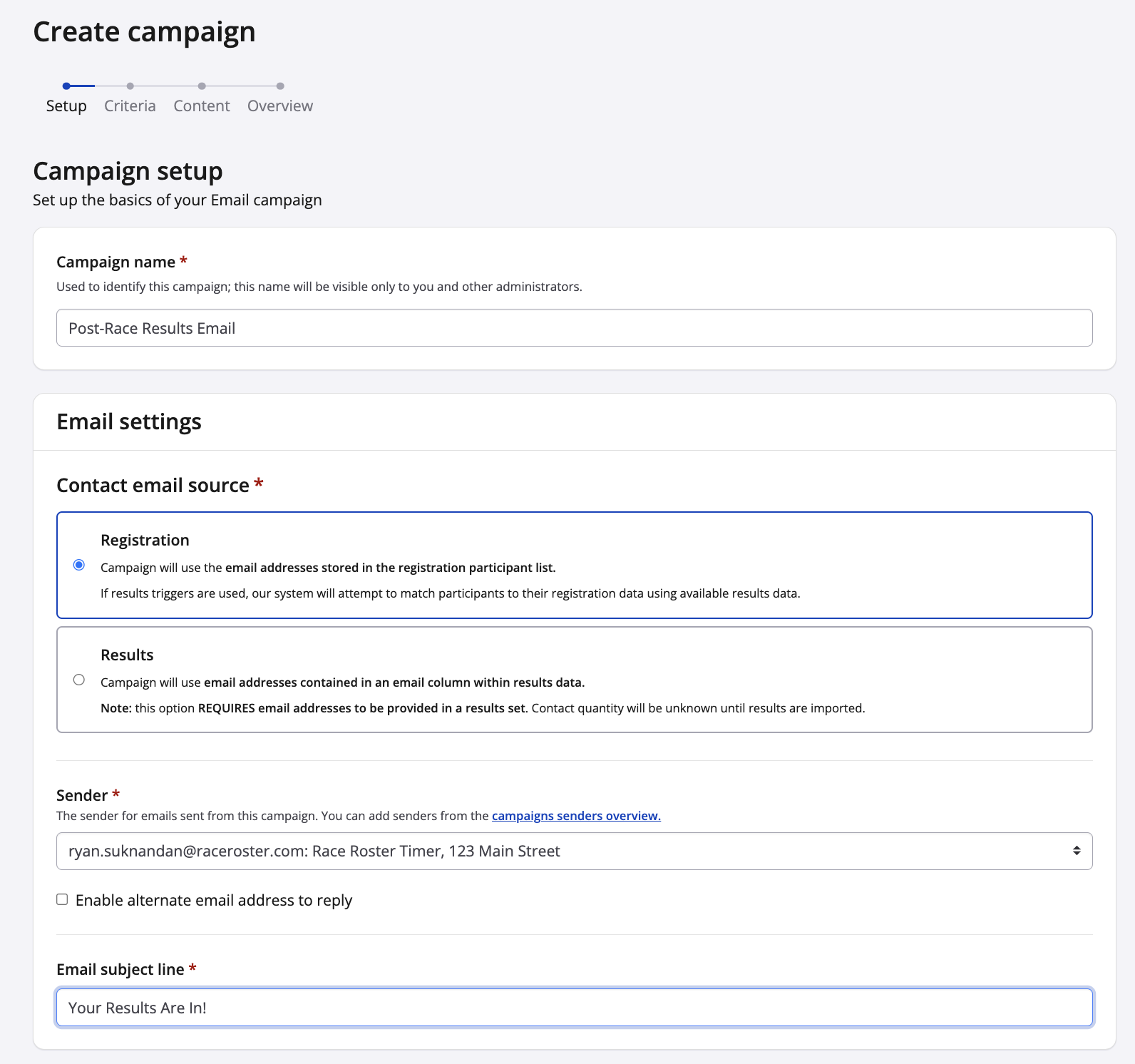
5. On the **Setup** step, configure the following campaign details:
- **Campaign name:** This name is only visible internally and will not be shown to participants.
- **Email settings:** Select one of the following options:
- **Registration:** Uses the participant email address associated with the participant registration record.
- **Results:** Requires the uploaded results file to contain a participant email address column. Emails will be sent using the email address provided in the results data.
- **Alternate reply-to email address (optional):** An alternate email address can be added for participant replies.
- **Email subject:** This is the subject line participants will see when receiving the email.
Once complete, click **Save & continue**.
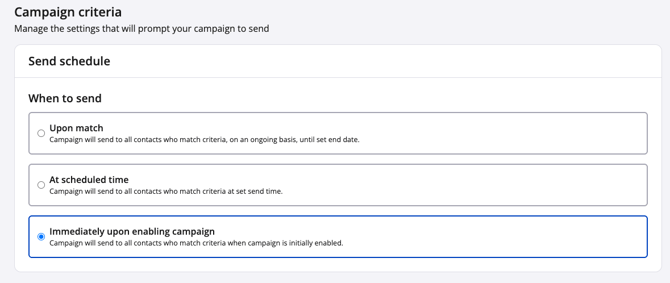
6\. The **Campaign criteria** step determines when the campaign will send and which participants will receive it. The following **send schedule** options are available:
- **Upon match:** The campaign sends automatically to all participants who meet the selected criteria on an ongoing basis until the configured end date. (Ensure all campaign start and end dates are configured appropriately.)
- **At scheduled time**: The campaign sends to all participants who meet the selected criteria at a specified date and time.
- **Immediately upon enabling campaign:** The campaign sends immediately to all participants who currently meet the selected criteria once the campaign is enabled.
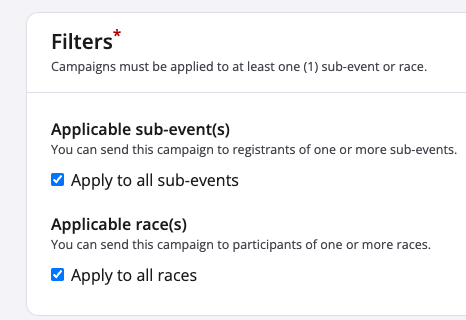
7\. Still on Criteria, **Filters** determine which participants will receive the campaign. Campaigns can be filtered by:
- **Sub-events**
- **Races** (results sets created within the Results dashboard)
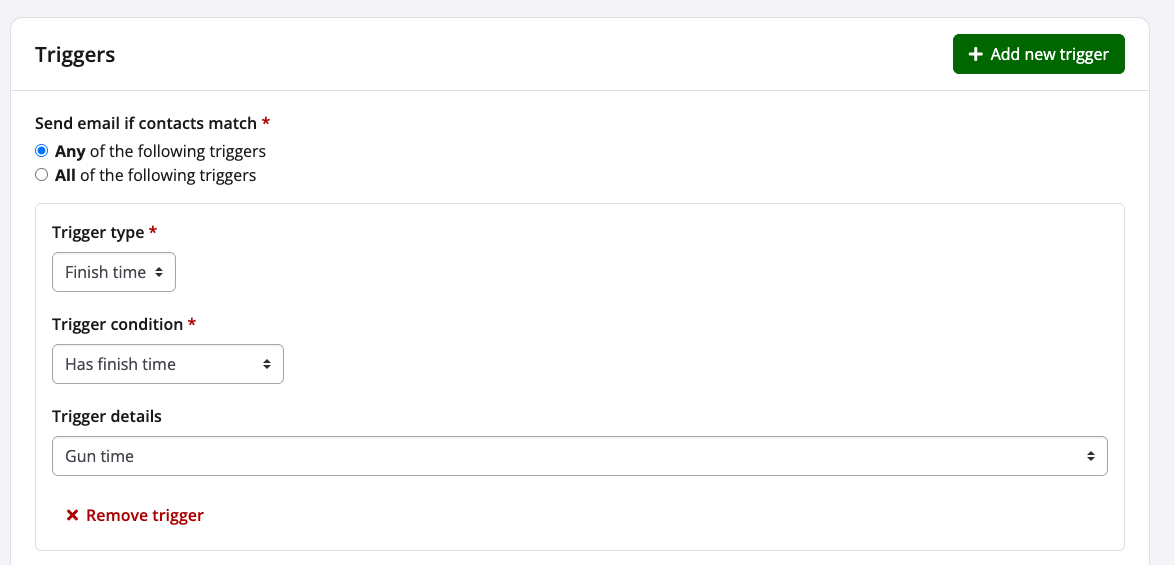
8\. Last in this area, **Triggers** determine which participant actions or results will initiate the campaign send. Available trigger options include:
- Finish time (Gun, Chip, Virtual)
- Challenge progress
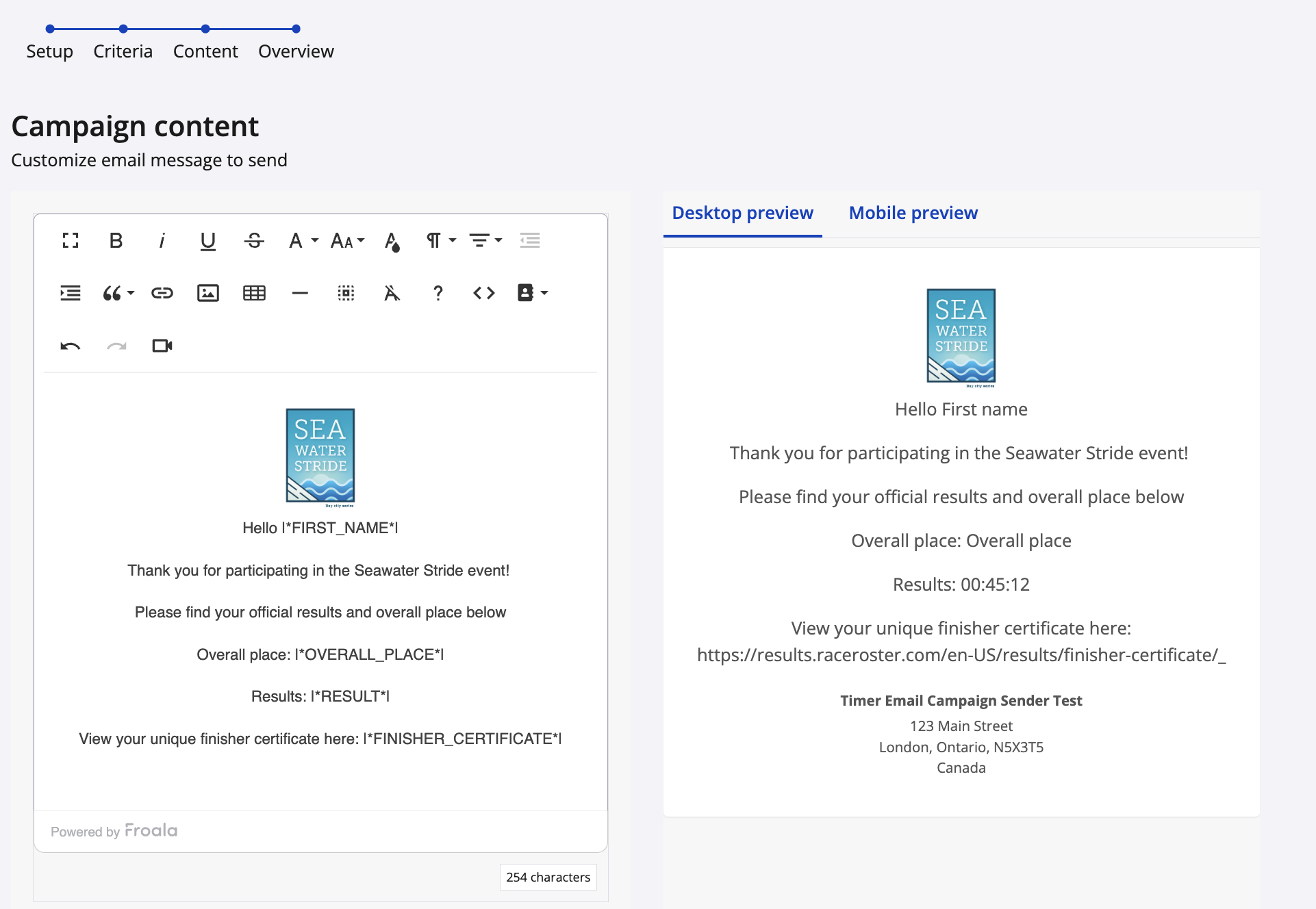
9. On the **Campaign content** step, draft and customize the email campaign.
**Merge tags** can be used throughout the email to personalize content for each participant. Available merge tags are listed [**HERE**](https://help.raceroster.com/en-us/knowledge-base/what-are-merge-tags-including-a-merge-tag-index?hsLang=en-us).
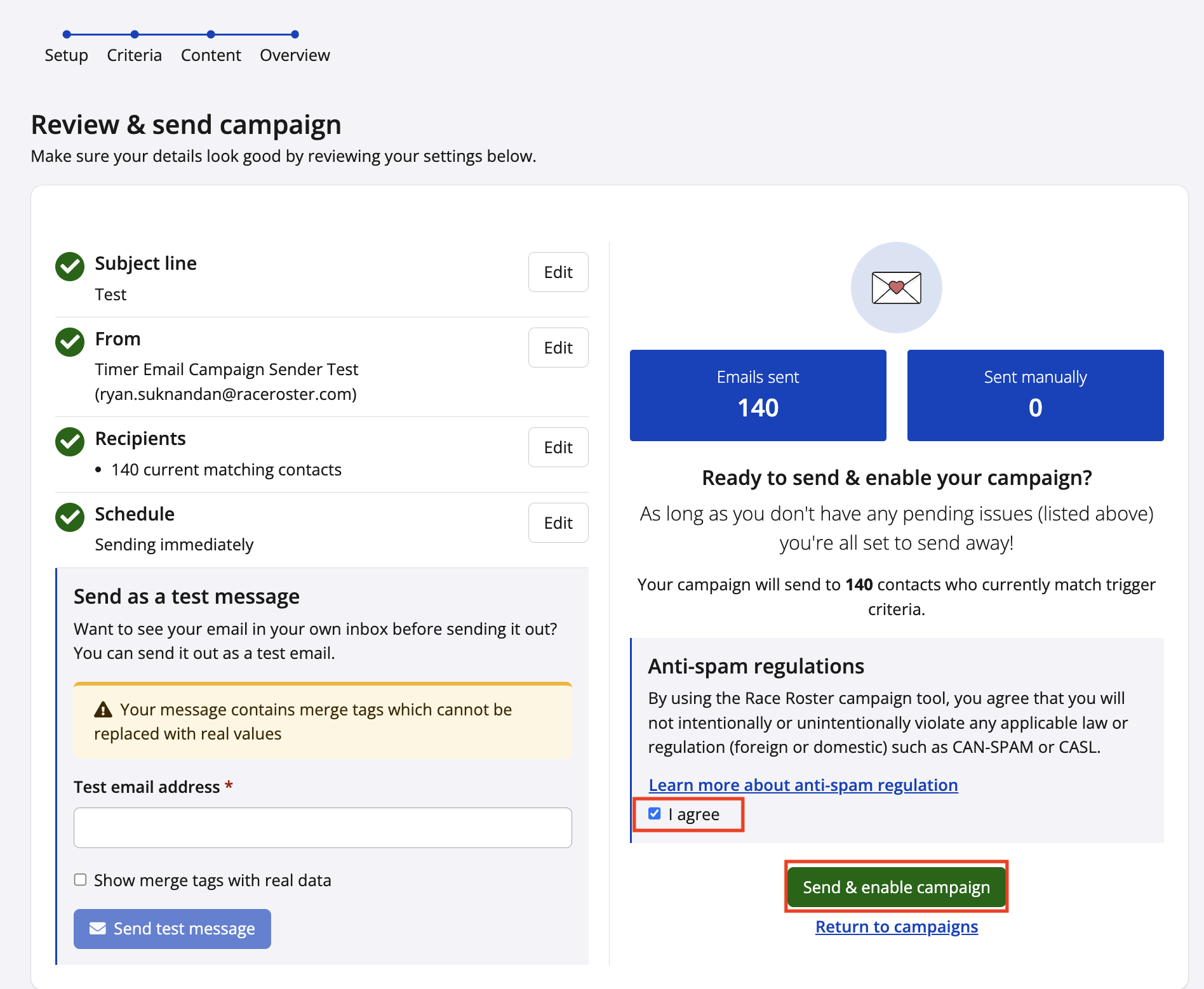
10\. The final step is the **Overview** page. Review all campaign details displayed on the left-hand side of the screen before sending.
Test emails can be sent to a personal email address to review formatting and content before enabling the campaign.
11. Once satisfied with the setup:
1. Review and **Agree to the anti-spam regulations**
2. Click **Send & Enable Campaign**
The campaign will then begin sending based on the filters and triggers configured during the Criteria step.
Participants will receive personalized **Timer email campaigns** automatically once the configured campaign conditions have been met.
- [Event Organizers and Race Directors](https://help.raceroster.com/en-us/knowledge-base/event-organizers-and-race-directors?hsLang=en-us#main-content)
- [Participant Management](https://help.raceroster.com/en-us/knowledge-base/event-organizers-and-race-directors?hsLang=en-us#participant-management)
- [Financials](https://help.raceroster.com/en-us/knowledge-base/event-organizers-and-race-directors?hsLang=en-us#financials)
- [Marketing & Promotions](https://help.raceroster.com/en-us/knowledge-base/event-organizers-and-race-directors?hsLang=en-us#marketing-promotions)
- [Email Campaigns, MailChimp Integration](https://help.raceroster.com/en-us/knowledge-base/event-organizers-and-race-directors?hsLang=en-us#email-campaigns-mailchimp-integration)
- [Products](https://help.raceroster.com/en-us/knowledge-base/event-organizers-and-race-directors?hsLang=en-us#products)
- [Team Management and Settings](https://help.raceroster.com/en-us/knowledge-base/event-organizers-and-race-directors?hsLang=en-us#team-management-and-settings)
- [Onsite App](https://help.raceroster.com/en-us/knowledge-base/event-organizers-and-race-directors?hsLang=en-us#onsite-app)
- [Registration Questions](https://help.raceroster.com/en-us/knowledge-base/event-organizers-and-race-directors?hsLang=en-us#registration-questions)
- [Fundraising Settings and Receipts](https://help.raceroster.com/en-us/knowledge-base/event-organizers-and-race-directors?hsLang=en-us#fundraising-settings-and-receipts)
- [Promo Codes, Discounts, and Gifting Codes](https://help.raceroster.com/en-us/knowledge-base/event-organizers-and-race-directors?hsLang=en-us#promo-codes-discounts-and-gifting-codes)
- [Virtual](https://help.raceroster.com/en-us/knowledge-base/event-organizers-and-race-directors?hsLang=en-us#virtual)
- [Results](https://help.raceroster.com/en-us/knowledge-base/event-organizers-and-race-directors?hsLang=en-us#results)
- [Access codes](https://help.raceroster.com/en-us/knowledge-base/event-organizers-and-race-directors?hsLang=en-us#access-codes)
- [Director Access and Settings](https://help.raceroster.com/en-us/knowledge-base/event-organizers-and-race-directors?hsLang=en-us#director-access-and-settings)
- [Pricing](https://help.raceroster.com/en-us/knowledge-base/event-organizers-and-race-directors?hsLang=en-us#pricing)
- [Event Page Settings](https://help.raceroster.com/en-us/knowledge-base/event-organizers-and-race-directors?hsLang=en-us#event-page-settings)
- [Your Dashboard](https://help.raceroster.com/en-us/knowledge-base/event-organizers-and-race-directors?hsLang=en-us#your-dashboard)
- [Sub-events](https://help.raceroster.com/en-us/knowledge-base/event-organizers-and-race-directors?hsLang=en-us#sub-events)
- [Other FAQs](https://help.raceroster.com/en-us/knowledge-base/event-organizers-and-race-directors?hsLang=en-us#other-faqs)
- [Volunteers](https://help.raceroster.com/en-us/knowledge-base/event-organizers-and-race-directors?hsLang=en-us#volunteers)
- [Create, Edit or Take Your Event Live](https://help.raceroster.com/en-us/knowledge-base/event-organizers-and-race-directors?hsLang=en-us#create-edit-or-take-your-event-live)
- [Waivers](https://help.raceroster.com/en-us/knowledge-base/event-organizers-and-race-directors?hsLang=en-us#waivers)
- [Reports](https://help.raceroster.com/en-us/knowledge-base/event-organizers-and-race-directors?hsLang=en-us#reports)
- [Participants and Fundraisers](https://help.raceroster.com/en-us/knowledge-base/participants-and-fundraisers?hsLang=en-us#main-content)
- [Participant FAQs](https://help.raceroster.com/en-us/knowledge-base/participants-and-fundraisers?hsLang=en-us#participant-faqs)
- [Fundraising](https://help.raceroster.com/en-us/knowledge-base/participants-and-fundraisers?hsLang=en-us#fundraising)
- [Gift Registrations](https://help.raceroster.com/en-us/knowledge-base/participants-and-fundraisers?hsLang=en-us#gift-registrations)
- [Sign In and Manage Registration](https://help.raceroster.com/en-us/knowledge-base/participants-and-fundraisers?hsLang=en-us#sign-in-and-manage-registration)
- [Transfer Registration](https://help.raceroster.com/en-us/knowledge-base/participants-and-fundraisers?hsLang=en-us#transfer-registration)
- [Access Codes](https://help.raceroster.com/en-us/knowledge-base/participants-and-fundraisers?hsLang=en-us#access-codes)
- [Teams](https://help.raceroster.com/en-us/knowledge-base/participants-and-fundraisers?hsLang=en-us#teams)
- [Security & Compliance](https://help.raceroster.com/en-us/knowledge-base/participants-and-fundraisers?hsLang=en-us#security-compliance)
- [Promo Codes](https://help.raceroster.com/en-us/knowledge-base/participants-and-fundraisers?hsLang=en-us#promo-codes)
- [Race Roster CRM](https://help.raceroster.com/en-us/knowledge-base/race-roster-crm?hsLang=en-us#main-content)
- [Organizations](https://help.raceroster.com/en-us/knowledge-base/race-roster-crm?hsLang=en-us#organizations)
- [Contact Management and Validation Lists](https://help.raceroster.com/en-us/knowledge-base/race-roster-crm?hsLang=en-us#contact-management-and-validation-lists)
- [Reporting](https://help.raceroster.com/en-us/knowledge-base/race-roster-crm?hsLang=en-us#reporting)
- [Events and Event Groups](https://help.raceroster.com/en-us/knowledge-base/race-roster-crm?hsLang=en-us#events-and-event-groups)
- [Campaigns and Marketing](https://help.raceroster.com/en-us/knowledge-base/race-roster-crm?hsLang=en-us#campaigns-and-marketing)
- [Non-profit Organizations](https://help.raceroster.com/en-us/knowledge-base/race-roster-crm?hsLang=en-us#non-profit-organizations)
- [Fundraising Coordinators](https://help.raceroster.com/en-us/knowledge-base/fundraising-coordinators?hsLang=en-us#main-content)
- [Resources](https://help.raceroster.com/en-us/knowledge-base/fundraising-coordinators?hsLang=en-us#resources)
- [Participant and Team Fundraising](https://help.raceroster.com/en-us/knowledge-base/fundraising-coordinators?hsLang=en-us#participant-and-team-fundraising)
- [Reporting](https://help.raceroster.com/en-us/knowledge-base/fundraising-coordinators?hsLang=en-us#reporting)
- [Timers](https://help.raceroster.com/en-us/knowledge-base/timers?hsLang=en-us#main-content)
- [Account settings](https://help.raceroster.com/en-us/knowledge-base/timers?hsLang=en-us#account-settings)
- [Results](https://help.raceroster.com/en-us/knowledge-base/timers?hsLang=en-us#results)
- [Timing Tools](https://help.raceroster.com/en-us/knowledge-base/timers?hsLang=en-us#timing-tools)
- [Bib Assignment](https://help.raceroster.com/en-us/knowledge-base/timers?hsLang=en-us#bib-assignment)
- [Participant Data and Reports](https://help.raceroster.com/en-us/knowledge-base/timers?hsLang=en-us#participant-data-and-reports)
- [The ASICS Runkeeper™ app](https://help.raceroster.com/en-us/knowledge-base/the-asics-runkeeper-app?hsLang=en-us#main-content)
- [The ASICS Runkeeper™ app](https://help.raceroster.com/en-us/knowledge-base/the-asics-runkeeper-app?hsLang=en-us#the-asics-runkeeper-app)
[](https://raceroster.com)
Copyright © 2026, Race Roster