
Race Roster focuses on building technology that helps Event Organisers run better events and improve the participant experience. For payment processing, Race Roster partners with Stripe, a leading global payments provider, to ensure secure and reliable transactions.
As part of this partnership, Race Roster’s Onsite Registration is fully integrated with Stripe Terminals. These devices support modern, contactless payment methods including tap, Apple Pay, and Google Pay, aligning with current participant expectations.
Onsite Registration now supports Stripe Terminals as the primary in-person payment method and no longer supports traditional swipe devices. Participants can still manually enter their card details if required.
1. Contact director@raceroster.com to get this application configured.
2. Login into Race Roster as an Event Organizer and select which event you would like to set up onsite registration for
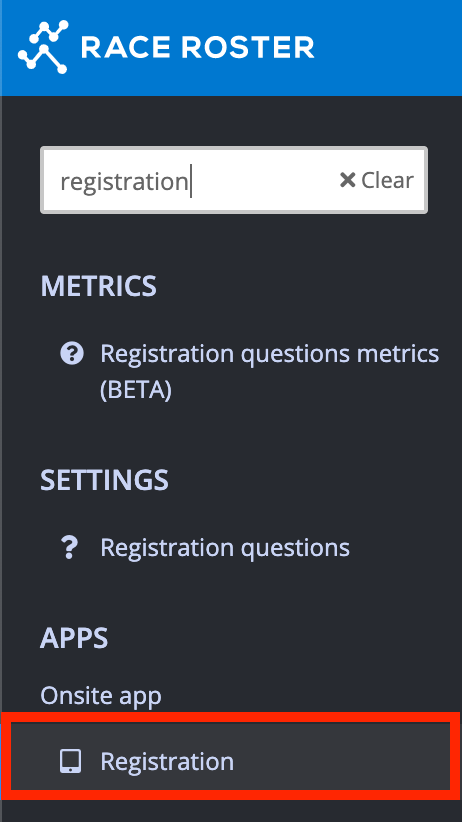
3. Once you are on the event's dashboard go to the search bar in the top left-hand corner. Search and select Registration and select the Registration option under APPS.
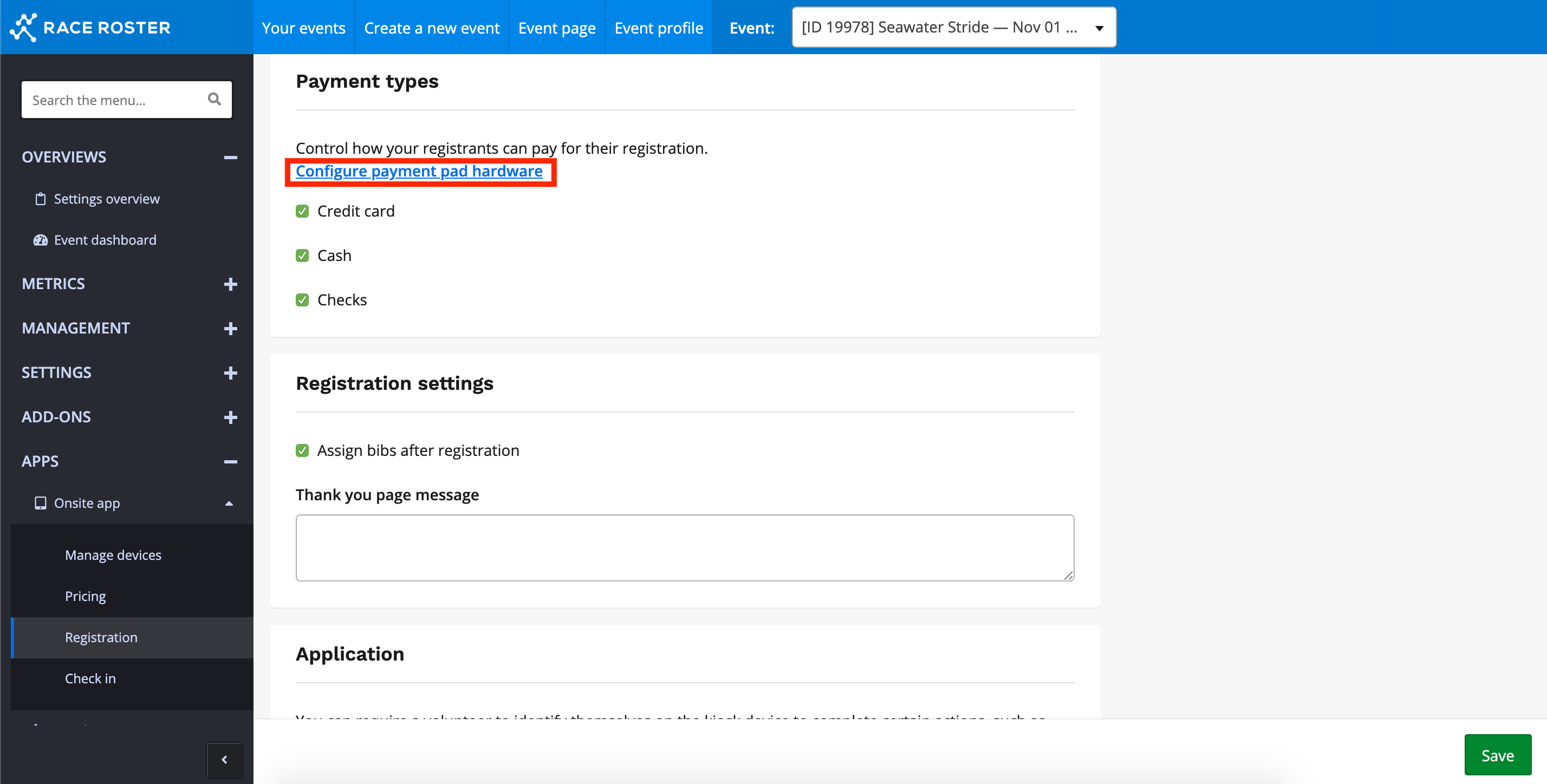
4. You will then be directed to the Onsite Registration page where you can make adjustments to your Onsite Registration settings.
5. Under the Payment types section select Configure payment pad hardware.
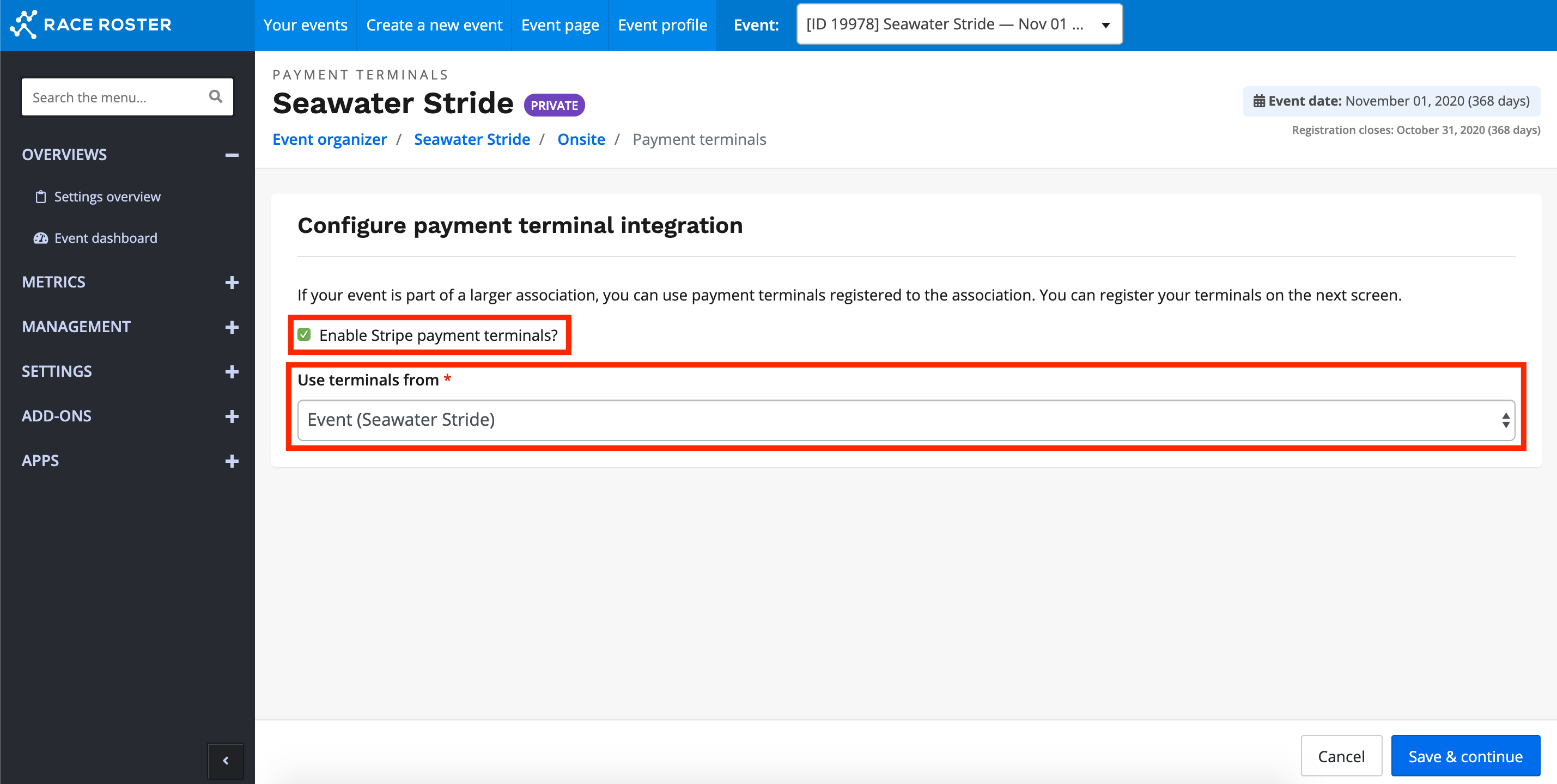
6. You will then be directed to the Payment Terminals page. There you will check off enable Stripe payment terminals and select the event under Use terminals from.
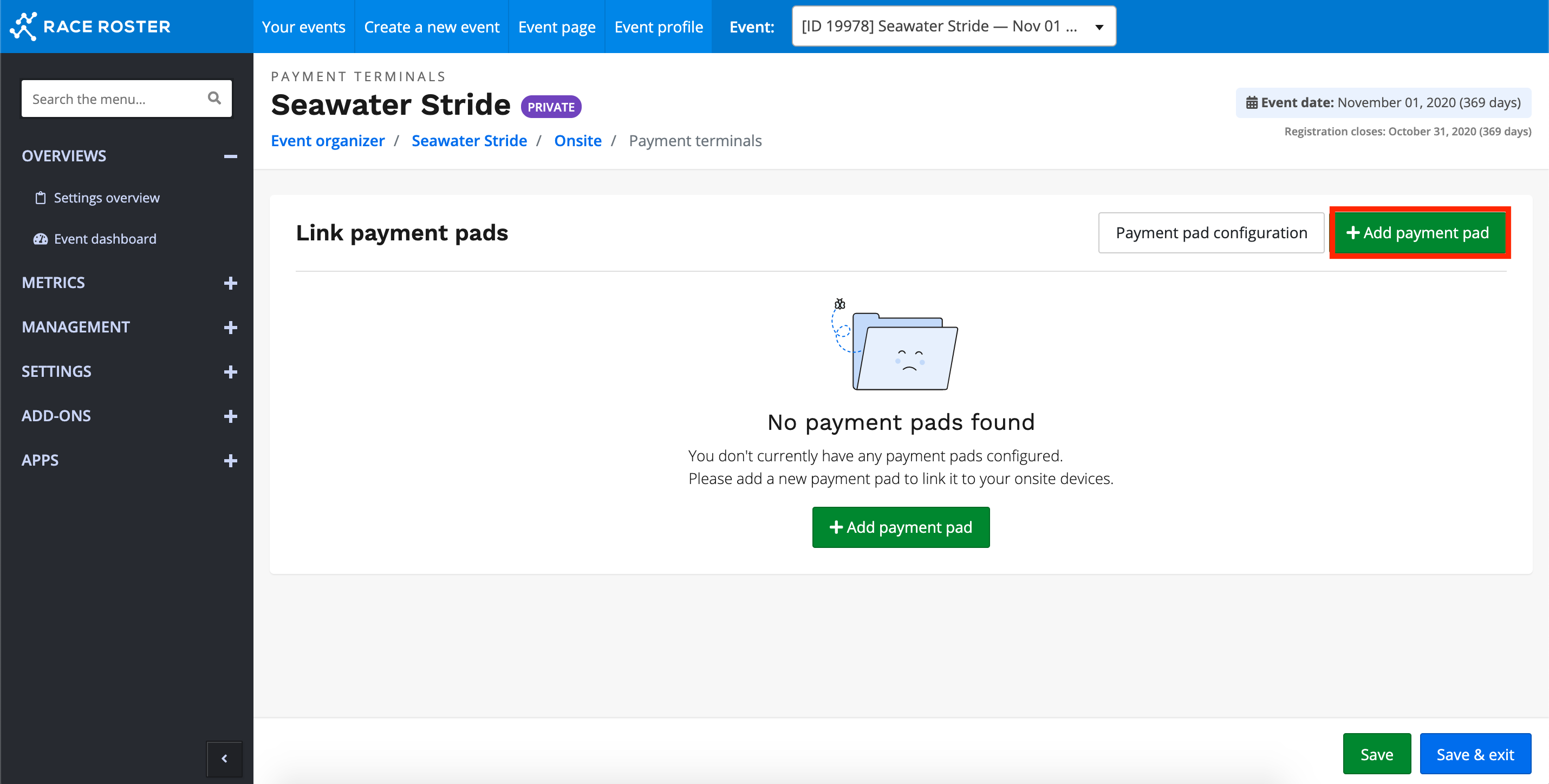
7. Click + Add Payment Pad to start the Payment Pad creation process.
8. Before you can proceed your pay pad must be connected to the internet via wifi. If you are already connected to the wifi continue to the next step. To update or change the wifi connection on the pay pad, press 09434 and continue with the instructions on the pay pad to complete the wifi set-up.
9. To link a payment pad, you will need a unique registration code by pressing 07139 on the pay pad. Enter this unique code in the first text field of Link a new payment pad.
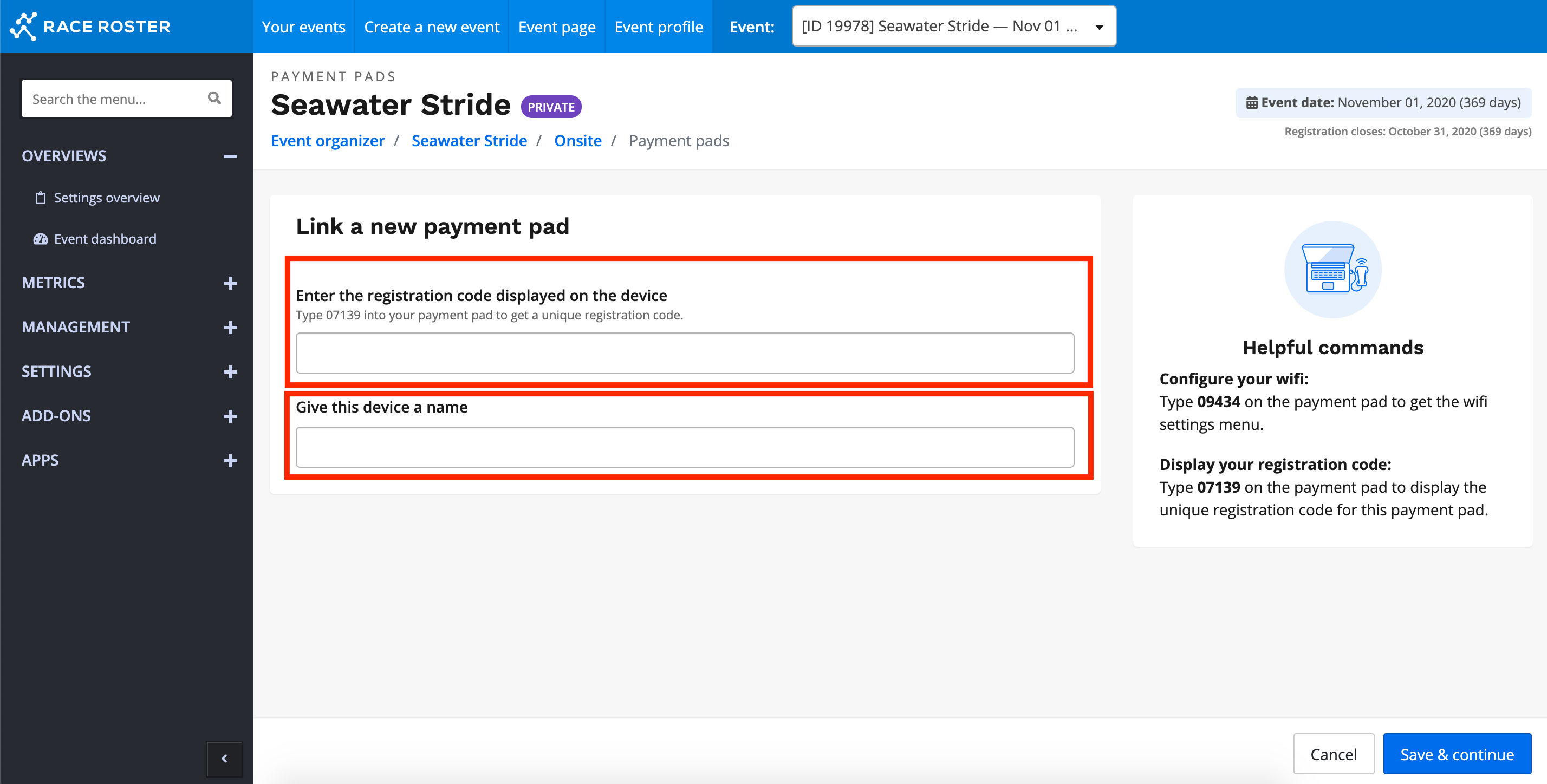
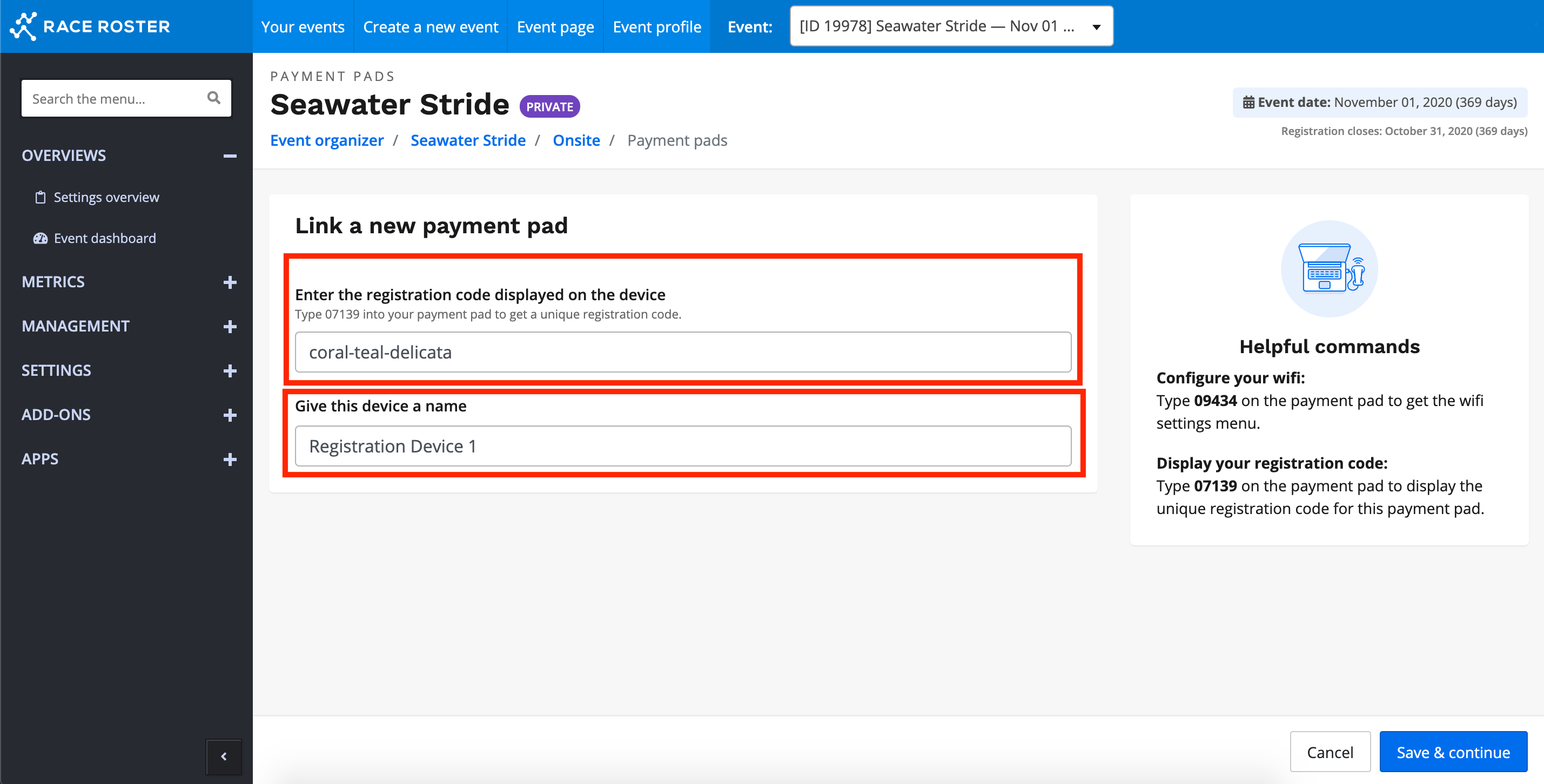
10. After you have entered a unique code you will then be required to name the payment pad. This name will appear beside the pay pad's serial number on the next page (the serial number can also be found on the back of the hardware).
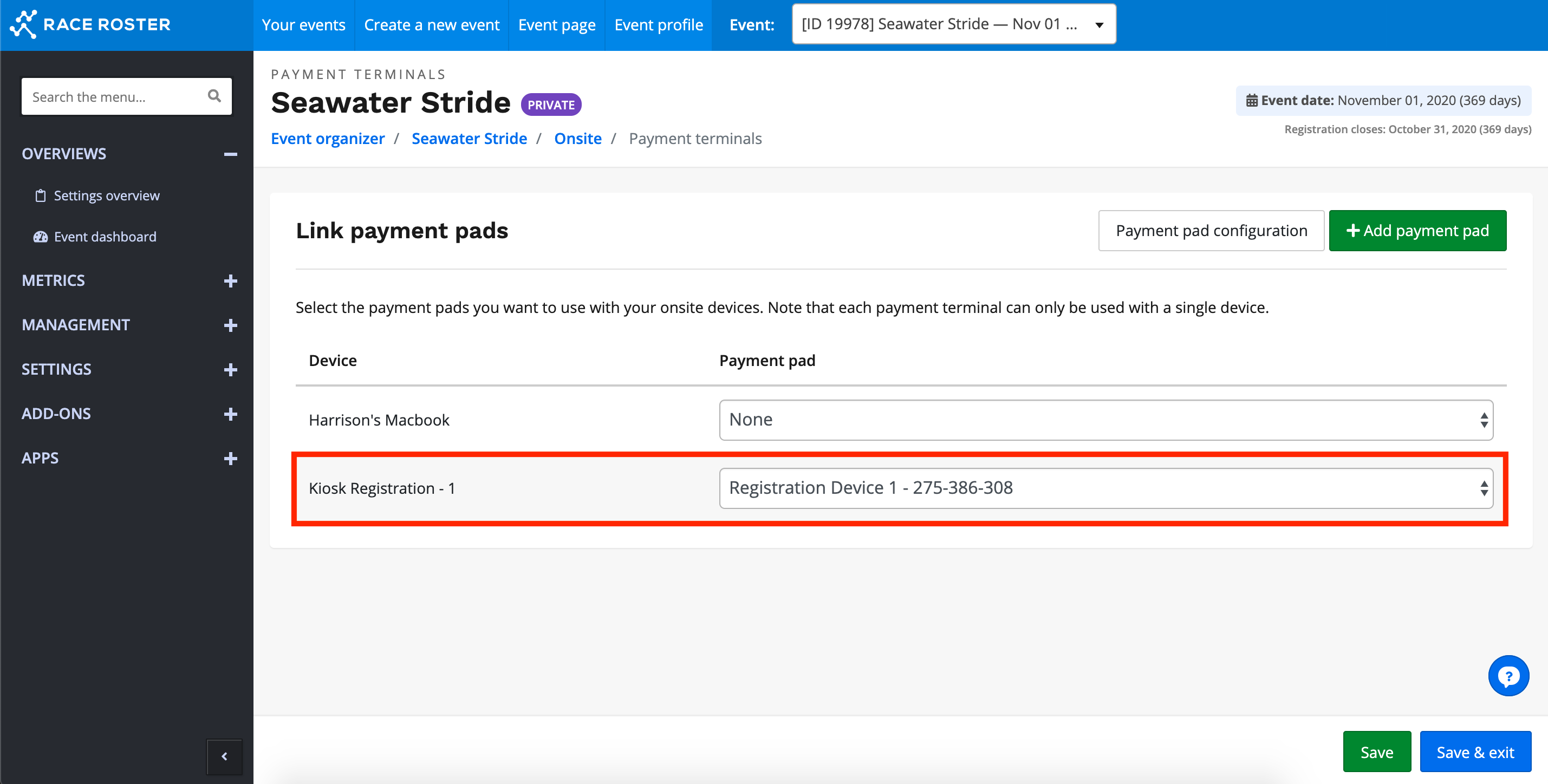
11. Once you have named your payment pad you will then need to associate it to a device. Note that each payment terminal can only be used with a single device. If device is not connected to a payment pad, there will be no option to swipe, tap, or use your card.
For events in Australia, New Zealand and South East Asia, it is recommended to use an EFTPOS handheld (or similar external payment device) for onsite transactions. Payments can then be processed outside of Race Roster and recorded as cash (offline) within the onsite registration tool. This approach provides greater flexibility with local payment preferences while still allowing organisers to capture participant details and complete registrations efficiently.