
Video results allow event organisers or timers to display a finish line (or split point) video alongside participant results. When configured correctly, each participant can view their moment crossing the timing mat.
Before getting started ensure the following are ready:
-
- Results are published
- A video URL (for example, YouTube)
- Gun time of the first finisher
- Timestamp in the video when the first finisher appears
Setting up results videos
1. From the Timer Dashboard confirm results are published for the relevant Race
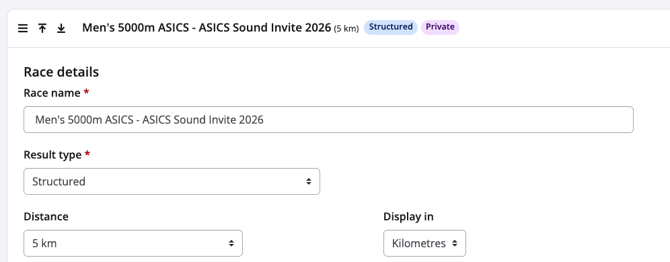
2. Select Videos from the top menu
3. Click Add video

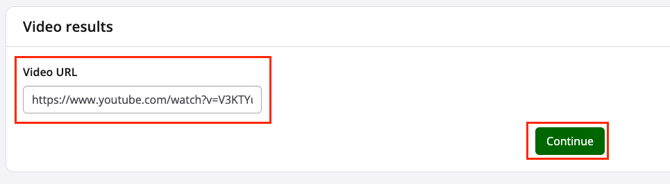
4. Paste the Video URL and select Continue
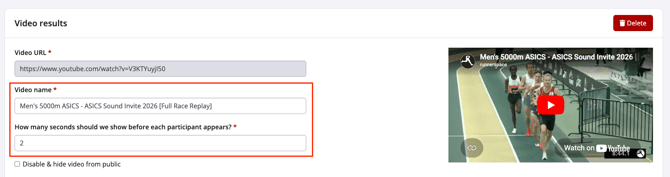
5. Enter a Video Name and set how many seconds to display before the participant crosses the line
6. Click Add race and assign the video to the relevant Race
7. Enter:
- Gun time of the first finisher
- Video timestamp when that finisher appears
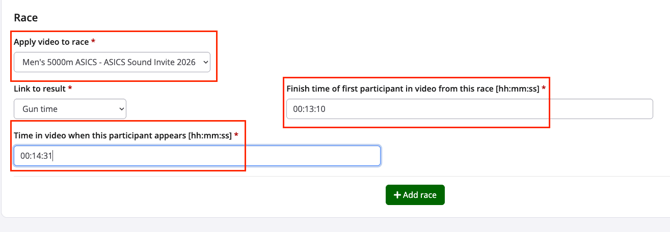
8. Repeat Add race if multiple races or videos are required or click Save & exit
View video results
1. Ensure Results are viewable by the public then open the public facing leaderboard
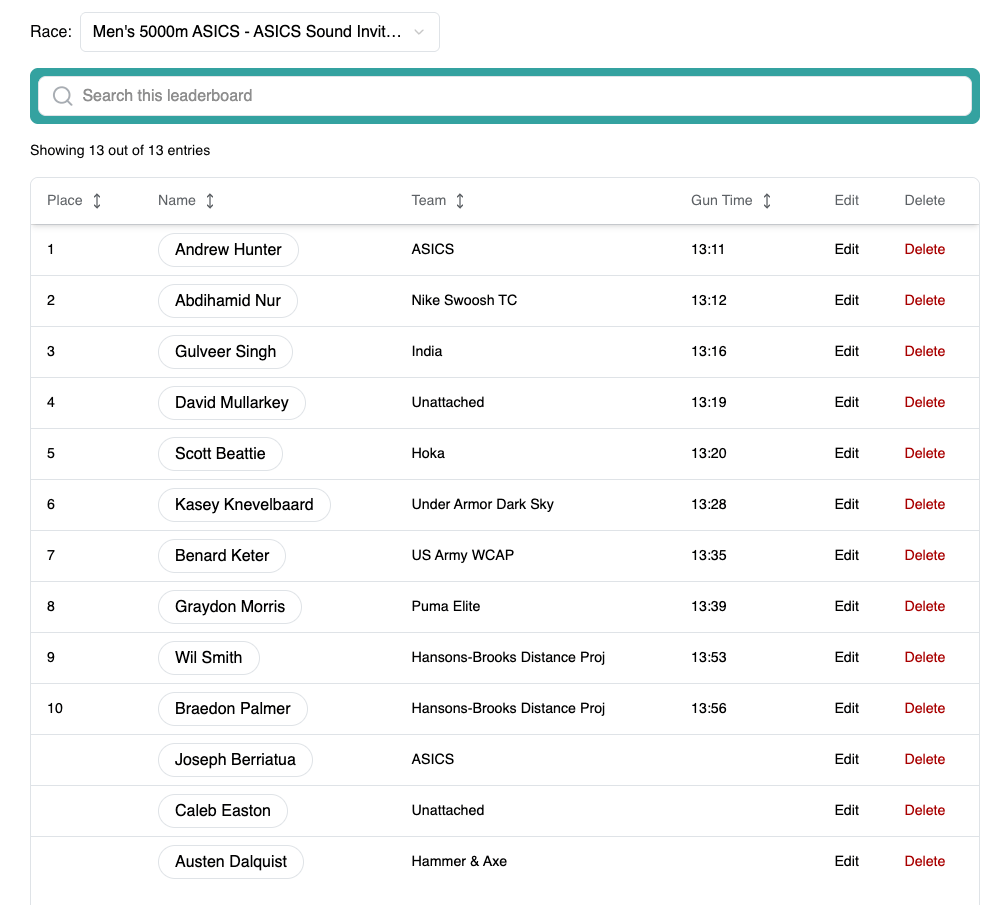
2. Select any participant

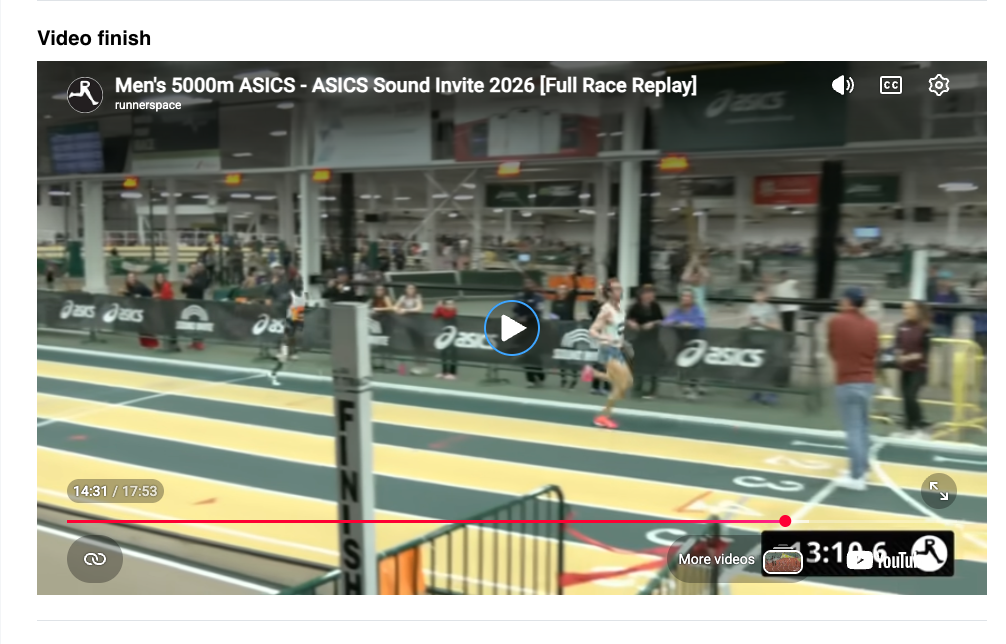
3. Scroll to the bottom to see the Finisher video
4. Press play to see the participant cross the finish line
Tips
- Use a continuous video recording. Avoid stitched clips as they can cause syncing issues
- Cameras that split footage into multiple files are not recommended
- Use the 'finish time local' column type to improve alignment between results and video footage