---
title: How to Set Up Google Analytics 4 on Race Roster
description: Set up Google Analytics 4 on Race Roster to track event performance, registrations, donations, and marketing conversions.
---
[Skip to content](https://help.raceroster.com/en-us/knowledge-base/how-to-set-up-google-analytics-4-on-race-roster#main-content)
[Submit a knowledge article idea](https://help.raceroster.com/en-us/knowledge-base/kb-tickets/new?hsLang=en-us)

Open main navigation
Close main navigation
- [Submit a knowledge article idea](https://help.raceroster.com/en-us/knowledge-base/kb-tickets/new)
How can we help you?
- There are no suggestions because the search field is empty.
1. [Race Roster Knowledge Base](https://help.raceroster.com/en-us/knowledge-base?hsLang=en-us)
2. [Event Organizers and Race Directors](https://help.raceroster.com/en-us/knowledge-base/event-organizers-and-race-directors?hsLang=en-us)
3. [Marketing & Promotions](https://help.raceroster.com/en-us/knowledge-base/event-organizers-and-race-directors?hsLang=en-us#marketing-promotions)
March 25, 2026
# How to Set Up Google Analytics 4 on Race Roster
Google Analytics has recently updated to Google Analytics 4, a new product that can be used to track key metrics and conversions across pages. Race Roster has added new functionality to allow the new Google Analytics 4 platform to be compatible with a Race Roster event page. This includes keeping track of metrics such as page views, transaction details, net registration amounts, etc.
To learn how to configure Google Analytics 4 on your event page, please follow the steps below.
1\. Retrieve your Google Analytics **measurement ID numbe**r within your GA4 dashboard. To learn how to find your unique measurement ID number, please follow Google's guide on **[Measurement ID Numbers.](https://www.optizent.com/blog/google-analytics-measurement-id-tracking-id/)**
2\. Once you have retrieved your measurement ID number, head to your event's social media & analytics settings page to complete the configuration. From your event dashboard, click on **Add-Ons -\> Social Media & Analytics** from your lefthand side menu (or add social media & analytics to your event dashboard from **settings overview** under the "**Add-Ons**" section).
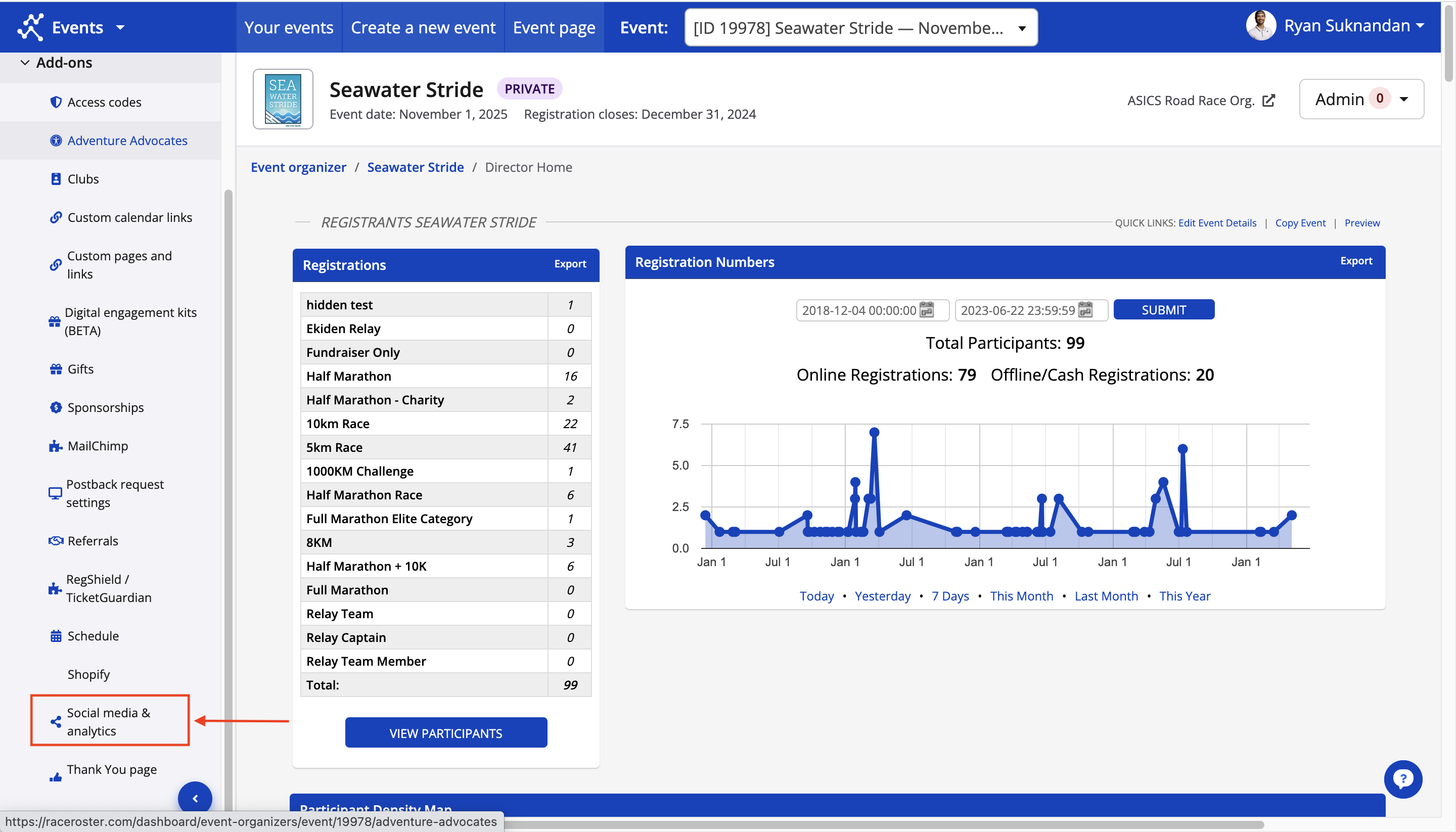
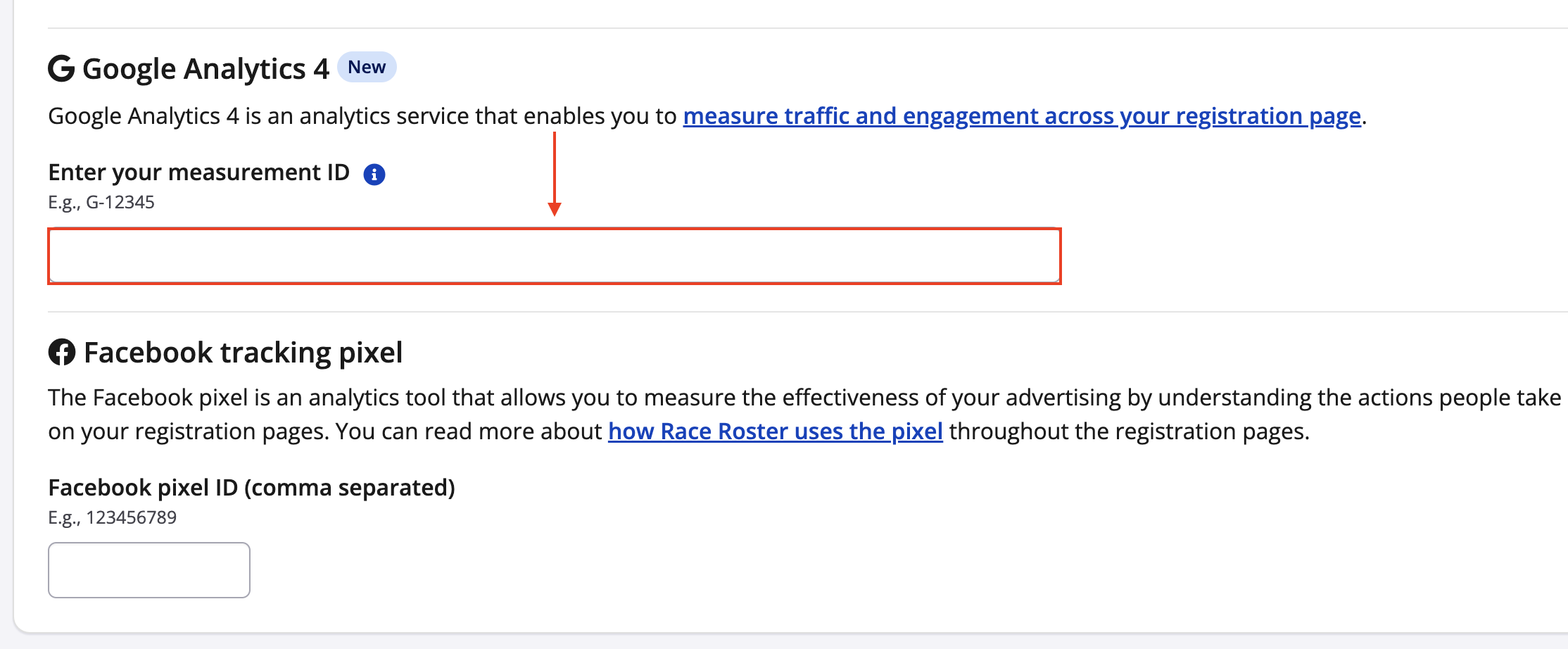
3\. From your **social media & analytics** settings, scroll down to the section for Google Analytics 4. Copy and paste your Google Analytics 4 measurement ID number into the field provided. Click **save** once complete.
4\. Your Google Analytics account will now be integrated with your Race Roster event page. To better understand the transaction data that will be captured by Google Analytics, please reference the image and glossary of terms below.
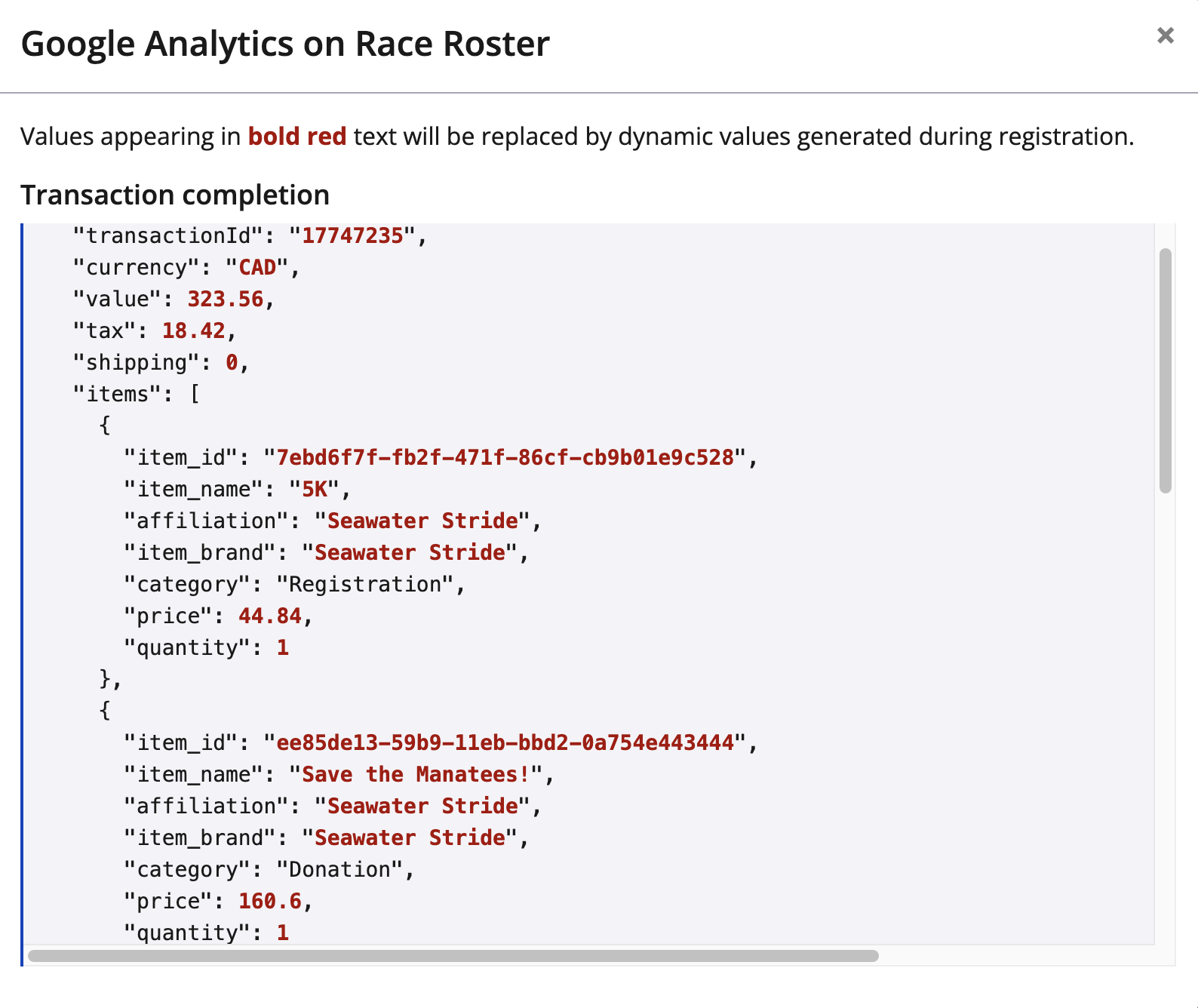
- item\_id: unique ID number for the completed transaction
- item\_name: The name of the item being paid for (Ex: sub-event name, charity name, name of the purchased product)
- affiliation: Event name
- item\_brand: Event name
- category: the type of transaction being completed (there are 5 different transaction categories within Race Roster: Registration, donation, product, gift, membership)
- price: the amount paid for the transaction
- quantity: the quantity of the item purchased
#### **Things to Note**
- If you have a separate race website that links to your registration page hosted on [raceroster.com](http://raceroster.com/) then cross-domain tracking must now be configured within Google Analytics, there is no configuration done within Race Roster. Please follow Google's guide on [how to enable cross-domain tracking](https://support.google.com/analytics/answer/10071811?hl=en).
- In the settings area for cross-domain tracking, specify both your event’s website’s domain, and also “[raceroster.com](http://raceroster.com/)”
- Adding both domains to referral exclusions will further improve data collection. See the “Configure unwanted referrals” section in [Google’s official documentation](https://support.google.com/analytics/answer/10327750?hl=en). List both your event’s website’s domain and “[raceroster.com](http://raceroster.com/)” here as well.
- The 5 different transaction categories within Race Roster:
- Registration
- Donation
- Product
- Gift
- Membership
- Race Roster will still maintain functionality for the old Google Analytics platform as some users continue to pay for this version.
### **Additional Registration Flow Events**
In addition to tracking completed transactions (ga4-purchase), Race Roster automatically captures a series of GA4 events as participants navigate through the registration flow. These events are pushed to the dataLayer, allowing you to build detailed checkout funnels and monitor where users might be dropping off before completing their order.
Here are the key events captured during the registration process:
- **pageview**: Triggers automatically as users load and navigate through the various pages of your event and the registration flow.
- **view\_item**: Triggers when a user selects a specific sub-event (e.g., selecting the 5K or 10K distance) on the event details page or via a radio button on the first step of registration.
- **add\_to\_cart**: Triggers each time participant information is successfully filled out and the user clicks "Continue" on the first step of registration, effectively adding that registration to their cart.
- **remove\_from\_cart**: Triggers when a user deselects or changes their sub-event, or removes products and merchandise from their selection prior to checkout.
- **waiver\_accepted**: Triggers when a participant successfully signs and accepts the event waiver.
- **donation\_made**: Triggers after the participant completes the donation step of registration, assuming a specific donation amount was selected.
- The donation\_made event includes parameters for item\_name as text and donation\_total as a number. Defining donation\_total as a custom metric within GA4 will let you build a custom donations report.
- **begin\_checkout**: Triggers when the user lands on the final checkout and payment page.
- **purchase**: Triggers when a registration is successfully completed. This event includes an "items" array containing granular details about the transaction, such as the specific registrations, donations, and products purchased. *(See above for more details on purchase tracking).*
### **Why your Google Analytics numbers don’t match Race Roster**
If you are having trouble with your Google Analytics (GA4) reports, please contact Google Support or your website developer for assistance. Race Roster cannot access or troubleshoot your Google Analytics account. The information below explains, in simple terms, why your Google Analytics numbers may look different from your Race Roster reports. Race Roster is the most accurate place to see how many people registered and how much money was collected. Google Analytics shows an estimate of website activity. Differences between the two systems are normal and expected.
- Many visitors choose not to be tracked. If someone clicks ‘No’ on cookie or privacy prompts, their registration will still appear in Race Roster but not in Google Analytics. This is the most common reason for differences.
- Some people use privacy tools, ad blockers, or secure browsers that hide their activity. These registrations count in Race Roster but may be invisible to Google Analytics.
- People often visit your event page more than once before registering. Google Analytics may treat these visits as separate people or lose track between visits.
- If your event website and registration page are on different sites, tracking can ‘break’ when people move between them, causing registrations to be incorrectly attributed.
- Marketing links must be set up correctly to show where people came from. If links are missing information or are inconsistent, Google Analytics may miscategorize visitors in channel based reporting.
- Sometimes links pass through other systems (such as social media apps, payment pages, or email scanners), which can change or erase the original source.
- Some browsers and private browsing modes limit tracking by default, reducing what Google Analytics can see.
- Google Analytics may filter out certain traffic such as internal testing, bots, or suspicious activity, while Race Roster counts all valid registrations.
- Google Analytics data is not always instant. Reports can take up to 24–48 hours to update.
- If your Google Analytics account uses a different time zone from your event, registrations may appear on different dates.
- Revenue totals may differ because Google Analytics may include or exclude taxes, fees, discounts, refunds, or optional extras differently from Race Roster.
- A participant may first discover your event through one channel (for example, social media) but register later through another (for example, a direct link). Google Analytics may credit the registration to a different source than expected.
- When there are small numbers of visitors, Google Analytics may hide or estimate some data to protect user privacy. Similarly, for extremely high traffic websites some reports will use data sampling instead of showing accurate totals.
- [Event Organizers and Race Directors](https://help.raceroster.com/en-us/knowledge-base/event-organizers-and-race-directors?hsLang=en-us#main-content)
- [Participant Management](https://help.raceroster.com/en-us/knowledge-base/event-organizers-and-race-directors?hsLang=en-us#participant-management)
- [Financials](https://help.raceroster.com/en-us/knowledge-base/event-organizers-and-race-directors?hsLang=en-us#financials)
- [Marketing & Promotions](https://help.raceroster.com/en-us/knowledge-base/event-organizers-and-race-directors?hsLang=en-us#marketing-promotions)
- [Email Campaigns, MailChimp Integration](https://help.raceroster.com/en-us/knowledge-base/event-organizers-and-race-directors?hsLang=en-us#email-campaigns-mailchimp-integration)
- [Products](https://help.raceroster.com/en-us/knowledge-base/event-organizers-and-race-directors?hsLang=en-us#products)
- [Team Management and Settings](https://help.raceroster.com/en-us/knowledge-base/event-organizers-and-race-directors?hsLang=en-us#team-management-and-settings)
- [Onsite App](https://help.raceroster.com/en-us/knowledge-base/event-organizers-and-race-directors?hsLang=en-us#onsite-app)
- [Registration Questions](https://help.raceroster.com/en-us/knowledge-base/event-organizers-and-race-directors?hsLang=en-us#registration-questions)
- [Fundraising Settings and Receipts](https://help.raceroster.com/en-us/knowledge-base/event-organizers-and-race-directors?hsLang=en-us#fundraising-settings-and-receipts)
- [Promo Codes, Discounts, and Gifting Codes](https://help.raceroster.com/en-us/knowledge-base/event-organizers-and-race-directors?hsLang=en-us#promo-codes-discounts-and-gifting-codes)
- [Virtual](https://help.raceroster.com/en-us/knowledge-base/event-organizers-and-race-directors?hsLang=en-us#virtual)
- [Results](https://help.raceroster.com/en-us/knowledge-base/event-organizers-and-race-directors?hsLang=en-us#results)
- [Access codes](https://help.raceroster.com/en-us/knowledge-base/event-organizers-and-race-directors?hsLang=en-us#access-codes)
- [Director Access and Settings](https://help.raceroster.com/en-us/knowledge-base/event-organizers-and-race-directors?hsLang=en-us#director-access-and-settings)
- [Pricing](https://help.raceroster.com/en-us/knowledge-base/event-organizers-and-race-directors?hsLang=en-us#pricing)
- [Event Page Settings](https://help.raceroster.com/en-us/knowledge-base/event-organizers-and-race-directors?hsLang=en-us#event-page-settings)
- [Your Dashboard](https://help.raceroster.com/en-us/knowledge-base/event-organizers-and-race-directors?hsLang=en-us#your-dashboard)
- [Sub-events](https://help.raceroster.com/en-us/knowledge-base/event-organizers-and-race-directors?hsLang=en-us#sub-events)
- [Other FAQs](https://help.raceroster.com/en-us/knowledge-base/event-organizers-and-race-directors?hsLang=en-us#other-faqs)
- [Volunteers](https://help.raceroster.com/en-us/knowledge-base/event-organizers-and-race-directors?hsLang=en-us#volunteers)
- [Create, Edit or Take Your Event Live](https://help.raceroster.com/en-us/knowledge-base/event-organizers-and-race-directors?hsLang=en-us#create-edit-or-take-your-event-live)
- [Waivers](https://help.raceroster.com/en-us/knowledge-base/event-organizers-and-race-directors?hsLang=en-us#waivers)
- [Reports](https://help.raceroster.com/en-us/knowledge-base/event-organizers-and-race-directors?hsLang=en-us#reports)
- [Participants and Fundraisers](https://help.raceroster.com/en-us/knowledge-base/participants-and-fundraisers?hsLang=en-us#main-content)
- [Participant FAQs](https://help.raceroster.com/en-us/knowledge-base/participants-and-fundraisers?hsLang=en-us#participant-faqs)
- [Fundraising](https://help.raceroster.com/en-us/knowledge-base/participants-and-fundraisers?hsLang=en-us#fundraising)
- [Gift Registrations](https://help.raceroster.com/en-us/knowledge-base/participants-and-fundraisers?hsLang=en-us#gift-registrations)
- [Sign In and Manage Registration](https://help.raceroster.com/en-us/knowledge-base/participants-and-fundraisers?hsLang=en-us#sign-in-and-manage-registration)
- [Transfer Registration](https://help.raceroster.com/en-us/knowledge-base/participants-and-fundraisers?hsLang=en-us#transfer-registration)
- [Access Codes](https://help.raceroster.com/en-us/knowledge-base/participants-and-fundraisers?hsLang=en-us#access-codes)
- [Teams](https://help.raceroster.com/en-us/knowledge-base/participants-and-fundraisers?hsLang=en-us#teams)
- [Security & Compliance](https://help.raceroster.com/en-us/knowledge-base/participants-and-fundraisers?hsLang=en-us#security-compliance)
- [Promo Codes](https://help.raceroster.com/en-us/knowledge-base/participants-and-fundraisers?hsLang=en-us#promo-codes)
- [Race Roster CRM](https://help.raceroster.com/en-us/knowledge-base/race-roster-crm?hsLang=en-us#main-content)
- [Organizations](https://help.raceroster.com/en-us/knowledge-base/race-roster-crm?hsLang=en-us#organizations)
- [Contact Management and Validation Lists](https://help.raceroster.com/en-us/knowledge-base/race-roster-crm?hsLang=en-us#contact-management-and-validation-lists)
- [Reporting](https://help.raceroster.com/en-us/knowledge-base/race-roster-crm?hsLang=en-us#reporting)
- [Events and Event Groups](https://help.raceroster.com/en-us/knowledge-base/race-roster-crm?hsLang=en-us#events-and-event-groups)
- [Campaigns and Marketing](https://help.raceroster.com/en-us/knowledge-base/race-roster-crm?hsLang=en-us#campaigns-and-marketing)
- [Non-profit Organizations](https://help.raceroster.com/en-us/knowledge-base/race-roster-crm?hsLang=en-us#non-profit-organizations)
- [Fundraising Coordinators](https://help.raceroster.com/en-us/knowledge-base/fundraising-coordinators?hsLang=en-us#main-content)
- [Resources](https://help.raceroster.com/en-us/knowledge-base/fundraising-coordinators?hsLang=en-us#resources)
- [Participant and Team Fundraising](https://help.raceroster.com/en-us/knowledge-base/fundraising-coordinators?hsLang=en-us#participant-and-team-fundraising)
- [Reporting](https://help.raceroster.com/en-us/knowledge-base/fundraising-coordinators?hsLang=en-us#reporting)
- [Timers](https://help.raceroster.com/en-us/knowledge-base/timers?hsLang=en-us#main-content)
- [Account settings](https://help.raceroster.com/en-us/knowledge-base/timers?hsLang=en-us#account-settings)
- [Results](https://help.raceroster.com/en-us/knowledge-base/timers?hsLang=en-us#results)
- [Timing Tools](https://help.raceroster.com/en-us/knowledge-base/timers?hsLang=en-us#timing-tools)
- [Bib Assignment](https://help.raceroster.com/en-us/knowledge-base/timers?hsLang=en-us#bib-assignment)
- [Participant Data and Reports](https://help.raceroster.com/en-us/knowledge-base/timers?hsLang=en-us#participant-data-and-reports)
- [The ASICS Runkeeper™ app](https://help.raceroster.com/en-us/knowledge-base/the-asics-runkeeper-app?hsLang=en-us#main-content)
- [The ASICS Runkeeper™ app](https://help.raceroster.com/en-us/knowledge-base/the-asics-runkeeper-app?hsLang=en-us#the-asics-runkeeper-app)
[](https://raceroster.com)
Copyright © 2026, Race Roster