---
title: How to set up and manage Start Groups
description: Set up and manage start groups
---
[Skip to content](https://help.raceroster.com/en-us/knowledge-base/how-to-set-up-and-manage-start-groups-for-my-event-participants#main-content)
[Submit a knowledge article idea](https://help.raceroster.com/en-us/knowledge-base/kb-tickets/new?hsLang=en-us)

Open main navigation
Close main navigation
- [Submit a knowledge article idea](https://help.raceroster.com/en-us/knowledge-base/kb-tickets/new)
How can we help you?
- There are no suggestions because the search field is empty.
1. [Race Roster Knowledge Base](https://help.raceroster.com/en-us/knowledge-base?hsLang=en-us)
2. [Event Organizers and Race Directors](https://help.raceroster.com/en-us/knowledge-base/event-organizers-and-race-directors?hsLang=en-us)
3. [Registration Questions](https://help.raceroster.com/en-us/knowledge-base/event-organizers-and-race-directors?hsLang=en-us#registration-questions)
September 21, 2026
# How to set up and manage Start Groups
**Start groups**, also known as start waves or corrals, organize participants at the start line based on factors such as expected pace or finish time. Race Roster allows event organizers to create start groups, set capacity limits, establish eligibility requirements, and manage participant assignments
---
### Enable start groups
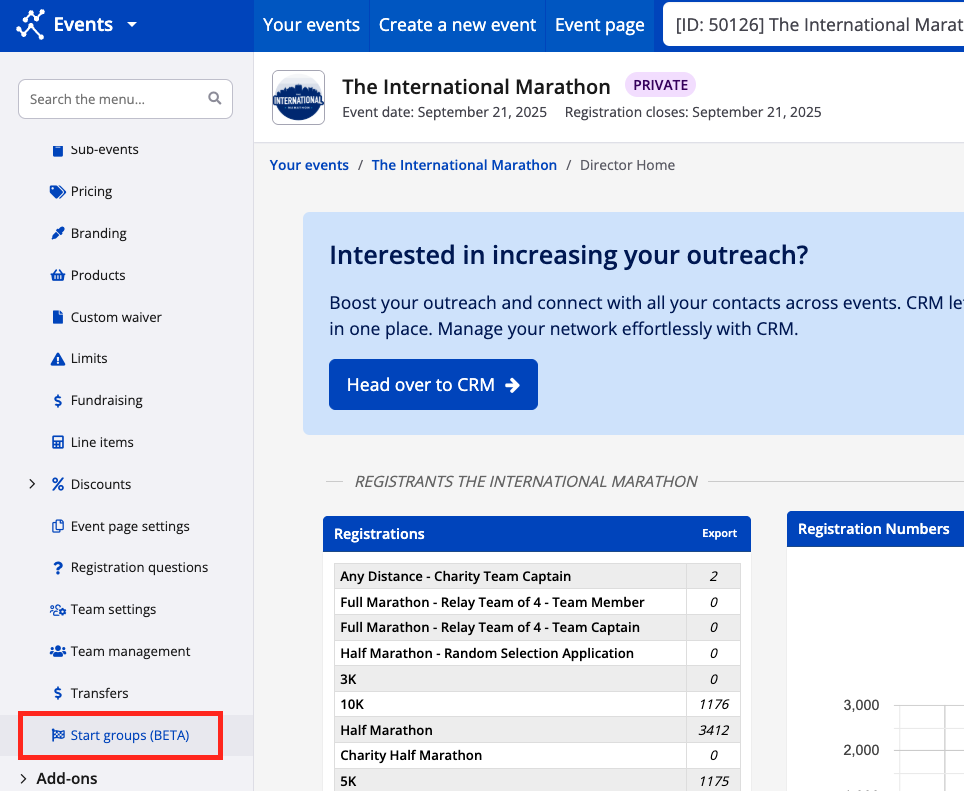
1\. From the **Event Dashboard**, navigate to **Settings \> Start groups**.
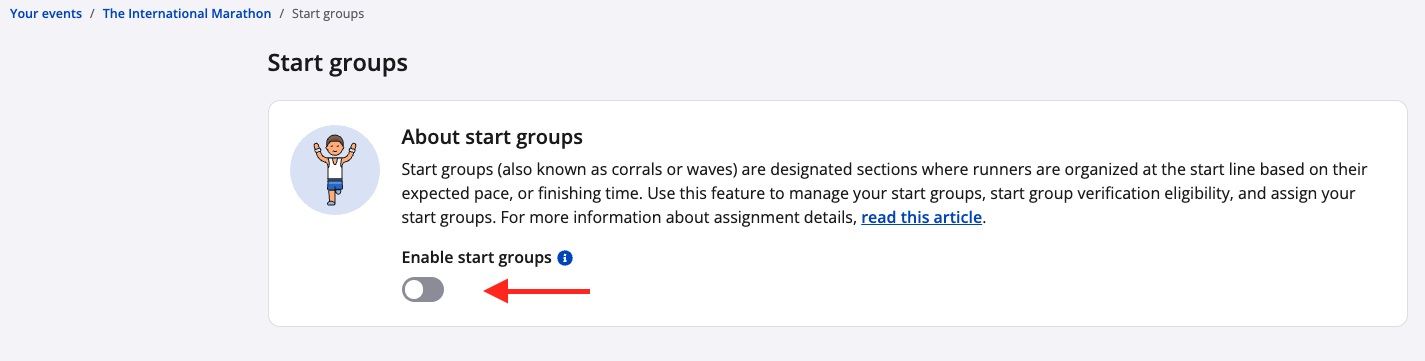
2\. Enable the **Start groups** toggle.
---
### Create a start group
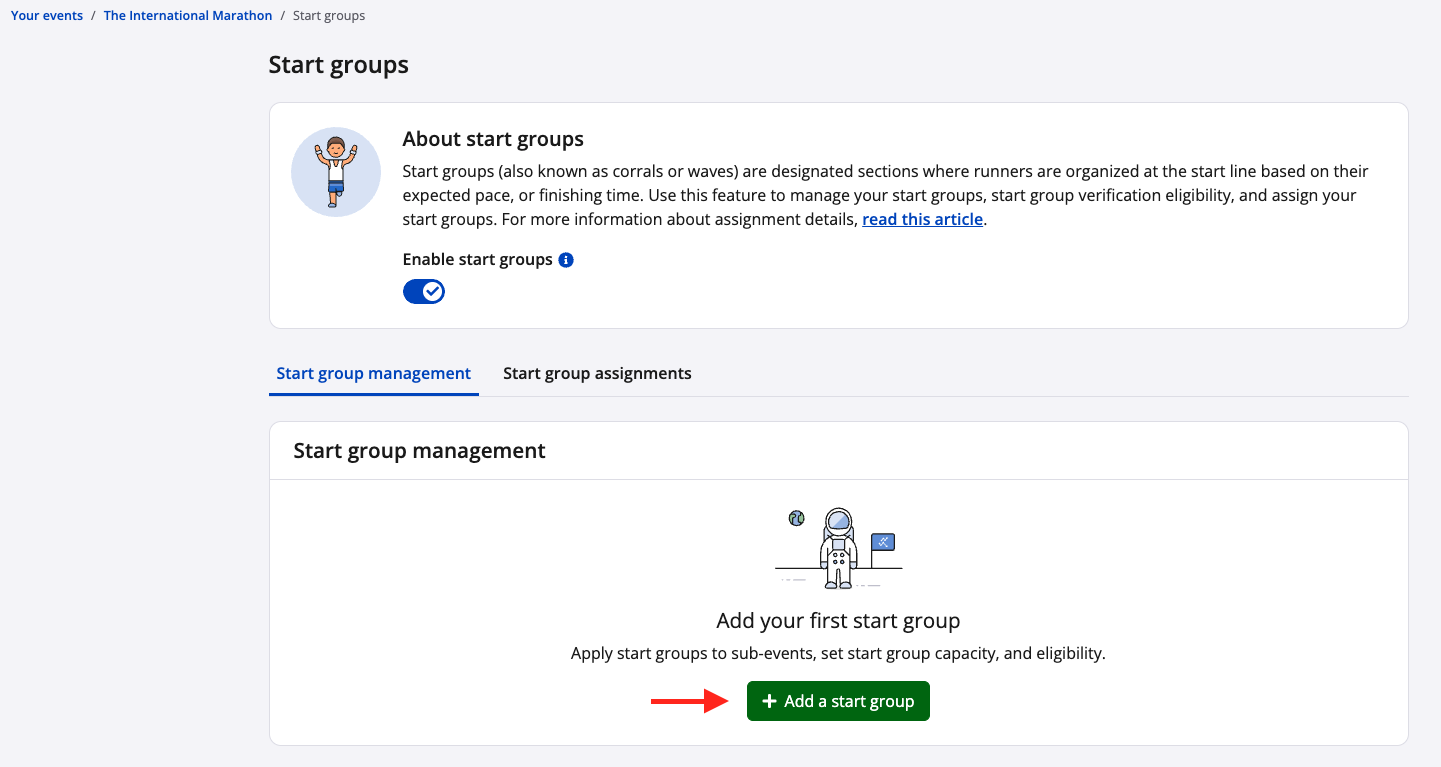
1\. Select the **Start group management** tab
2\. Select **+ Add a start group**
****
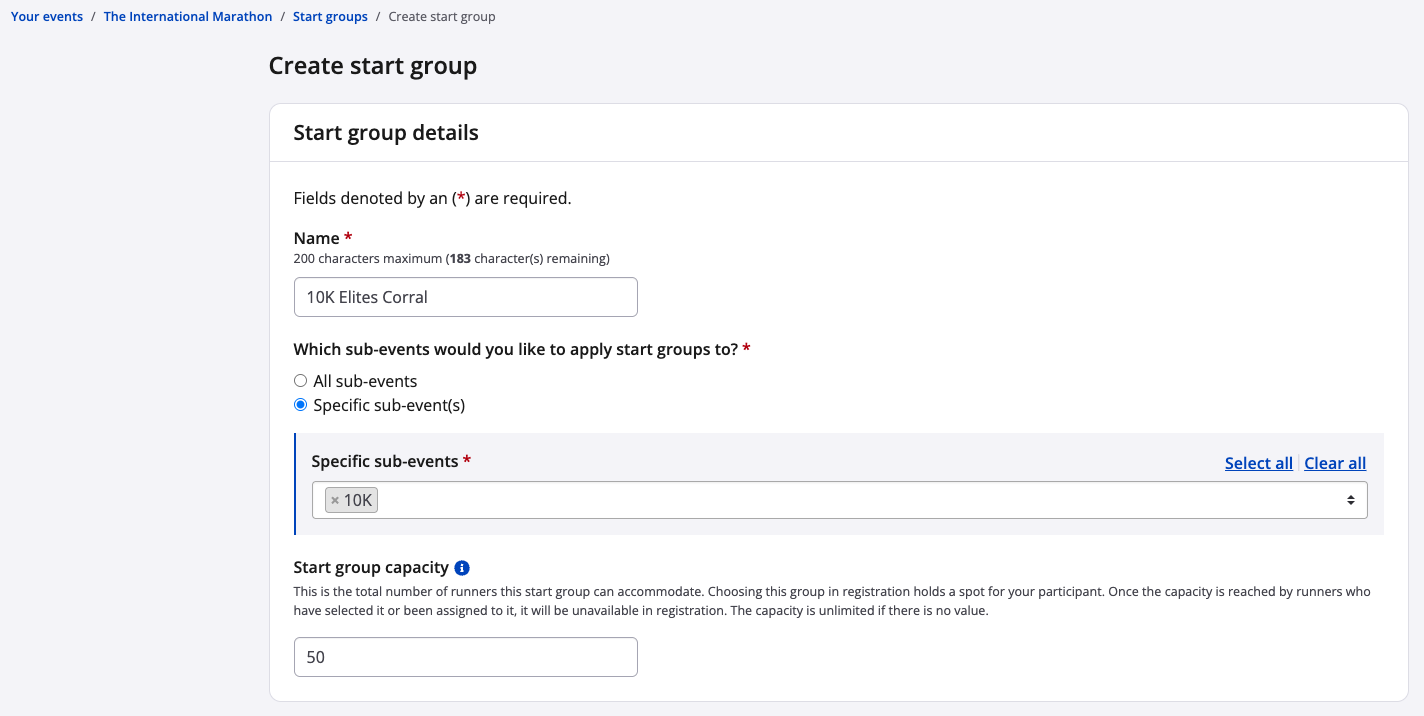
3\. Enter the **Start group name**
4\. Select the applicable sub-events, if required
5\. Enter a **Start group capacity**, if required
Use a descriptive start group name that clearly identifies the applicable distance and expected pace or finish time. Start group names are displayed to participants during registration.
For example:
- Marathon Elite
- Marathon Corral A – 3:05 to 3:34 min/km
- Marathon Corral B – 3:35 to 4:05 min/km
**Note:** If multiple sub-events start at the same time and location, start groups can either be created separately for each sub-event or shared between them. For example, a shared group could be named **Marathon and Half Marathon Corral A – 3:05 to 3:34 min/km**.
---
### Configure start group eligibility
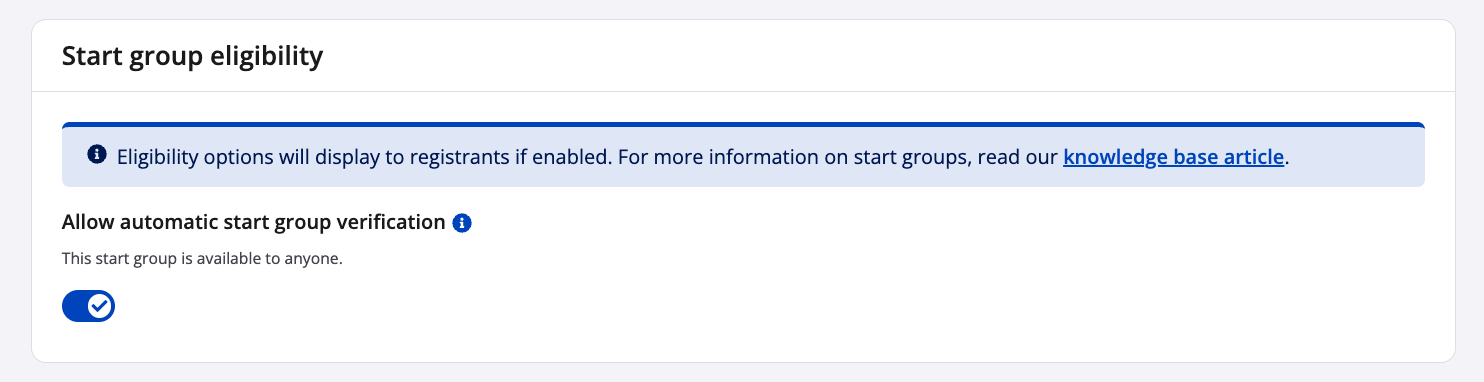
Under the start group eligibility settings, **Allow automatic start group verification** is enabled by default.
When automatic verification is enabled, participants can select the start group without additional eligibility verification. Once registration is complete, the start group is recorded as both requested and assigned to the participant.
To require eligibility verification:
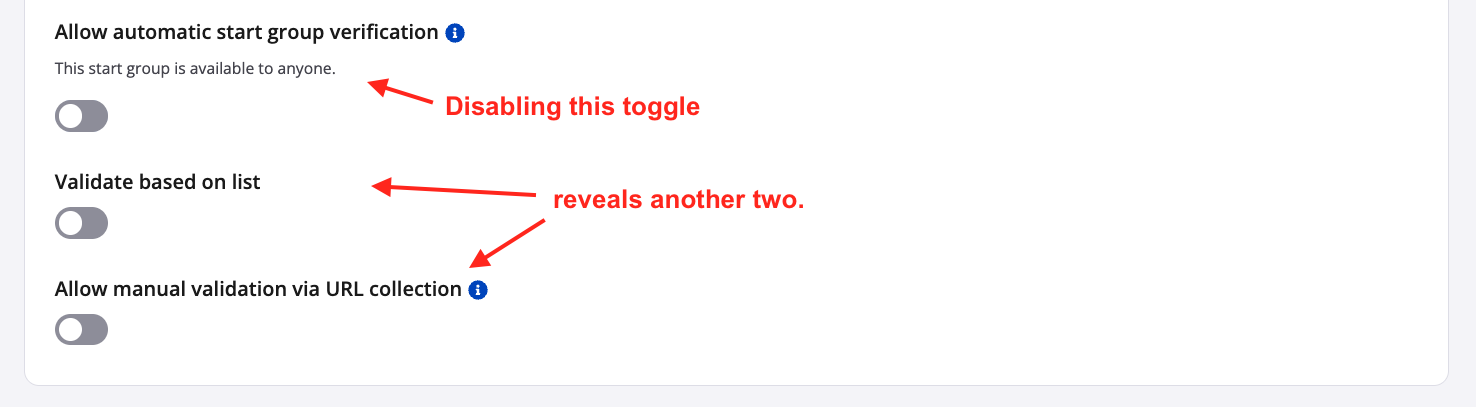
1\. Disable **Allow automatic start group verification**.
2\. Enable the required eligibility option or options.
3\. Select **Save & exit** when the start group configuration is complete.
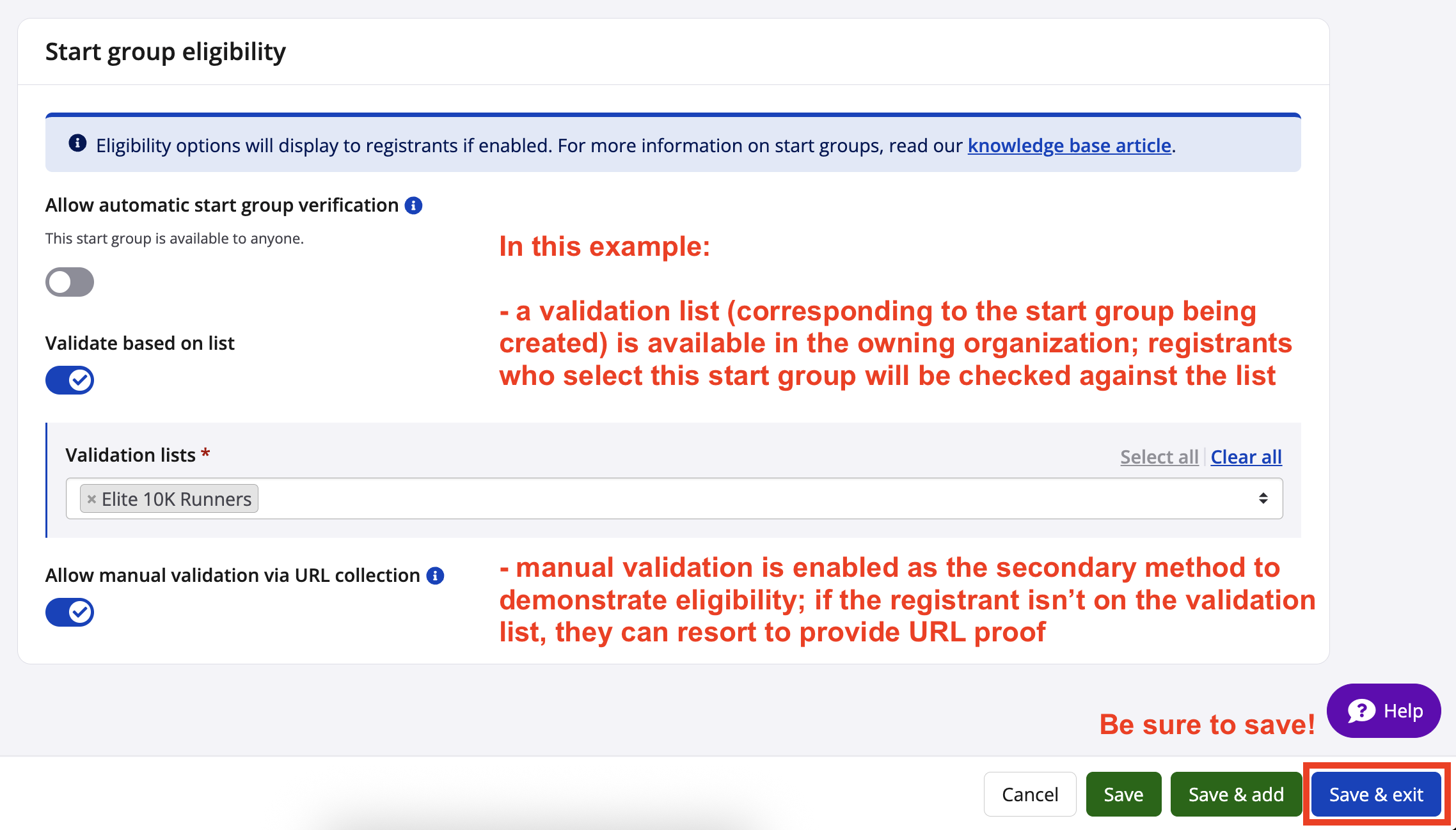
The following eligibility options are available:
- **Validate based on list:** Verifies eligibility against a validation list associated with the event's owning organization in Race Roster CRM. This option is only available when the organization has at least one validation list. See **Understanding Race Roster CRM's validation lists** for more information.
- **Allow manual validation via URL collection:** Adds a field during registration where the participant can provide a URL to a previous event result as evidence of their pace or finish time.
Both options can be enabled together.
If neither eligibility option is selected after automatic verification is disabled, the participant can request the start group, but an event organizer must manually review and assign the participant.
---
### Review start group capacity and requests
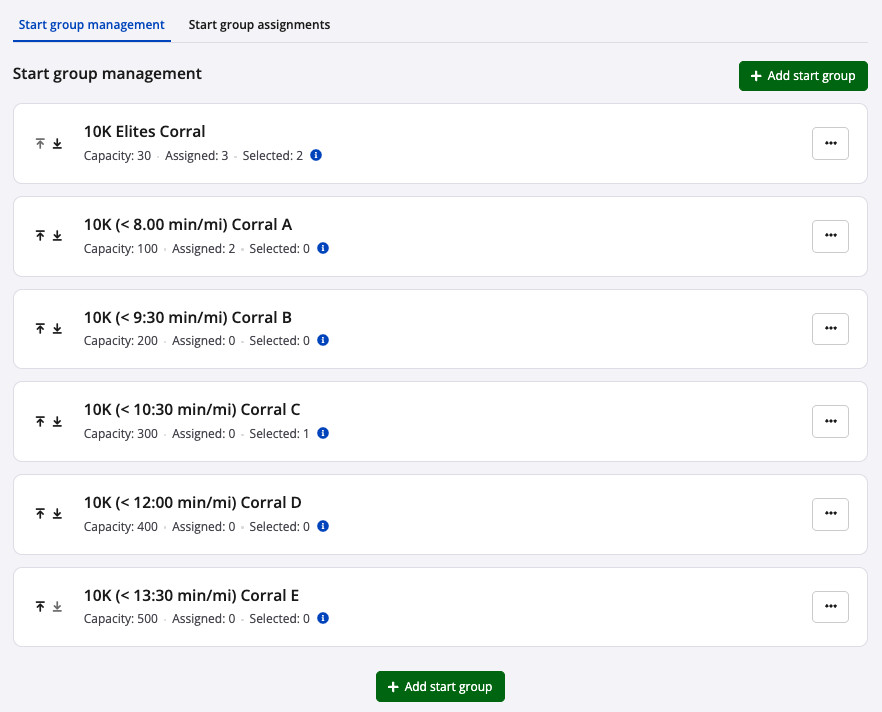
After a start group is saved, it appears under **Start group management**.
The start group summary displays:
- Start group capacity
- Number of participants assigned to the start group
- Number of participants who requested the start group during registration
Additional start groups can be created as required.
During registration, participants select from the available start groups using a dropdown menu. The registration form also identifies start groups that require eligibility verification.
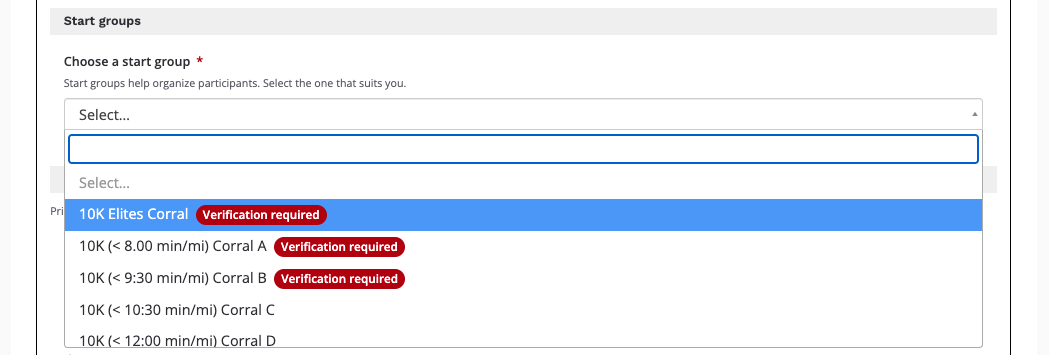
**Tip:** Send a start group assignment system-generated email!
- Participants can receive a Race Roster system email at the moment they are manually assigned to a start group. The email tells them which group they were placed in, and whether that matches the group they selected at registration. To enable this option, [contact our team](https://raceroster.com/contact).
---
### Manage participant start group assignments
The **Start group assignments** tab displays participants who have selected or been assigned to start groups.
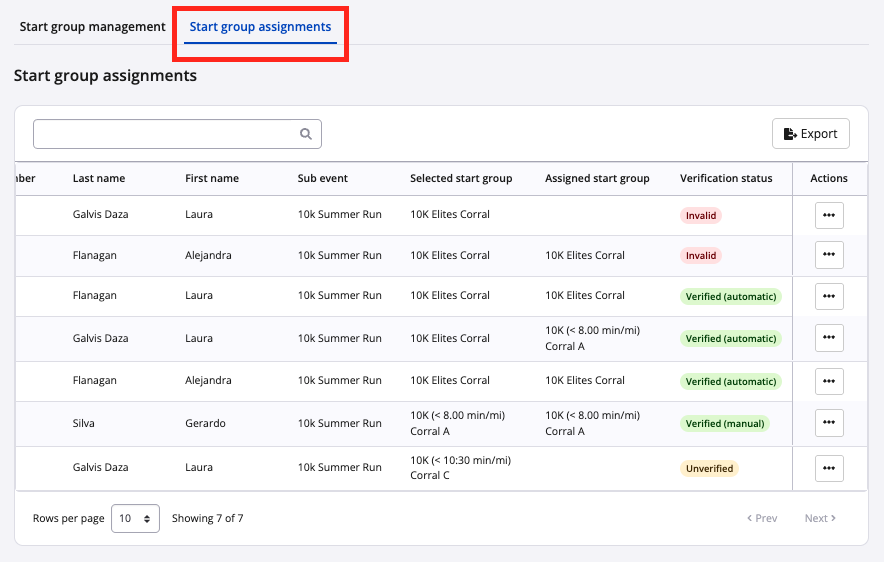
The table includes the following information:
- **Selected start group:** The start group selected by the participant during online or onsite registration, or entered by an event organizer when manually adding or bulk importing the participant.
- **Assigned start group:** The participant's confirmed start group following automatic verification, validation list verification, or manual assignment.
- **Verification status:** The current status of the participant's eligibility for the requested start group.
Verification statuses include:
- **Invalid:** The participant does not meet the eligibility criteria.
- **Unverified:** The participant is awaiting verification and assignment by an event organizer.
- **Verified (manual):** The participant has been manually verified by an event organizer, such as after reviewing a submitted results URL.
- **Verified (automatic):** The participant has been automatically verified by Race Roster through a validation list or because automatic verification is enabled for the start group.
---
### Change a participant's start group assignment
1\. Navigate to the **Start group assignments** tab
2\. Locate the participant.
3\. Select **Action \> Edit assignment**.
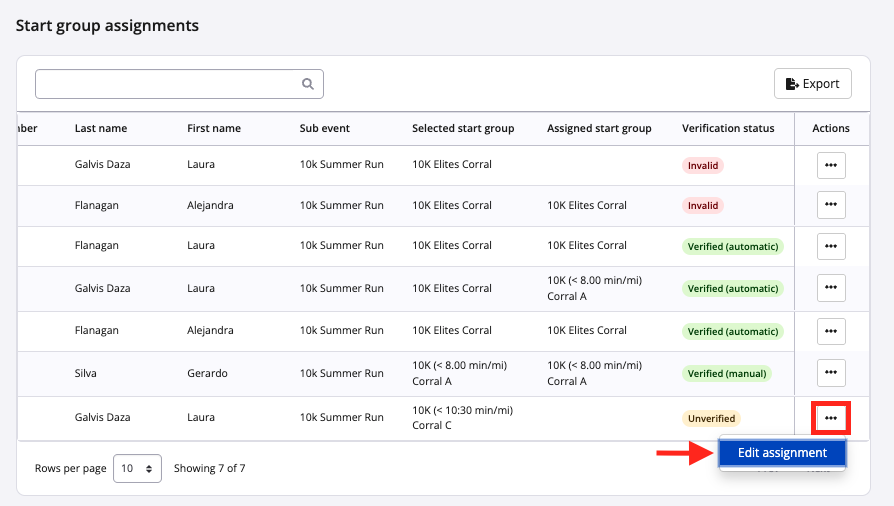
4\. Update the **Status** and **Start group assignment** fields as required.
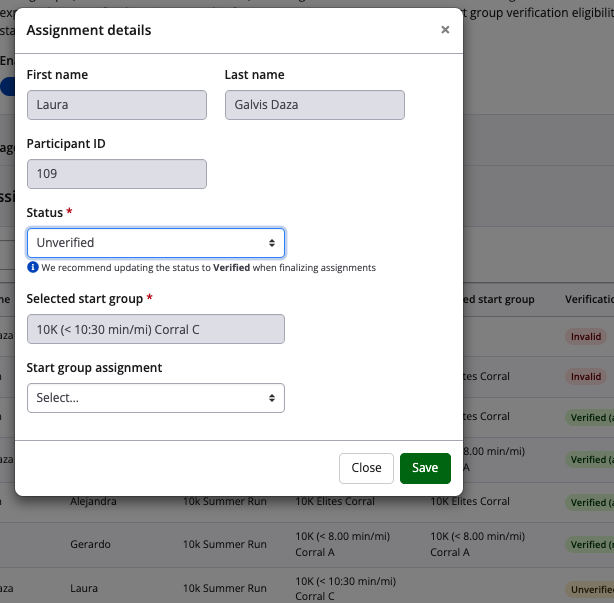
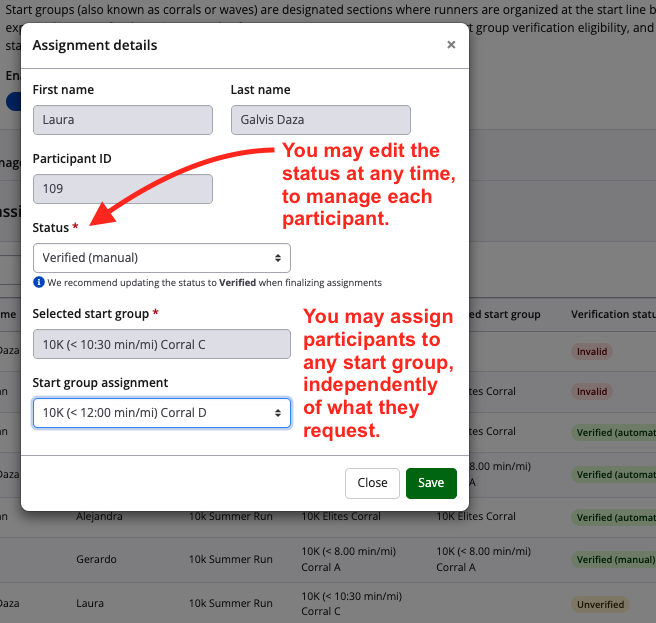
5\. Select **Save**.
Once saved, the participant's updated verification status and start group assignment will appear under **Start group assignments**.
---
### Allow participants to view and edit their start group
A participant's assigned start group is displayed on their **Participant Dashboard**. If no start group has been assigned, **Not assigned** is displayed. Changes made to a participant's assignment by an event organizer are also reflected on the participant's dashboard.

Event organizers can also allow participants to update their own start group after registration.
To enable start group editing:
1\. From the **Event Dashboard**, navigate to **Participant Data \> Editable Data**.
2\. Enable **Start group** under **Participant Information**
**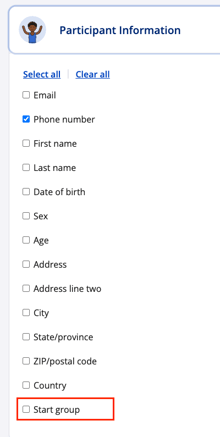**
Once enabled, a **Start Group** option is available under **Edit Registration** on the participant's **Participant Dashboard** while the event's edit window remains open.
The same eligibility requirements configured for the start groups continue to apply. Participants cannot select a start group that has reached capacity, and start groups requiring manual verification still require review and approval by event staff.
---
If additional assistance is required, please [contact our team](https://raceroster.com/contact).
- [Event Organizers and Race Directors](https://help.raceroster.com/en-us/knowledge-base/event-organizers-and-race-directors?hsLang=en-us#main-content)
- [Participant Management](https://help.raceroster.com/en-us/knowledge-base/event-organizers-and-race-directors?hsLang=en-us#participant-management)
- [Financials](https://help.raceroster.com/en-us/knowledge-base/event-organizers-and-race-directors?hsLang=en-us#financials)
- [Marketing & Promotions](https://help.raceroster.com/en-us/knowledge-base/event-organizers-and-race-directors?hsLang=en-us#marketing-promotions)
- [Email Campaigns, MailChimp Integration](https://help.raceroster.com/en-us/knowledge-base/event-organizers-and-race-directors?hsLang=en-us#email-campaigns-mailchimp-integration)
- [Products](https://help.raceroster.com/en-us/knowledge-base/event-organizers-and-race-directors?hsLang=en-us#products)
- [Team Management and Settings](https://help.raceroster.com/en-us/knowledge-base/event-organizers-and-race-directors?hsLang=en-us#team-management-and-settings)
- [Onsite App](https://help.raceroster.com/en-us/knowledge-base/event-organizers-and-race-directors?hsLang=en-us#onsite-app)
- [Registration Questions](https://help.raceroster.com/en-us/knowledge-base/event-organizers-and-race-directors?hsLang=en-us#registration-questions)
- [Fundraising Settings and Receipts](https://help.raceroster.com/en-us/knowledge-base/event-organizers-and-race-directors?hsLang=en-us#fundraising-settings-and-receipts)
- [Promo Codes, Discounts, and Gifting Codes](https://help.raceroster.com/en-us/knowledge-base/event-organizers-and-race-directors?hsLang=en-us#promo-codes-discounts-and-gifting-codes)
- [Virtual](https://help.raceroster.com/en-us/knowledge-base/event-organizers-and-race-directors?hsLang=en-us#virtual)
- [Results](https://help.raceroster.com/en-us/knowledge-base/event-organizers-and-race-directors?hsLang=en-us#results)
- [Access codes](https://help.raceroster.com/en-us/knowledge-base/event-organizers-and-race-directors?hsLang=en-us#access-codes)
- [Director Access and Settings](https://help.raceroster.com/en-us/knowledge-base/event-organizers-and-race-directors?hsLang=en-us#director-access-and-settings)
- [Pricing](https://help.raceroster.com/en-us/knowledge-base/event-organizers-and-race-directors?hsLang=en-us#pricing)
- [Event Page Settings](https://help.raceroster.com/en-us/knowledge-base/event-organizers-and-race-directors?hsLang=en-us#event-page-settings)
- [Your Dashboard](https://help.raceroster.com/en-us/knowledge-base/event-organizers-and-race-directors?hsLang=en-us#your-dashboard)
- [Sub-events](https://help.raceroster.com/en-us/knowledge-base/event-organizers-and-race-directors?hsLang=en-us#sub-events)
- [Other FAQs](https://help.raceroster.com/en-us/knowledge-base/event-organizers-and-race-directors?hsLang=en-us#other-faqs)
- [Volunteers](https://help.raceroster.com/en-us/knowledge-base/event-organizers-and-race-directors?hsLang=en-us#volunteers)
- [Create, Edit or Take Your Event Live](https://help.raceroster.com/en-us/knowledge-base/event-organizers-and-race-directors?hsLang=en-us#create-edit-or-take-your-event-live)
- [Waivers](https://help.raceroster.com/en-us/knowledge-base/event-organizers-and-race-directors?hsLang=en-us#waivers)
- [Reports](https://help.raceroster.com/en-us/knowledge-base/event-organizers-and-race-directors?hsLang=en-us#reports)
- [Participants and Fundraisers](https://help.raceroster.com/en-us/knowledge-base/participants-and-fundraisers?hsLang=en-us#main-content)
- [Participant FAQs](https://help.raceroster.com/en-us/knowledge-base/participants-and-fundraisers?hsLang=en-us#participant-faqs)
- [Fundraising](https://help.raceroster.com/en-us/knowledge-base/participants-and-fundraisers?hsLang=en-us#fundraising)
- [Gift Registrations](https://help.raceroster.com/en-us/knowledge-base/participants-and-fundraisers?hsLang=en-us#gift-registrations)
- [Sign In and Manage Registration](https://help.raceroster.com/en-us/knowledge-base/participants-and-fundraisers?hsLang=en-us#sign-in-and-manage-registration)
- [Transfer Registration](https://help.raceroster.com/en-us/knowledge-base/participants-and-fundraisers?hsLang=en-us#transfer-registration)
- [Access Codes](https://help.raceroster.com/en-us/knowledge-base/participants-and-fundraisers?hsLang=en-us#access-codes)
- [Teams](https://help.raceroster.com/en-us/knowledge-base/participants-and-fundraisers?hsLang=en-us#teams)
- [Security & Compliance](https://help.raceroster.com/en-us/knowledge-base/participants-and-fundraisers?hsLang=en-us#security-compliance)
- [Promo Codes](https://help.raceroster.com/en-us/knowledge-base/participants-and-fundraisers?hsLang=en-us#promo-codes)
- [Race Roster CRM](https://help.raceroster.com/en-us/knowledge-base/race-roster-crm?hsLang=en-us#main-content)
- [Organizations](https://help.raceroster.com/en-us/knowledge-base/race-roster-crm?hsLang=en-us#organizations)
- [Contact Management and Validation Lists](https://help.raceroster.com/en-us/knowledge-base/race-roster-crm?hsLang=en-us#contact-management-and-validation-lists)
- [Reporting](https://help.raceroster.com/en-us/knowledge-base/race-roster-crm?hsLang=en-us#reporting)
- [Events and Event Groups](https://help.raceroster.com/en-us/knowledge-base/race-roster-crm?hsLang=en-us#events-and-event-groups)
- [Campaigns and Marketing](https://help.raceroster.com/en-us/knowledge-base/race-roster-crm?hsLang=en-us#campaigns-and-marketing)
- [Non-profit Organizations](https://help.raceroster.com/en-us/knowledge-base/race-roster-crm?hsLang=en-us#non-profit-organizations)
- [Fundraising Coordinators](https://help.raceroster.com/en-us/knowledge-base/fundraising-coordinators?hsLang=en-us#main-content)
- [Resources](https://help.raceroster.com/en-us/knowledge-base/fundraising-coordinators?hsLang=en-us#resources)
- [Participant and Team Fundraising](https://help.raceroster.com/en-us/knowledge-base/fundraising-coordinators?hsLang=en-us#participant-and-team-fundraising)
- [Reporting](https://help.raceroster.com/en-us/knowledge-base/fundraising-coordinators?hsLang=en-us#reporting)
- [Timers](https://help.raceroster.com/en-us/knowledge-base/timers?hsLang=en-us#main-content)
- [Account settings](https://help.raceroster.com/en-us/knowledge-base/timers?hsLang=en-us#account-settings)
- [Results](https://help.raceroster.com/en-us/knowledge-base/timers?hsLang=en-us#results)
- [Timing Tools](https://help.raceroster.com/en-us/knowledge-base/timers?hsLang=en-us#timing-tools)
- [Bib Assignment](https://help.raceroster.com/en-us/knowledge-base/timers?hsLang=en-us#bib-assignment)
- [Participant Data and Reports](https://help.raceroster.com/en-us/knowledge-base/timers?hsLang=en-us#participant-data-and-reports)
- [The ASICS Runkeeper™ app](https://help.raceroster.com/en-us/knowledge-base/the-asics-runkeeper-app?hsLang=en-us#main-content)
- [The ASICS Runkeeper™ app](https://help.raceroster.com/en-us/knowledge-base/the-asics-runkeeper-app?hsLang=en-us#the-asics-runkeeper-app)
[](https://raceroster.com)
Copyright © 2026, Race Roster