
Preliminary steps
If you have not yet properly set up an organization using our CRM, please reference our guide How to create an organization on Race Roster. Make sure that your organization details are all filled out correctly.
If you have not yet set up a report with the data you intend to send through the webhook, please follow the steps in our other article, How to generate a custom report in my organization.
Once you've created a custom report within the organization, you may send the contact data to a compatible third party platform by following the steps below.
Setup instructions
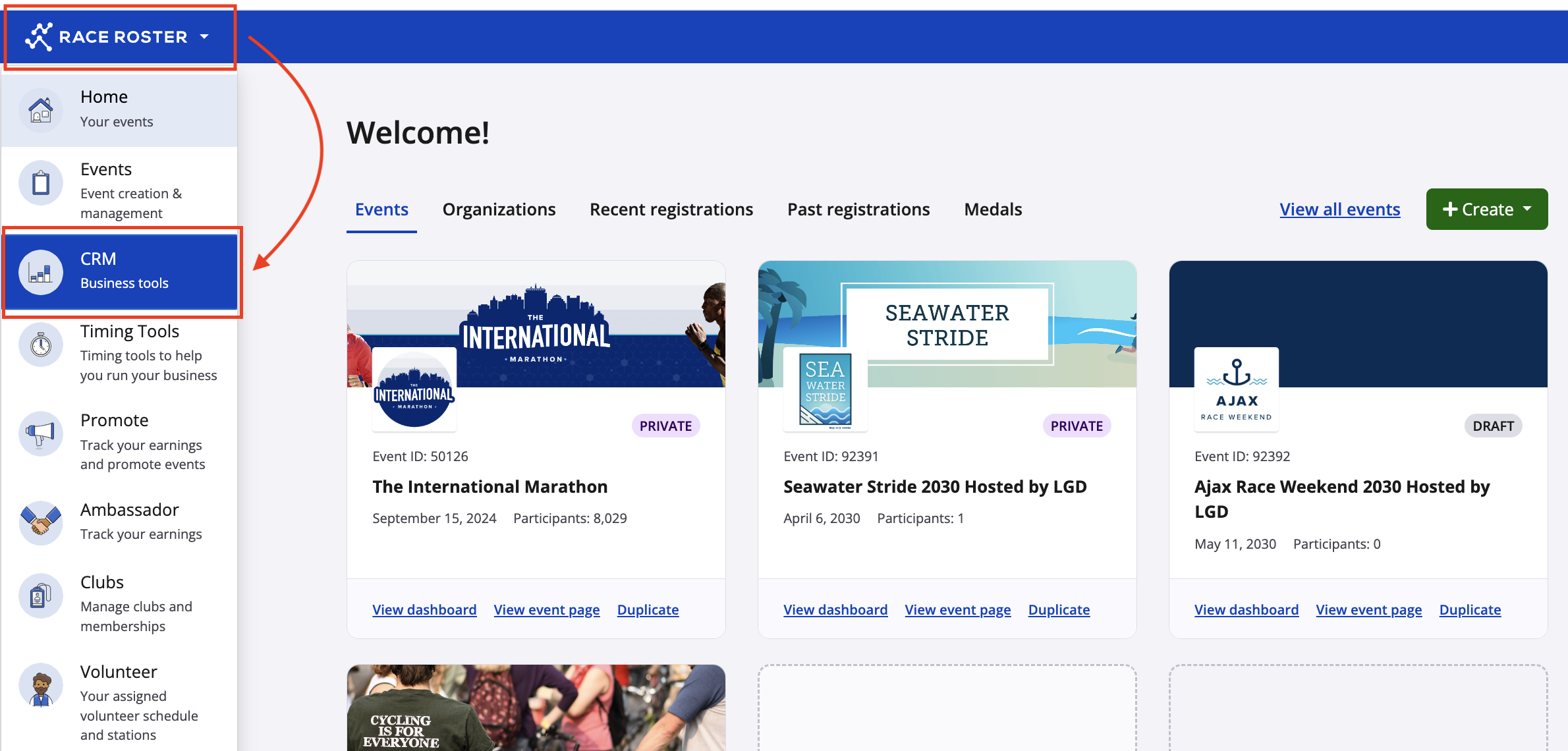
1. Log in to your Race Roster account and land on your homepage. Use the kingdom switcher on the top left to select "CRM" and access this dashboard. Screenshot follows.
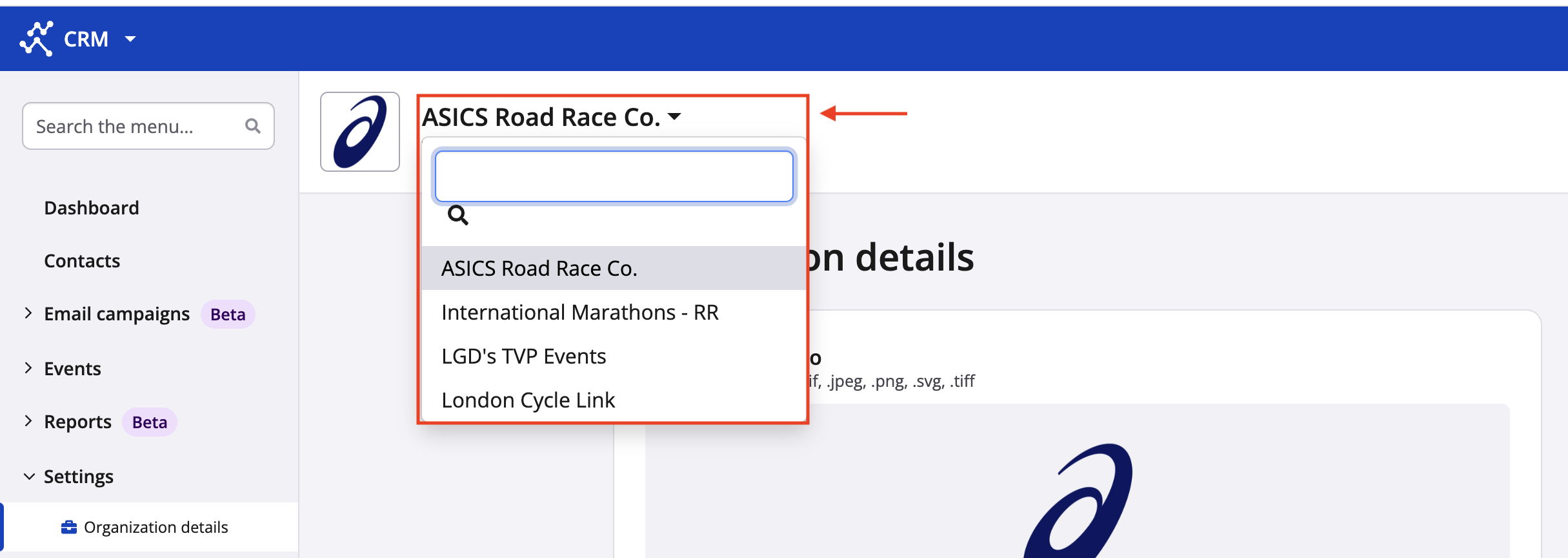
2. If needed, once in Race Roster CRM, use the dropdown menu to find your desired organization and navigate to it. Screenshot follows.
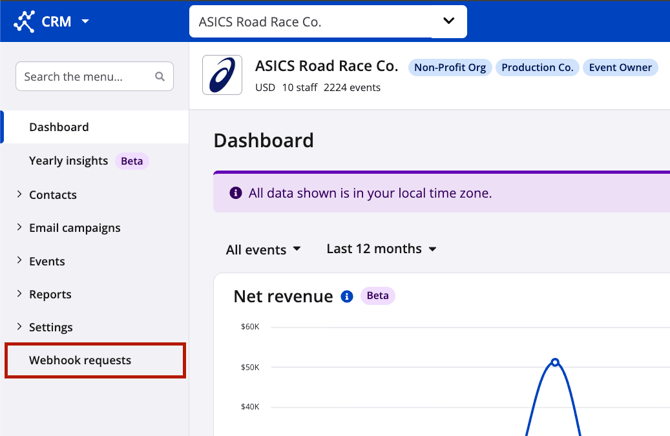
3. From your organization's CRM dashboard, use the left hand menu to select Webhook requests. Screenshot follows.
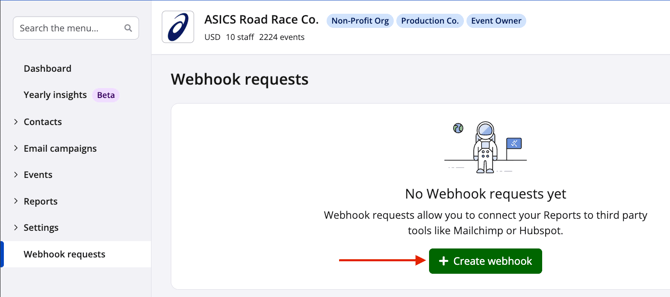
4. From the webhook requests page, click the green "+ Create webhook" button. Remember: you will need to have at least one available custom report in order to create a webhook request, as reports contain the contact data that will feed into the webhook. Screenshot follows.
After clicking the button, you will land on the create webhook form. Screenshot follows.
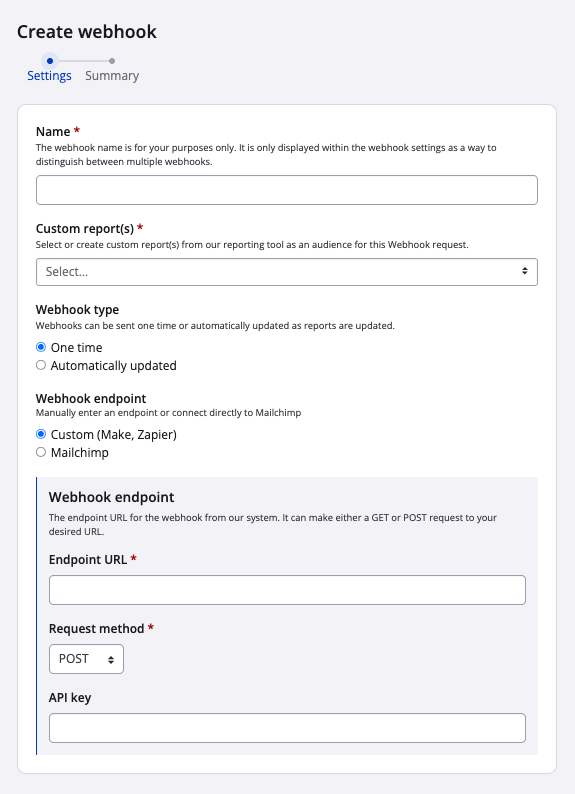
5. Establish a name for your webhook. The name is for you and your organization's staff to distinguish between different webhook requests.
For example, you might create one webhook request containing female contacts who opted into receiving your organization's newsletter across all 2023 events. Then, the following year you might want to do the exact same thing. In this case, you might call the first webhook "2023 female newsletter subscribers" and the second "2024 female newsletter subscribers".
6. Select which custom report(s) to include as the source for this webhook request. Data from the contacts in these reports will be sent to the endpoint.
7. Choose a webhook type (i.e., whether this webhook constitutes a one-time send or an automatically-updated one).
- One time: Send the contact data once, based on the current version of the report(s) selected. If a report is itself is set to an automatic update, or if you manually update a report at a later date, those future updates will not send new contacts to or edit existing contact data at the endpoint. This option works well for reports that only contain data for past Race Roster events.
- Automatically updated: Send the contact data to the endpoint on a recurring basis. This option works well for reports which pull contacts from current Race Roster events, especially if the reports themselves are being manually or automatically updated as the contact lists change. By setting the webhook request to "Automatically updated", it will update whenever a source report also updates.
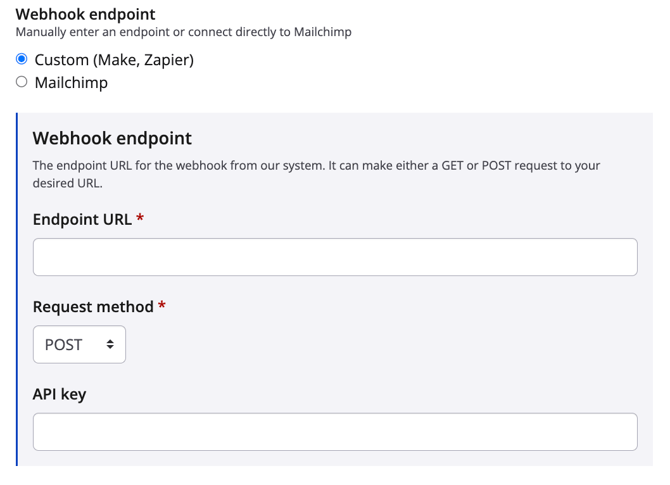
8. For the webhook endpoint, choose custom if the webhook endpoint is a compatible third party provider (Make, Zapier, etc). A manual process can make the connection possible:
- Enter the endpoint URL
- Select GET, POST or PUT for the request method
- Enter the API key
Screenshot follows.
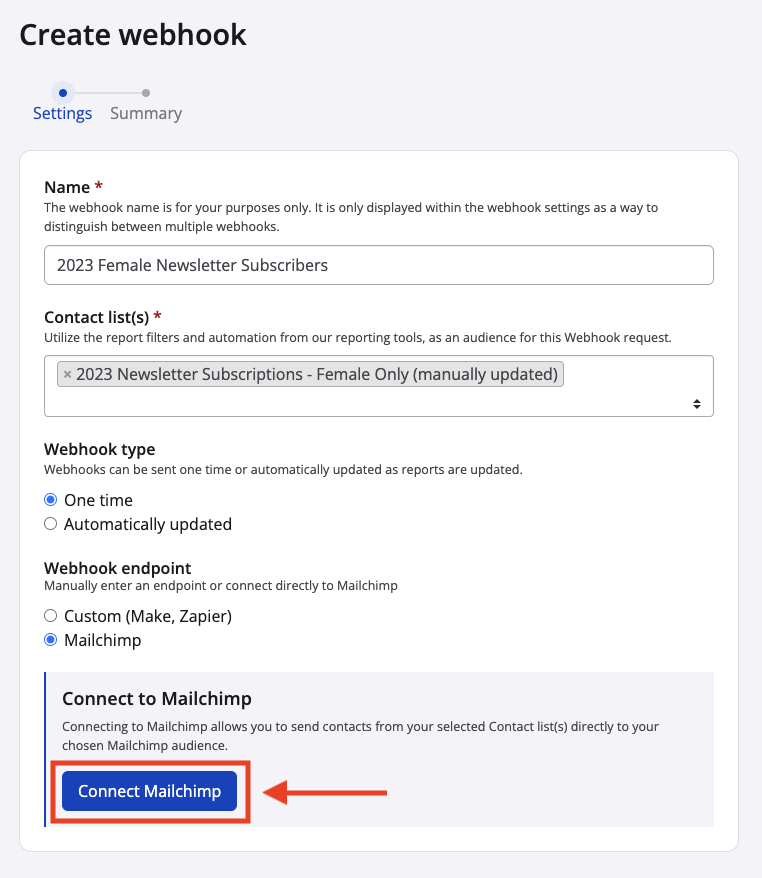
9. If you specifically want to send your contact report data to Mailchimp, Race Roster offers a direct integration.
- After selecting the "Mailchimp" radio button, click the blue "Connect Mailchimp" button.
-
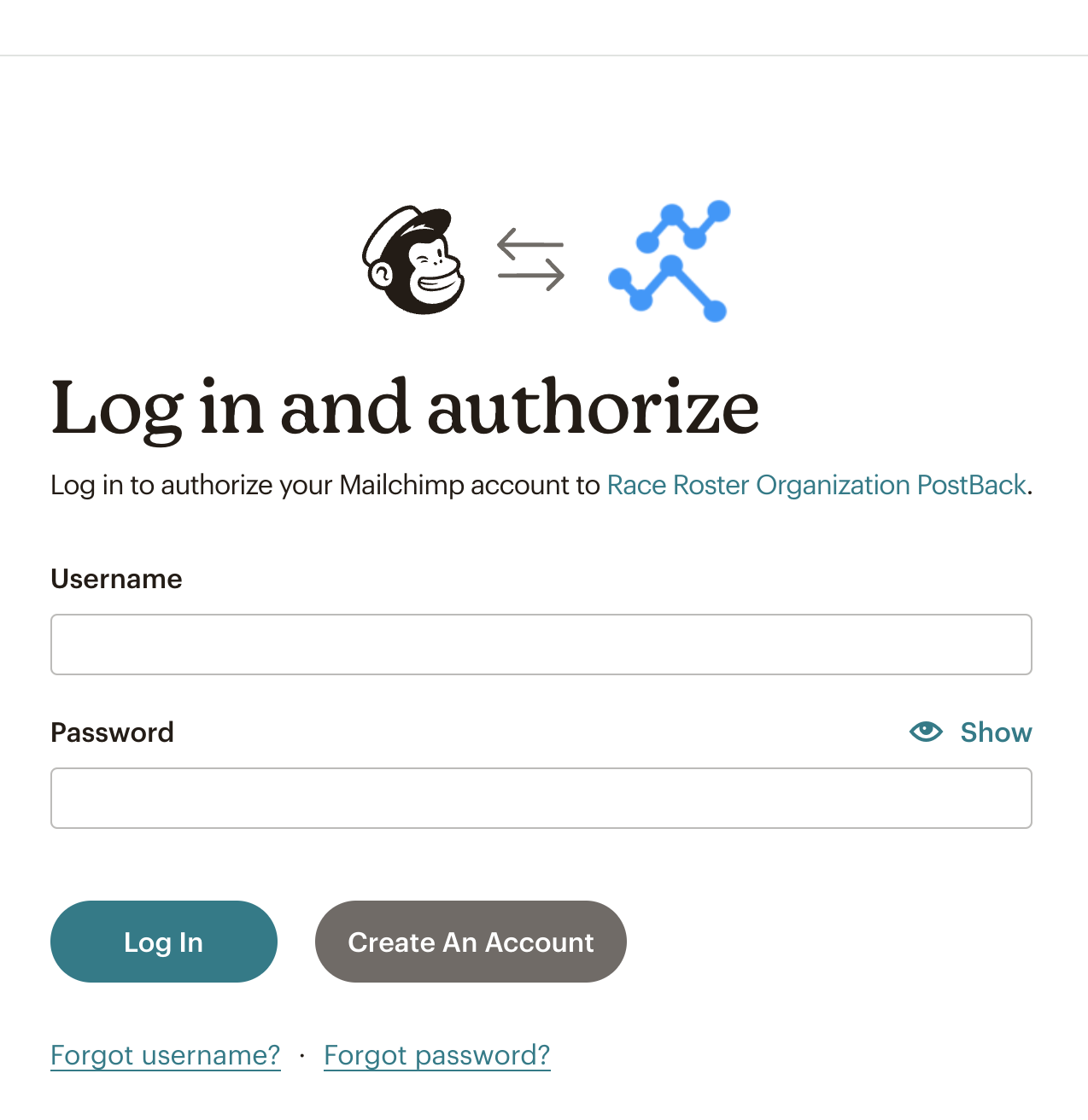
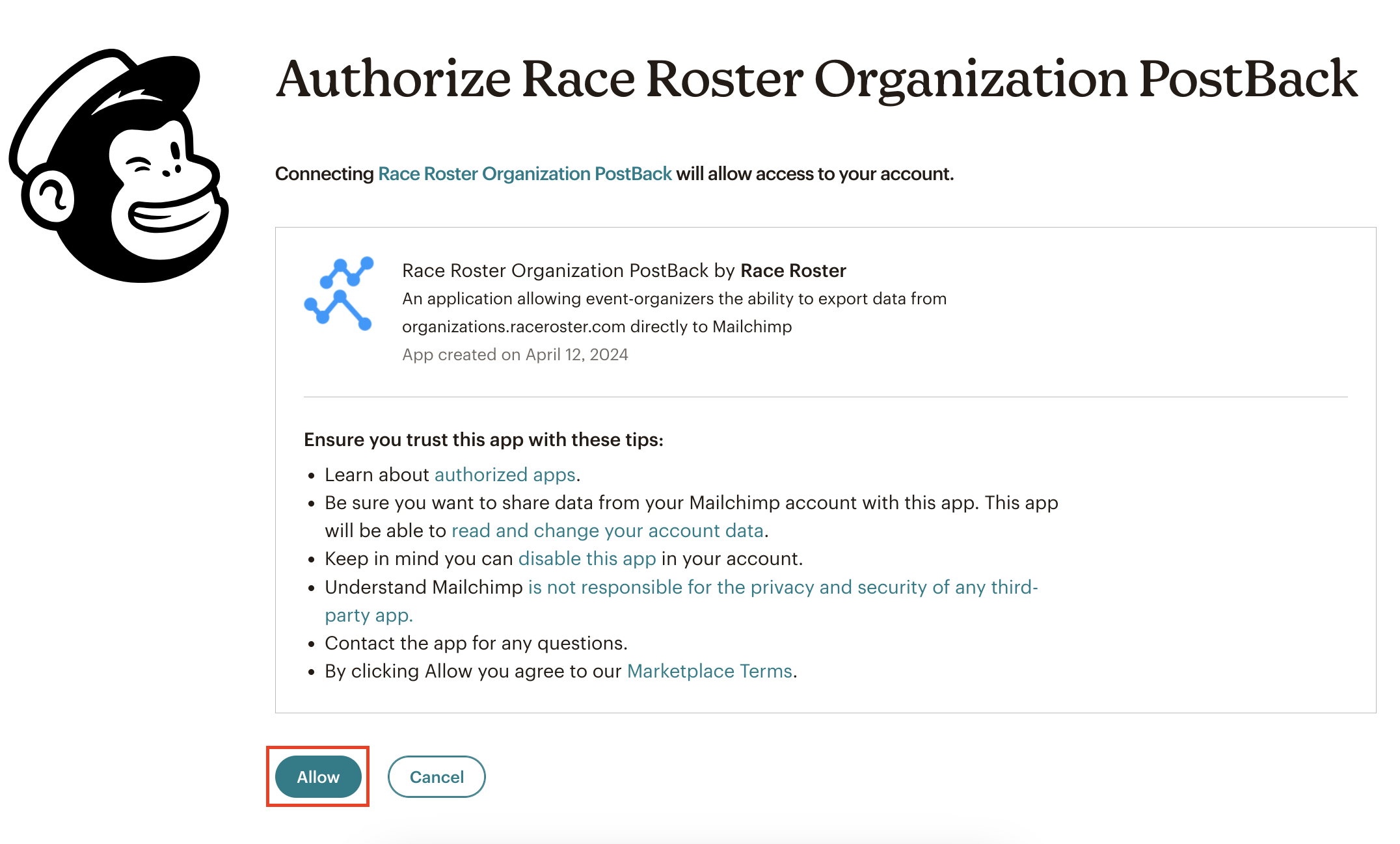
On the next screens, enter your Mailchimp account login credentials and authorize the Race Roster connection.
-
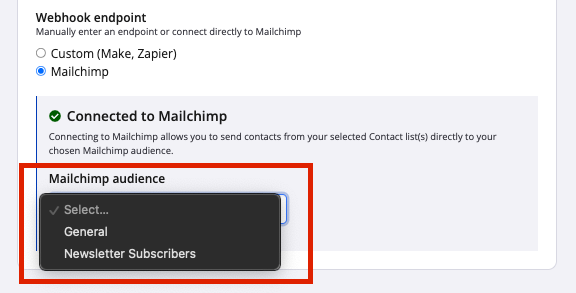
Then, select a Mailchimp audience/list within your Mailchimp account to use as the contact data endpoint.
-
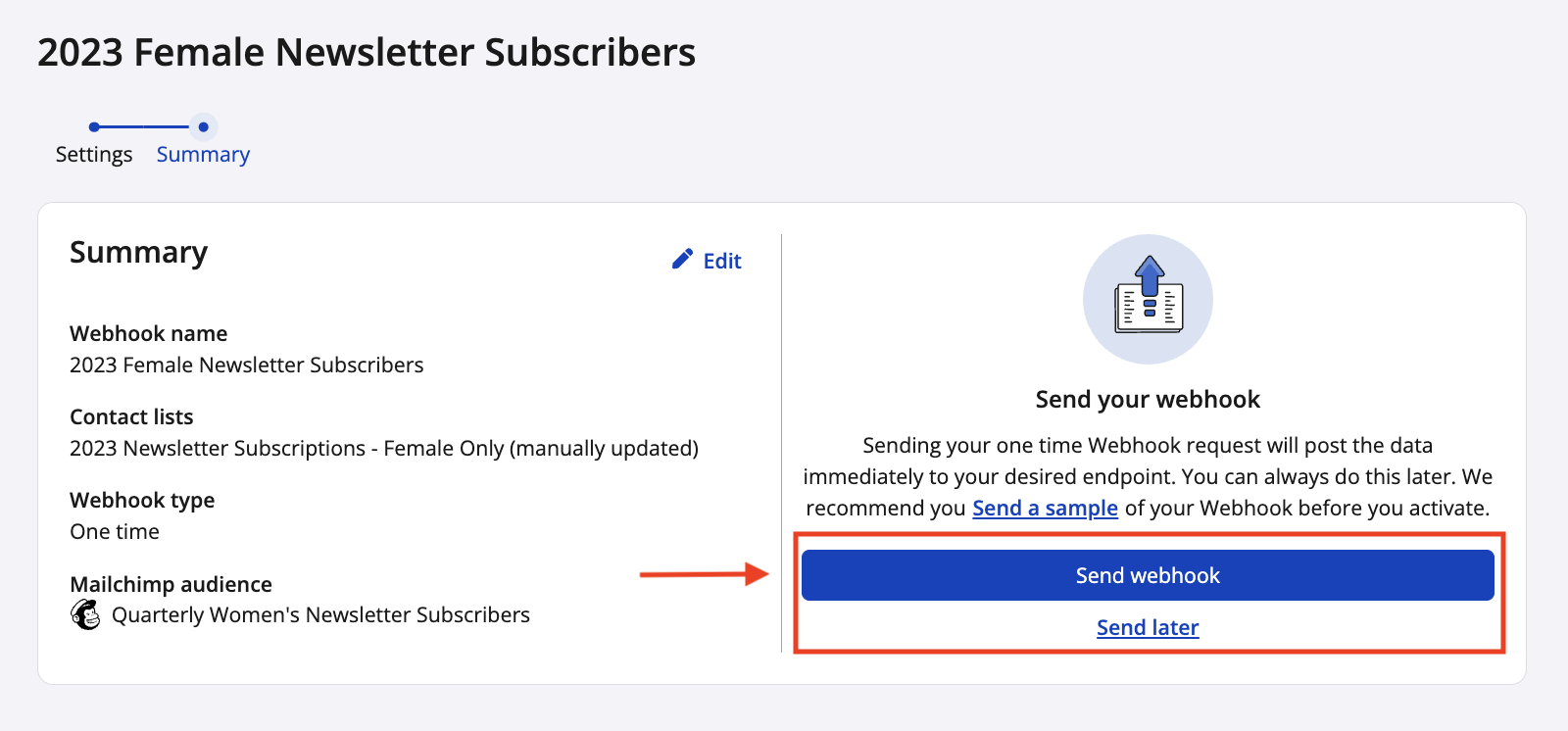
Finally, review the summary and click the blue "Send webhook" button.
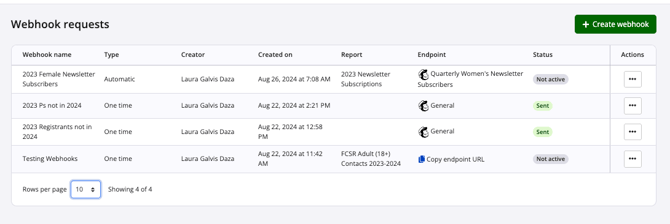
10. Once established, the webhook requests page will allow you to view and manage existing webhooks from a table. Please note that the data received at the endpoint will depend on the compatibility of fields. Screenshot follows.
FAQs
Not every contact was sent from Race Roster to my Mailchimp audience. What happened?
If multiple contacts in a report contain the same email address, Race Roster will only send one of those contacts to Mailchimp. Furthermore, if a contact already exists in the endpoint Mailchimp audience, it will be ignored when being brought in from Race Roster.
You may see a mismatch in the number of contacts on a report and the number of contacts that appear in your Mailchimp account (or other custom webhook URL). This is because:
1. We don't push contacts with empty email addresses.
2. Email addresses in Mailchimp are a unique identifier. Thus, contacts that share an email address will get de-duplicated to a single contact.
Can webhooks remove contact data from the endpoint?
If you are setting up an automatically-updating webhook based on an automatically-updating retention report that has dwindling contacts (e.g., as the current year's event registrations increase, the number of past participants not yet registered diminishes), then you might expect the contact data being sent to the third party platform to result in the removal of a contact. Mailchimp is indeed compatible with this setup. Should you have feedback to submit or questions to ask on this topic, please contact us: director@raceroster.com