
Event organizers and fundraising coordinators have the ability to redirect donations to display on different individual or team fundraising pages. This can be helpful if a donor accidentally makes a general donation to the charity (not applied to individual/team fundraising page) or a donation is made to the wrong fundraising page. Redirecting donations allows for the donation to display on the correct fundraising or team page after it has been made.
Steps to redirect a donation
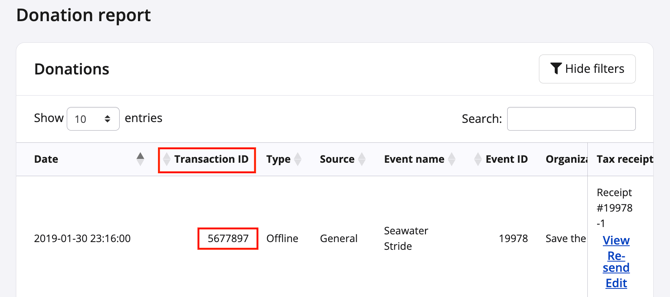
1. From the event dashboard, search the menu for Management → Fundraising → Donation report. Use the search bar to find the transaction and copy the Transaction ID.
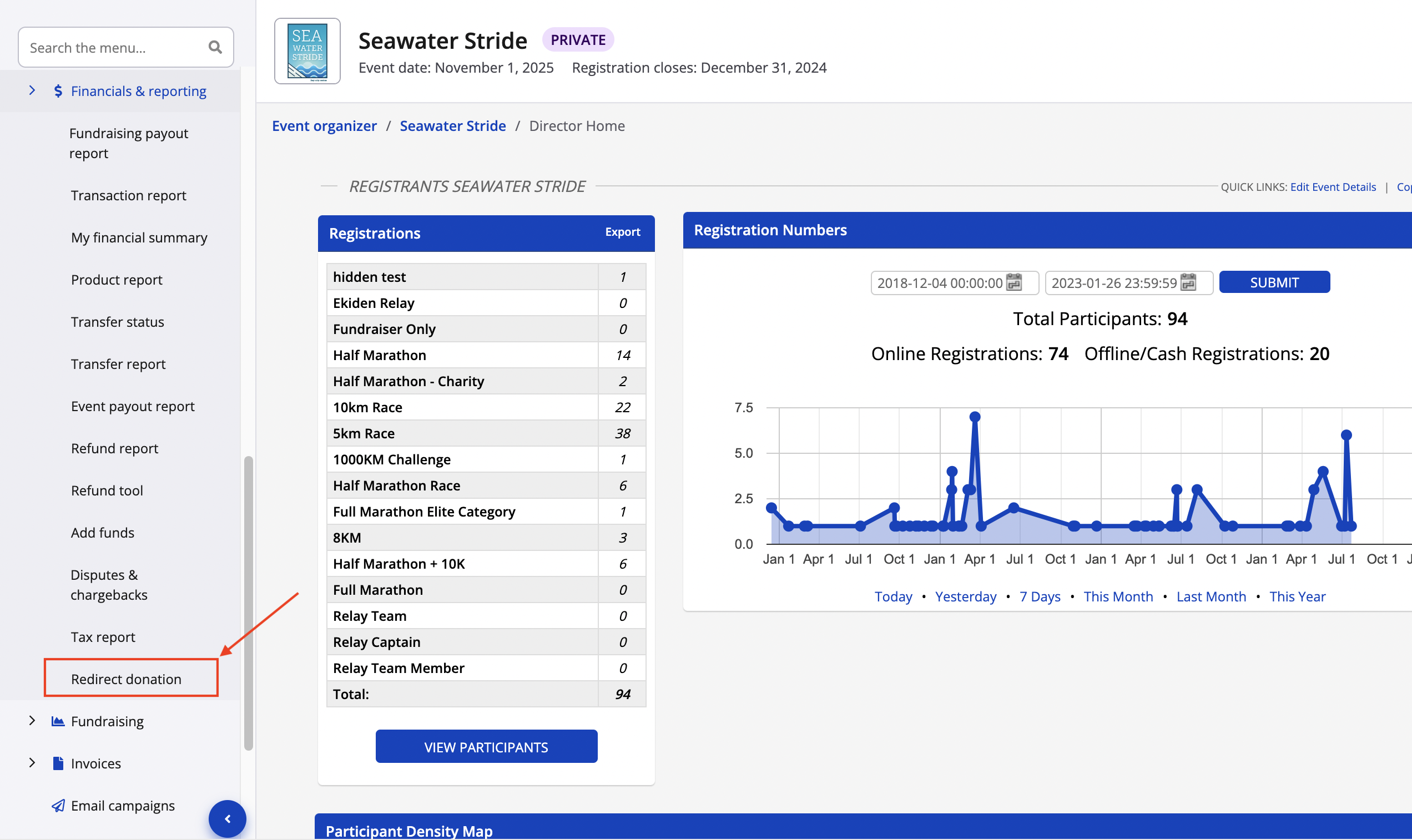
2. Search the menu for Management → Financials & reporting → Redirect donation.
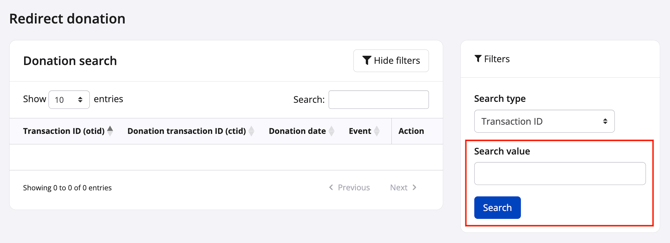
3. From the Redirect donation settings, enter or paste the Transaction ID corresponding to the donation to be redirected. Update the search type if needed.
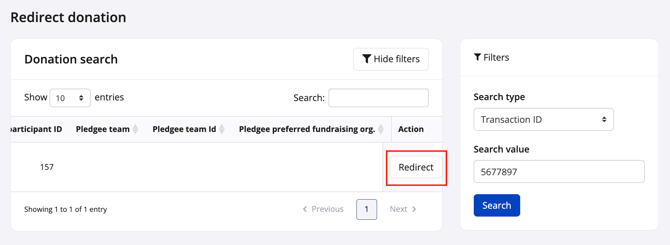
3. After entering in a Transaction ID, place the cursor within the table below and side scroll to view & select the Redirect button under the Action column.
4. In the Redirect details section, select to redirect this donation as a:
- Pledge to participant (individual fundraising page)
- Pledge to team (team fundraising page)
- Donation (general donation, not associated to any fundraising page)
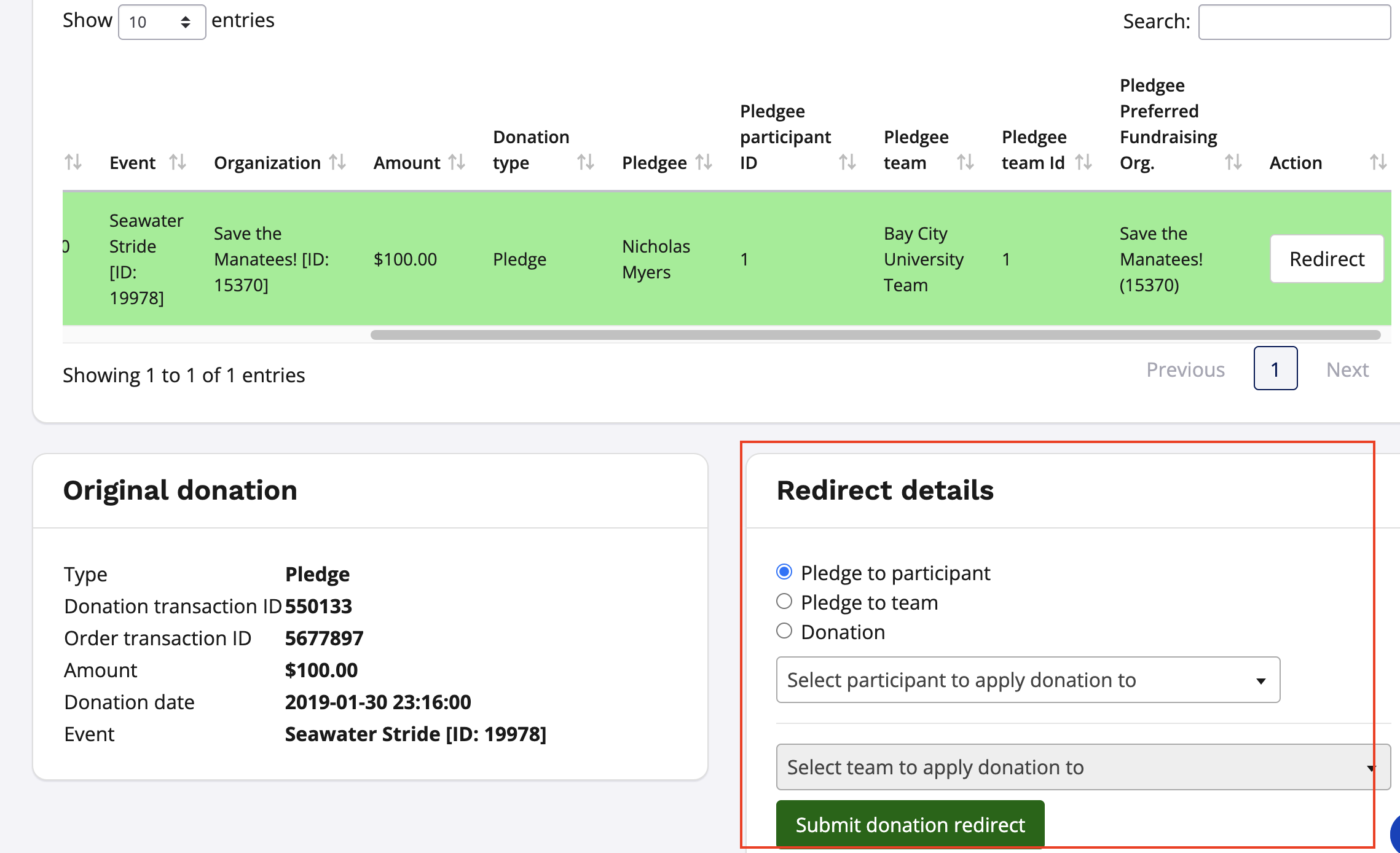
Note: Donation redirects can only be used to display donation totals on different fundraising pages for the same organization. Donations cannot be redirected from one charity to another if a donation was made to the wrong charity.
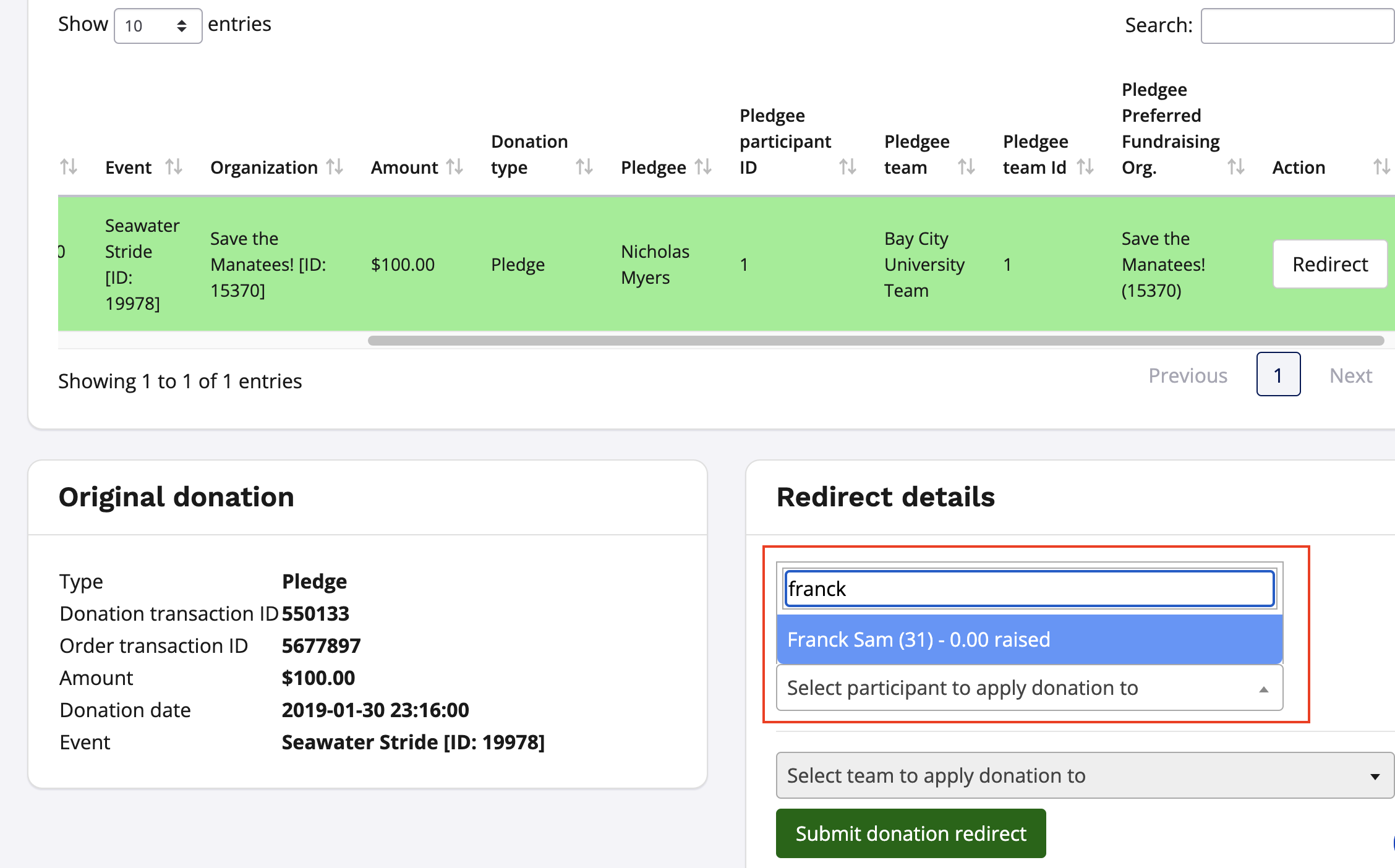
6. If redirecting the donation to an individual or team fundraising page, begin typing in the individual/team's name into the field provided upon making a selection. Select the correct page and click Submit donation redirect to complete the action.
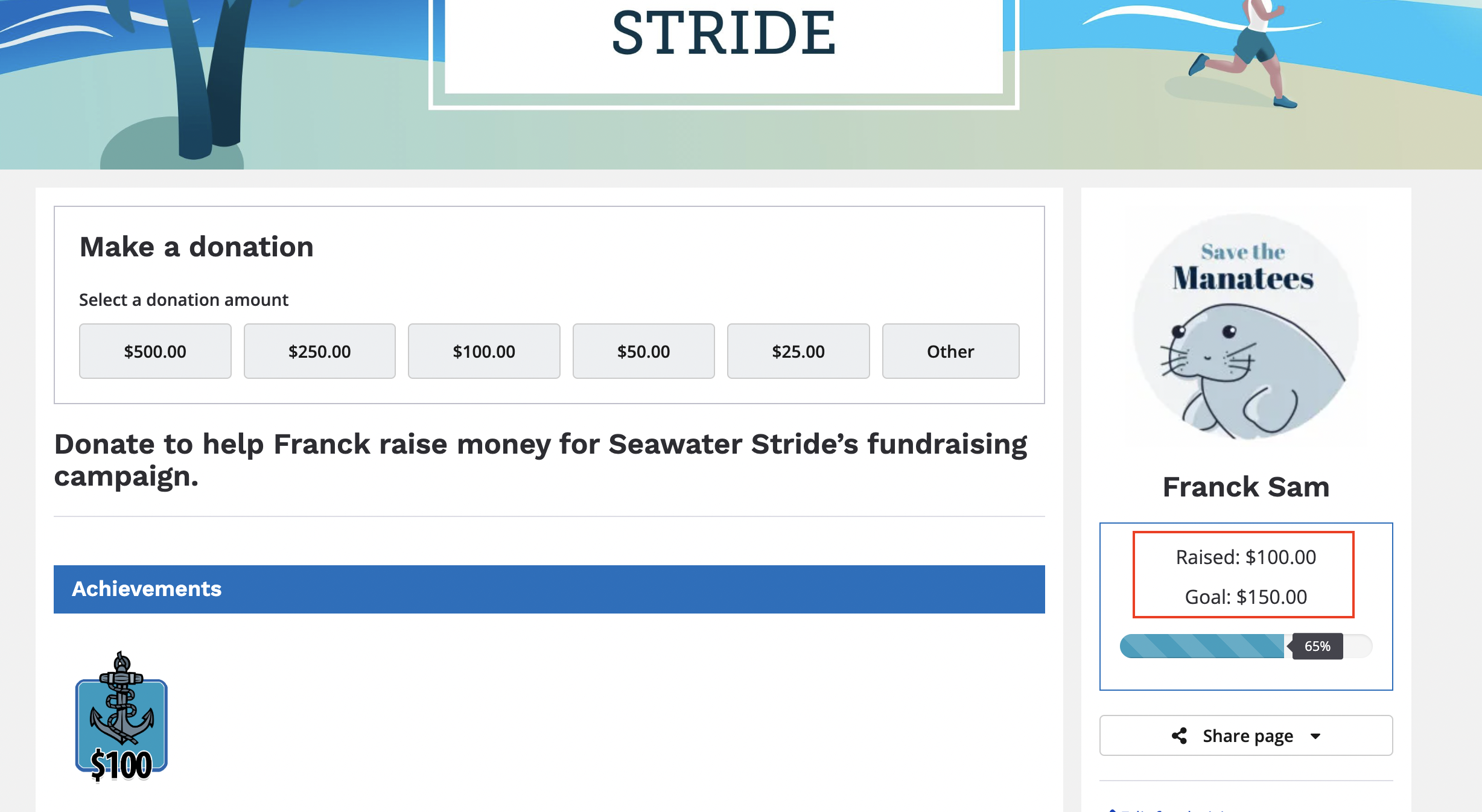
7. After completing the donation redirect, the donation will display on the individual/team's page that the donation was redirected to in the Recent donors section. The donation amount will also be reflected in the amount raised.
Note: Donations can only be redirected to existing fundraisers. To redirect a donation, the participant will need to be opted in to be a fundraiser. If a participant is interested in opting in to fundraising, please reference or share the article Opting in or out of event fundraising: Participant FAQs
For additional assistance managing donations, reference our Fundraising Coordinator Resources or contact our team.