
Race Roster has updated its participant list functionality with an improved display that pre-populates participants within the report by default, and now displays report filters on the righthand side of the page. This display will allow for less scrolling, and allows the user to easily view all templating functionality at the top of the page.
From the event dashboard, select Participants → Participant list from the lefthand side menu. Alternatively, you can click view participants from the registration count box from the dashboard.
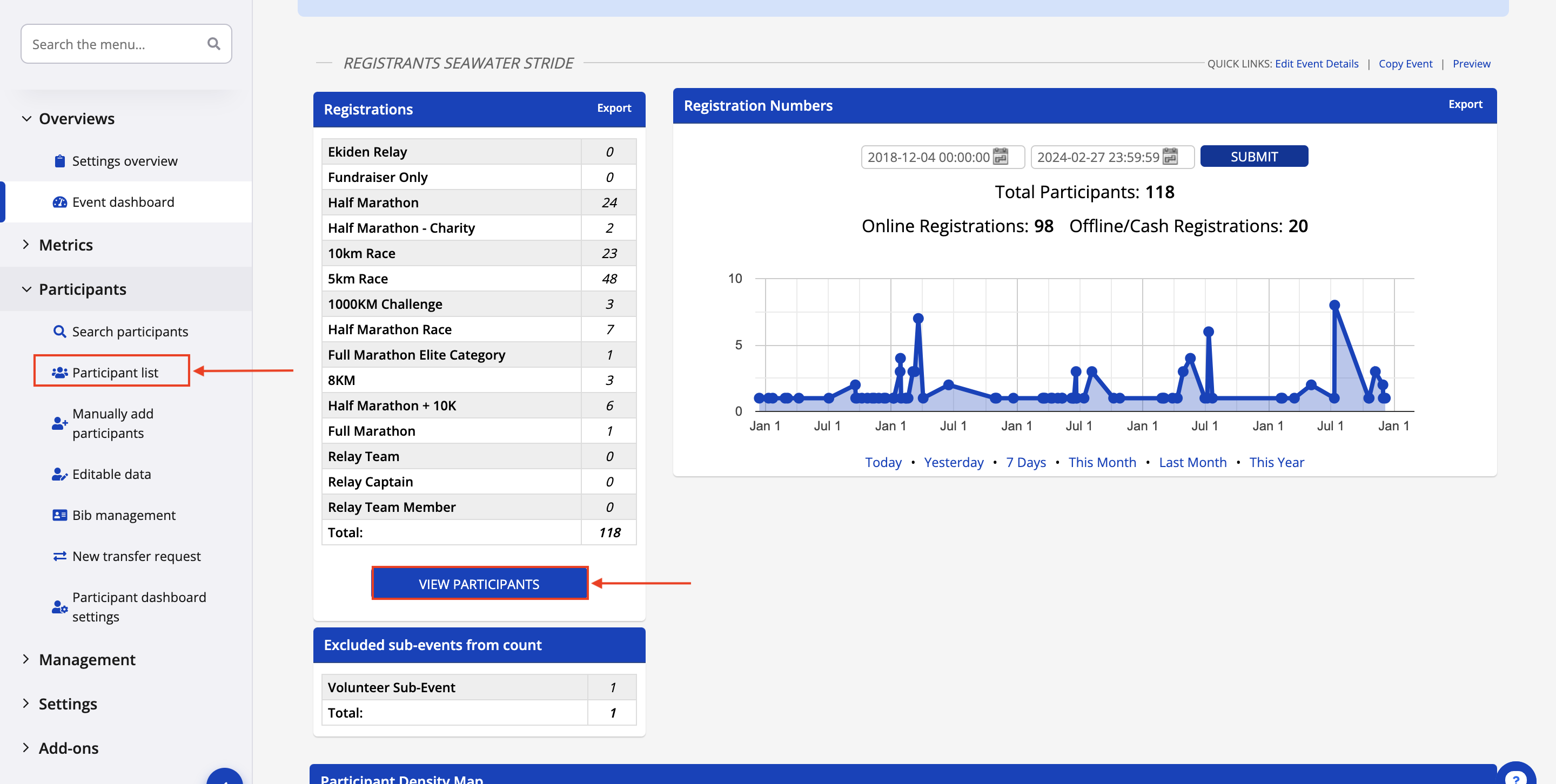
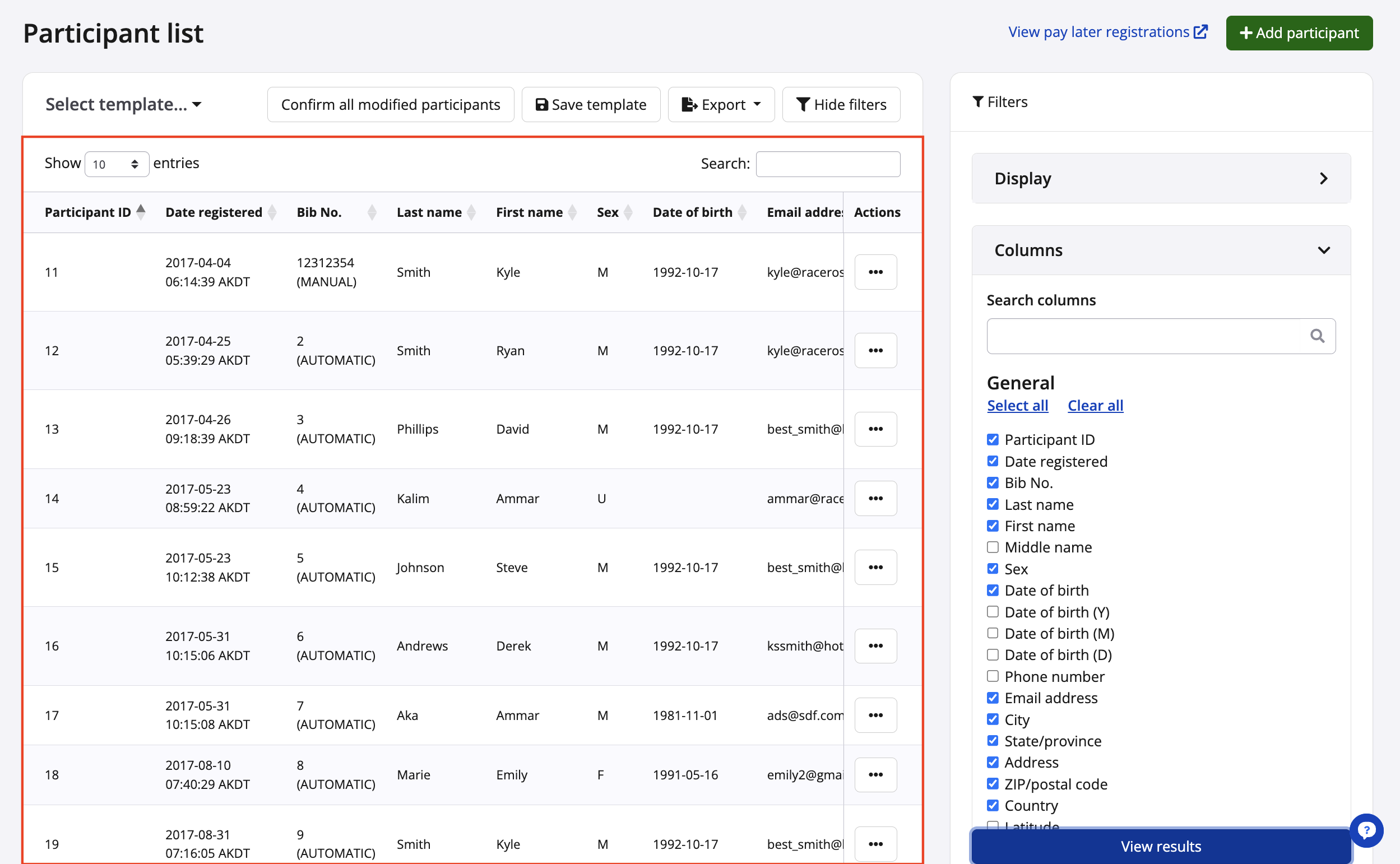
Participant List
The participant list will populate active participants included in the report by default when landing on the page without the need to click view results.
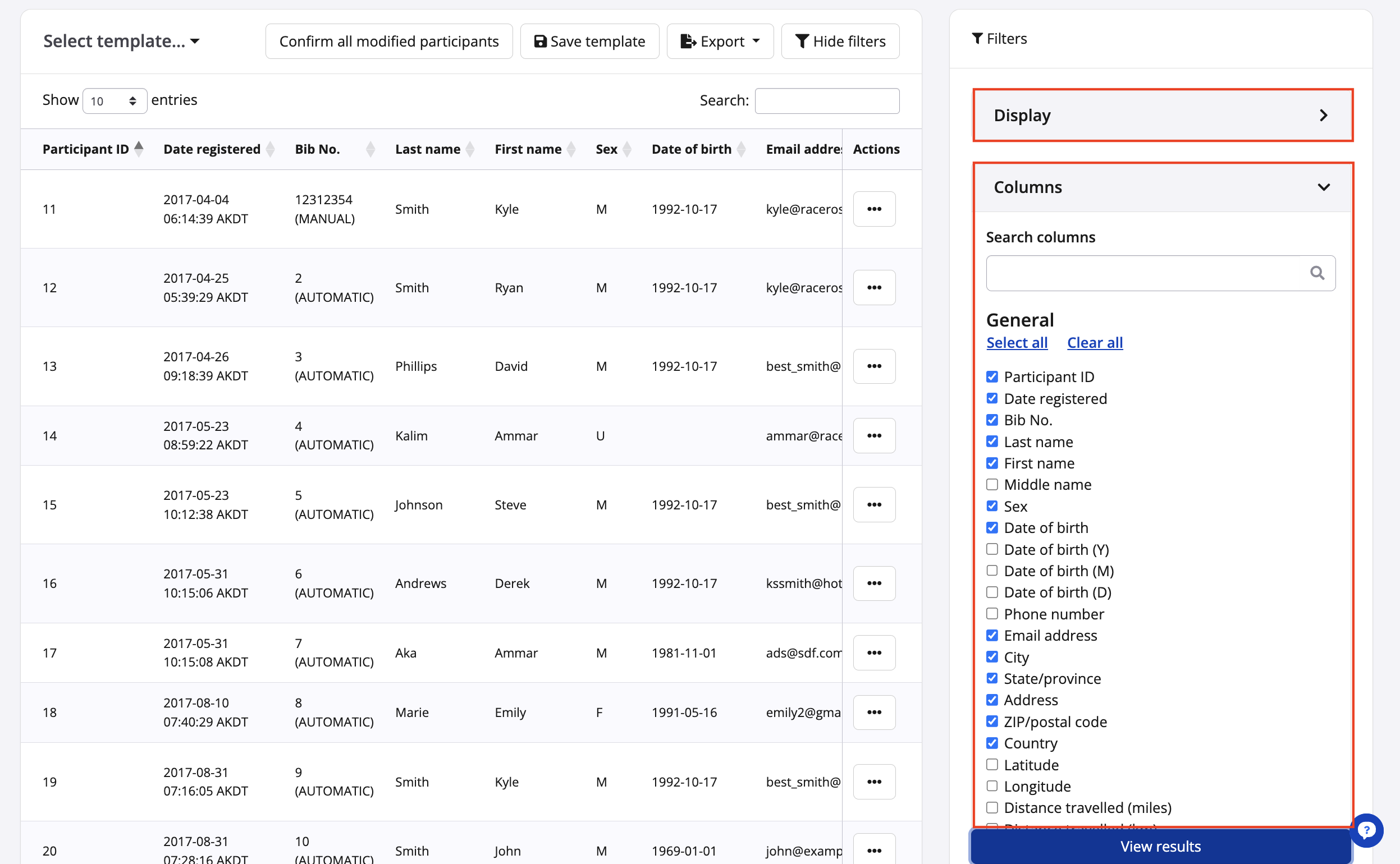
Display & Filters
The display and filter functionality is on the righthand side. These settings allow users to customize their reports with specific display parameters (sub-events, date formatting, country formatting, etc.) and fields containing participant information (first name, last name, email address, sub-event, etc.)
Both the display and column menus are collapsible, allowing the user to easily expand and scroll to view the options available without having to navigate far from the generated list of participants.
Clicking the view results button will re-generate the participant list with the selected fields applied to the report.
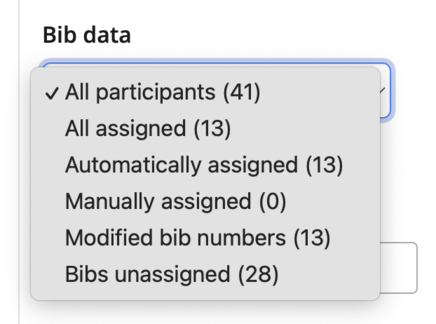
Bib filters and export options are now located under the display dropdown from the righthand side of the page. Bib filter options include:
- All assigned (bibs)
- Automatically assigned (automatic bib assignment)
- Manually assigned (uploaded or manually assigned)
- Modified bib numbers (any bib numbers that have been modified in any way)
- Bib unassigned (any runners without a bib number assigned yet)
Templating Settings
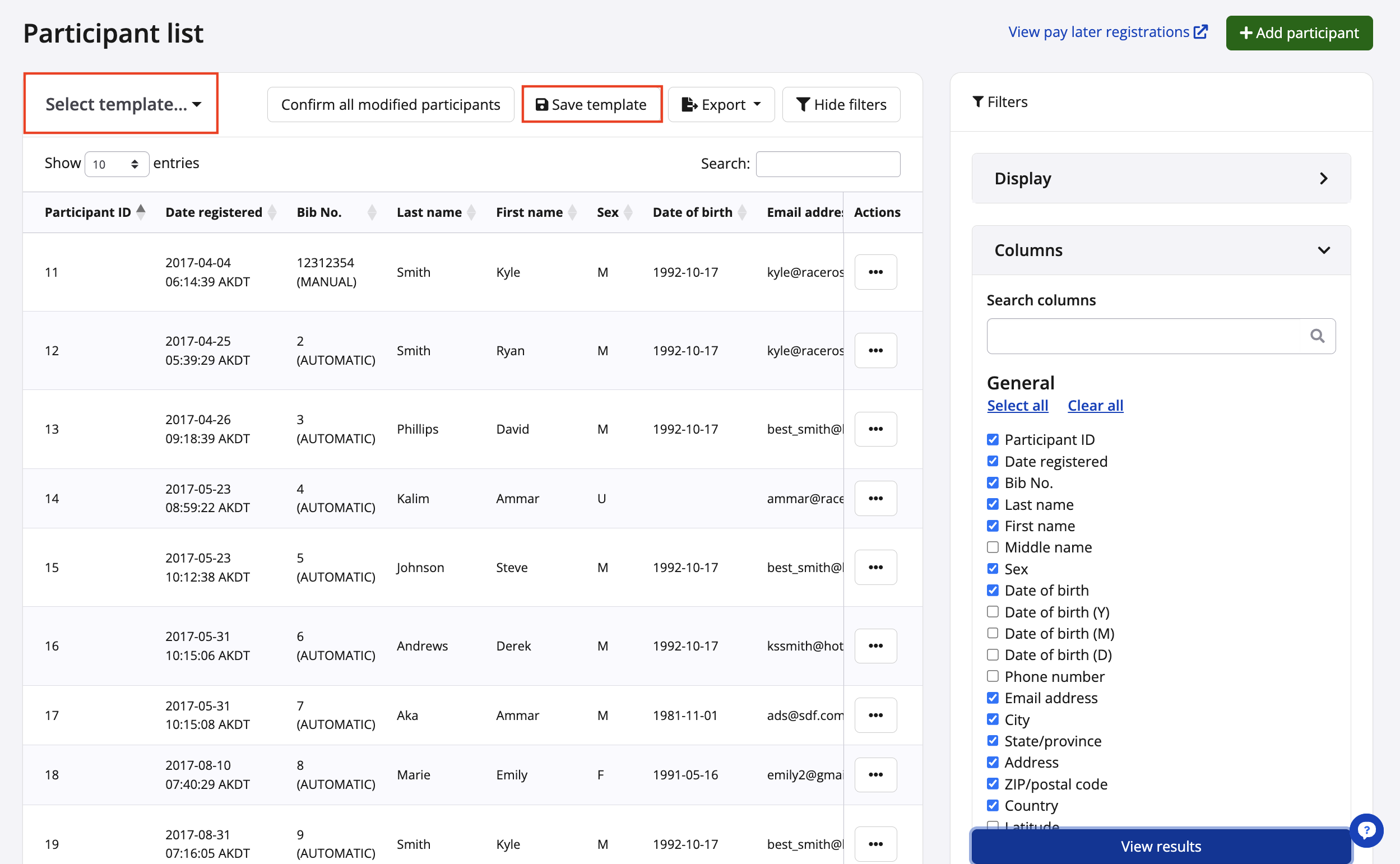
Event organizers can create report templates to save for future uses that contain specific display and column criteria. Template settings are found at the top of the page above the list of registered participants.
To save a template, click the Save template button at the top of the page to give your report template a name.
Click the Select template dropdown to select and view a saved template.
Exporting Reports
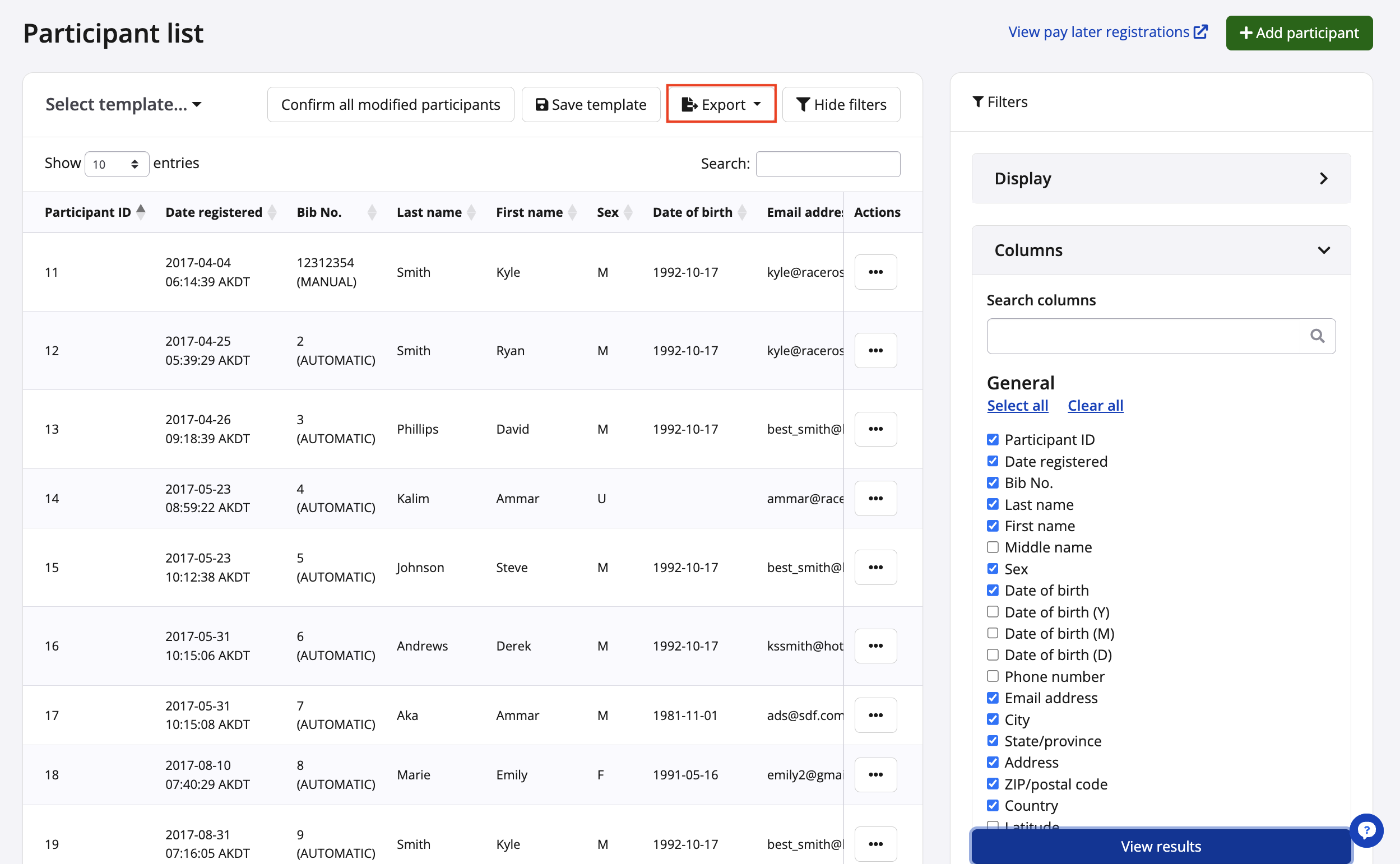
Exporting the participant list to a csv. file can be done by selecting the Export button at the top of the page.
For additional assistance navigating the participant list, please contact our team.