---
title: How to add and manage teams
description: How to enable participant and team fundraising
---
[Skip to content](https://help.raceroster.com/en-us/knowledge-base/how-to-manage-teams#main-content)
[Submit a knowledge article idea](https://help.raceroster.com/en-us/knowledge-base/kb-tickets/new?hsLang=en-us)

Open main navigation
Close main navigation
- [Submit a knowledge article idea](https://help.raceroster.com/en-us/knowledge-base/kb-tickets/new)
How can we help you?
- There are no suggestions because the search field is empty.
1. [Race Roster Knowledge Base](https://help.raceroster.com/en-us/knowledge-base?hsLang=en-us)
2. [Event Organizers and Race Directors](https://help.raceroster.com/en-us/knowledge-base/event-organizers-and-race-directors?hsLang=en-us)
3. [Team Management and Settings](https://help.raceroster.com/en-us/knowledge-base/event-organizers-and-race-directors?hsLang=en-us#team-management-and-settings)
September 30, 2026
# How to add and manage teams
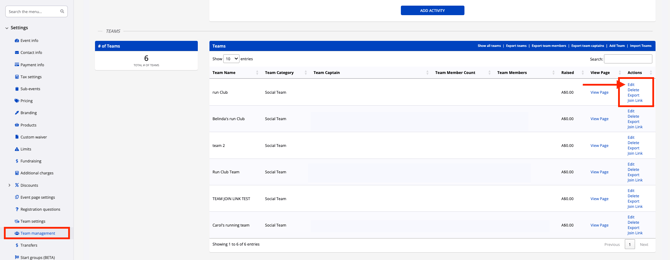
Navigate to **Teams** from the event dashboard (**Settings → Team management**)
### Add a team
1\. Click **Add team** in the top right corner of the teams list, located in the blue header.

2\. From the team edit modal, the following can be managed:
- **Team name** - Set the name of the team here.
- **Team category** - Select the category of the team here.
- **Set team limit** - Set a team maximum or override the existing team maximum.
- **Add participants** - Event organizers may know which participants should be part of this team and can search participants, then select '+ Add to team'.
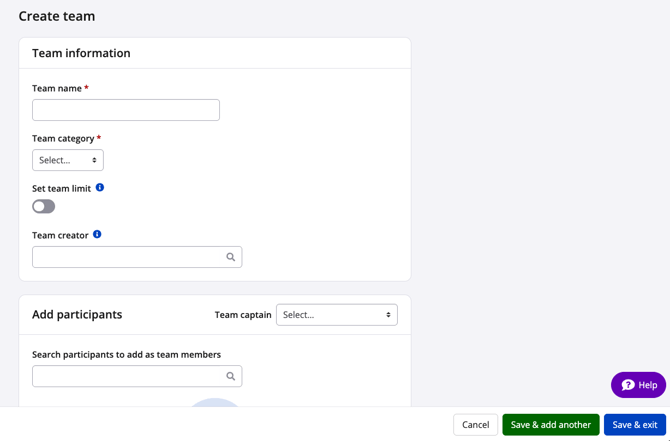
3\. Click **Save & add another** or **Save & exit** to lock in these changes.
---
### Edit a team
1. Locate the team using the search bar in the top right corner of the Teams list and click **Edit** under the **Actions** column for that team.
2\. From the team edit modal, the following can be managed:
- **Team name** - If a team captain would like to change the name of their team and are having trouble completing this on their own, event staff can help update this.
- **Team join code** - This is helpful if a team captain has forgotten their code.
- **Set team limit** - Set a team maximum or override the existing team maximum.
- **Add participants** - Search participants to add as team members and select '+ Add to team'. Add or update the team captain if needed.
- **Fundraising** - Should the team be eligible for fundraising, enable this option here.
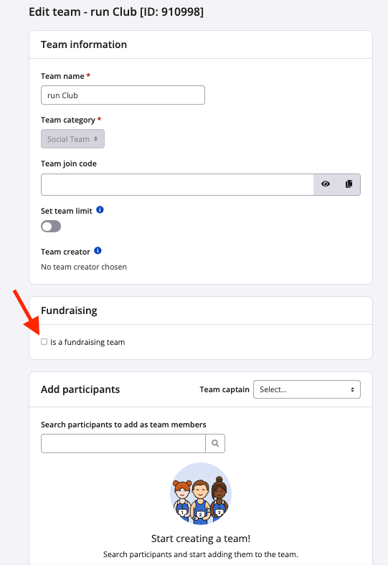
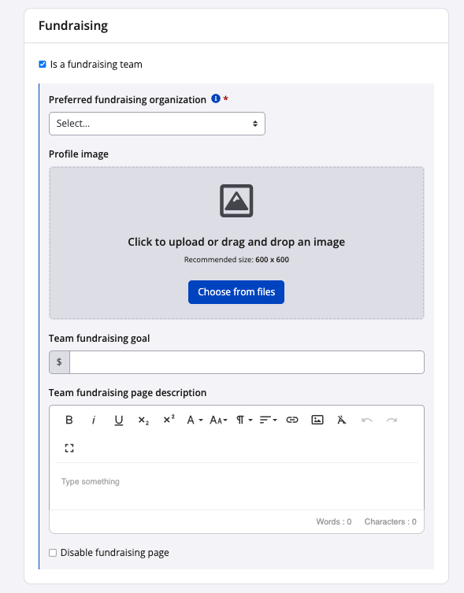
Additional fundraising settings to manage are:
- Select a **preferred fundraising organization**
- Add a **team profile image**
- Set the **team fundraising goal**
- Add a **team fundraising page description**
- **Enable or disable** fundraising page
- **Team-specific discount** - Set a discount that applies only to members joining this team during registration. Check out the article [How to set up team-specific discounts](https://help.raceroster.com/en-us/knowledge-base/how-to-up-team-specific-discounts?hsLang=en-us)for more information.
3\. Click **Save** or **Save & exit** to lock in these changes.
> **Note**: to allow teams to fundraise for your organization, fundraising settings for applicable team categories must be enabled. Check out the article [How to enable participant and team fundraising](https://help.raceroster.com/en-us/knowledge-base/how-to-enable-participant-and-team-fundraising?hsLang=en-us) for more information about configuring team and individual fundraising.
### Delete a team
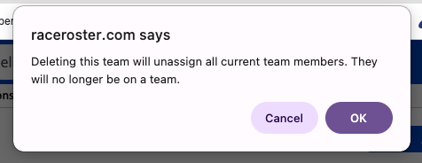
1. Locate the team using the search bar in the top right corner of the Teams list and click **Delete** under the **Actions** column for that team.

2\. Confirm that you would like to proceed to complete the action.
---
For additional assistance with team management, please [contact our team](https://raceroster.com/contact). For more on specific team configurations, visit our [Team Management and Settings](https://help.raceroster.com/en-us/knowledge-base/event-organizers-and-race-directors#team-management-and-settings) archive.
- [Event Organizers and Race Directors](https://help.raceroster.com/en-us/knowledge-base/event-organizers-and-race-directors?hsLang=en-us#main-content)
- [Participant Management](https://help.raceroster.com/en-us/knowledge-base/event-organizers-and-race-directors?hsLang=en-us#participant-management)
- [Financials](https://help.raceroster.com/en-us/knowledge-base/event-organizers-and-race-directors?hsLang=en-us#financials)
- [Marketing & Promotions](https://help.raceroster.com/en-us/knowledge-base/event-organizers-and-race-directors?hsLang=en-us#marketing-promotions)
- [Email Campaigns, MailChimp Integration](https://help.raceroster.com/en-us/knowledge-base/event-organizers-and-race-directors?hsLang=en-us#email-campaigns-mailchimp-integration)
- [Products](https://help.raceroster.com/en-us/knowledge-base/event-organizers-and-race-directors?hsLang=en-us#products)
- [Team Management and Settings](https://help.raceroster.com/en-us/knowledge-base/event-organizers-and-race-directors?hsLang=en-us#team-management-and-settings)
- [Onsite App](https://help.raceroster.com/en-us/knowledge-base/event-organizers-and-race-directors?hsLang=en-us#onsite-app)
- [Registration Questions](https://help.raceroster.com/en-us/knowledge-base/event-organizers-and-race-directors?hsLang=en-us#registration-questions)
- [Fundraising Settings and Receipts](https://help.raceroster.com/en-us/knowledge-base/event-organizers-and-race-directors?hsLang=en-us#fundraising-settings-and-receipts)
- [Promo Codes, Discounts, and Gifting Codes](https://help.raceroster.com/en-us/knowledge-base/event-organizers-and-race-directors?hsLang=en-us#promo-codes-discounts-and-gifting-codes)
- [Virtual](https://help.raceroster.com/en-us/knowledge-base/event-organizers-and-race-directors?hsLang=en-us#virtual)
- [Results](https://help.raceroster.com/en-us/knowledge-base/event-organizers-and-race-directors?hsLang=en-us#results)
- [Access codes](https://help.raceroster.com/en-us/knowledge-base/event-organizers-and-race-directors?hsLang=en-us#access-codes)
- [Director Access and Settings](https://help.raceroster.com/en-us/knowledge-base/event-organizers-and-race-directors?hsLang=en-us#director-access-and-settings)
- [Pricing](https://help.raceroster.com/en-us/knowledge-base/event-organizers-and-race-directors?hsLang=en-us#pricing)
- [Event Page Settings](https://help.raceroster.com/en-us/knowledge-base/event-organizers-and-race-directors?hsLang=en-us#event-page-settings)
- [Your Dashboard](https://help.raceroster.com/en-us/knowledge-base/event-organizers-and-race-directors?hsLang=en-us#your-dashboard)
- [Sub-events](https://help.raceroster.com/en-us/knowledge-base/event-organizers-and-race-directors?hsLang=en-us#sub-events)
- [Other FAQs](https://help.raceroster.com/en-us/knowledge-base/event-organizers-and-race-directors?hsLang=en-us#other-faqs)
- [Volunteers](https://help.raceroster.com/en-us/knowledge-base/event-organizers-and-race-directors?hsLang=en-us#volunteers)
- [Create, Edit or Take Your Event Live](https://help.raceroster.com/en-us/knowledge-base/event-organizers-and-race-directors?hsLang=en-us#create-edit-or-take-your-event-live)
- [Waivers](https://help.raceroster.com/en-us/knowledge-base/event-organizers-and-race-directors?hsLang=en-us#waivers)
- [Reports](https://help.raceroster.com/en-us/knowledge-base/event-organizers-and-race-directors?hsLang=en-us#reports)
- [Participants and Fundraisers](https://help.raceroster.com/en-us/knowledge-base/participants-and-fundraisers?hsLang=en-us#main-content)
- [Participant FAQs](https://help.raceroster.com/en-us/knowledge-base/participants-and-fundraisers?hsLang=en-us#participant-faqs)
- [Fundraising](https://help.raceroster.com/en-us/knowledge-base/participants-and-fundraisers?hsLang=en-us#fundraising)
- [Gift Registrations](https://help.raceroster.com/en-us/knowledge-base/participants-and-fundraisers?hsLang=en-us#gift-registrations)
- [Sign In and Manage Registration](https://help.raceroster.com/en-us/knowledge-base/participants-and-fundraisers?hsLang=en-us#sign-in-and-manage-registration)
- [Transfer Registration](https://help.raceroster.com/en-us/knowledge-base/participants-and-fundraisers?hsLang=en-us#transfer-registration)
- [Access Codes](https://help.raceroster.com/en-us/knowledge-base/participants-and-fundraisers?hsLang=en-us#access-codes)
- [Teams](https://help.raceroster.com/en-us/knowledge-base/participants-and-fundraisers?hsLang=en-us#teams)
- [Security & Compliance](https://help.raceroster.com/en-us/knowledge-base/participants-and-fundraisers?hsLang=en-us#security-compliance)
- [Promo Codes](https://help.raceroster.com/en-us/knowledge-base/participants-and-fundraisers?hsLang=en-us#promo-codes)
- [Race Roster CRM](https://help.raceroster.com/en-us/knowledge-base/race-roster-crm?hsLang=en-us#main-content)
- [Organizations](https://help.raceroster.com/en-us/knowledge-base/race-roster-crm?hsLang=en-us#organizations)
- [Contact Management and Validation Lists](https://help.raceroster.com/en-us/knowledge-base/race-roster-crm?hsLang=en-us#contact-management-and-validation-lists)
- [Reporting](https://help.raceroster.com/en-us/knowledge-base/race-roster-crm?hsLang=en-us#reporting)
- [Events and Event Groups](https://help.raceroster.com/en-us/knowledge-base/race-roster-crm?hsLang=en-us#events-and-event-groups)
- [Campaigns and Marketing](https://help.raceroster.com/en-us/knowledge-base/race-roster-crm?hsLang=en-us#campaigns-and-marketing)
- [Non-profit Organizations](https://help.raceroster.com/en-us/knowledge-base/race-roster-crm?hsLang=en-us#non-profit-organizations)
- [Fundraising Coordinators](https://help.raceroster.com/en-us/knowledge-base/fundraising-coordinators?hsLang=en-us#main-content)
- [Resources](https://help.raceroster.com/en-us/knowledge-base/fundraising-coordinators?hsLang=en-us#resources)
- [Participant and Team Fundraising](https://help.raceroster.com/en-us/knowledge-base/fundraising-coordinators?hsLang=en-us#participant-and-team-fundraising)
- [Reporting](https://help.raceroster.com/en-us/knowledge-base/fundraising-coordinators?hsLang=en-us#reporting)
- [Timers](https://help.raceroster.com/en-us/knowledge-base/timers?hsLang=en-us#main-content)
- [Account settings](https://help.raceroster.com/en-us/knowledge-base/timers?hsLang=en-us#account-settings)
- [Results](https://help.raceroster.com/en-us/knowledge-base/timers?hsLang=en-us#results)
- [Timing Tools](https://help.raceroster.com/en-us/knowledge-base/timers?hsLang=en-us#timing-tools)
- [Bib Assignment](https://help.raceroster.com/en-us/knowledge-base/timers?hsLang=en-us#bib-assignment)
- [Participant Data and Reports](https://help.raceroster.com/en-us/knowledge-base/timers?hsLang=en-us#participant-data-and-reports)
- [The ASICS Runkeeper™ app](https://help.raceroster.com/en-us/knowledge-base/the-asics-runkeeper-app?hsLang=en-us#main-content)
- [The ASICS Runkeeper™ app](https://help.raceroster.com/en-us/knowledge-base/the-asics-runkeeper-app?hsLang=en-us#the-asics-runkeeper-app)
[](https://raceroster.com)
Copyright © 2026, Race Roster