
Once your results are posted, you can still make quick adjustments on the front facing results page.
Step 1: Go to the front facing results page
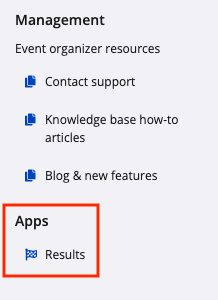
1. Go to your Event Organizer dashboard and click on Apps -> Results from the left hand side menu
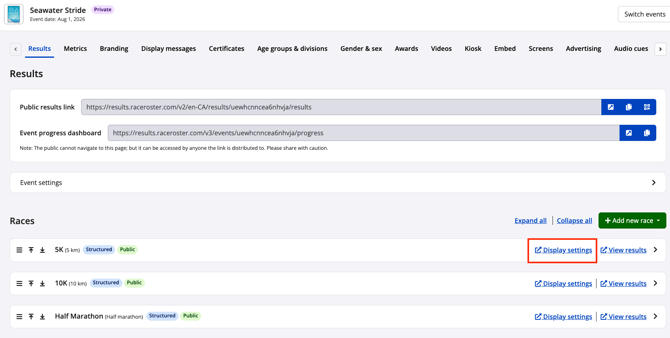
2. Find the results page that you would like to edit and click Display settings
3. You will now see an ordered list of column headers as displayed on your public facing results leaderboard
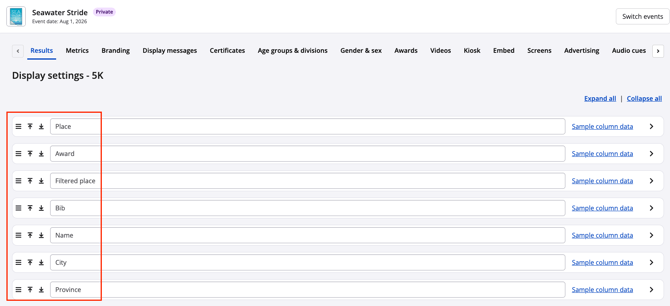
Step 2: Making column edits
1. Click Expand all on the right hand side to see all the various areas your results column will display

2. On the Display settings page you can edit the following:
- Column names - Edit the column name in the field provided. For example you may choose to use Gender instead of Sex
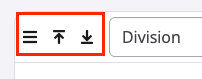
- Adjust their order - Drag and drop the the three line 'hamburger icon', or use the available arrows, to re-order the position of your columns from left to right
- Hide the column - De-select all of the Show on: options
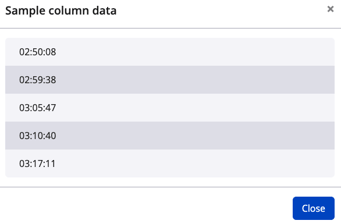
- Sample column data - You can view a sample size of the column content by clicking on the blue text on the far right hand side
3. Click Save & Exit once updates are complete