
The Donation report includes detailed information of all donations made to a fundraising organization. After a fundraising coordinator receives the email that the fundraising payout statement is available, they can compare the statement to the donation report. To find a specific payout statement visit the article How to find fundraising payout statements. Please note that payouts are displayed in Eastern Standard Time. Take note of the date range as it will be required in future steps.
1. Sign in to Race Roster as an event organizer.
2. Navigate to the search box on the left side, then search and select Donation report. Alternatively, search the menu on the left for Management → Fundraising → Donation Report
3. On the top right of the report, select the Show filters button. Using the filters on the right, enter the start and end dates of the payout statement. The statement range date is located in the top right corner of the payout statement, or start and end date columns in the Fundraising payout report. Adjust the date and time to reflect EST.
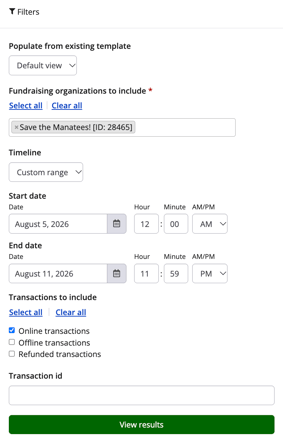
5. Ensure the Transactions to include are selected as Online transactions, then click View results.
6. The report will then be updated based on the selected filters. To export and view each donation, scroll to the bottom of the page and click Download.
For additional assistance with the donation report and fundraising payout statements, please contact our team.