
Effective September 2026, Race Roster finisher certificates are better than ever with Results V3.
Below you will find general information about the new finisher certificates, the steps to enable them on Race Roster event results, the distinction between default and custom certificates, and the details on using our Polotno editor to create something that suits your event's brand, partners and general needs.
If you're looking for information on legacy certificates, please refer to our other article, How to create a finisher certificate (legacy).
Understanding finisher certificates
A finisher certificate is a picture-style award that displays on a participant’s individual results page. The certificate confirms event participation and completion by displaying names, dates, times and placing. It also incorporates colors, logos and imagery according to event and partner branding. A finisher certificate is suitable for both digital sharing and physical printing.
Depending on your needs, you can:
-
use one design for most or all of your event, or
-
add unique designs for each race or challenge.
Screenshot follows with a sample design.
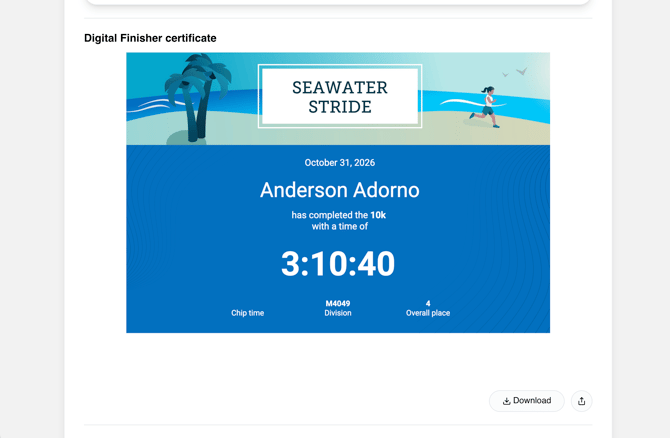
Finisher certificates are a fantastic way to digitally reward event participants for completing what they signed up to do. Once downloaded, participants can print and hang them up, or share them online through social media platforms. Finisher certificates put that "finishing touch" on your event cycle.
Locating the certificates page
- Sign in to the Race Roster user account that has appropriate access.
- Visit the event dashboard.
- Use the left hand menu bar to open Apps > Results.
- Now inside Timing Tools for the specific event, navigate to the Certificates tab near the top of the page.
You are now inside the Finisher Certificates page, where you should see one or more cards (boxes) featuring your designs.
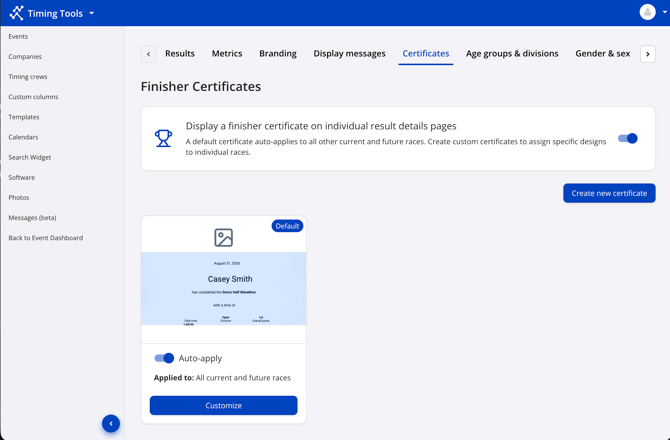
What you see above: The master toggle is on, the Default card has the Auto-apply toggle on, and you can click the blue Create new certificate button.
Enabling finisher certificates
Near the top of the page on the right hand side, a master toggle appears. Screenshot follows.
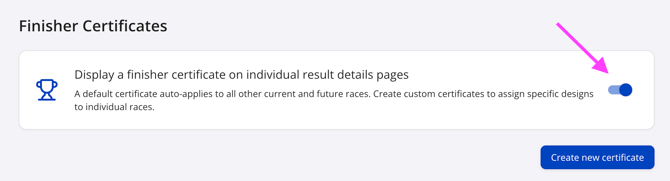
Use this toggle as an on/off switch to show or hide certificates on results pages.
-
When the toggle is on, participants can see finisher certificates on their results pages. Each certificate card can still be turned on or off on its own.
-
When the toggle is off, no finisher certificates show to the public on those pages. The same card also explains that a default design can apply to many races. You can still create custom certificates for specific races that need a different layout or branding.
Distinguishing default certificates and custom certificates
1. Default certificates
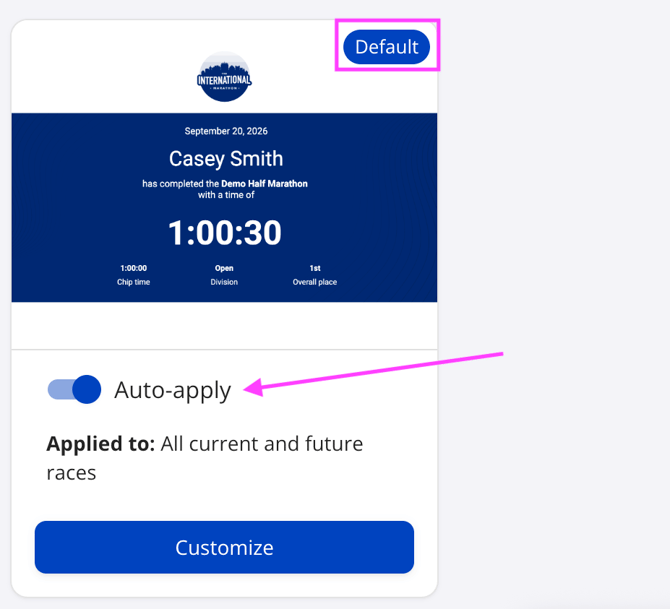
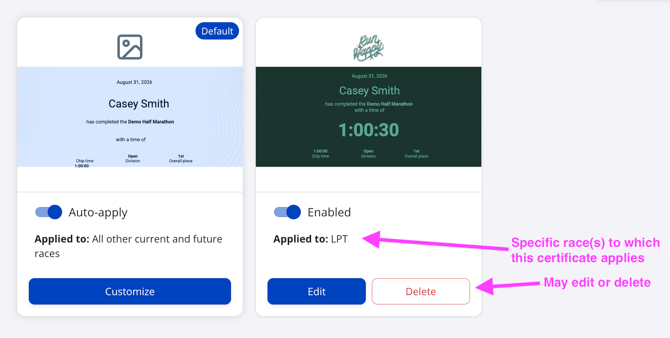
Pressed for time but still want something to show? Our default certificate is designed to display a participant's basic race result information. When enabled, it displays the event date, participant name, sub-event name, chip time, division and place overall, using the logo and color scheme that you set up in the event's Branding section.
-
The Default card shows a preview with sample data, so that you can see the layout.
-
Enabling Auto-apply applies this design for races that are not tied to another certificate.
- When Auto-apply is toggled on, you may see text like "Applied to: All other current and future races." Exact wording can vary.
You may click the blue "Customize" button to open the editor and make changes to the default design. Screenshot follows to highlight the unique elements of the default certificate.
2. Custom certificates
Custom certificates allow for a wide creative range on how you want this digital reward to look. A custom certificate is especially useful when:
- event races have different target audiences (for example, a Marathon finisher certificate may need a more sophisticated design compared to that of a Kids Fun Run)
- event races are individually sponsored (for example, the "Bob's Buoys 5K" and the "Grace Gym 10K" may need different logos and color schemes)
- different results data is captured for each race and challenge (for example, your event features an in-person 5K that is chip-timed, as well as a virtual 100-hour walking challenge where chip time is not relevant)
Click the blue Create new certificate button to create custom designs for select races. Full instructions can be found farther below in this article. After you save, a new card appears for that design.
-
You can use the Enabled toggle as an on/off switch.
-
The card shows text like "Applied to: [name of race(s) using that design]"
-
You may always edit or delete a custom certificate.
Screenshot follows to highlight the unique elements of custom certificates.
Creating a custom finisher certificate
Step 1: Select races
-
Click the green Create new certificate button.
-
On Select races, tick the box beside each race that should use this design.
-
Use Select all or Clear all to speed things up.
-
Click the blue Continue button.
Caution: The screen will display a notification when and if races that are already linked to another certificate will move to this certificate when you finish the creation flow. At the end, each race should associate to only one certificate.
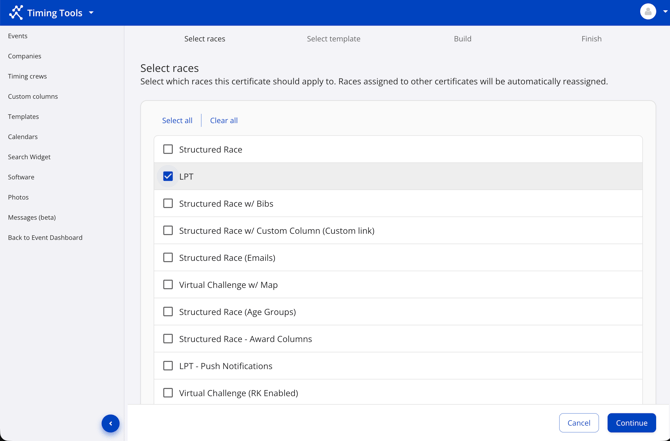
What you see above: Step 1 of 4. Select the races you want. Then, click Continue.
Step 2: Select template
Select one of the three starting layouts:
| Option | Good choice when… |
| Default template | You want a clean layout and common fields (like name and time) are already on the page. |
| Legacy template | You want a simple black-and-white look, also with common fields. |
| Start from scratch | You want a blank page and full control from the start. |
Click Cancel if you need to stop or Back to return to the previous step. When you are ready, click the blue Continue button.
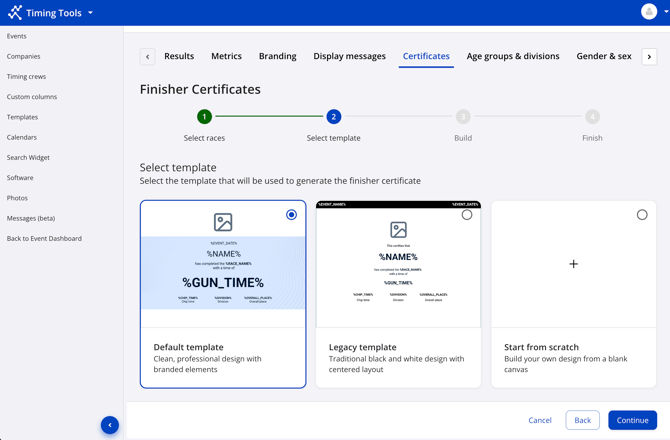
What you see above: Step 2 of 4. Pick a starting layout. Then, click Continue.
Step 3: Build
On this page, use the visual editor to make adjustments by clicking and dragging items onto its digital canvas. A full overview of all features of the Polotno builder can be found farther below in this article.
Click Back if you need to change your template choice.
Warning: If you return to the previous step and select a different template, you will lose any changes you’ve made on the current design.
When the design is ready, click the green Create certificate button.
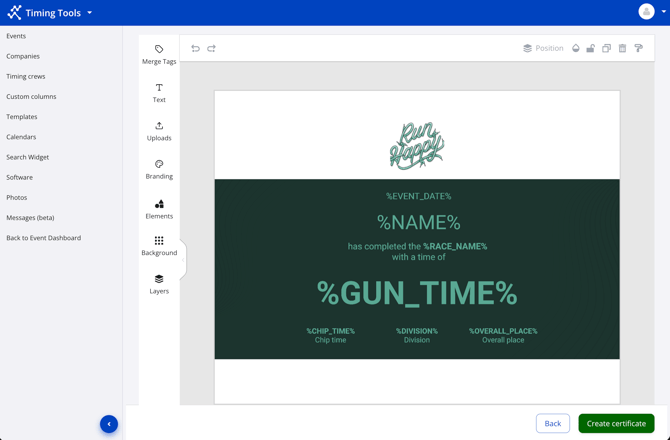
What you see above: Step 3 (Build). Edit your design. When you are satisfied with the design, click Create certificate to save.
Step 4: Finish
You should see the message “Certificate created!” The text explains that the certificate is saved and participants can view it on their results pages.
The Certificate summary lists which race(s) use this design (for example, "LPT" in our example below).
Click Return to editor to open the design again and continue making edits. Click Back to dashboard to view the main Finisher Certificates page with all of your designs for the event.
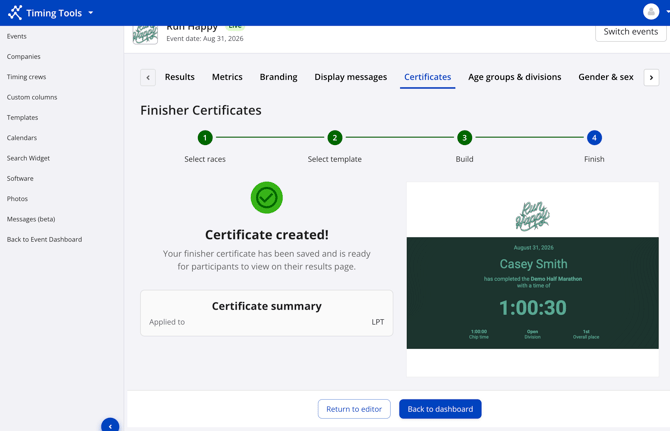
What you see above: Step 4 (Finish). The summary lists the race(s) for this design. The preview still uses sample data.
After you save and return to the finisher certificates dashboard, you can:
- Use the main switch at the top if you need to hide all certificates from public results.
- Click Customize on the default card, or Edit / Delete on a custom card.
- Leave Auto-apply on for the default so any race without a custom design still gets a certificate.
Using the Polotno editor tools and panels
Step 3: Build is the most exciting part of this process. We've integrated the third party digital editor Polotno into this step, so that you can make beautiful and professional finisher certificates that truly reflect your event.
On the left side of the digital canvas, you will see a strip of tools, each denoted by name and icon:
-
Merge Tags: Add live fields from results
-
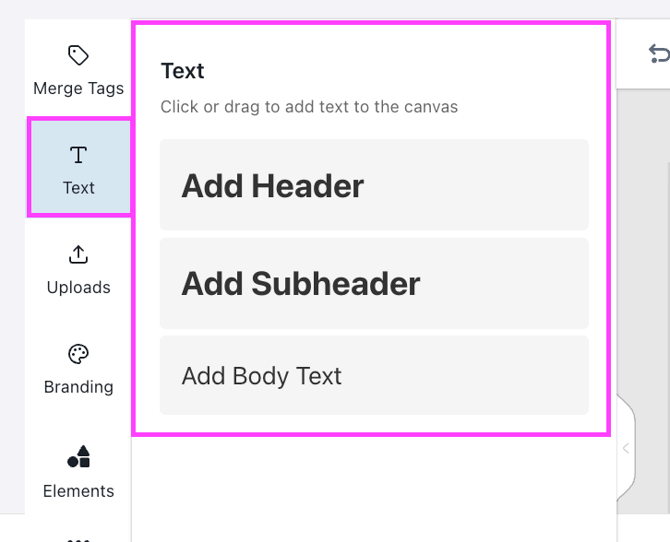
Text: Add text boxes you can type into
-
Uploads: Add your own image files and photos, as items you can move and resize
-
Branding: Show colors and logos saved on your event's Branding section
-
Elements: Insert tables, lines, arrows, and shapes
-
Background: Change the page backdrop (solid colour, gradient or stock photo)
-
Layers: View a list of every item on the page; change their order, lock something into place, or hide it if needed
Note: To distinguish between the use of Uploads and Background, read the dedicated section farther below.
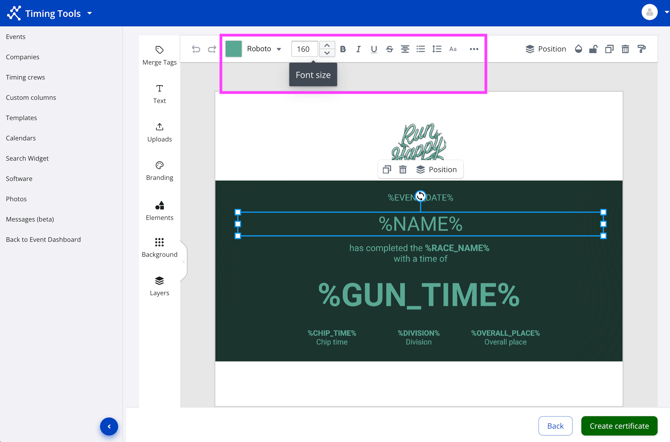
Above the digital canvas you will see icons to undo and redo actions; adjust color, font, text styling, position, transparency; and finally lock, duplicate, and/or delete items.
Merge tags
A merge tag is a short code in a box, like %NAME% or %CHIP_TIME%. When a participant views results, the system swaps the code for that participant's (or event's) real data. To add a merge tag to the finisher certificate:
-
Open Merge Tags.
- Use the search bar to locate your desired merge tag, or scroll down the list.
- Once located, click to add it to the canvas. Alternatively, hold click, drag, and drop it onto the exact location you would like it displayed.
You may see merge tags with similar names (for example, %NAME% or %PARTICIPANT_NAME%). If you are not sure which one your event uses, match what you already show elsewhere in results, ask your timer, or contact Race Roster support for more guidance.
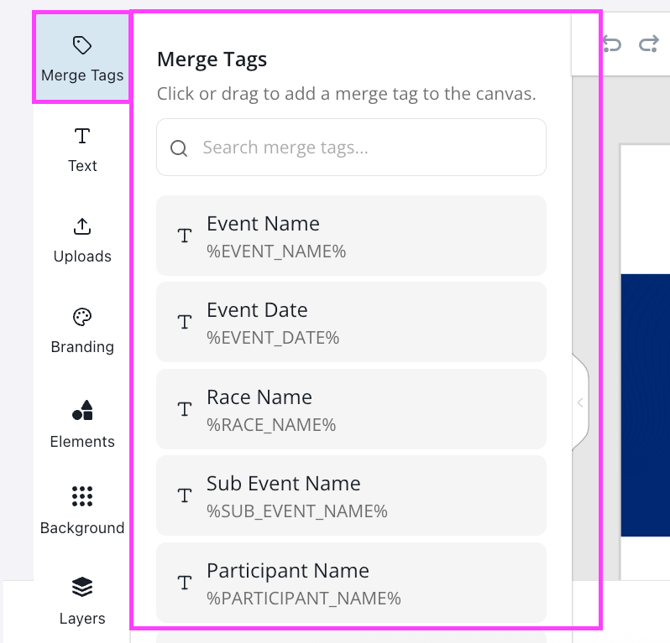
Text
To write and customize text:
-
Open Text.
-
Select the role of the text box (Header, Subheader or Body Text) and click to add it to the canvas. Alternatively, hold click, drag, and drop it onto the exact location you would like it displayed.
-
Type into the text box.
-
With the textbox still selected, change font, size, color, and style (bold, italic, alignment, and more) using the toolbar menu above the canvas.
Uploads vs. Background
Although they both control images, the Uploads and Background tools have different purposes.
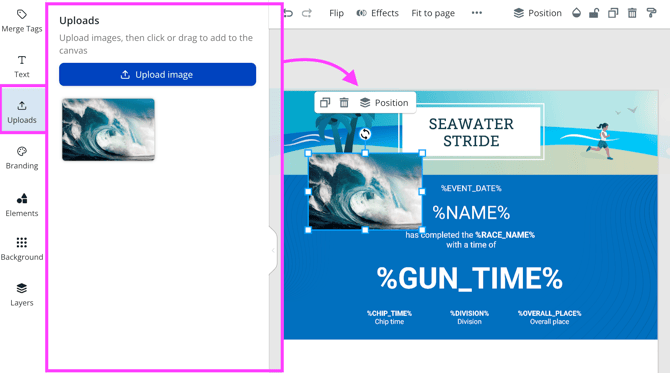
The Uploads panel is for your own image files. Each file lands on the page as its own layer or movable item.
- You can move, resize, and rotate it like any other object on the canvas.
- Double-click an uploaded image to open crop mode. Adjust the crop, then save or confirm when you are done.
- Uploaded image files are reusable in other certificate designs for the same event.
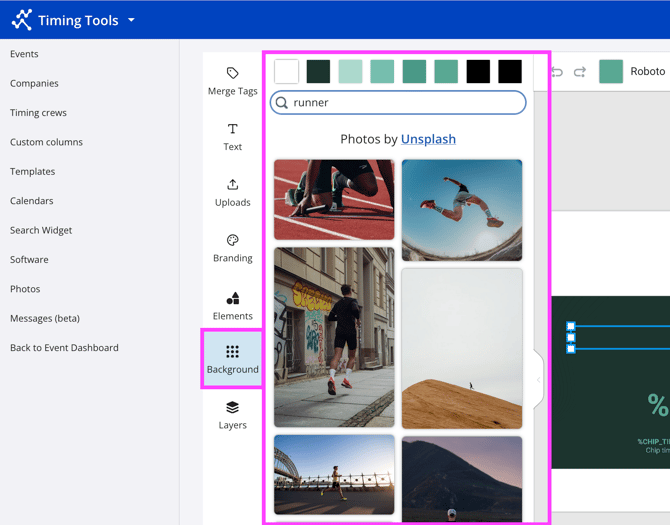
By contrast, the Background panel sets the backdrop for the entire canvas. Think of it like paint on the wall behind your posters.
- You can pick a solid or gradient color that fills the whole backdrop.
- You can pick a stock photo from Unsplash. Type a word like "runner" to search. That photo fills the entire backdrop. You cannot drag it to a corner like a logo, or resize it like a normal picture on the page. It always covers the full background behind the other items.
Warning: If you pick an Unsplash photo and nothing looks different, it might be that you are editing the default template which often includes big white boxes on top of the background. To resolve this:
- Open Layers and find those white shapes.
- Delete them, move them behind your text, or increase transparency.
Branding
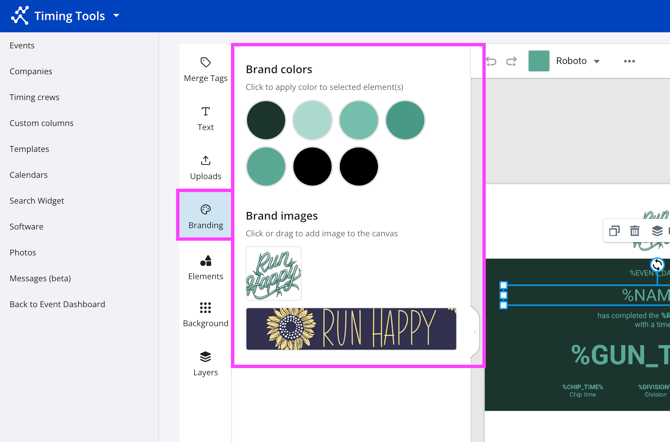
The Branding panel lists brand colours and brand images for your event. You can click a colour to apply it to what you have selected. You can also drag a brand image onto the canvas.
Elements
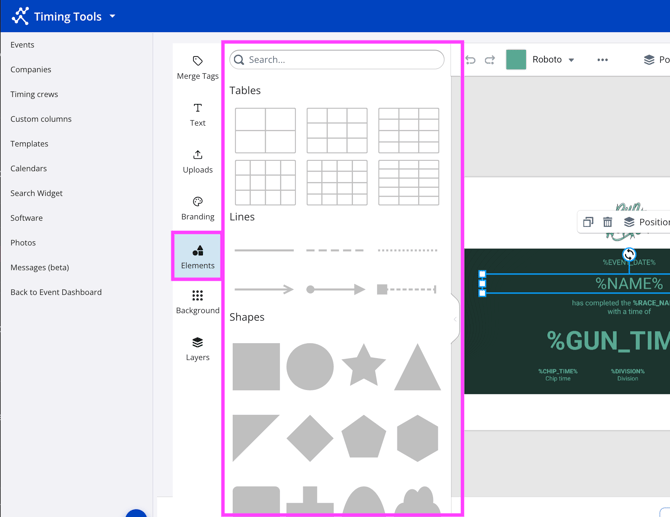
Elements holds tables, line styles, and shapes. You can resize them and change their colors.
Layers
Layers lists every item on the page (text, shapes, merge tags, and more).
- You can drag items in the list to change stacking order.
- You can hide an item or lock it to avoid editing it by mistake. Locking helps with large background shapes.
Tips:
- Hold Shift and click to select more than one item at a time (when the editor supports it).
- Lock big background pieces after you place them so they stay put.
.png?width=670&height=446&name=03g-polotno-merge-tags%20(1).png)
Troubleshooting assistance
| If this happens… | Try this |
| You add an Unsplash background but still see a lot of white | Open Layers. Look for large white rectangles from the template. Remove them or move them behind your text. |
| You want a photo in one corner/side only | Do not use Background Unsplash for that job. Use Uploads or a Branding image so the photo is a normal layer you can move and crop. |
| The wrong numbers or names show on the certificate | Check which merge tags you used. Use Search merge tags and match each tag to a field your event actually publishes. |
| A race shows the wrong certificate design | Open Edit on the custom card, or walk through Select races again, so each race sits on the design you want. Remember that saving can move a race from one certificate to another. |
| You do not see the Certificates tab | Your login may not have access to timing tools for that event. Ask your site admin or Race Roster support to check permissions. |
| The race list is empty on Select races | Check that races exist for the event and match how your timing setup works. Refresh the page and try again. |
| You deleted a custom certificate by mistake | This flow does not include an undo button. Create a new certificate and pick the races again, or rely on the default until you rebuild the design. |
For additional assistance enabling and customizing Finisher Certificates, please contact our team.