Page styling allows a fundraising organization to customize their organization's page settings, thank you page, as well as individual and team fundraising pages.
1. Sign in and visit the event dashboard.
2. Search the menu on the left for Fundraising or select Settings → Fundraising.
3. Select the "..." button to the right of the fundraising organizations in the Actions column, then Page styling.
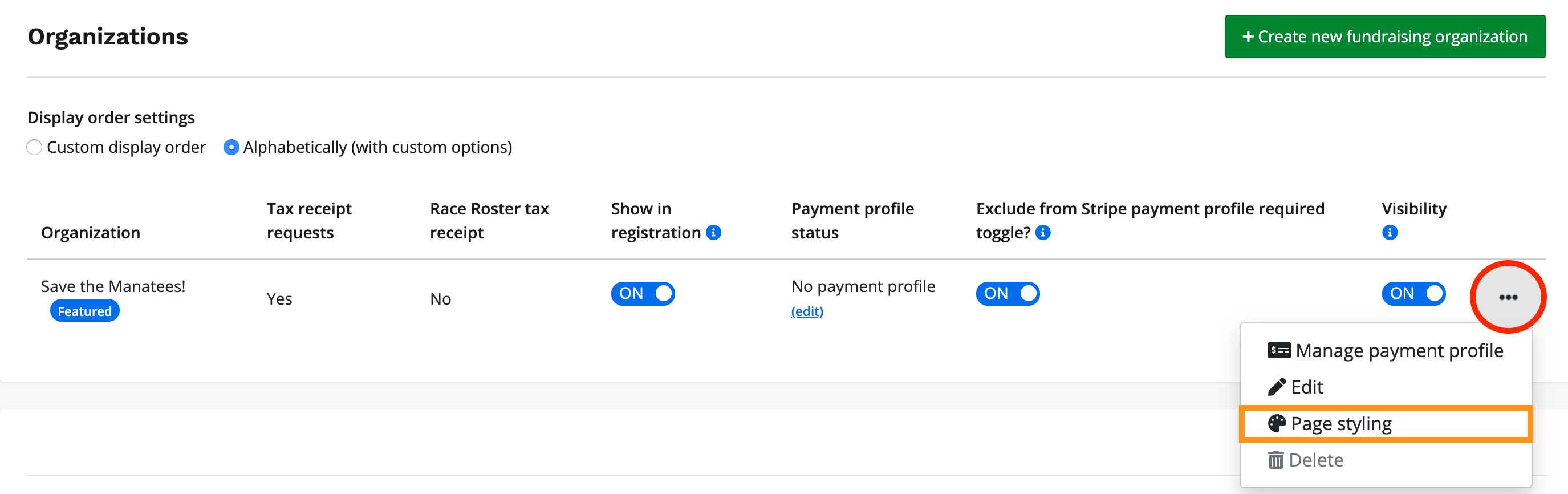
4. Once the content has been updated, select Save or Save & exit to complete the process.
In the Page styling settings, there are five sections that can be customized. Click each link below for more information:
Fundraising organization page settings
Individual fundraising page settings
Team fundraising page settings
Fundraising thank you page settings
Customizable copy
Fundraising organization page settings:
Settings applied here will only apply to the fundraising organization's page, which can be accessed by participants or donors selecting to make a general donation from the event page.
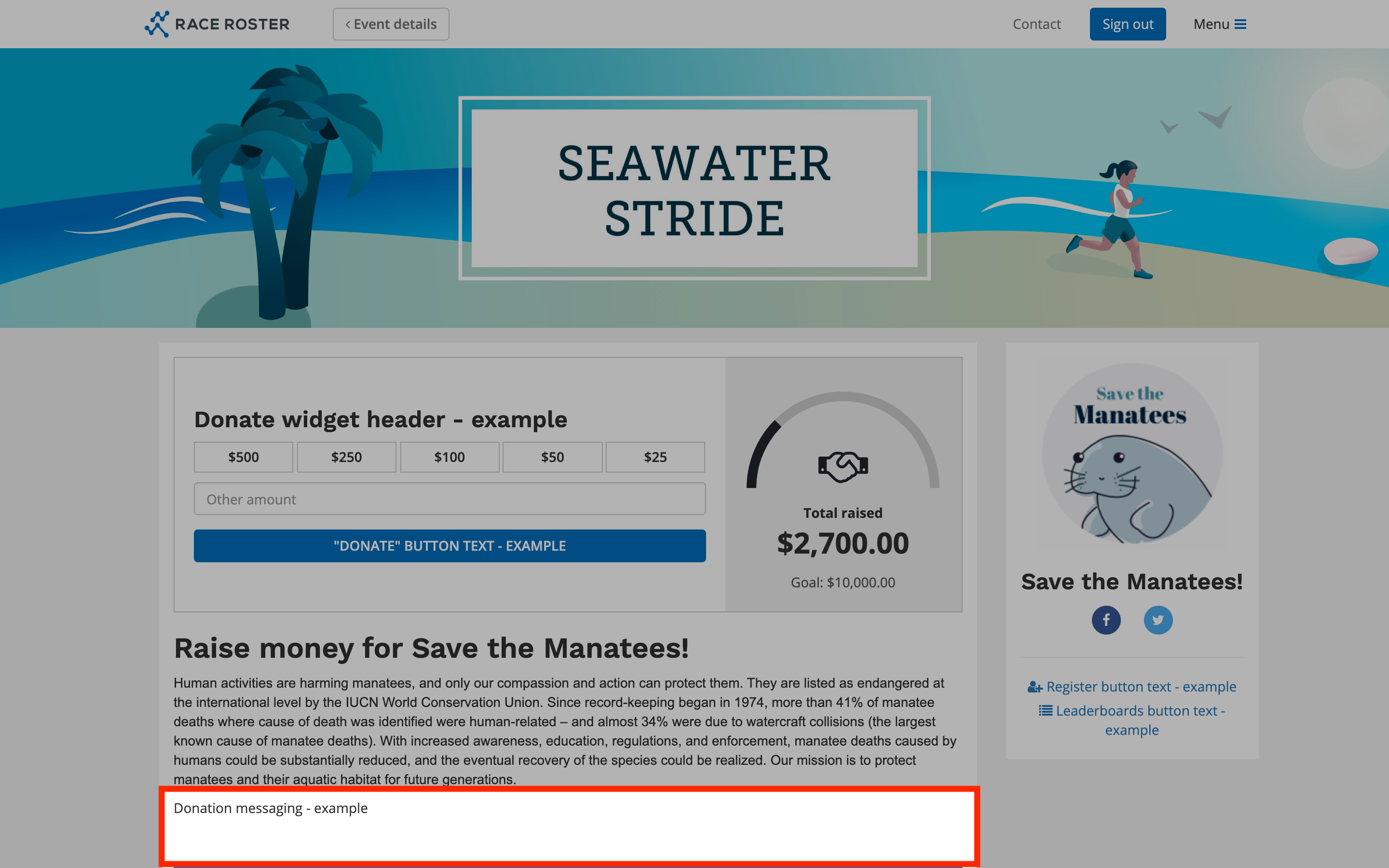
Donation messaging:
This message will display in additional to the fundraising organization's description added in the organization's settings.
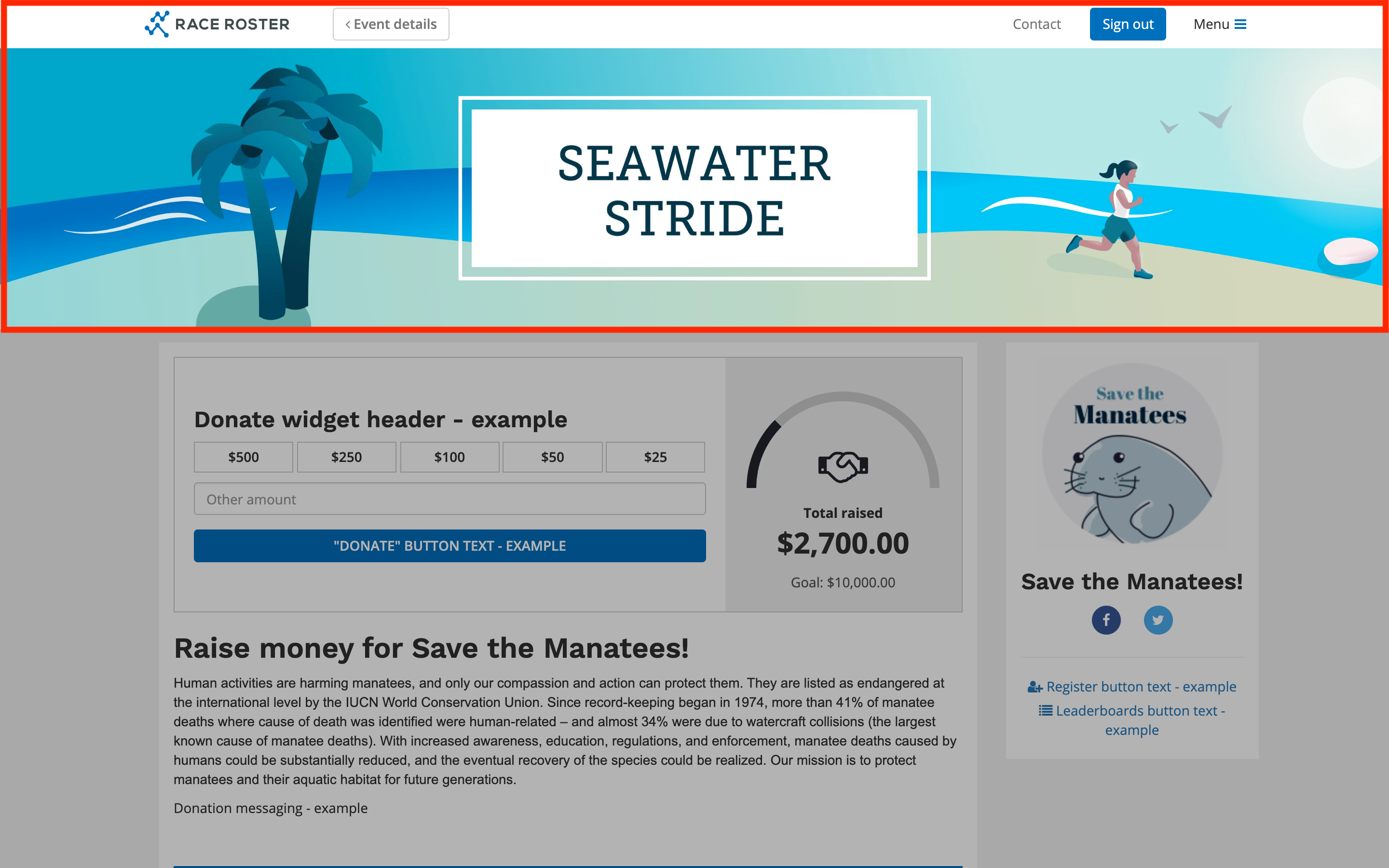
Organization page banner image:
This allows a fundraising organization customize a banner for their organization. This will replace the event's banner.
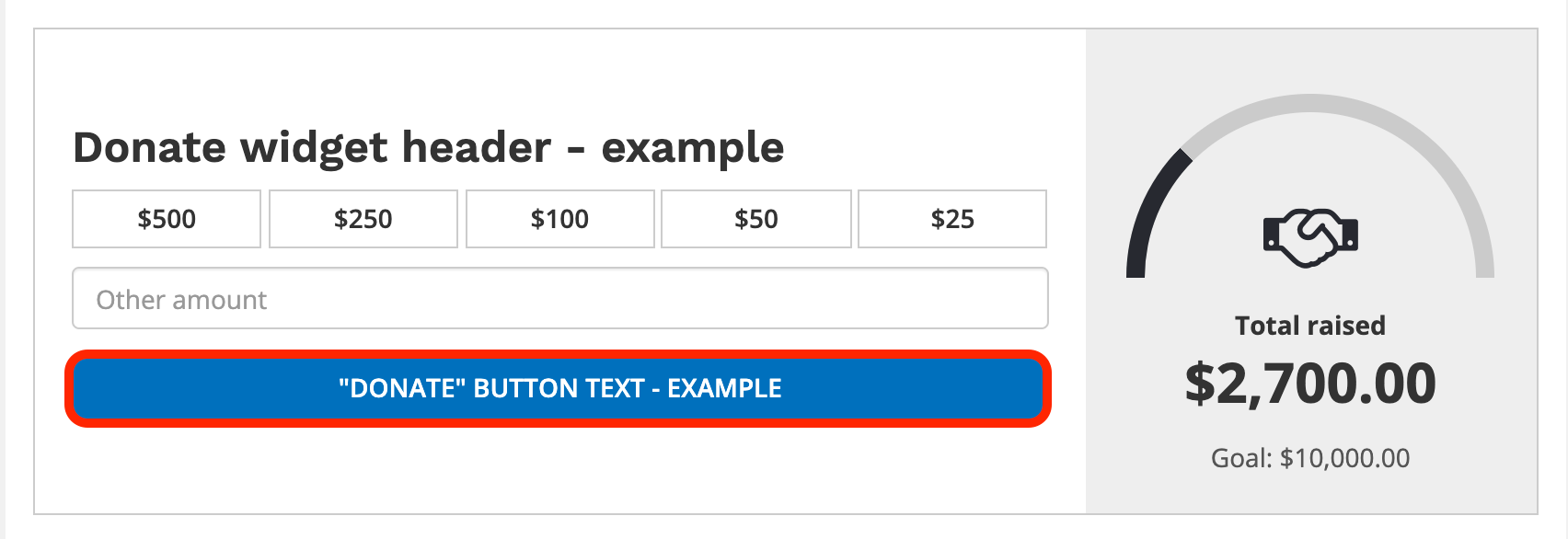
"Donate" button text:
Individual fundraising page settings:
Settings here will only modify the individual's fundraising page if the fundraiser has set this organization as their only preferred fundraising organization, or if this organization is the only fundraising organization on the event.
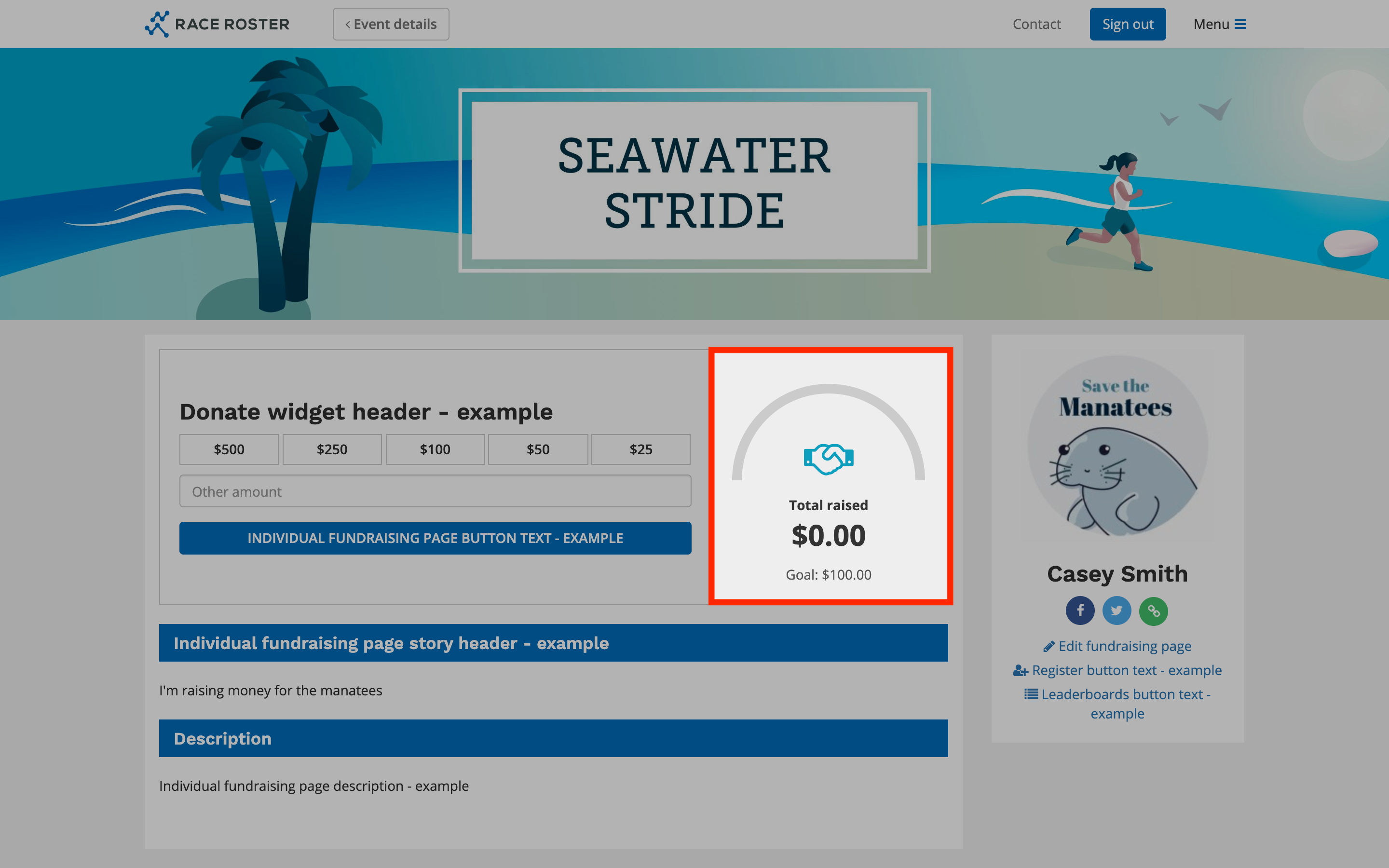
Individual fundraising goal default:
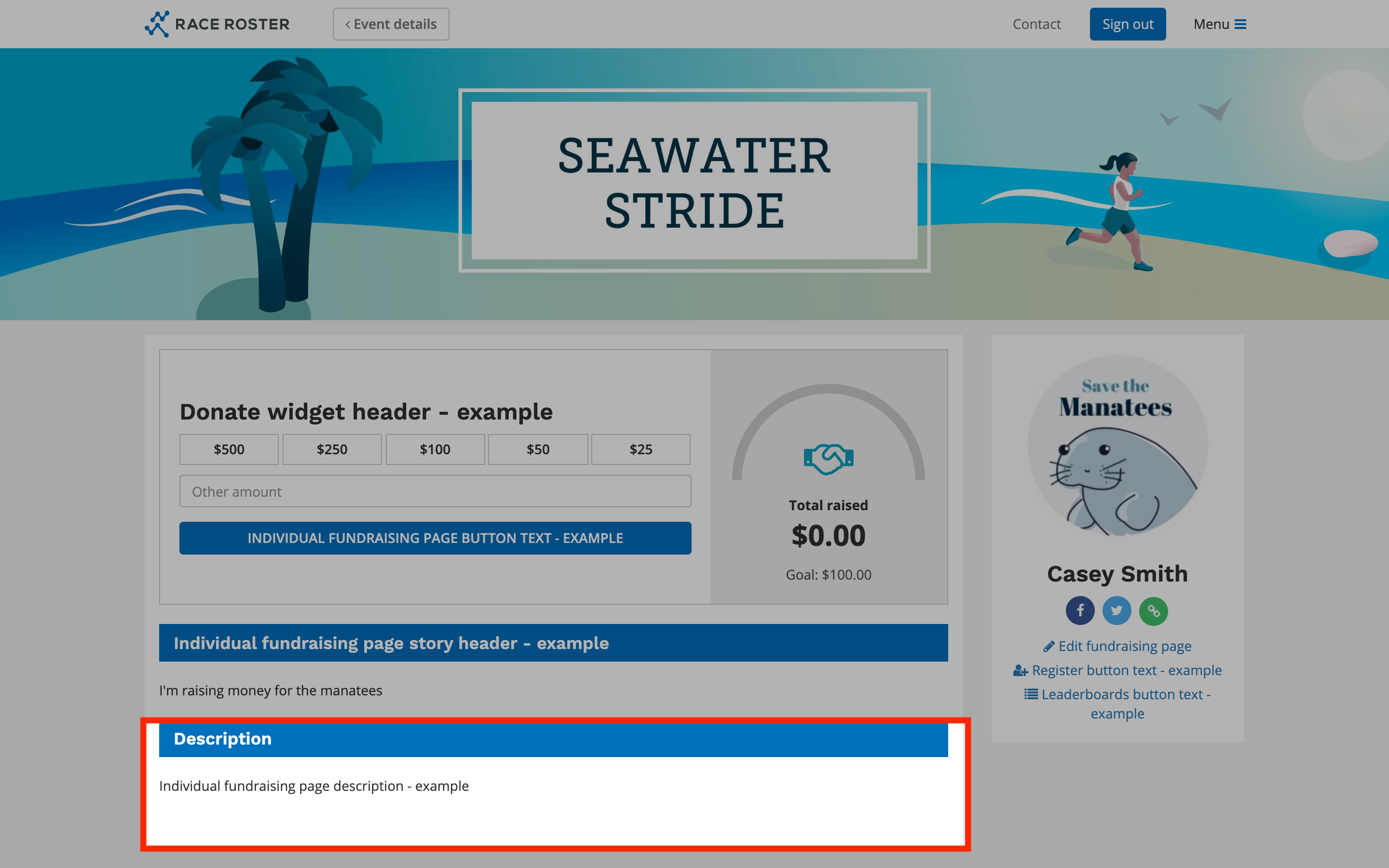
Individual fundraising page description:
This will replace the default message.
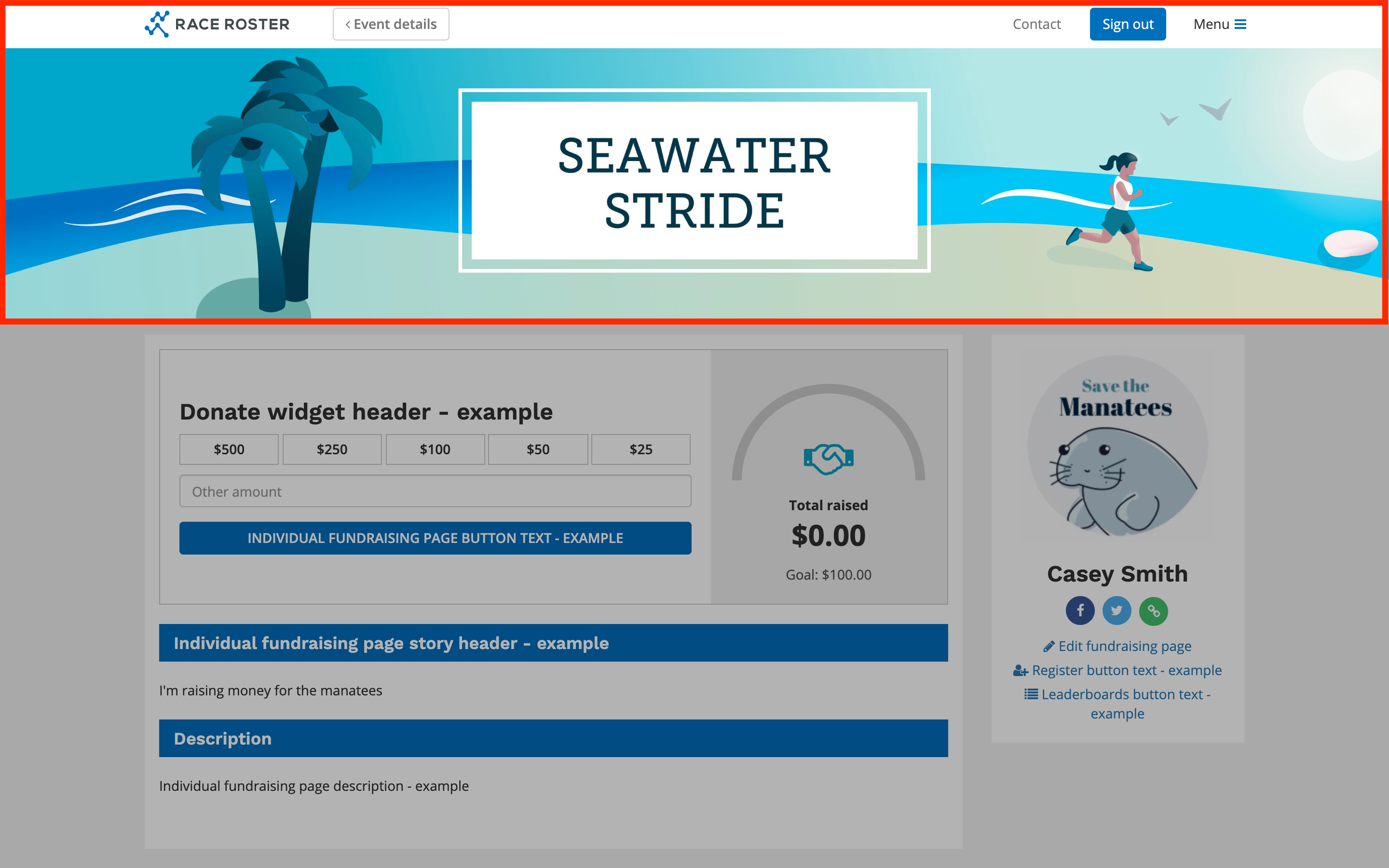
Individual fundraising page banner:
This banner will only appear on individual fundraising pages.
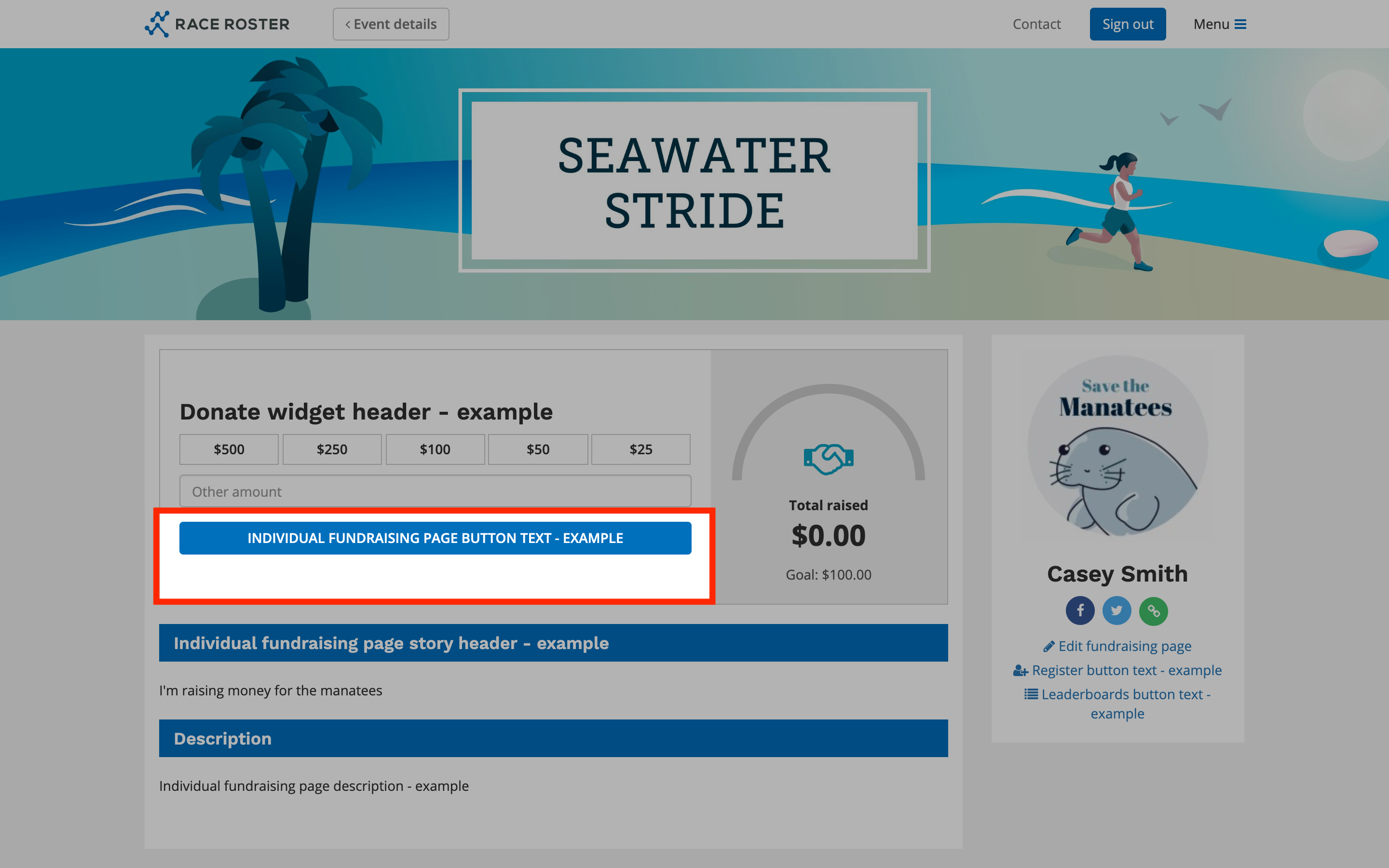
Individual fundraising page button text:
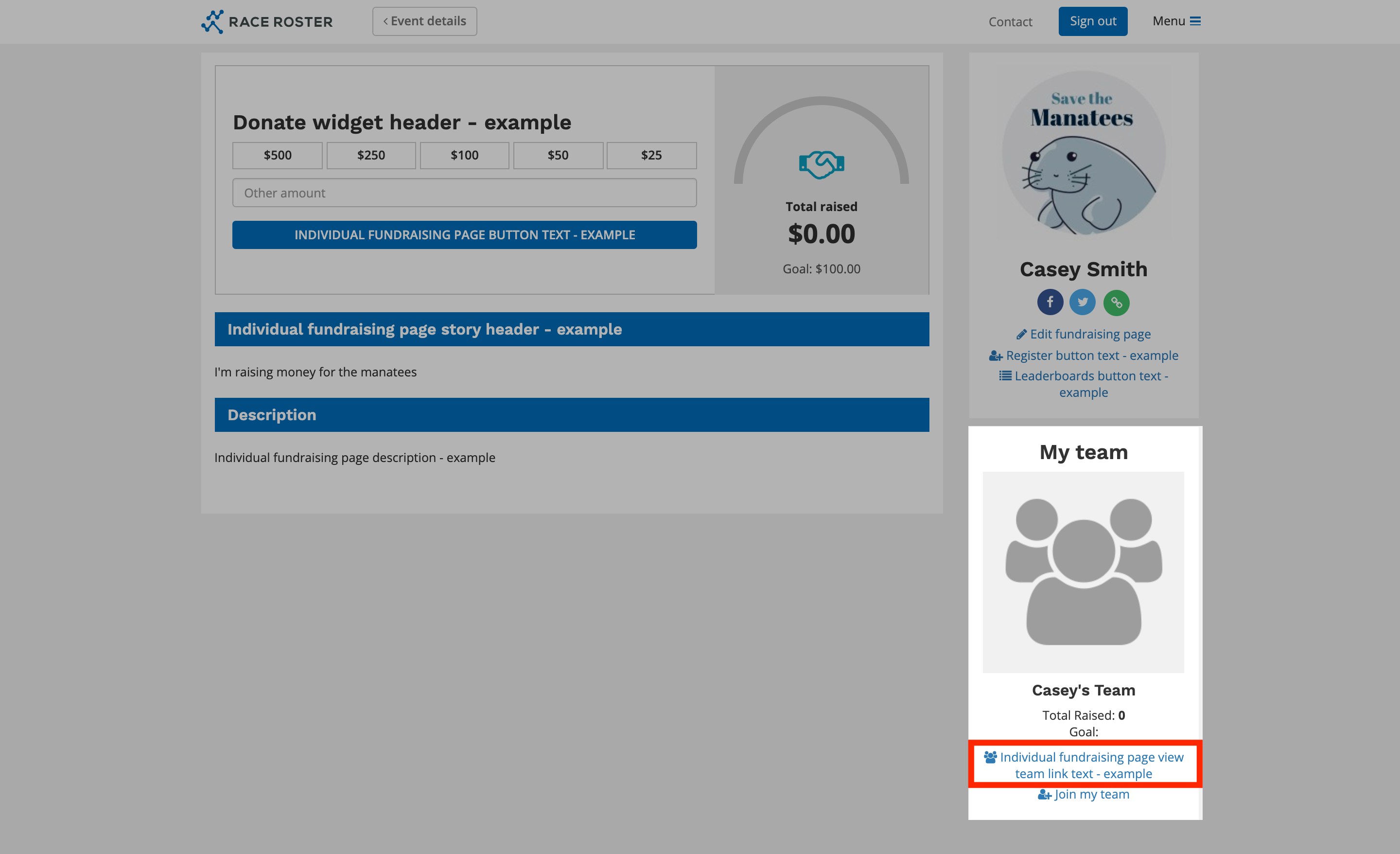
Individual fundraising page view team link text:
This will replace "Visit team page".
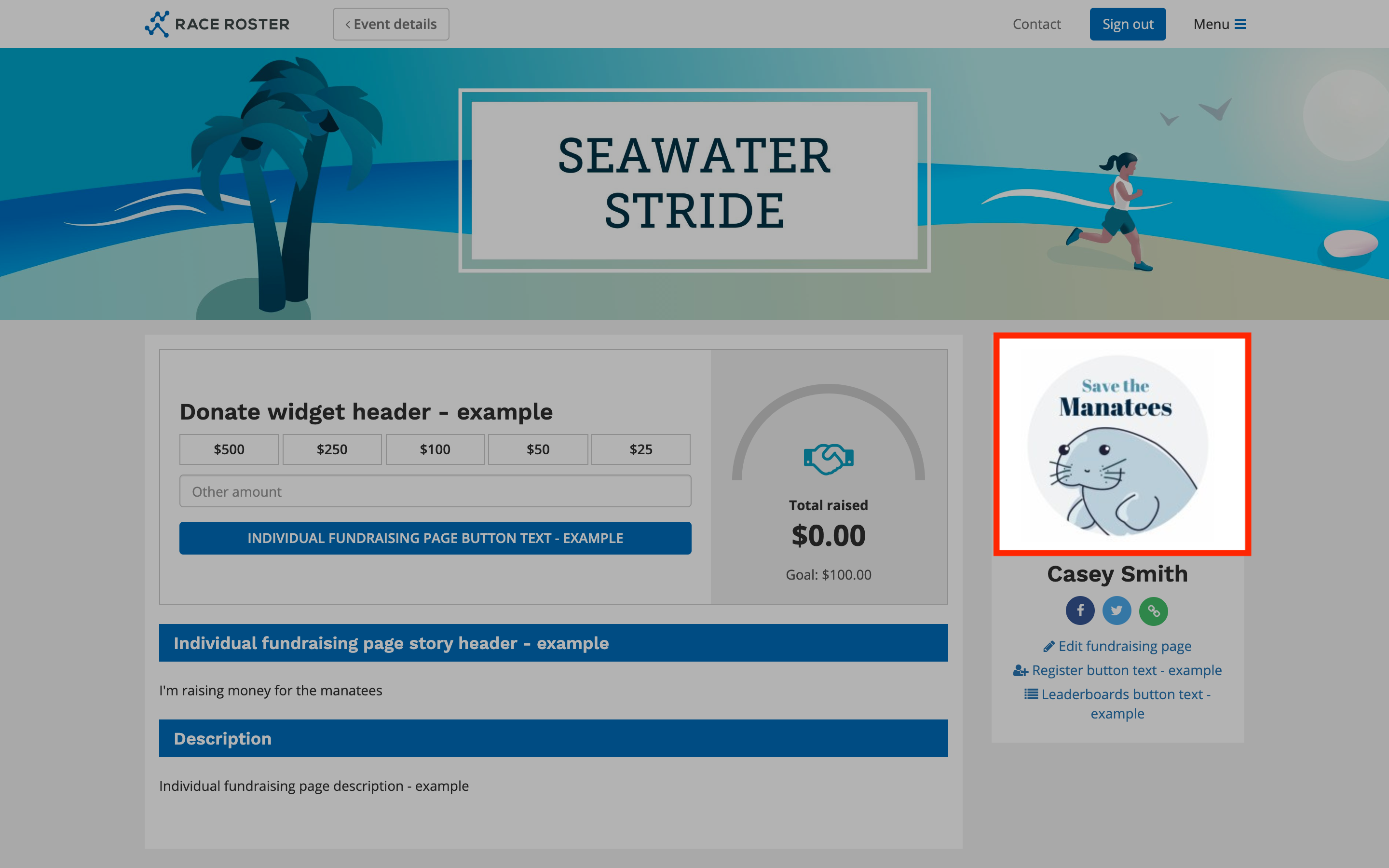
Individual fundraising page default profile image:
This image will appear unless customized by the fundraiser.
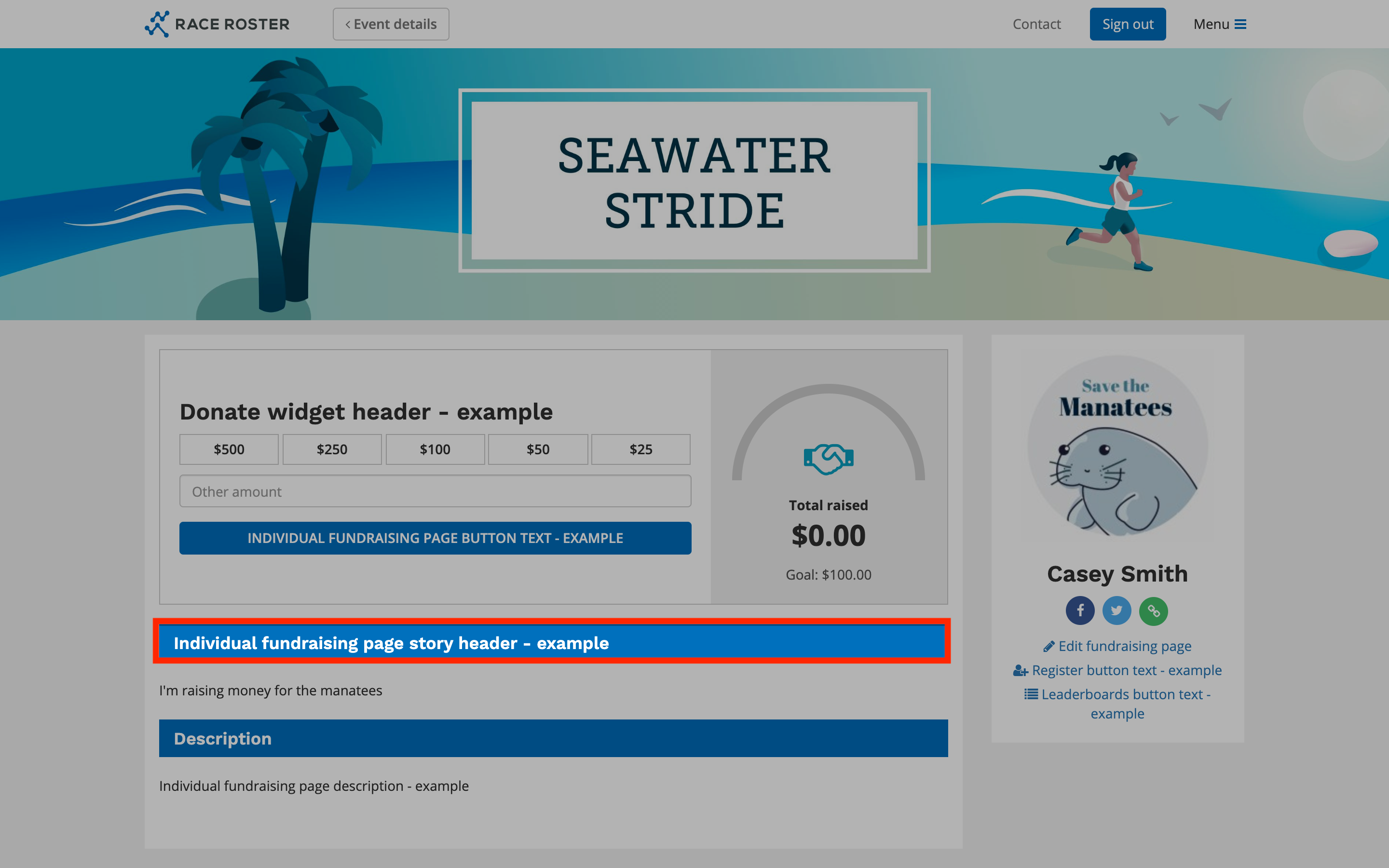
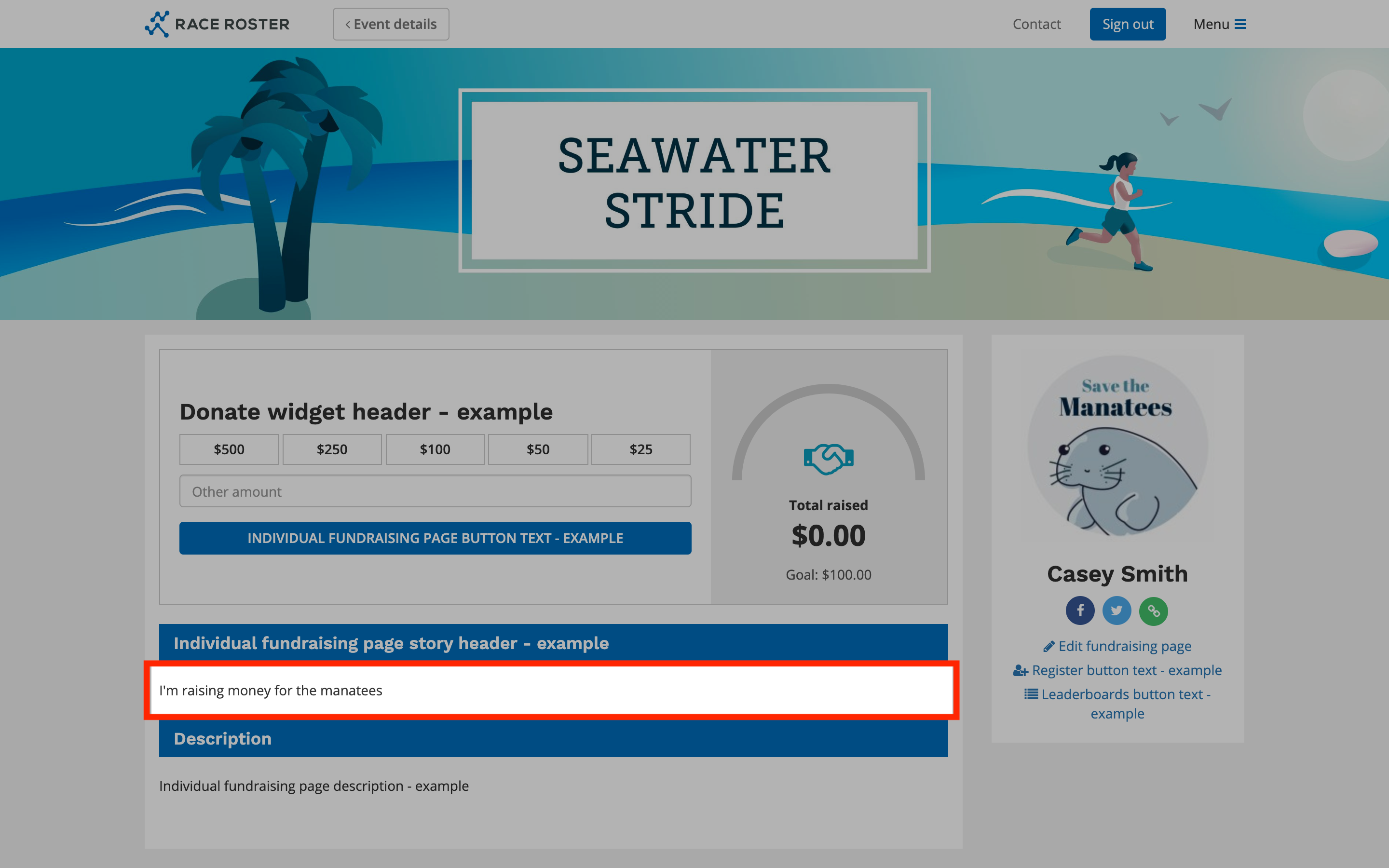
Individual fundraising page story header:
Individual fundraising page story default:
This will add an additional section to the fundraiser's page.
Team fundraising page settings
Settings here will only modify content on team fundraising pages.
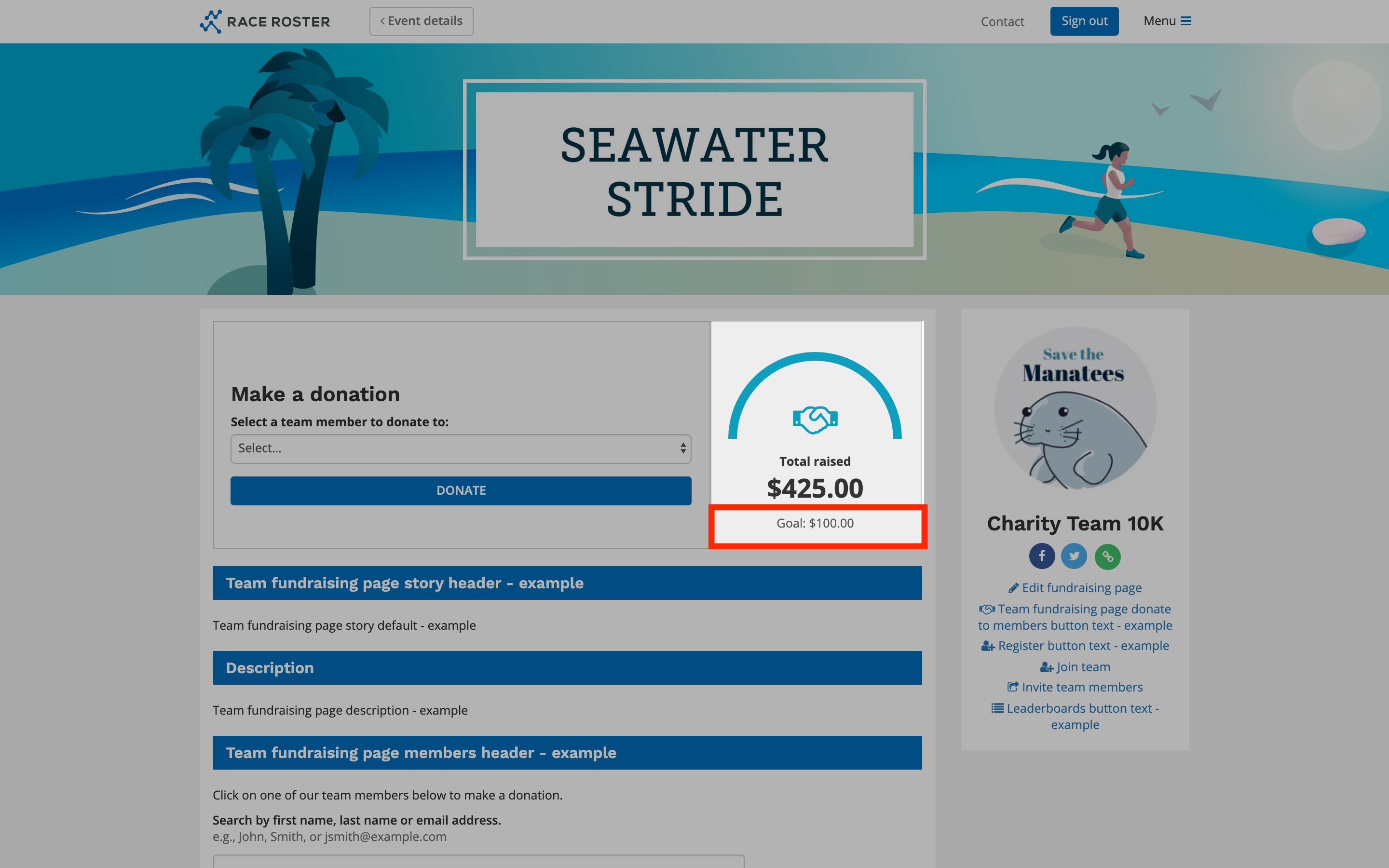
Team fundraising goal default:
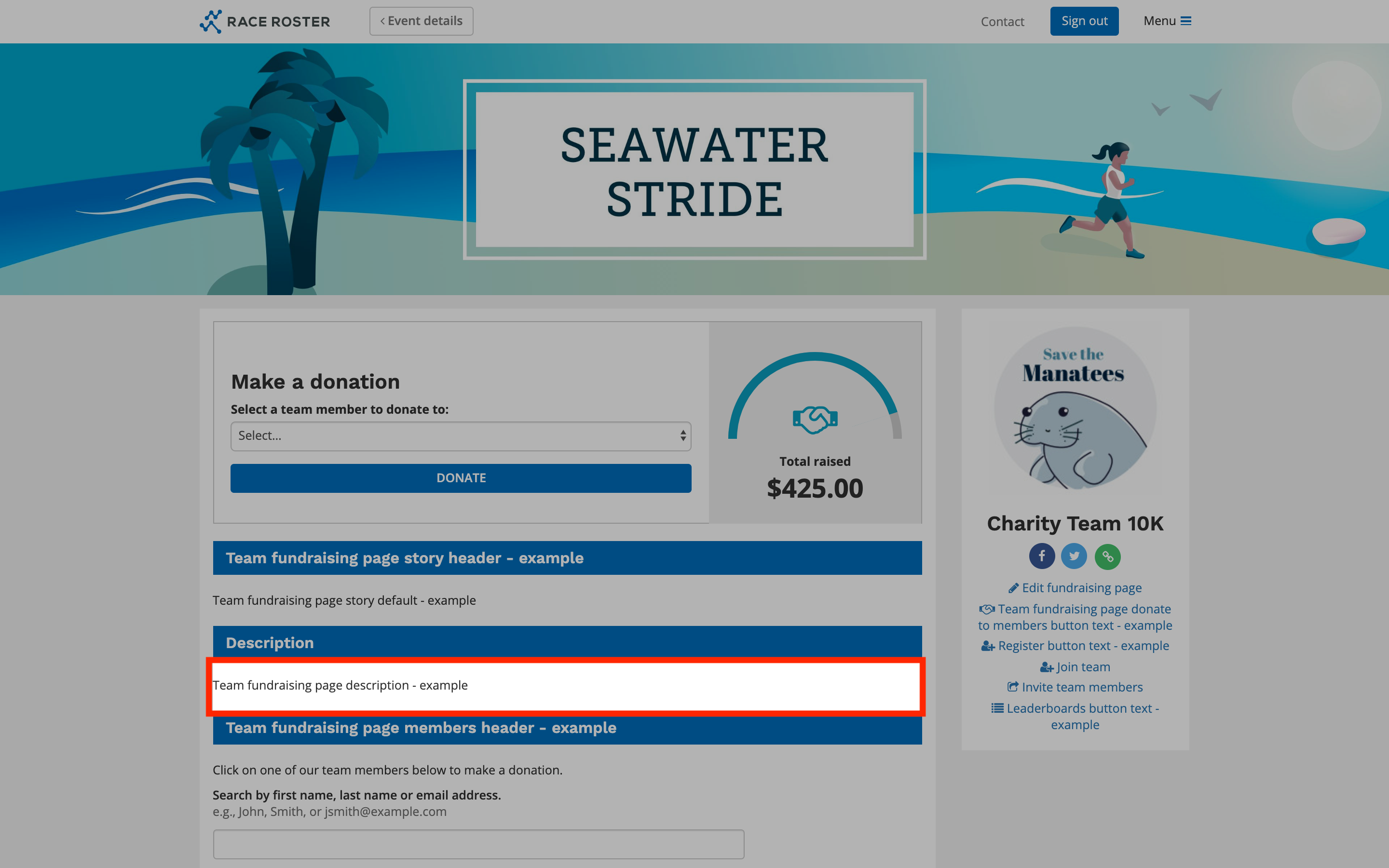
Team fundraising page description:
If this is not customized, there will be no team description unless added by the team captain.
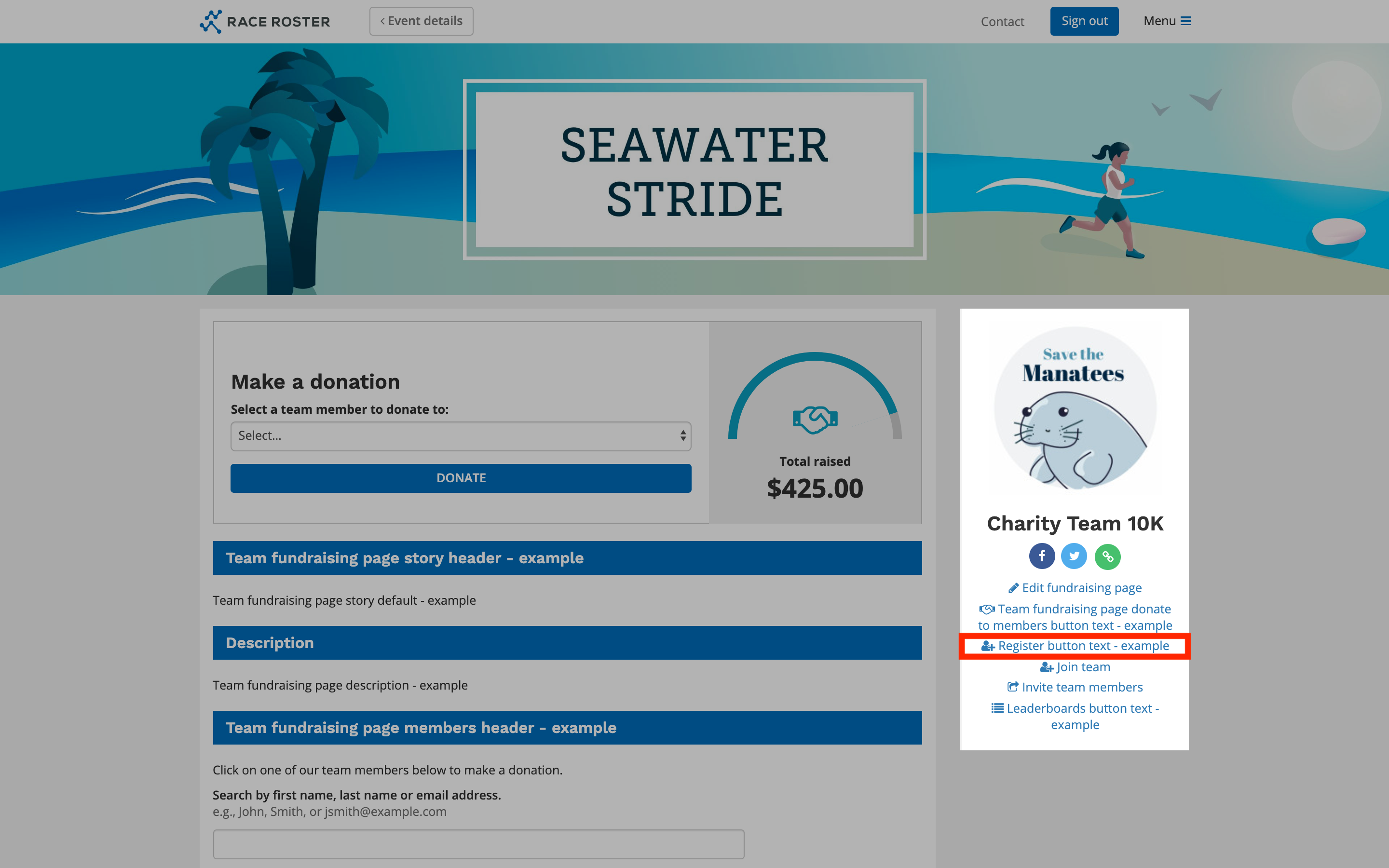
Team fundraising page register button text:
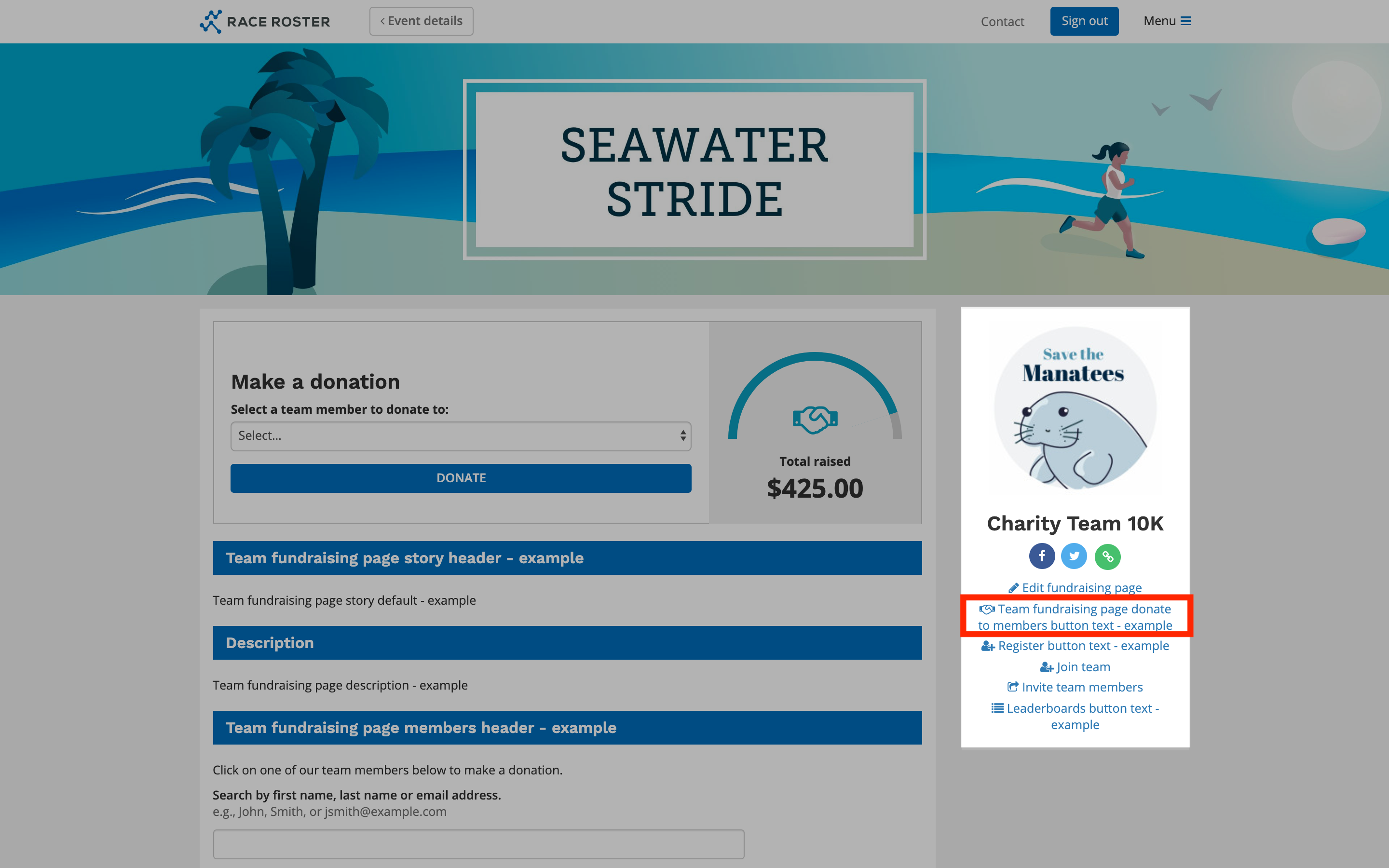
Team fundraising page donate to members button text:
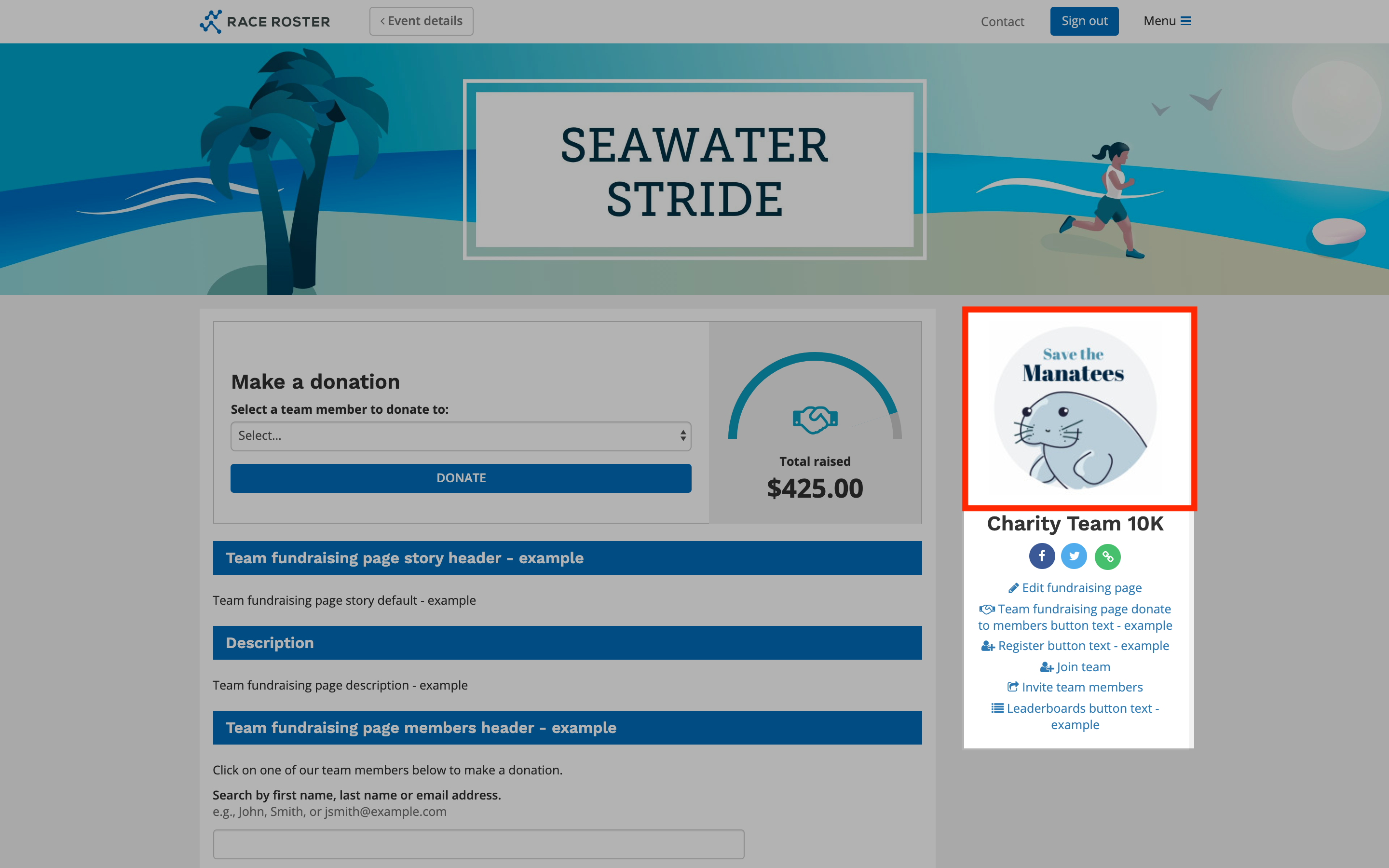
Team fundraising page default profile image:
This will be the default profile image that will appear unless customized by the team captain.
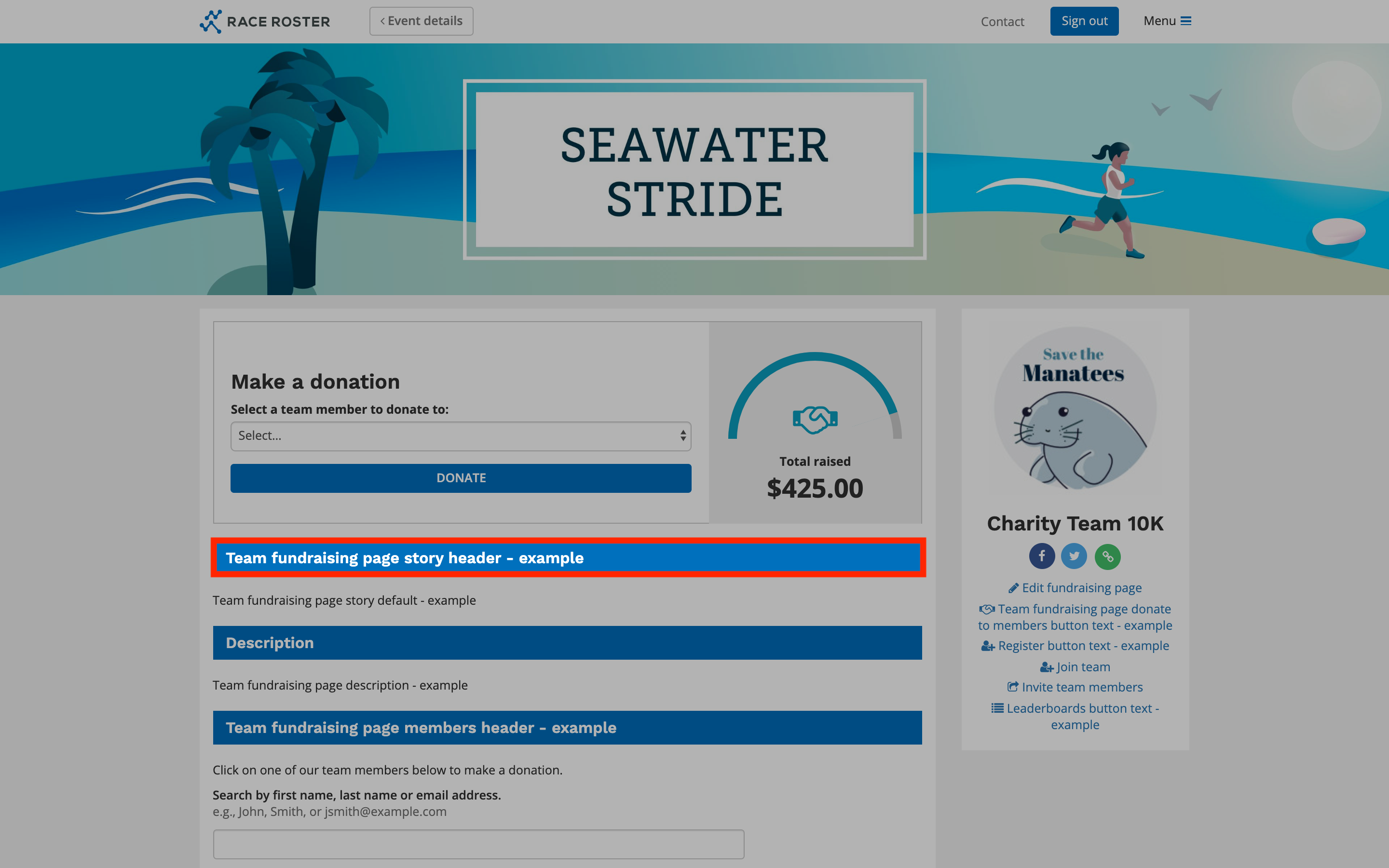
Team fundraising page story header:
Adding a story header will create an additional text box section on individual fundraising pages. If left blank, the section will not appear unless customized by the team captain.
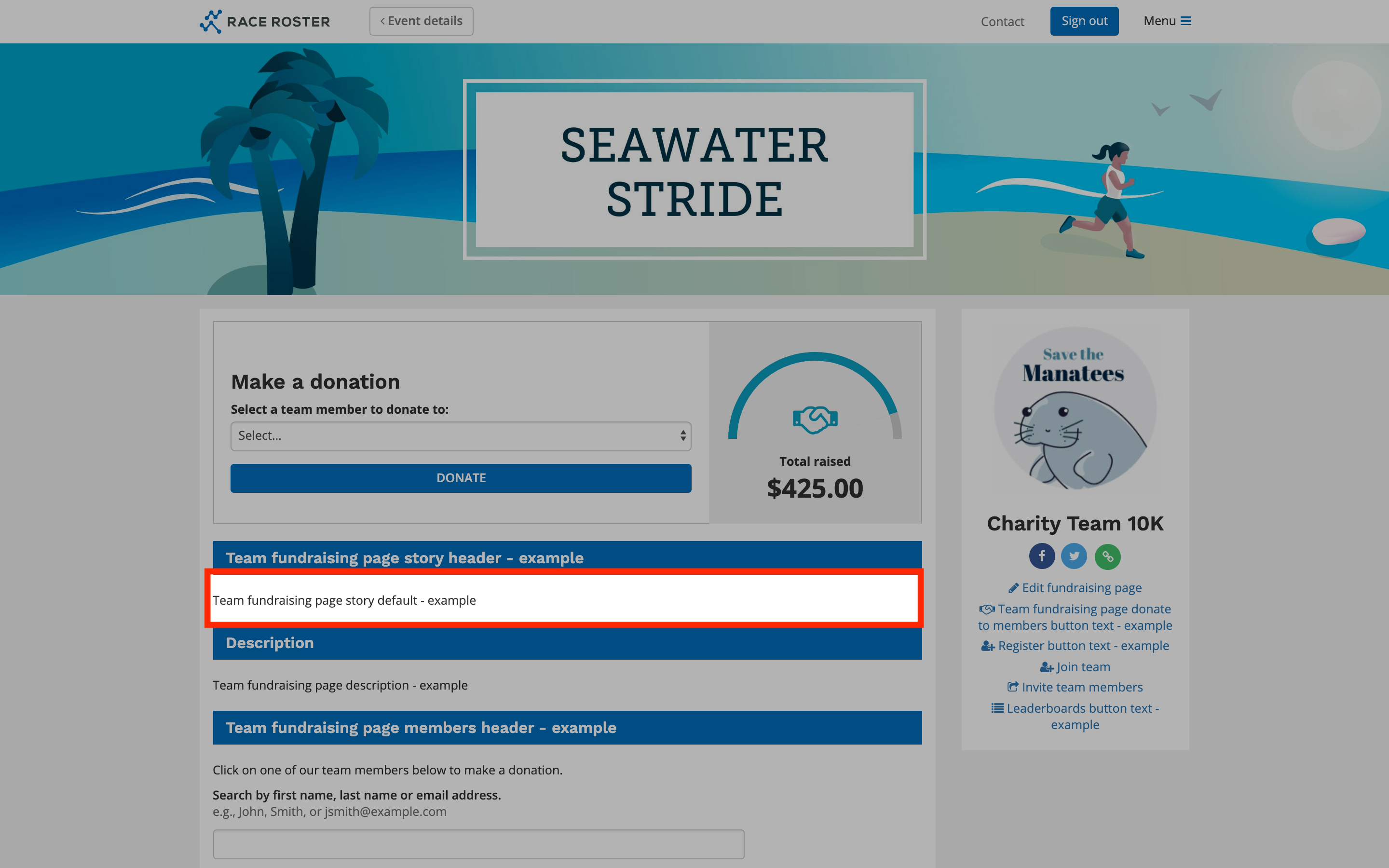
Team fundraising page story default:
Adding a story default will create an additional text box section on individual fundraising pages. If left blank, the section will not appear unless customized by the team captain.
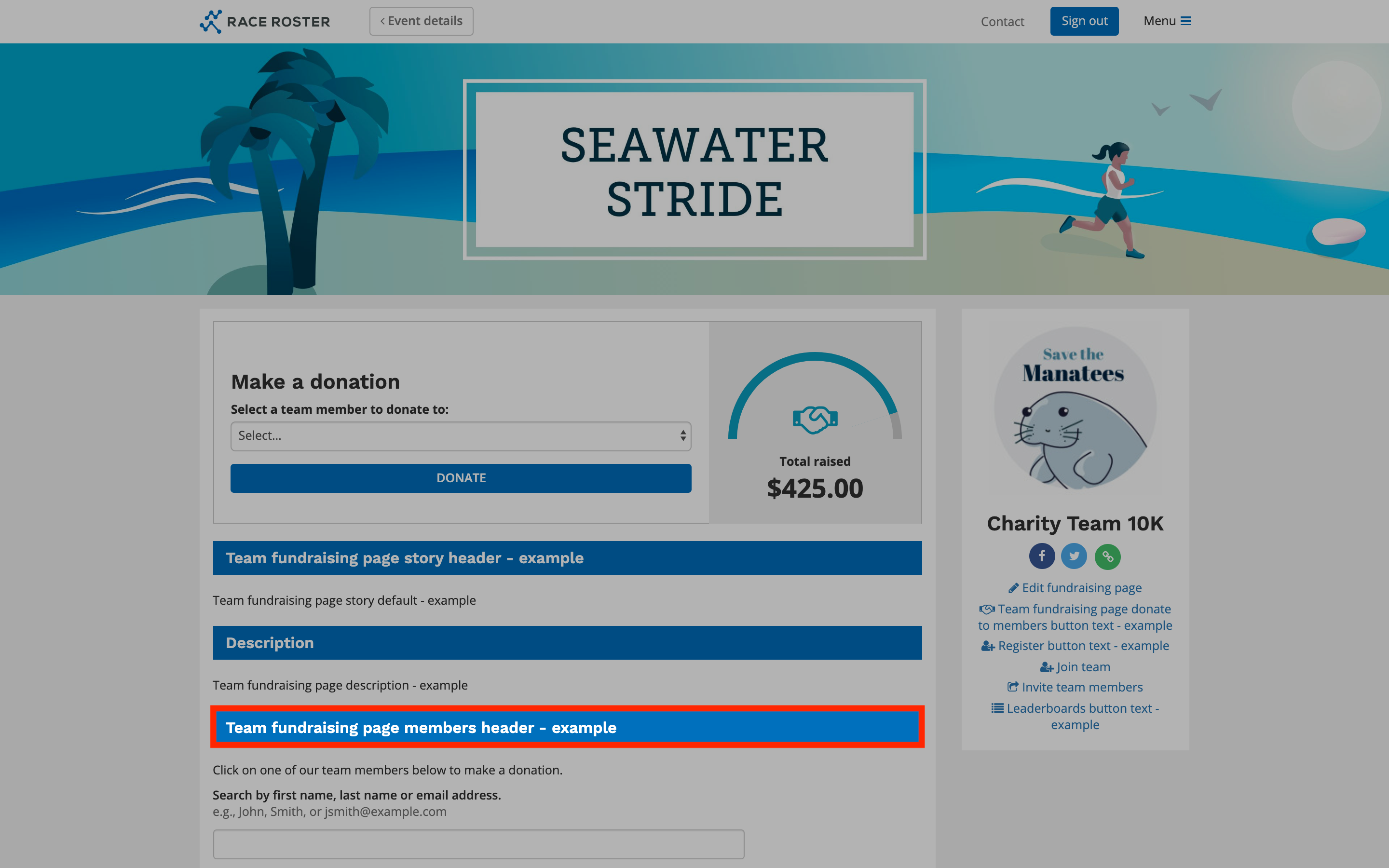
Team fundraising page members header:
Fundraising thank you page settings
Settings here will only modify content on the donation thank you page. This is the page that appears after a donation has been made from the event page.
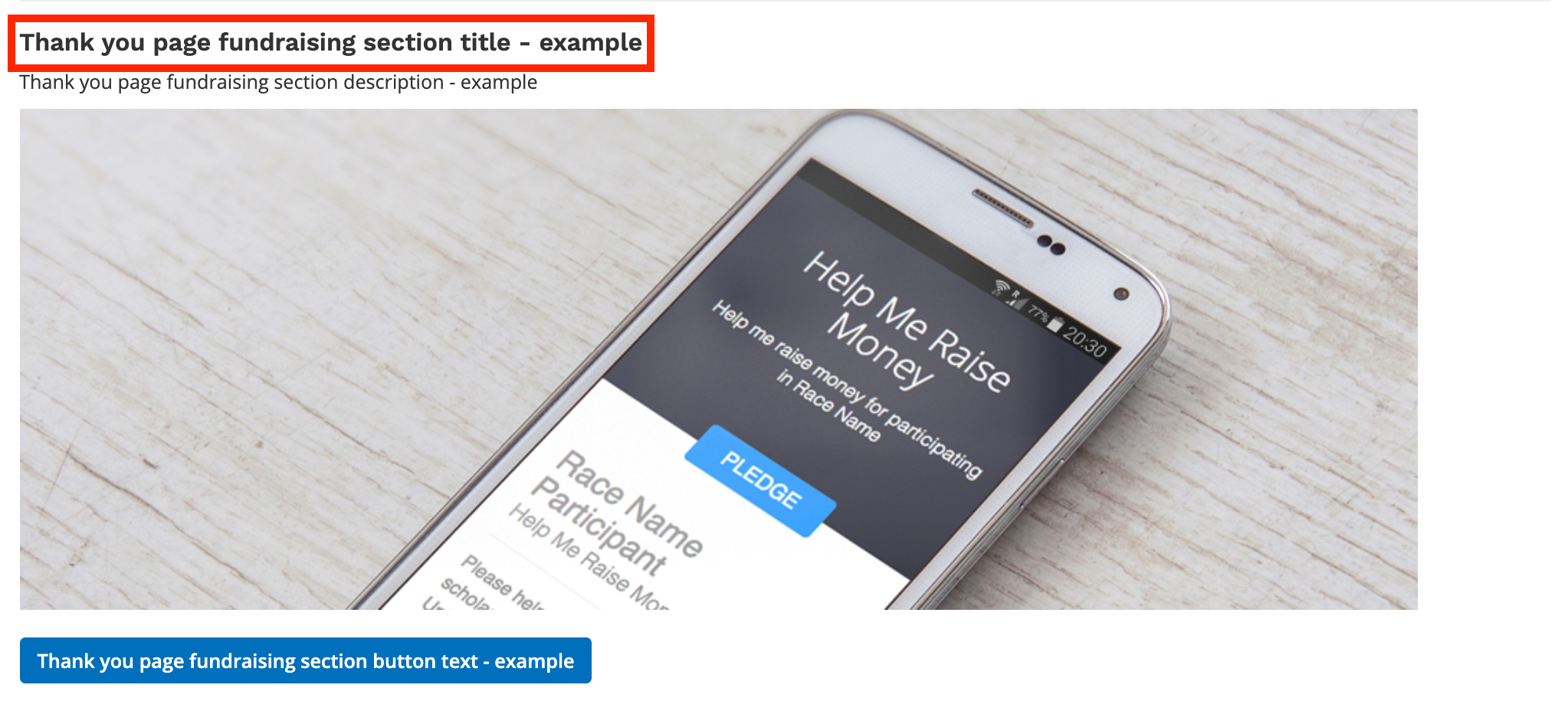
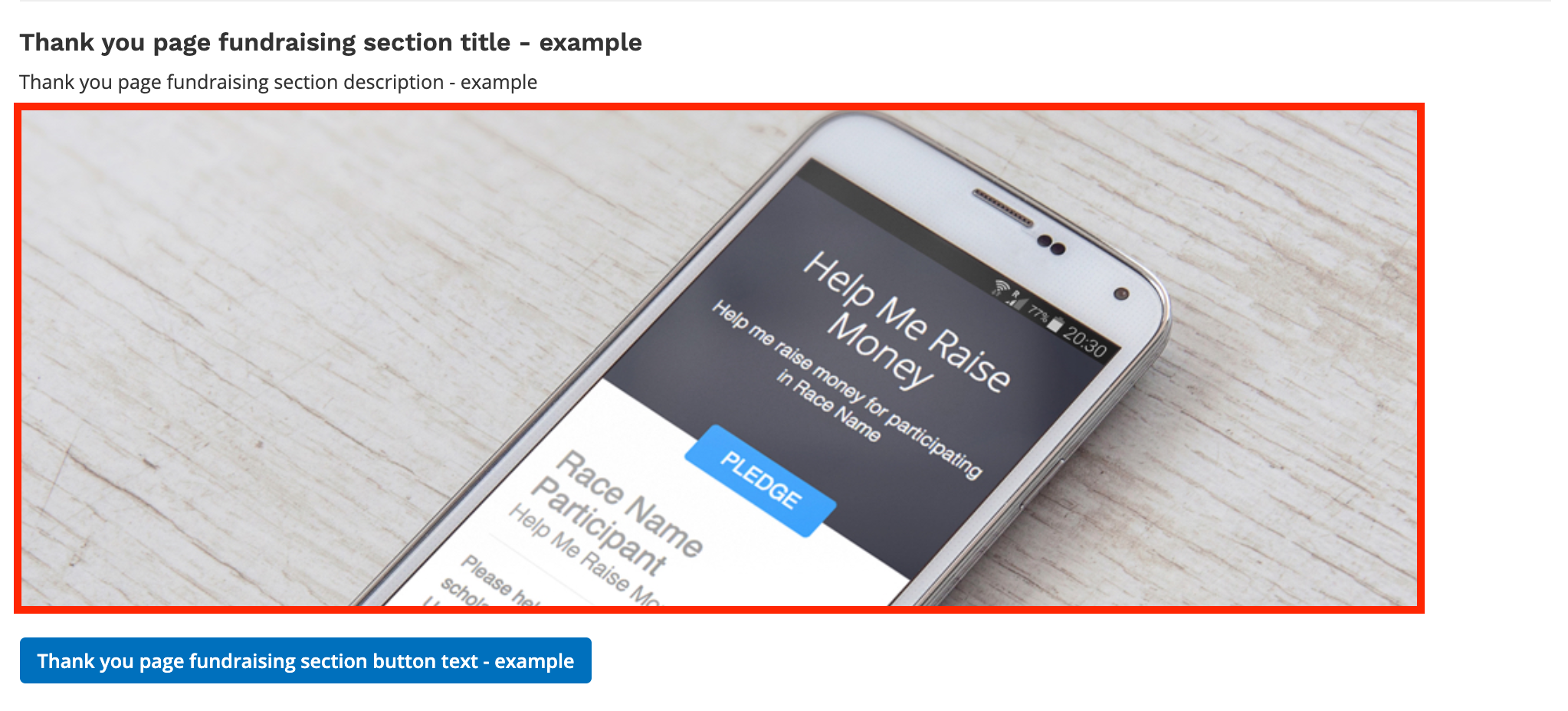
Thank you page fundraising section title:
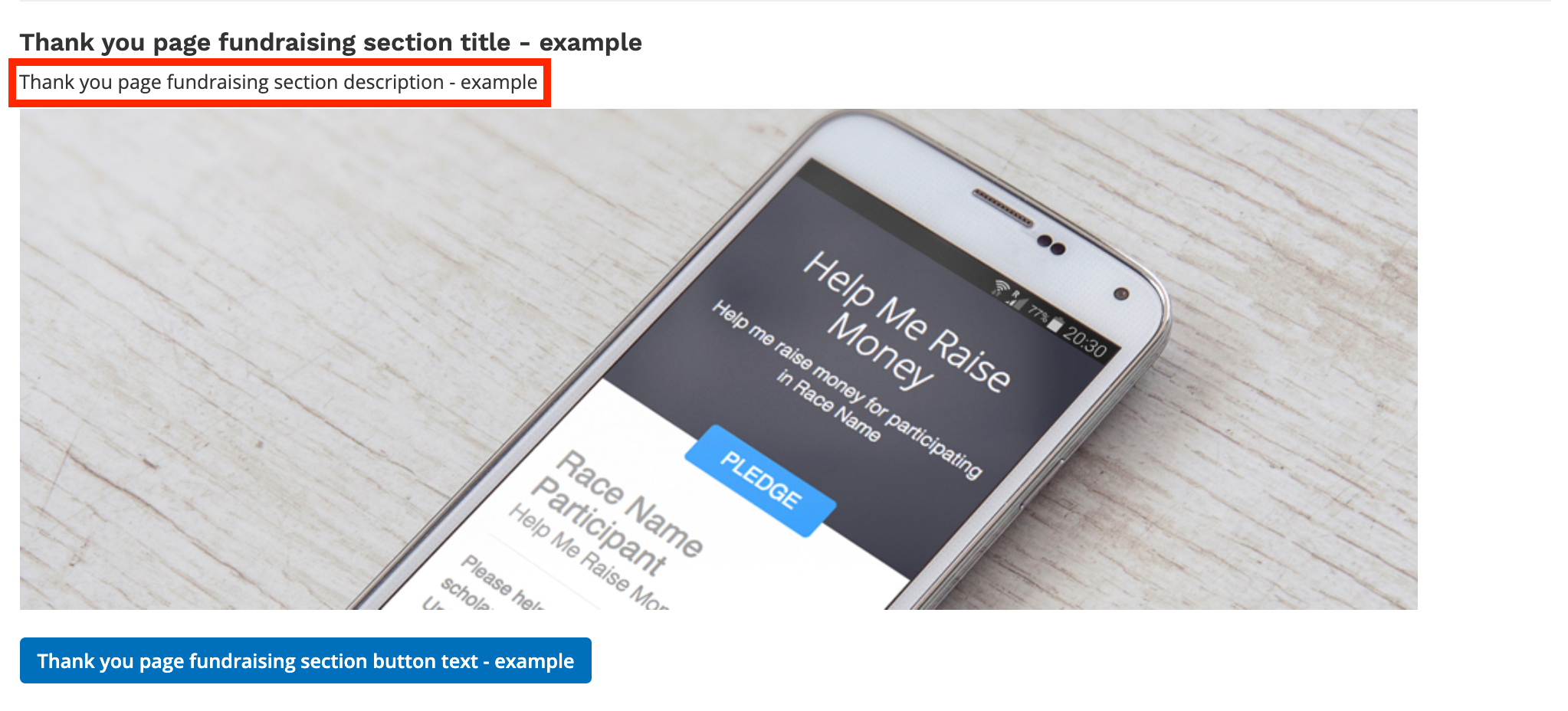
Thank you page fundraising section description:
Displayed below the title.
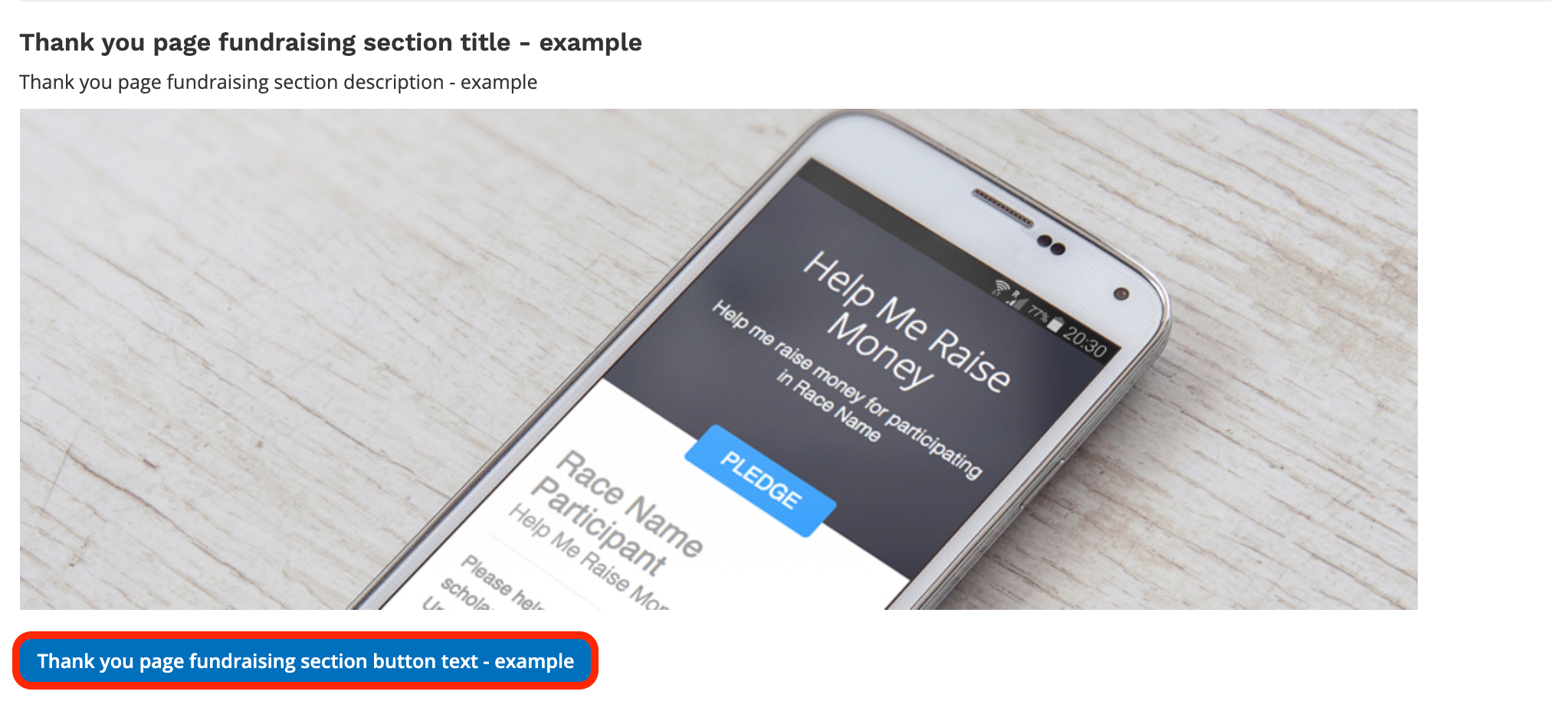
Thank you page fundraising section button text:
Thank you page banner image:
This will update the banner only on this page.
Customizable copy
Settings here will override the copy that appears on both individual and team fundraising pages.
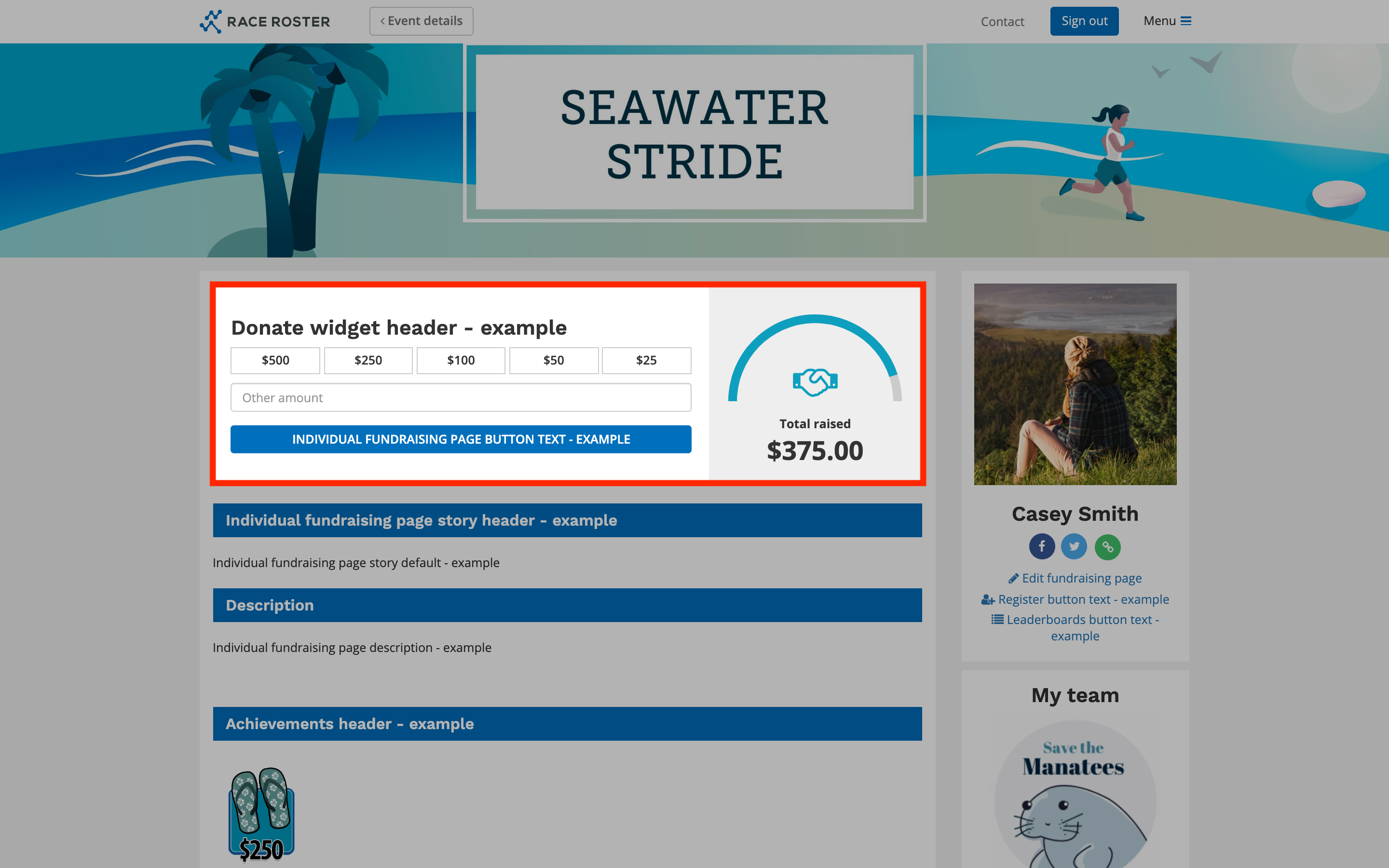
Donate widget header:
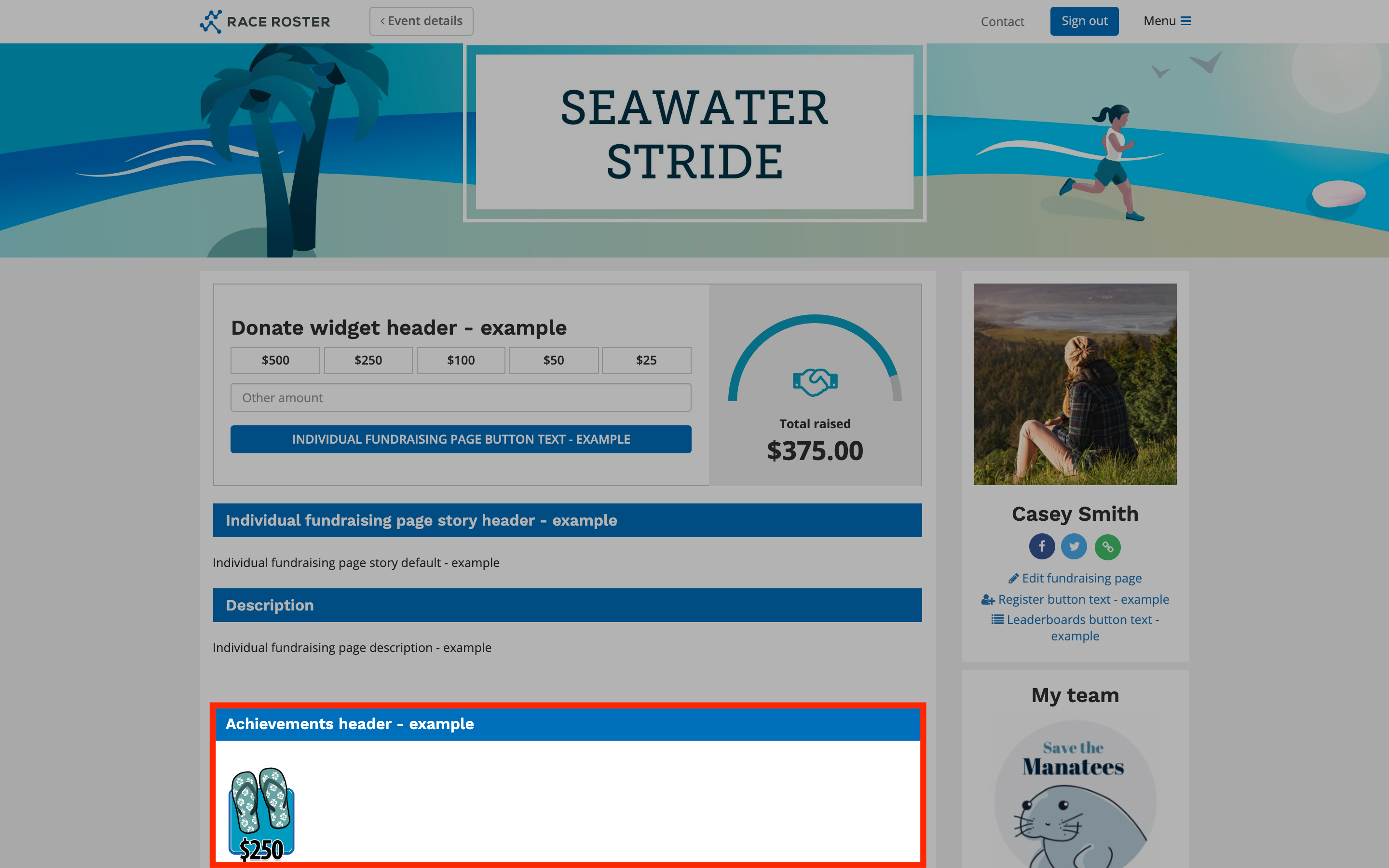
Achievements header:
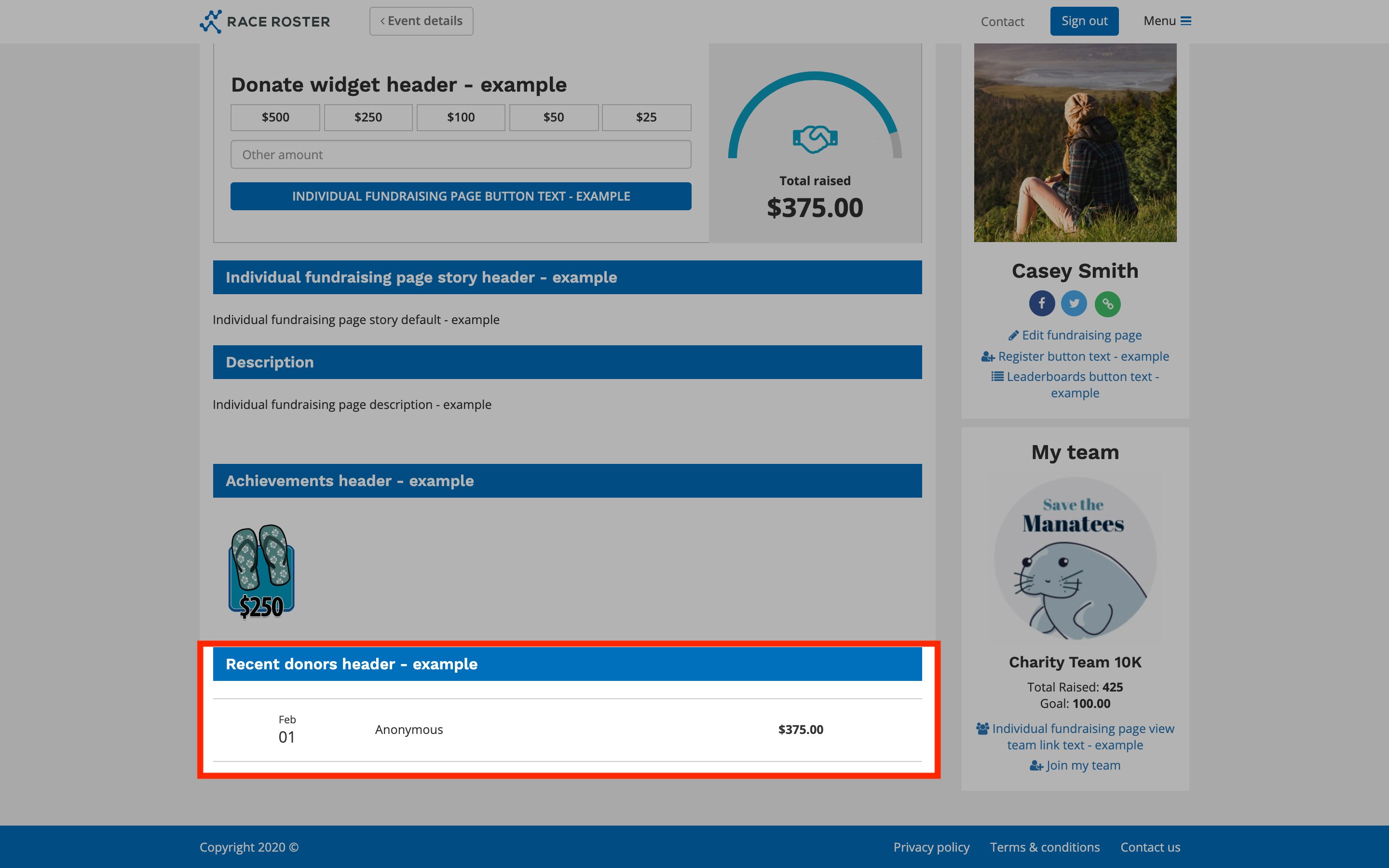
Recent donors header:
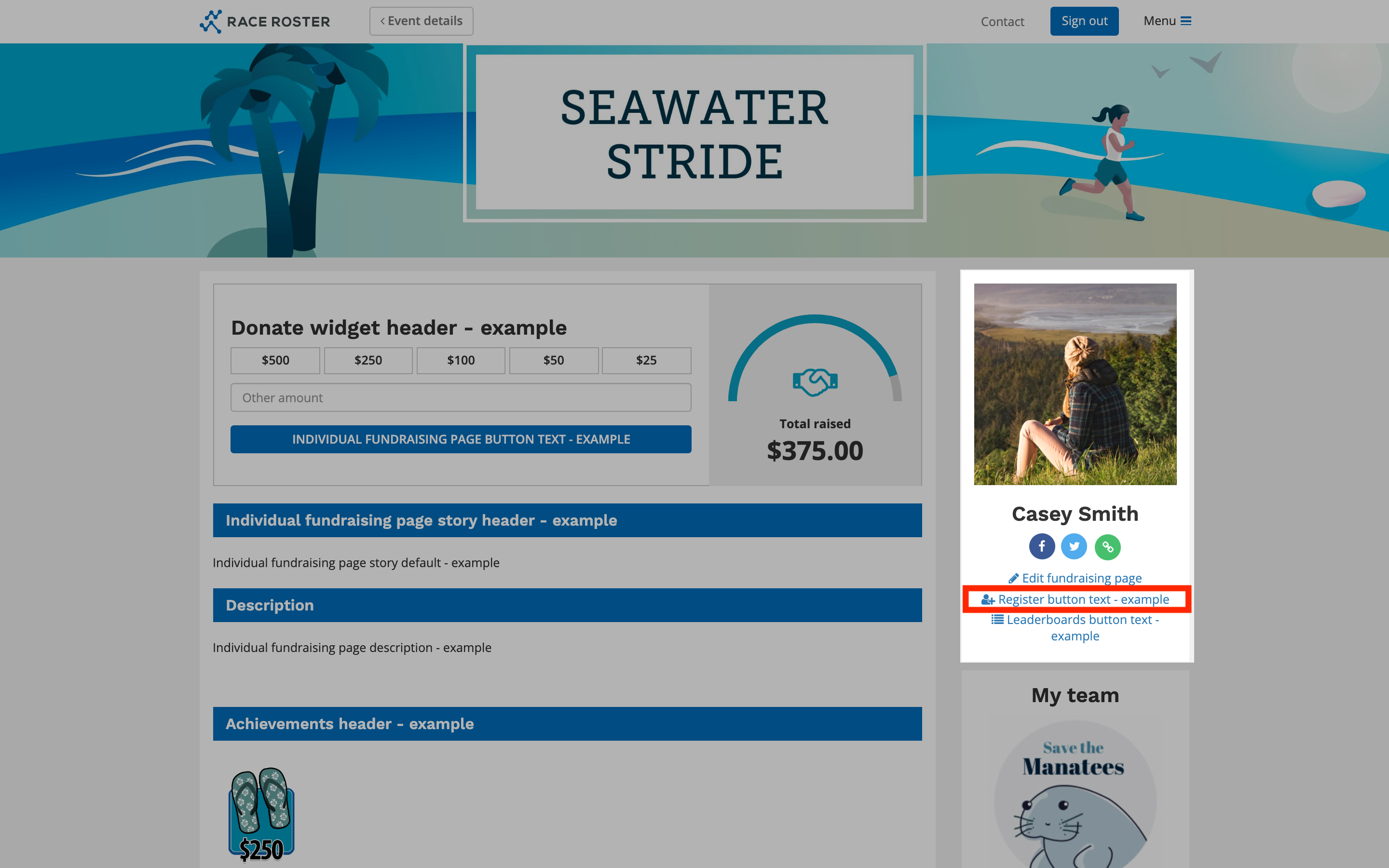
Register button text:
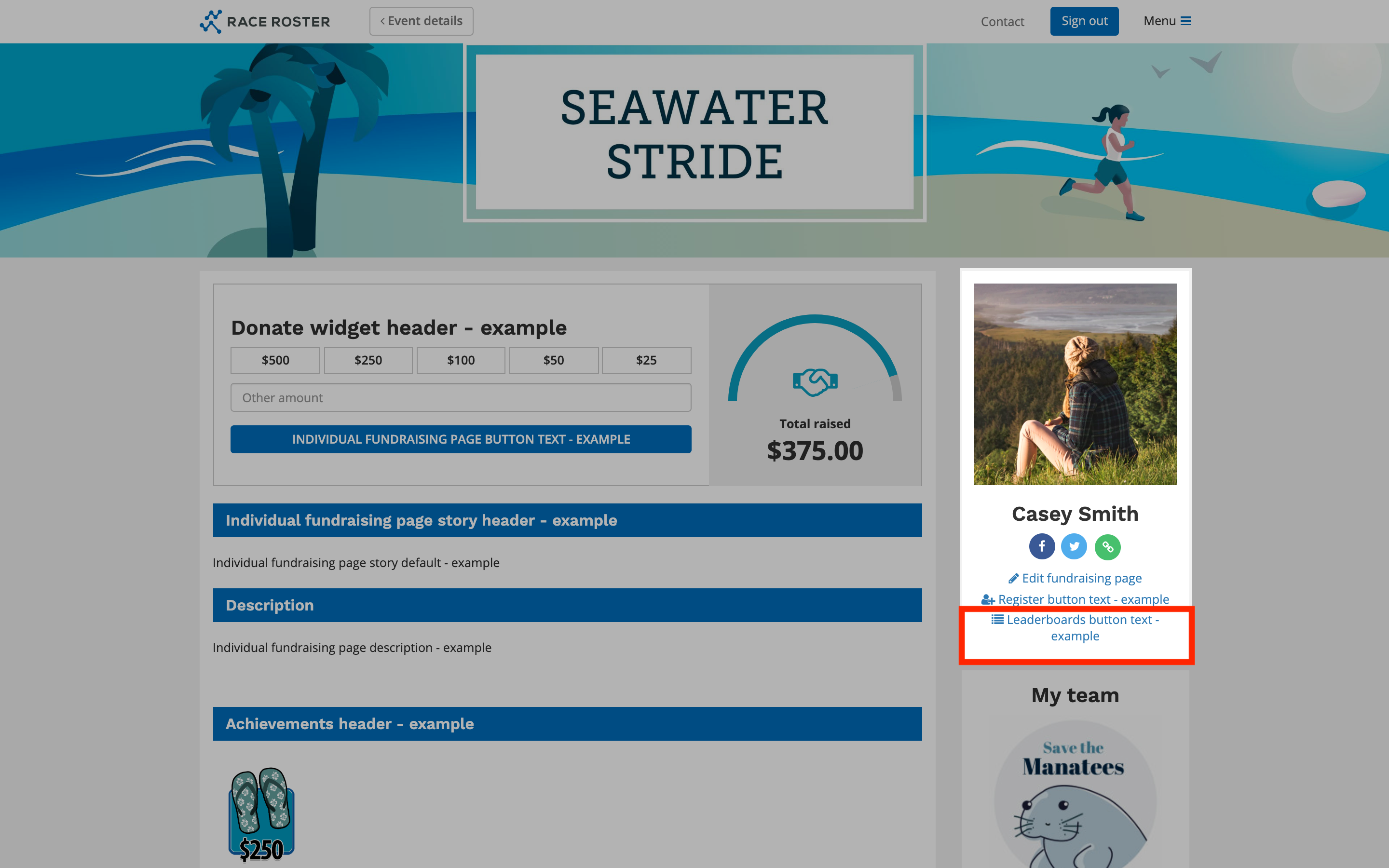
Leaderboards button text:
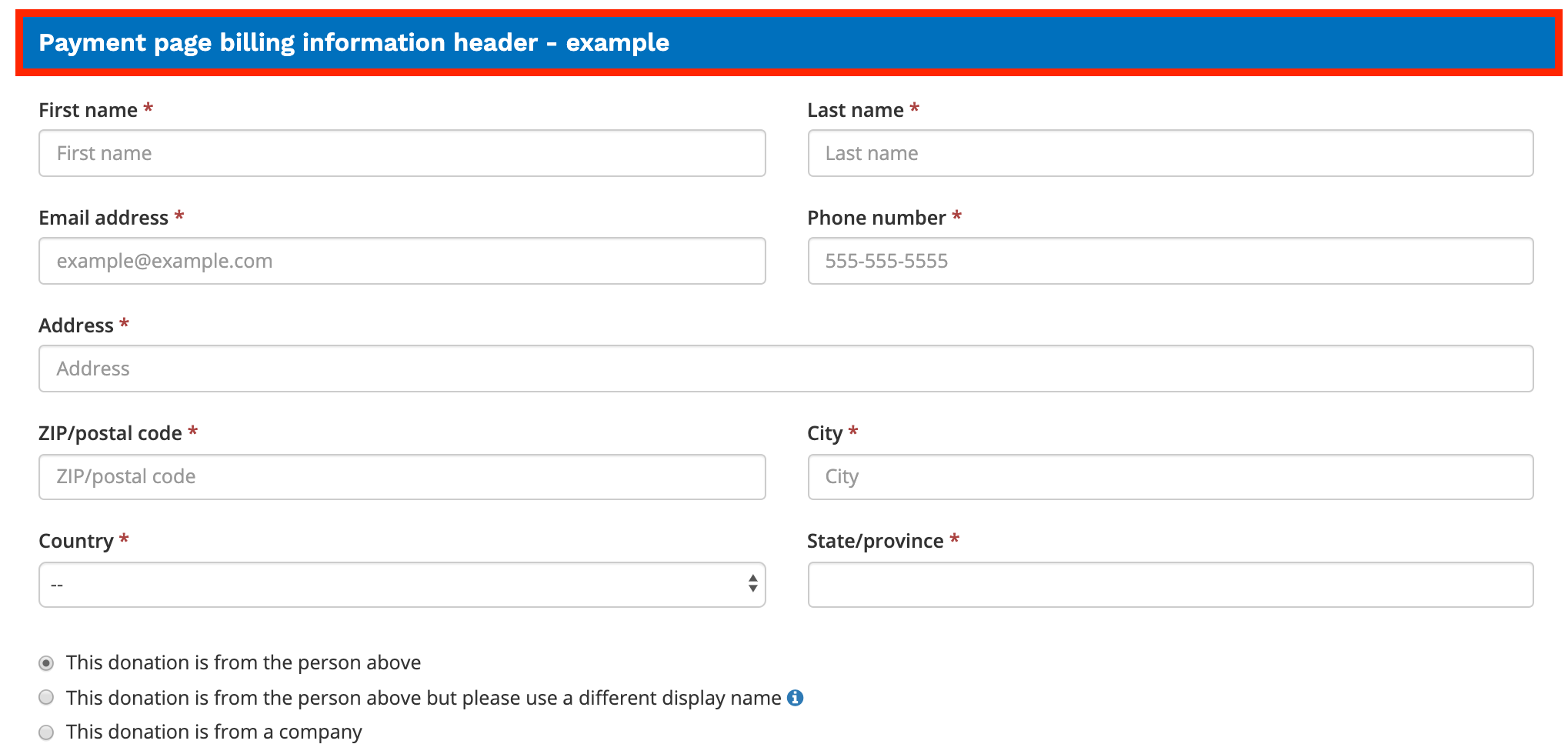
Payment page billing information header:
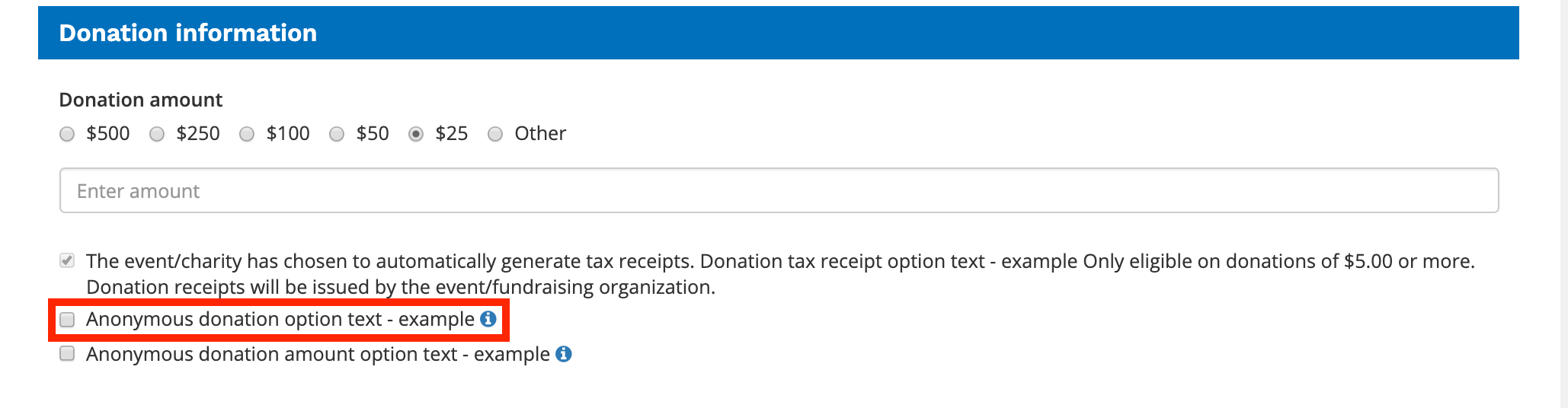
Anonymous donation option text:
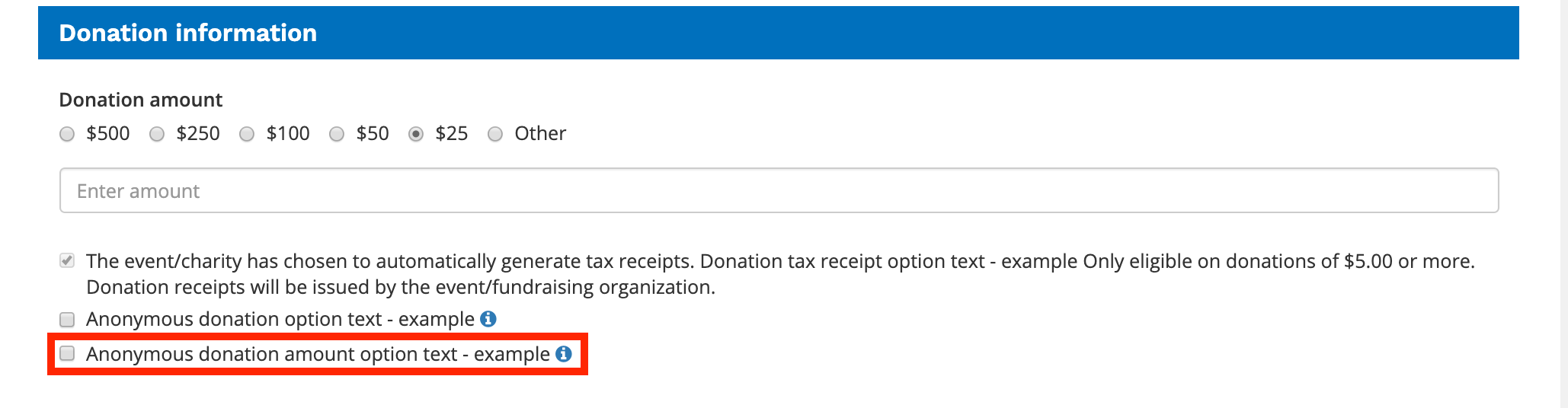
Anonymous donation amount option text: