
Race Roster's team settings offers the ability for participants to register themselves for multiple segments within a single registration. This allows for a simplified registration process for events that offer various kinds of relays, triathlon relays, etc., where participants can sign up to run multiple segments for a team. To learn how to set up multi-pick segments, please reference the article How to allow participants to select multiple team segments in registration.
To learn how to edit or re-assign selected segments for participants after they have completed registration, please follow the steps below:
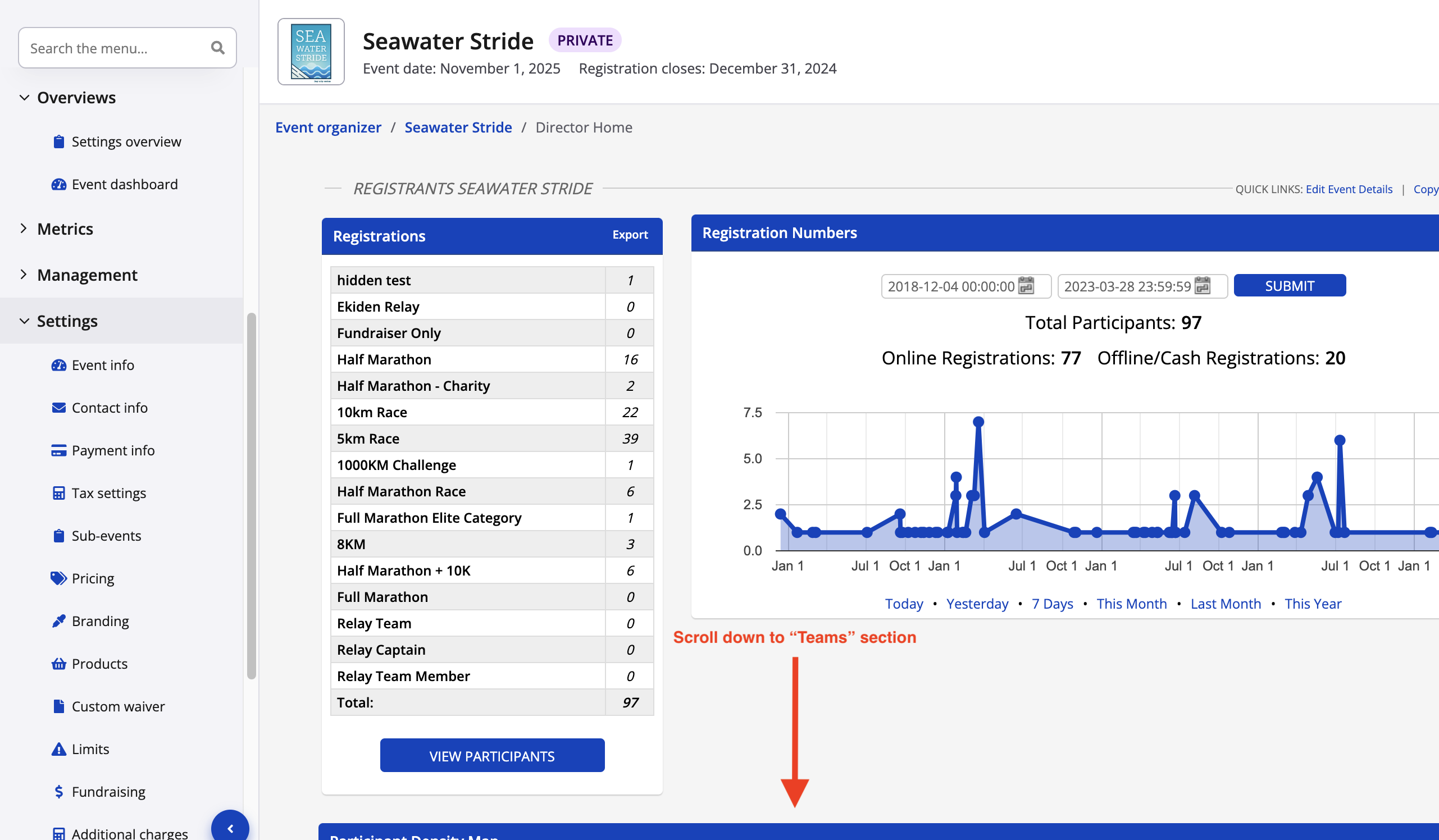
1. From the event dashboard, scroll down the page until you reach the Teams section or search the menu for Settings → Team management.
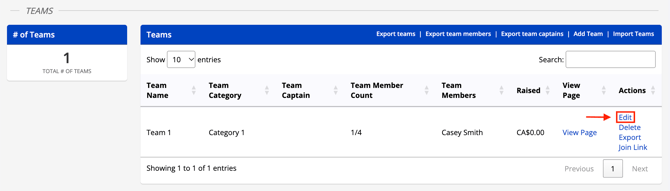
2. From the Teams section of the event dashboard, find or search the team and select Edit on the righthand side of the team management table.
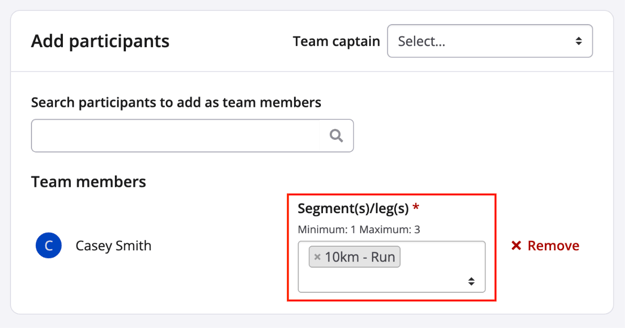
3. In the team member section, edit the selections in the Segment(s)/leg(s) field. To assign additional segments to a team member, click on the white space within the Segment(s)/leg(s) field and select any available segments. To remove an existing segment currently assigned to a team member, click the X to the left of that specific segment.
4. Once the segment selections have been updated, select Save or Save & exit.
Any edits made to a participant's segment selections will be updated and viewable from the Participant list. Scroll down to the Custom fields columns and select the multi-pick question and team name field to pull a report including this information. See the article How to navigate the participant list for more information.
For additional questions regarding editing multi-pick segments, please contact our team.