---
title: How to create custom genders in results
description: Create and manage custom genders in results, apply templates, and auto-import gender data via uploads for leaderboards and awards.
---
[Skip to content](https://help.raceroster.com/en-us/knowledge-base/how-to-create-custom-genders-within-my-results/awards-data#main-content)
[Submit a knowledge article idea](https://help.raceroster.com/en-us/knowledge-base/kb-tickets/new?hsLang=en-us)

Open main navigation
Close main navigation
- [Submit a knowledge article idea](https://help.raceroster.com/en-us/knowledge-base/kb-tickets/new)
How can we help you?
- There are no suggestions because the search field is empty.
1. [Race Roster Knowledge Base](https://help.raceroster.com/en-us/knowledge-base?hsLang=en-us)
2. [Timers](https://help.raceroster.com/en-us/knowledge-base/timers?hsLang=en-us)
3. [Timing Tools](https://help.raceroster.com/en-us/knowledge-base/timers?hsLang=en-us#timing-tools)
April 21, 2026
# How to create custom genders in results
Timers and Event Organisers can create custom genders for results leaderboards and awards, and save them as reusable templates for future events. Custom genders can also be added automatically via results uploads.
### Manually create custom genders and templates
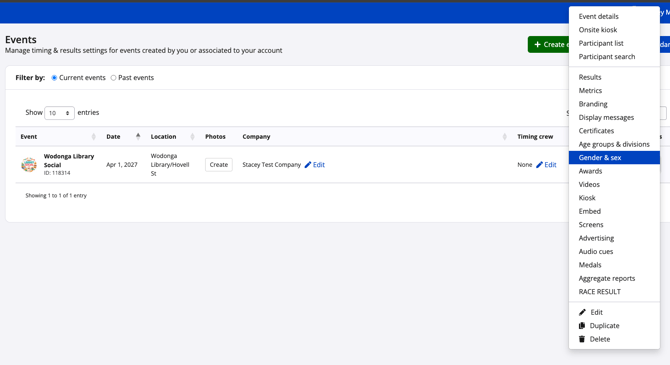
1\) From the [Timer Dashboard](https://timer.raceroster.com/dashboard/timers), navigate to **Current Events** and select the **Gender & sex** link beside the relevant event (three dots in the Action column).
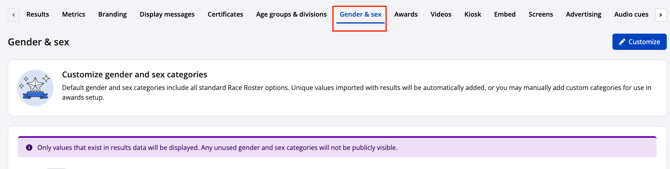
**Gender & sex** can also be located from the top of the results dashboard
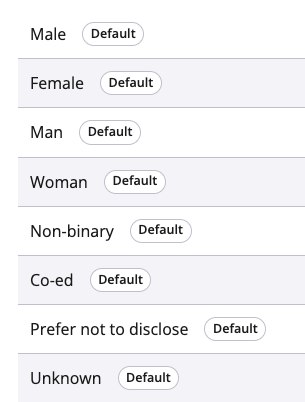
Default **Gender & sex** categories include the standard Race Roster options. Any unique values included in a results import will be added automatically, or custom categories can be created manually for use in awards setup.
2\) Click **Customize** to manage gender settings
3\) Select **Add gender** to include any additional gender options not listed by default
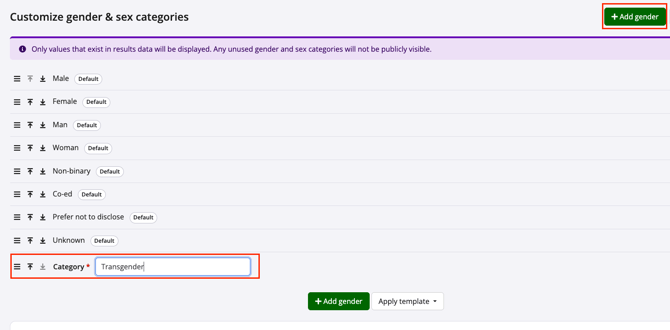
4\) Reorder genders if required, then click **Save**
5\) Optionally, the **Save as new template setting** can be toggled **ON**, a template name assigned, and saved. This allows the same gender structure to be reused across future events.
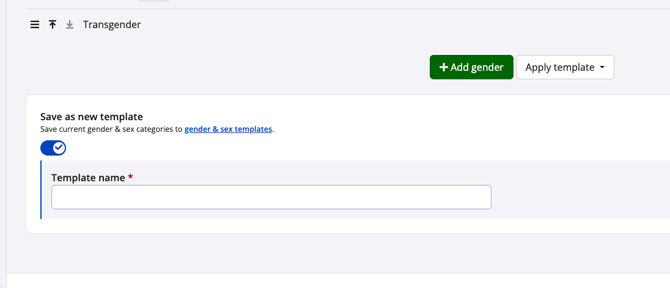
Once saved, templates can be applied using the **Apply template** button.
---
### Create and manage templates from the template library
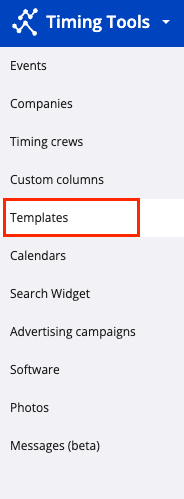
1\) From the [Timer Dashboard](https://timer.raceroster.com/dashboard/timers), navigate to **Templates** from the left hand sidebar
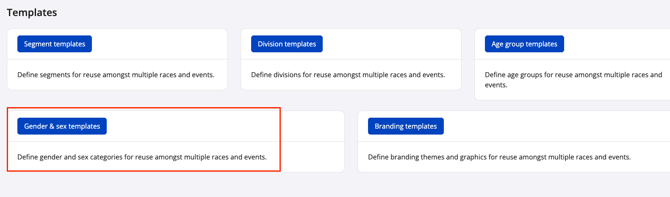
2\) Click **Gender & sex templates**
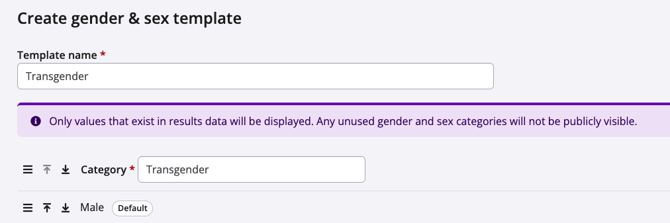
3\) Select **Create gender & sex template** to add your additional genders
4\) Assign a **Template name** at the top of the screen then **Save** the template
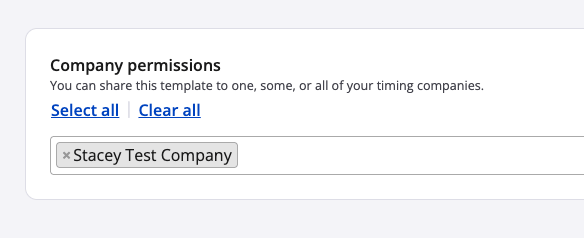
5\) Lastly for Timers who access multiple Timing Companies and events, the template can be shared to multiple Companies
---
### Add custom genders via results upload
Custom genders can also be created automatically when uploading results data. For detailed instructions on how to upload results follow the link [HERE](https://help.raceroster.com/en-us/knowledge-base/how-do-i-manually-post-results-on-race-roster-as-a-timer?hsLang=en-us)
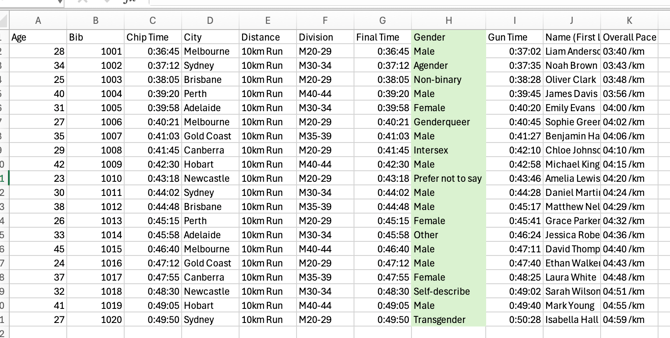
When uploading ensure the file includes a gender column with the required custom values.
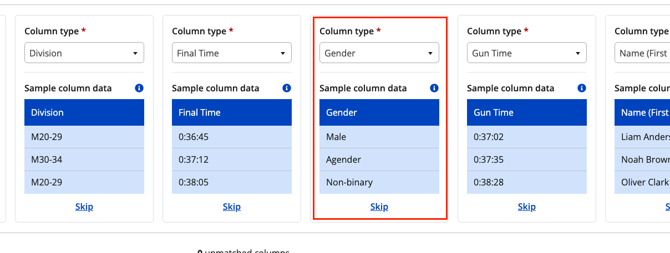
Complete column mapping and finish the upload
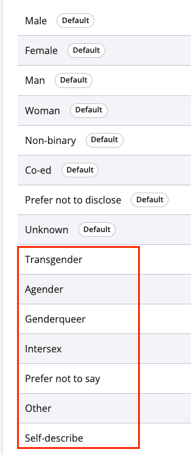
Any new gender values included in the file will automatically be added to the **Gender & Sex** settings.
---
### Custom genders can be used to filter or restrict awards
1\) Navigate to the **Awards** section located from the top of the results dashboard

For detailed instructions on how to create and assign **Awards** follow the link [HERE](https://help.raceroster.com/en-us/knowledge-base/how-to-create-and-assign-awards?hsLang=en-us)
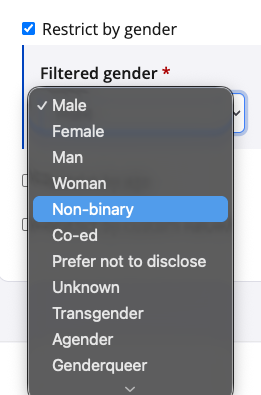
When creating or editing an award, select the **Restrict by gender** option. Any custom genders that have been created will be available.
---
For more information on gender selections in the registration flow visit this article [HERE](https://help.raceroster.com/en-us/knowledge-base/how-to-customize-the-gender/sex-registration-question?hsLang=en-us)
- [Event Organizers and Race Directors](https://help.raceroster.com/en-us/knowledge-base/event-organizers-and-race-directors?hsLang=en-us#main-content)
- [Participant Management](https://help.raceroster.com/en-us/knowledge-base/event-organizers-and-race-directors?hsLang=en-us#participant-management)
- [Financials](https://help.raceroster.com/en-us/knowledge-base/event-organizers-and-race-directors?hsLang=en-us#financials)
- [Marketing & Promotions](https://help.raceroster.com/en-us/knowledge-base/event-organizers-and-race-directors?hsLang=en-us#marketing-promotions)
- [Email Campaigns, MailChimp Integration](https://help.raceroster.com/en-us/knowledge-base/event-organizers-and-race-directors?hsLang=en-us#email-campaigns-mailchimp-integration)
- [Products](https://help.raceroster.com/en-us/knowledge-base/event-organizers-and-race-directors?hsLang=en-us#products)
- [Team Management and Settings](https://help.raceroster.com/en-us/knowledge-base/event-organizers-and-race-directors?hsLang=en-us#team-management-and-settings)
- [Onsite App](https://help.raceroster.com/en-us/knowledge-base/event-organizers-and-race-directors?hsLang=en-us#onsite-app)
- [Registration Questions](https://help.raceroster.com/en-us/knowledge-base/event-organizers-and-race-directors?hsLang=en-us#registration-questions)
- [Fundraising Settings and Receipts](https://help.raceroster.com/en-us/knowledge-base/event-organizers-and-race-directors?hsLang=en-us#fundraising-settings-and-receipts)
- [Promo Codes, Discounts, and Gifting Codes](https://help.raceroster.com/en-us/knowledge-base/event-organizers-and-race-directors?hsLang=en-us#promo-codes-discounts-and-gifting-codes)
- [Virtual](https://help.raceroster.com/en-us/knowledge-base/event-organizers-and-race-directors?hsLang=en-us#virtual)
- [Results](https://help.raceroster.com/en-us/knowledge-base/event-organizers-and-race-directors?hsLang=en-us#results)
- [Access codes](https://help.raceroster.com/en-us/knowledge-base/event-organizers-and-race-directors?hsLang=en-us#access-codes)
- [Director Access and Settings](https://help.raceroster.com/en-us/knowledge-base/event-organizers-and-race-directors?hsLang=en-us#director-access-and-settings)
- [Pricing](https://help.raceroster.com/en-us/knowledge-base/event-organizers-and-race-directors?hsLang=en-us#pricing)
- [Event Page Settings](https://help.raceroster.com/en-us/knowledge-base/event-organizers-and-race-directors?hsLang=en-us#event-page-settings)
- [Your Dashboard](https://help.raceroster.com/en-us/knowledge-base/event-organizers-and-race-directors?hsLang=en-us#your-dashboard)
- [Sub-events](https://help.raceroster.com/en-us/knowledge-base/event-organizers-and-race-directors?hsLang=en-us#sub-events)
- [Other FAQs](https://help.raceroster.com/en-us/knowledge-base/event-organizers-and-race-directors?hsLang=en-us#other-faqs)
- [Volunteers](https://help.raceroster.com/en-us/knowledge-base/event-organizers-and-race-directors?hsLang=en-us#volunteers)
- [Create, Edit or Take Your Event Live](https://help.raceroster.com/en-us/knowledge-base/event-organizers-and-race-directors?hsLang=en-us#create-edit-or-take-your-event-live)
- [Waivers](https://help.raceroster.com/en-us/knowledge-base/event-organizers-and-race-directors?hsLang=en-us#waivers)
- [Reports](https://help.raceroster.com/en-us/knowledge-base/event-organizers-and-race-directors?hsLang=en-us#reports)
- [Participants and Fundraisers](https://help.raceroster.com/en-us/knowledge-base/participants-and-fundraisers?hsLang=en-us#main-content)
- [Participant FAQs](https://help.raceroster.com/en-us/knowledge-base/participants-and-fundraisers?hsLang=en-us#participant-faqs)
- [Fundraising](https://help.raceroster.com/en-us/knowledge-base/participants-and-fundraisers?hsLang=en-us#fundraising)
- [Gift Registrations](https://help.raceroster.com/en-us/knowledge-base/participants-and-fundraisers?hsLang=en-us#gift-registrations)
- [Sign In and Manage Registration](https://help.raceroster.com/en-us/knowledge-base/participants-and-fundraisers?hsLang=en-us#sign-in-and-manage-registration)
- [Transfer Registration](https://help.raceroster.com/en-us/knowledge-base/participants-and-fundraisers?hsLang=en-us#transfer-registration)
- [Access Codes](https://help.raceroster.com/en-us/knowledge-base/participants-and-fundraisers?hsLang=en-us#access-codes)
- [Teams](https://help.raceroster.com/en-us/knowledge-base/participants-and-fundraisers?hsLang=en-us#teams)
- [Security & Compliance](https://help.raceroster.com/en-us/knowledge-base/participants-and-fundraisers?hsLang=en-us#security-compliance)
- [Promo Codes](https://help.raceroster.com/en-us/knowledge-base/participants-and-fundraisers?hsLang=en-us#promo-codes)
- [Race Roster CRM](https://help.raceroster.com/en-us/knowledge-base/race-roster-crm?hsLang=en-us#main-content)
- [Organizations](https://help.raceroster.com/en-us/knowledge-base/race-roster-crm?hsLang=en-us#organizations)
- [Contact Management and Validation Lists](https://help.raceroster.com/en-us/knowledge-base/race-roster-crm?hsLang=en-us#contact-management-and-validation-lists)
- [Reporting](https://help.raceroster.com/en-us/knowledge-base/race-roster-crm?hsLang=en-us#reporting)
- [Events and Event Groups](https://help.raceroster.com/en-us/knowledge-base/race-roster-crm?hsLang=en-us#events-and-event-groups)
- [Campaigns and Marketing](https://help.raceroster.com/en-us/knowledge-base/race-roster-crm?hsLang=en-us#campaigns-and-marketing)
- [Non-profit Organizations](https://help.raceroster.com/en-us/knowledge-base/race-roster-crm?hsLang=en-us#non-profit-organizations)
- [Fundraising Coordinators](https://help.raceroster.com/en-us/knowledge-base/fundraising-coordinators?hsLang=en-us#main-content)
- [Resources](https://help.raceroster.com/en-us/knowledge-base/fundraising-coordinators?hsLang=en-us#resources)
- [Participant and Team Fundraising](https://help.raceroster.com/en-us/knowledge-base/fundraising-coordinators?hsLang=en-us#participant-and-team-fundraising)
- [Reporting](https://help.raceroster.com/en-us/knowledge-base/fundraising-coordinators?hsLang=en-us#reporting)
- [Timers](https://help.raceroster.com/en-us/knowledge-base/timers?hsLang=en-us#main-content)
- [Account settings](https://help.raceroster.com/en-us/knowledge-base/timers?hsLang=en-us#account-settings)
- [Results](https://help.raceroster.com/en-us/knowledge-base/timers?hsLang=en-us#results)
- [Timing Tools](https://help.raceroster.com/en-us/knowledge-base/timers?hsLang=en-us#timing-tools)
- [Bib Assignment](https://help.raceroster.com/en-us/knowledge-base/timers?hsLang=en-us#bib-assignment)
- [Participant Data and Reports](https://help.raceroster.com/en-us/knowledge-base/timers?hsLang=en-us#participant-data-and-reports)
- [The ASICS Runkeeper™ app](https://help.raceroster.com/en-us/knowledge-base/the-asics-runkeeper-app?hsLang=en-us#main-content)
- [The ASICS Runkeeper™ app](https://help.raceroster.com/en-us/knowledge-base/the-asics-runkeeper-app?hsLang=en-us#the-asics-runkeeper-app)
[](https://raceroster.com)
Copyright © 2026, Race Roster