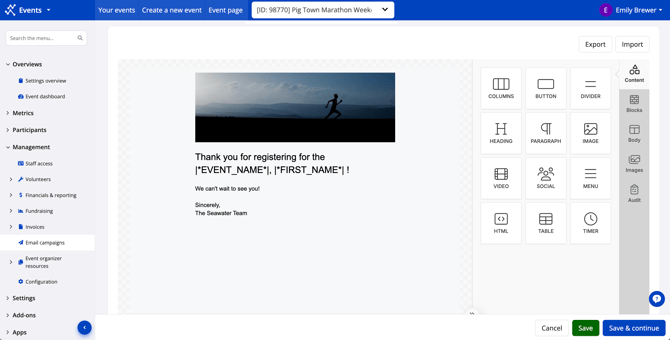
As of August 18, 2026, Race Roster is upgrading the event-level email campaign editor experience to utilize the tool Unlayer. If you have created an email campaign with the new editor in one event, and now want that same design in another event that you created independently, follow the steps below.
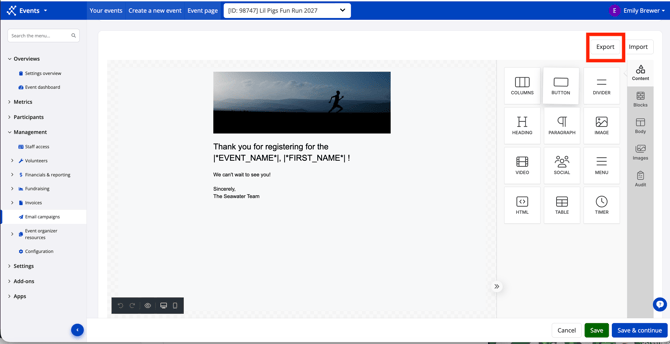
1. Navigate to the event email campaign you would like to copy. Once in the Customize step, click the white Export button. A JSON file will download via the web browser.
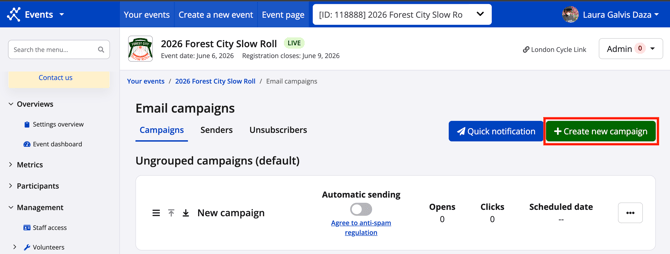
2. Navigate to the event you want to create the new campaign in and click the green Create new campaign button.
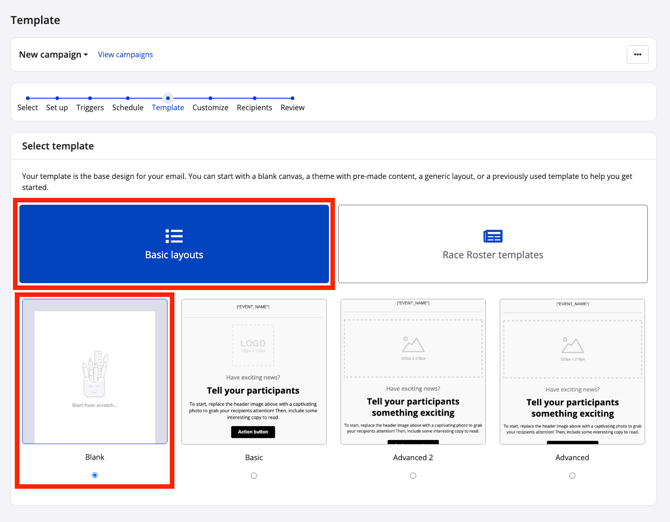
3. Fill in all details. In the Template step, select the blank template.
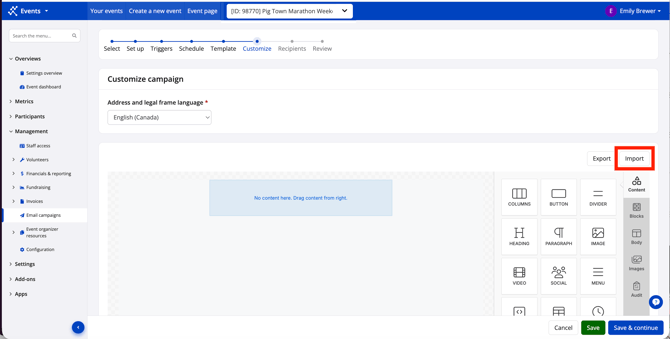
4. On the Customize step of your new campaign, click the white Import button.
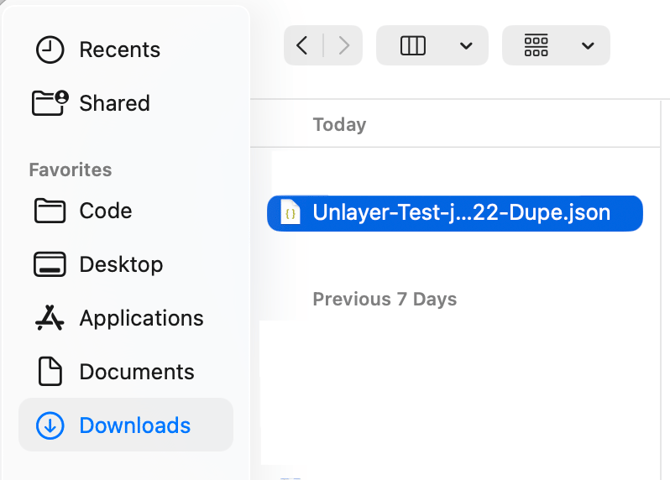
5. Locate the JSON file in your computer documents and click to upload.
6. Confirm that you would like to import your file. This will replace any current content in the email campaign.
7. With the design now appearing on the campaign, make further edits if needed. Full drag-and-drop functionality is available.