
If an event has fundraising minimums enabled, organizers have the ability to charge fundraisers their remaining fundraising balance or a custom amount. This charge is considered a donation, and will appear in the Donation report and on the participant's fundraising page. Please reference the article How to enable fundraising minimums for a fundraising organization.
Steps to charge fundraising minimum balances
1. Search the menu for Management → Fundraising → Fundraisers List.
2. Use the search bar to find the participant and select the three dots to the right in the Actions column, then select the Charge remaining fundraising balance option.
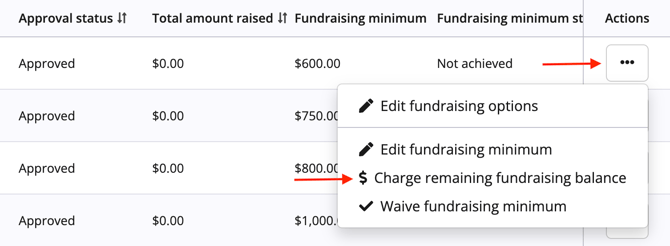
3. Choose from the two options that appear in the modal. Once the option has been selected, select the Process charge button.
- Full remaining balance - The default option, which is the amount remaining that the fundraiser needs to meet the minimum.
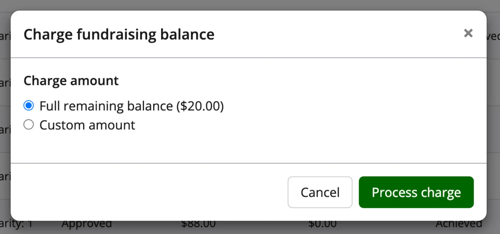
- Custom amount - If the user would instead like to charge an amount lower than the remaining balance, they can choose this option and enter the amount to charge. This is helpful if the user wants to waive a portion of the remaining balance or wants to charge fundraisers periodically that are falling behind.
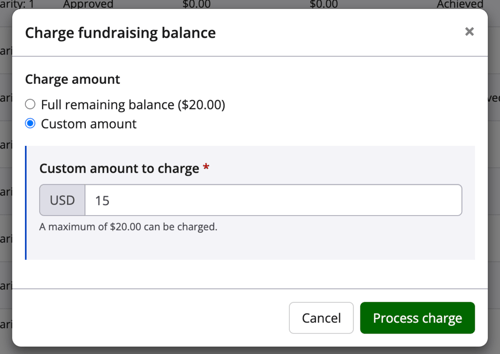
4. If the charge was successful, a green notification will appear at the bottom of the screen and the fundraiser will receive an email confirming the charge.
- If the charge was not successful or an error occurred, a red error notification will appear at the bottom right of the screen and no email will be sent to the fundraiser.
How to view charge history
After a charge has been processed, an organizer can refresh the Fundraiser list to view the charge attempts history and the latest status of a charge. Two columns are available on the Fundraiser list:
Charge attempt
This column will display a View link once a payment is started. Clicking on this will open up the Charge attempt history modal with all fundraising-related charges for the fundraiser.
- The most recent charge will appear at the top of the modal with the attempt status.
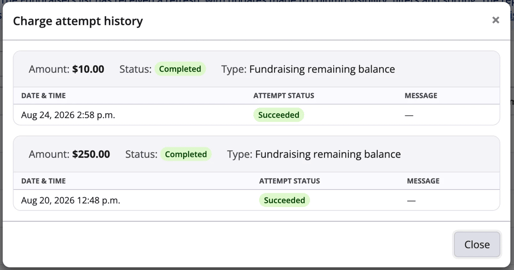
- When a charge fails, this information will be displayed, including the failure reason. This will set the charge to a Pending status.
- Each charge will have its own generated payment link, and the charge can be cancelled manually using the Cancel payment button.
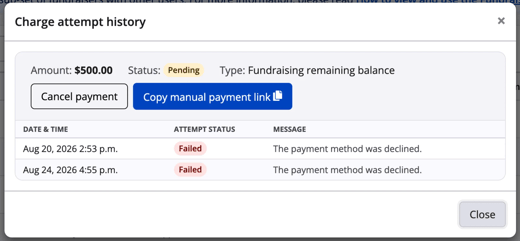
- All fundraiser attempts at payment for a charge using the Payment link will be listed.
Payment link
A payment link will be generated for every failed charge. This payment link can be found both within the Charge history modal, as well as in this column.
- This column will only show the most recent payment link.
- Each charge will have its own generated payment link.
- Fundraiser attempts at payment for a charge using the Payment link will appear (either failed or successful).
- The payment link will not automatically send to the participant.
Note: If an organizer would like to create a new charge for a fundraiser that has a pre-existing pending charge, a warning label will appear on the charge modal. If a new charge is confirmed, the pending charge and its associated payment link will be cancelled. The fundraiser will receive an error using the previous link.
For more information fundraising minimums, reference the article How to track & manage fundraiser progress towards required fundraising minimums or contact our team.