
Race Roster's team settings offer the ability for participants to register themselves for multiple team segments within a single registration. This allows for a simplified registration process for events that offer various kinds of relays, triathlon relays, etc., where participants can sign up to run multiple segments for a team.
To configure multi-pick segments, follow the steps below:
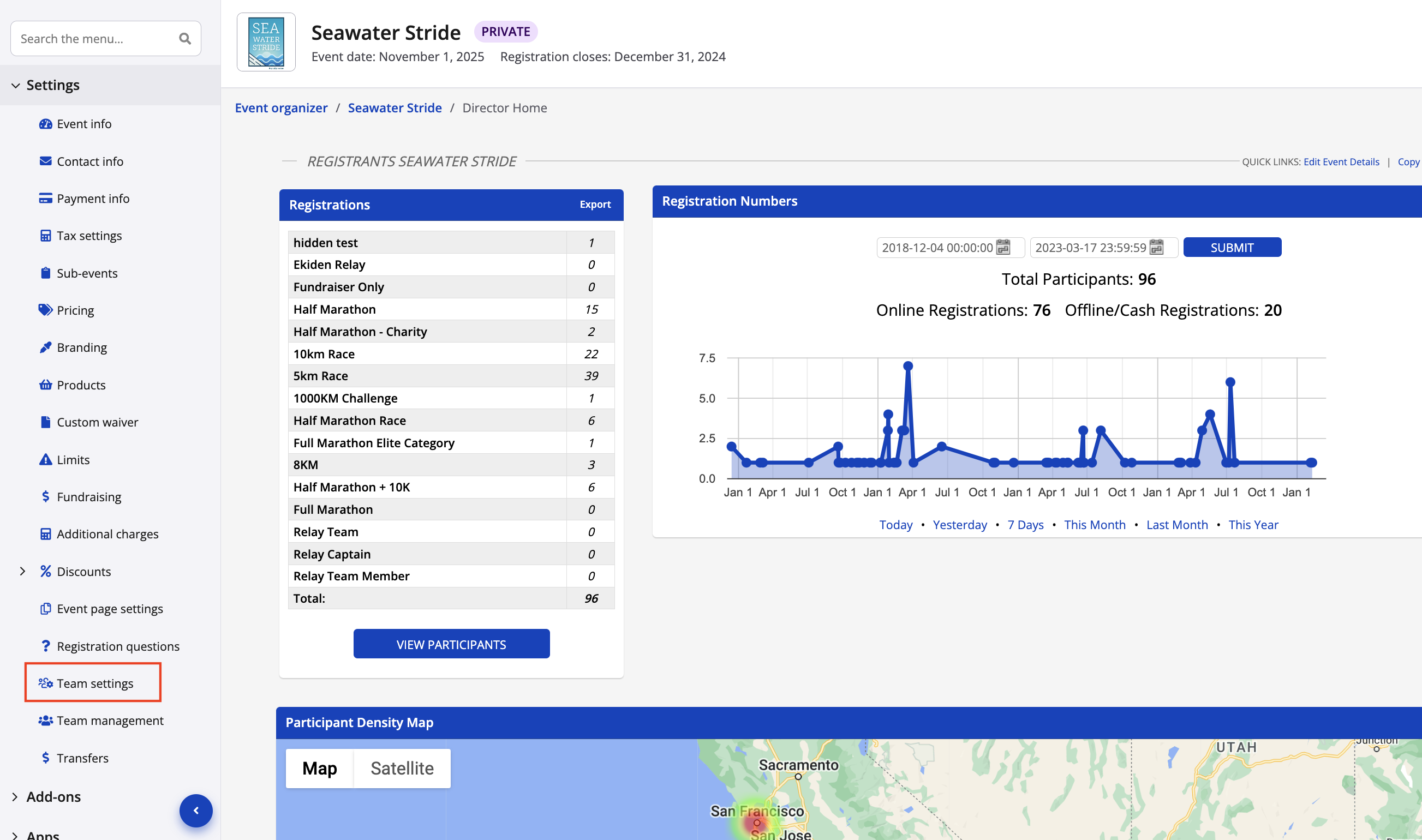
1. From the event dashboard, select Settings → Team settings from the lefthand side menu.
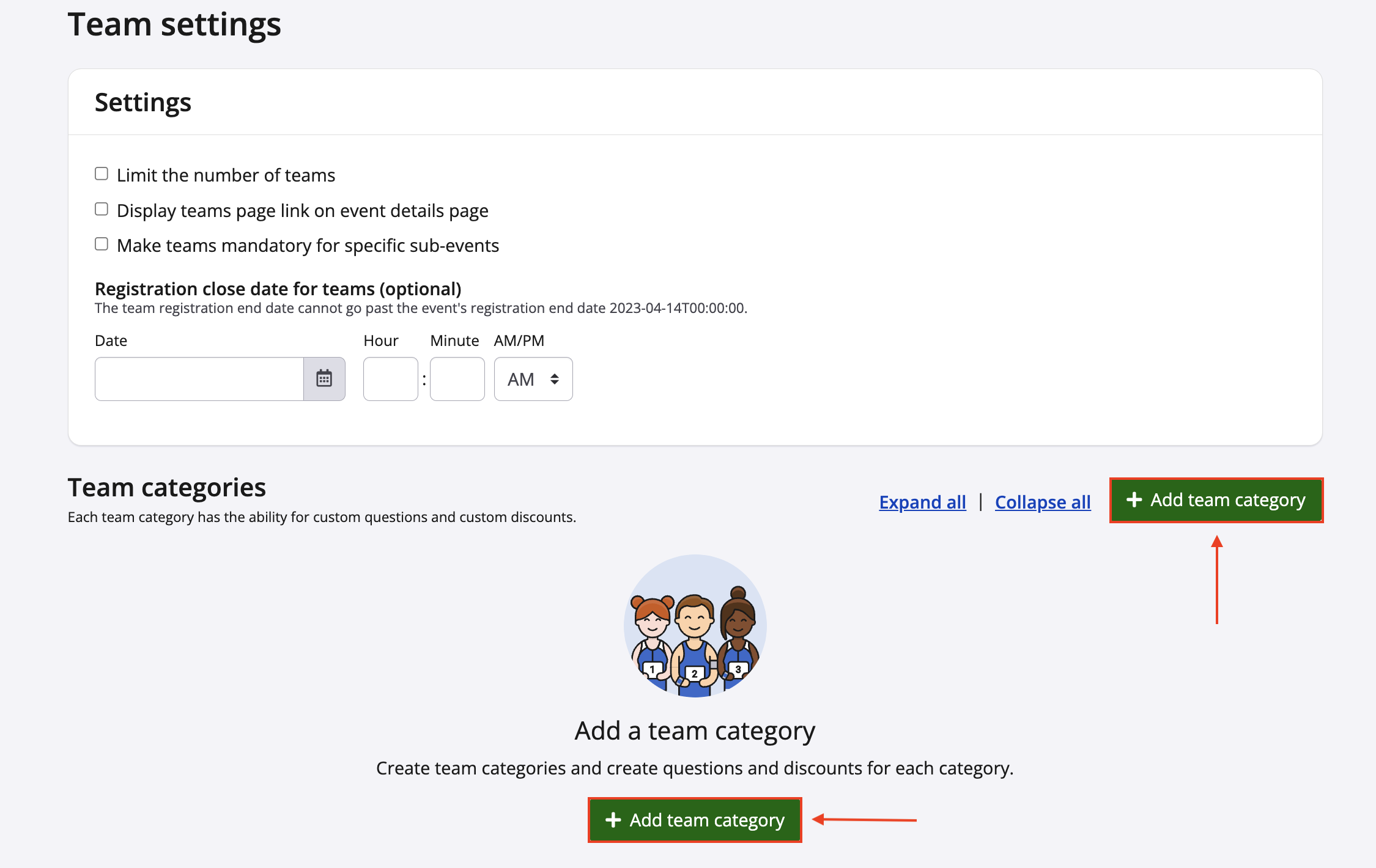
2. Within the Team settings, scroll down the page and click the + Add team category button to create a new team category that will allow for multi-pick segments within registration.
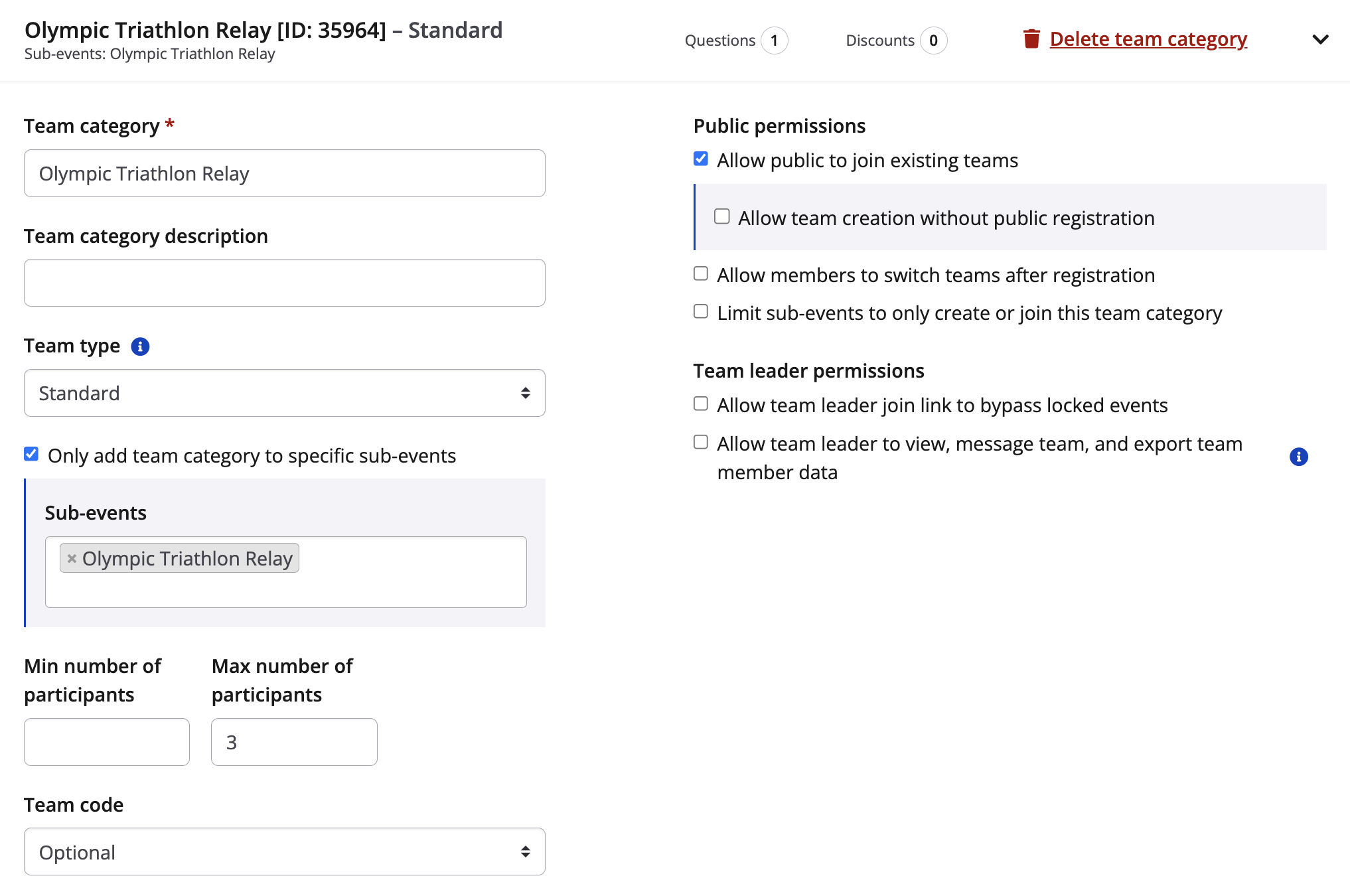
3. Configure the parameters specific for the new team category based off the event's requirements. (Specific sub-events, min/max number of participants, team leader permissions, etc.).
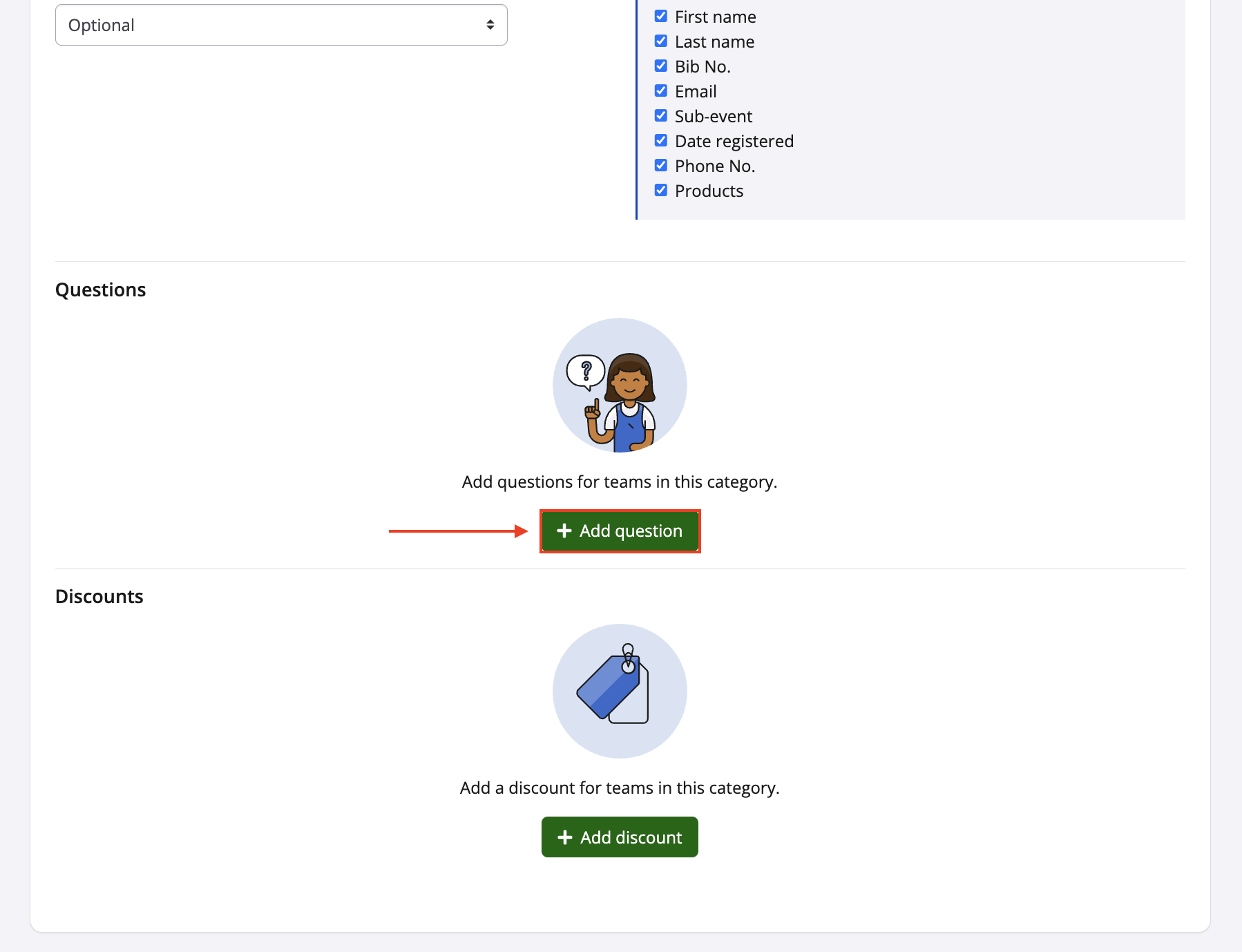
4. Scroll down the page to the team questions section and click the green Add question button to begin setting up the multi-pick segments for this team category.
5. Configure the following settings for the team question:
- A question title (ex: Which segment(s) will you be completing?)
- If the question should be optional
- If the question should only be for the team captain
- If the team captain should be able to view team member responses
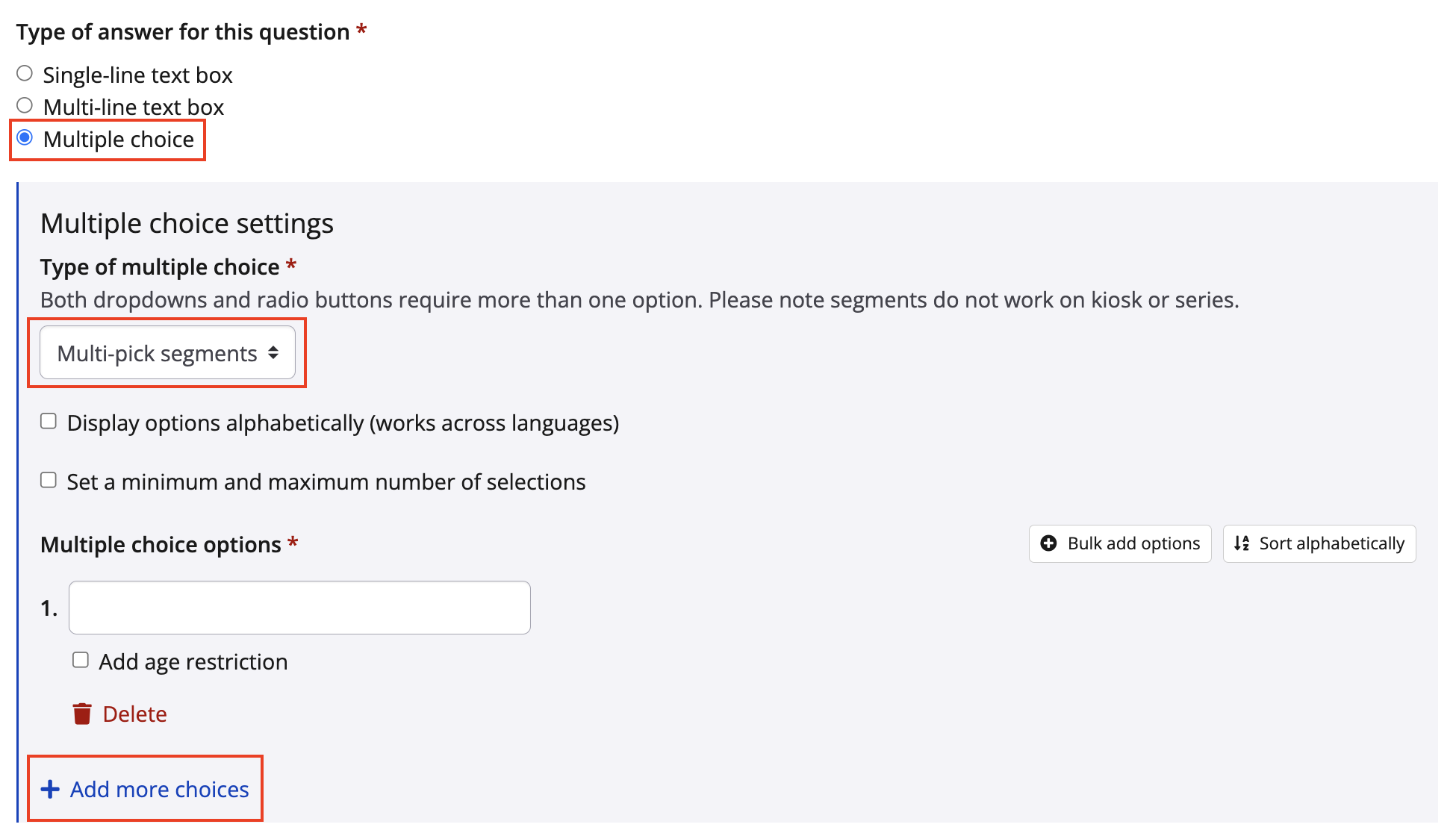
6. Select the team question to be Multiple choice and select Multi-pick segments as the type of multiple choice. Begin adding in the available segments that participants will be able to select from. Click + Add more choices to add in additional segment selections.
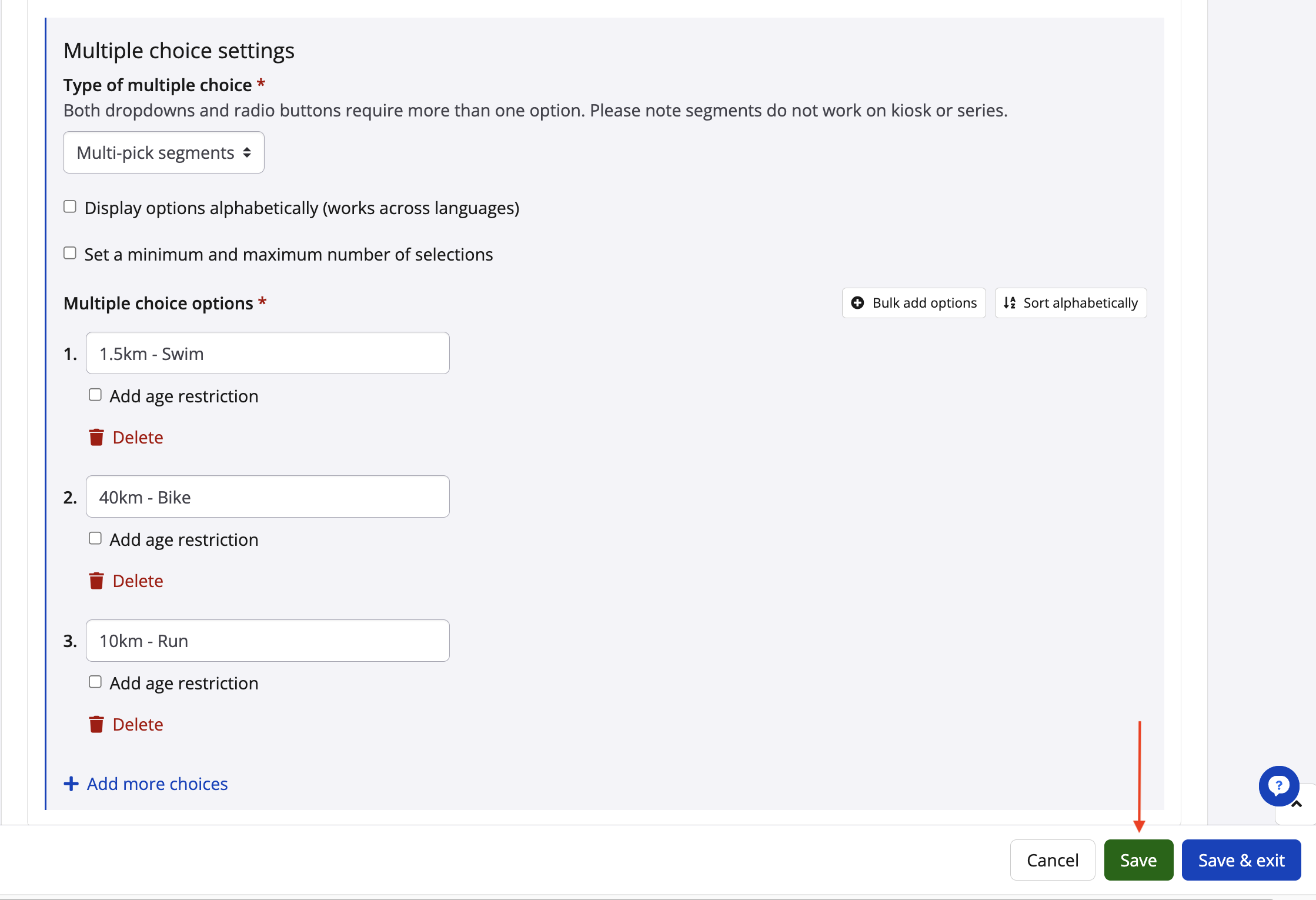
7. After adding in all segment selection options, click Save at the bottom of the page.
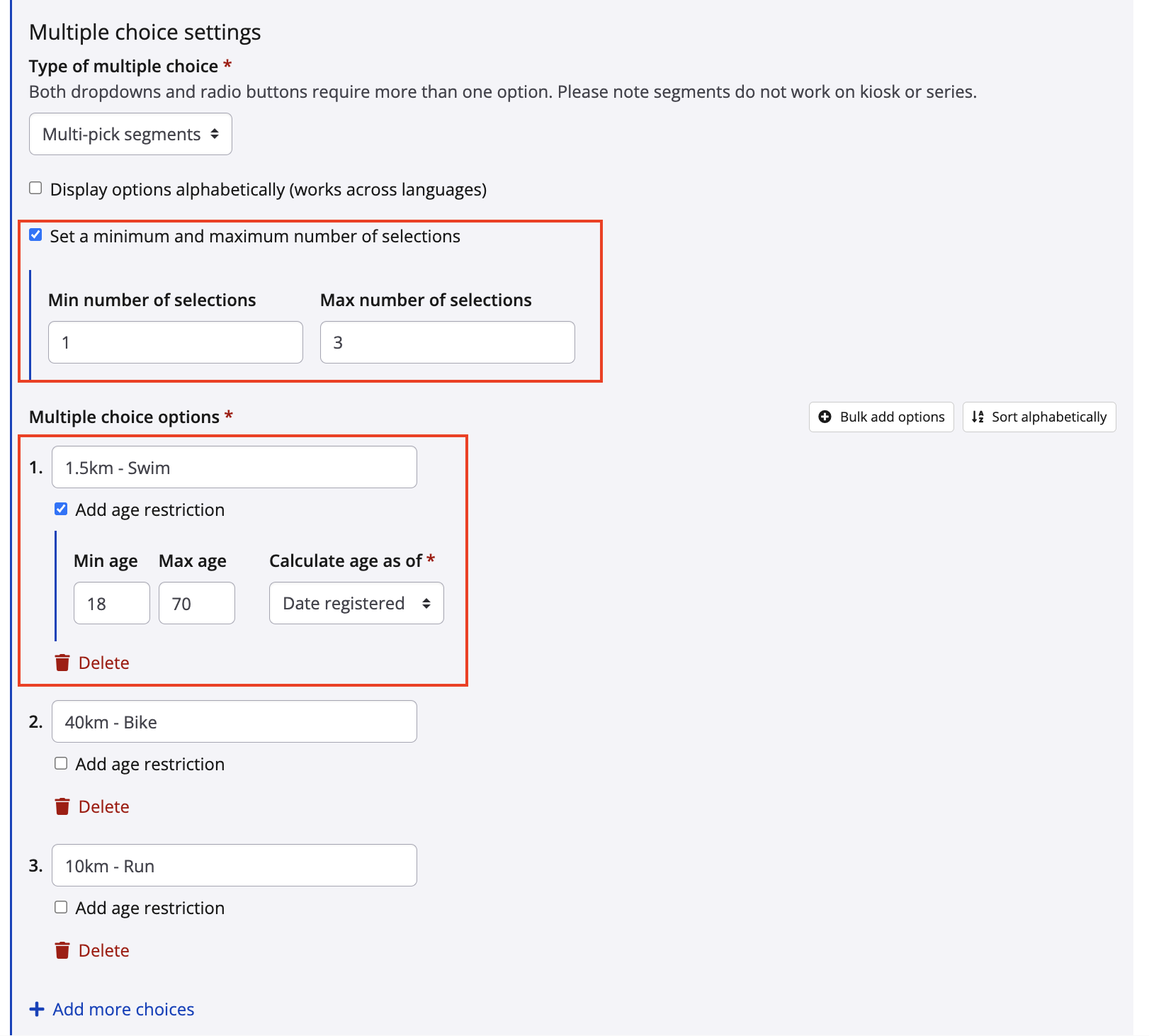
Optional: Set a minimum or maximum amount of segments that one participant can select during registration, or set any age restrictions for individual segments if necessary.
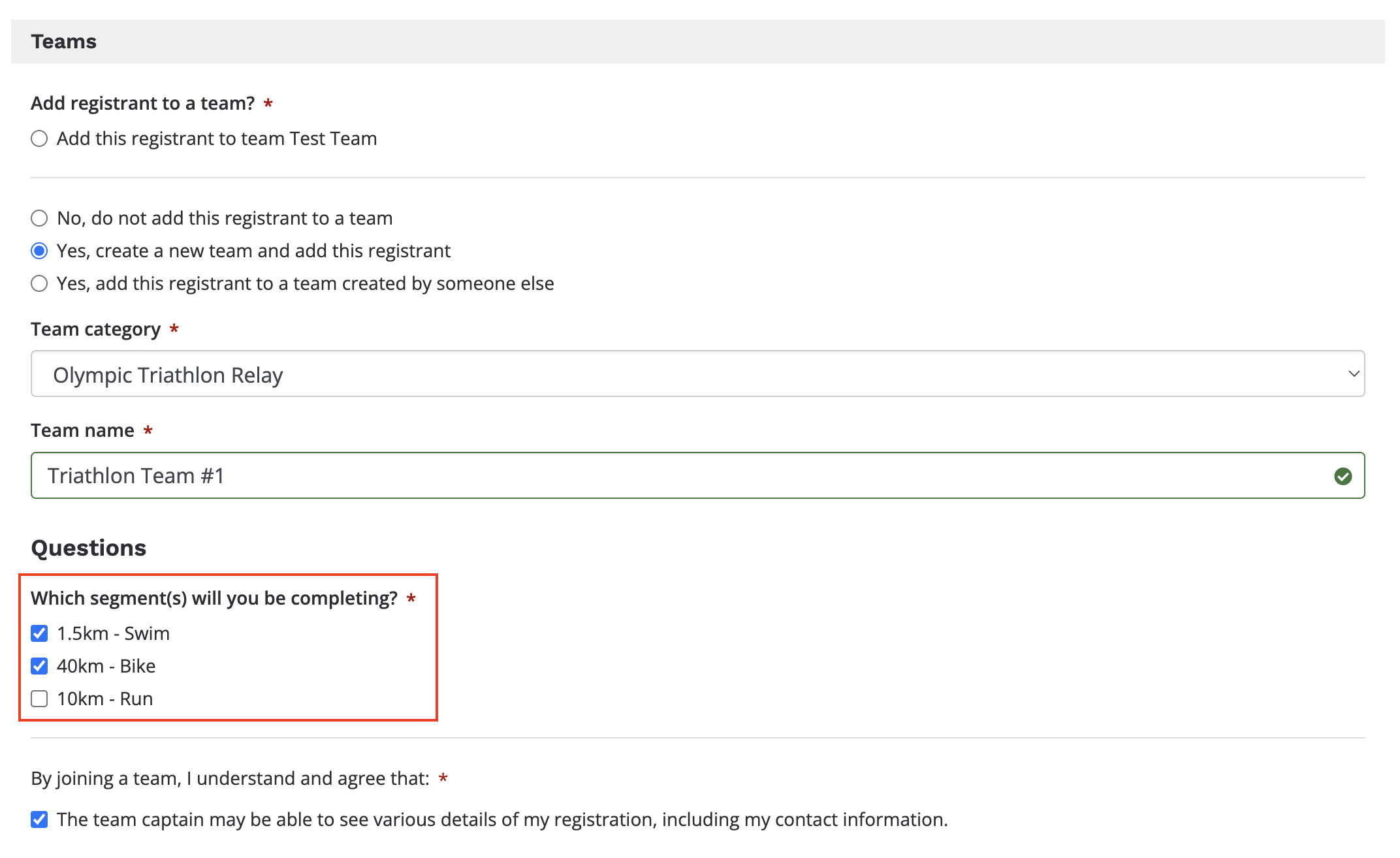
8. The team category and segment selection options will now appear on the registration form when registrants create new teams or join existing teams.
9. To view participants' selected segments for their team, search the menu for Participants → Participant list. Scroll down to Custom fields and filter the report to include the title of the team segment question as well as the team name.
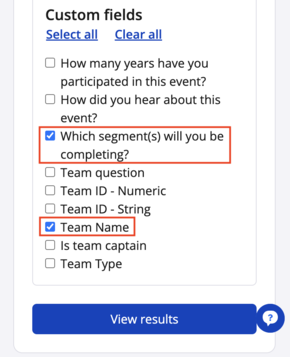
Select any other filters to include in the report and click view results to view the participant list with the selected columns. See article How to navigate the participant list
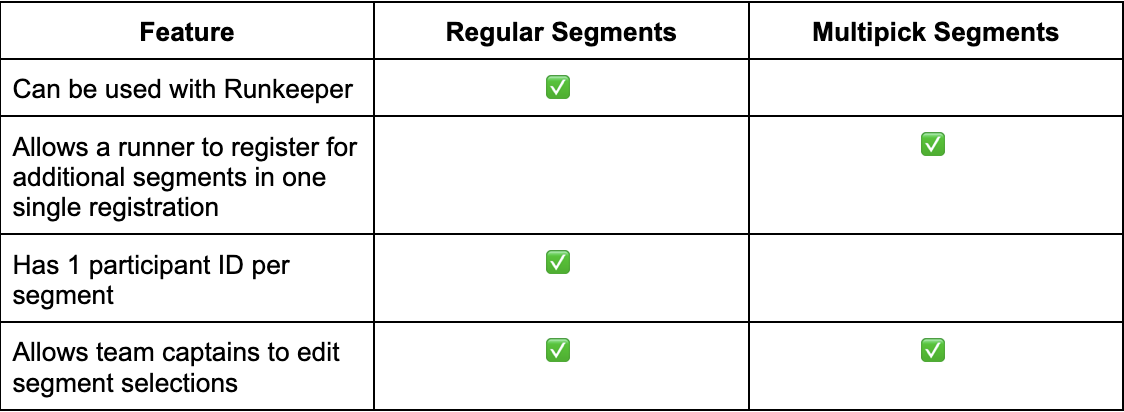
When to use regular segments versus multi-pick segments
To edit a participant's selection, see the article How to edit or re-assign participant multi-pick segment selections. If you have any questions about setting up multi-pick segments, please contact our team.