
1. Sign in and access the event dashboard.
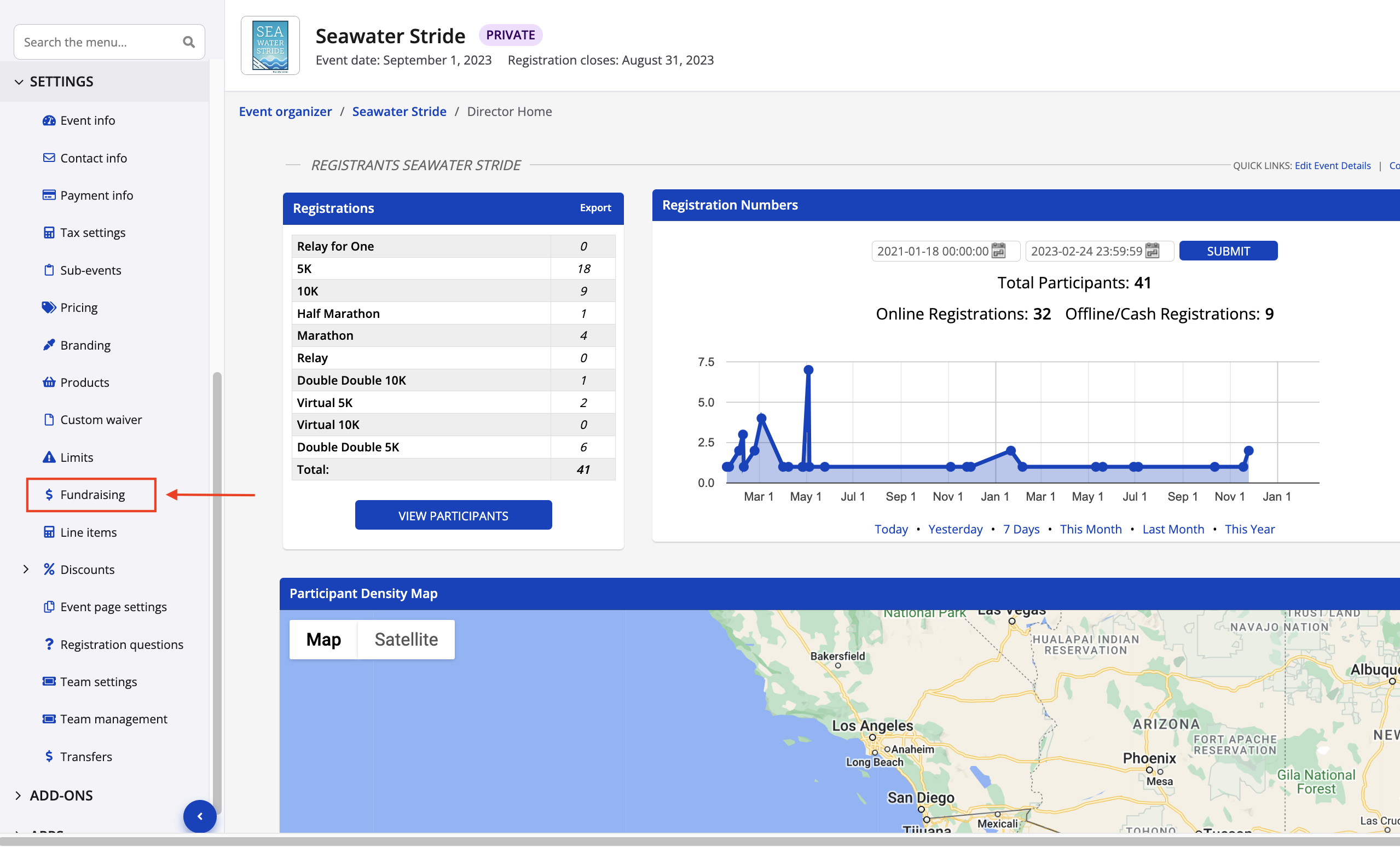
2. Search the menu on the left for Settings → Fundraising.
3. In the Fundraising organizations section, select the three dots to the right of the organization in Actions column and click Edit.
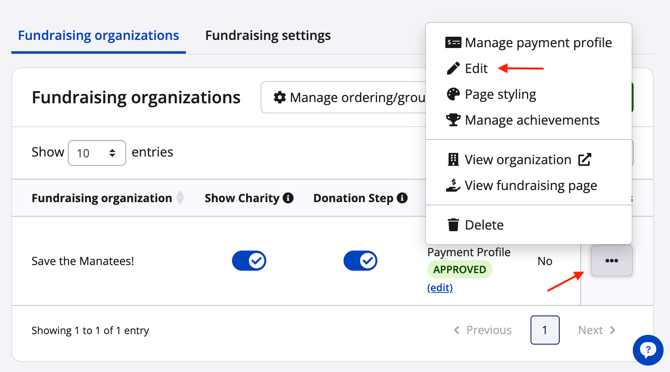
This will redirect to the Fundraising organization's settings for this event.
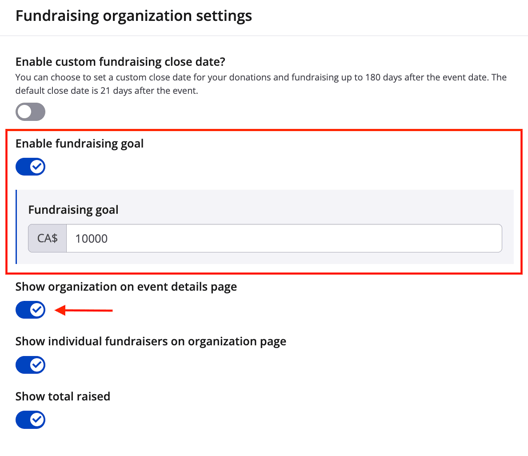
4. Scroll down to the Fundraising organization settings section and toggle on Enable fundraising goal. Enter the amount of the organization's goal. If the goal and amount raised should be displayed on the event details page, ensure Show organization on event details page is also enabled.
5. Select Save or Save & exist and the fundraising goal and organization will be displayed on the event details page.
For more information on the fundraising organization settings, please visit our Fundraiser Resources section.