
Individual Fundraising
To allow participants to fundraise for your organization, you must enable participant fundraising at the event level and at the organization level.
Event fundraising settings
1. Navigate to Fundraising Settings (Settings > Fundraising > Fundraising settings)
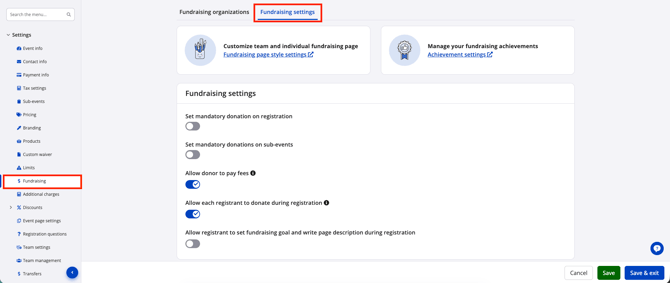
2. Participant fundraising is sub-event specific. Under 'Organizations by sub-event' toggle on Participant fundraising for all applicable sub-events.
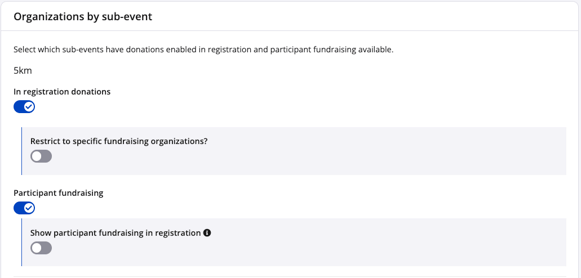
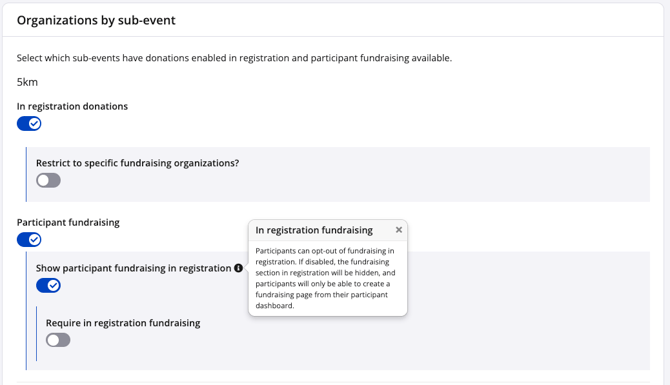
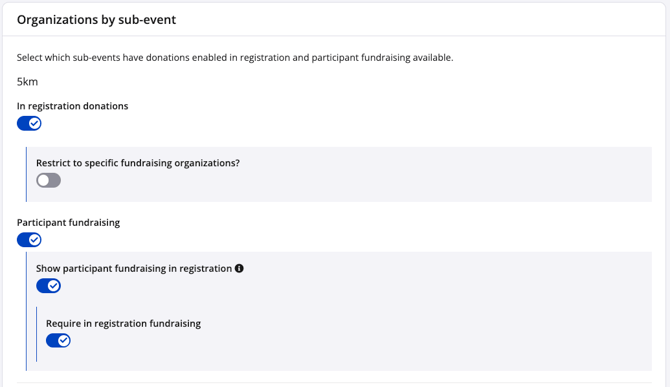
Note: Fundraising is optional by default. Depending on how you would like participants to fundraise, enable the following toggles:
- Show participant fundraising in registration — controls whether or not fundraising appears within registration. If disabled, then participants can opt into fundraising from their participant dashboard.
- Require in-registration fundraising — makes participant fundraising mandatory during registration.
 |
 |
3. Click the green Save button at the bottom of the page.
Organization fundraising settings
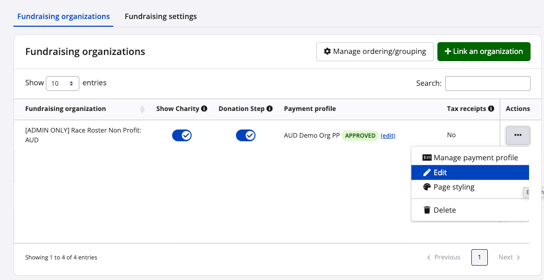
1. Navigate to your Fundraising Organization.
2. Click Edit from the Actions menu.
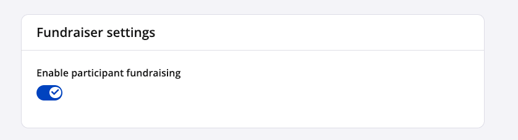
3. Under 'Fundraiser settings' toggle on Participant fundraising.
4. Click the green Save button at the bottom of the page.
Team Fundraising
To allow teams to fundraise for your organization, fundraising settings for applicable team categories must be enabled.
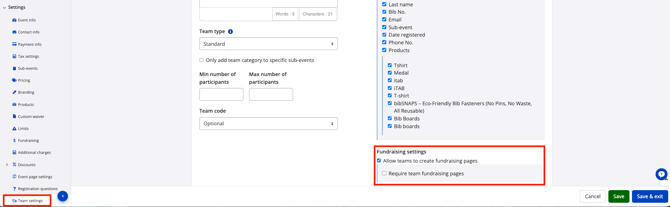
1. Navigate to Team settings.
2. Select the applicable category and under Fundraising settings for that category, select 'Allow teams to create fundraising pages'. If fundraising is mandatory for this team category, select 'Require team fundraising pages'.
3. Click the green Save button at the bottom of the page.
Note: these settings need to b
e configured in tandem with Individual fundraising settings to ensure all participants can join the team and fundraise.