---
title: How do I turn on achievements/badges on my fundraising event?
description: How to create Fundraising Achievements as an event organizer and/or fundraising coordinator.
---
[Skip to content](https://help.raceroster.com/en-us/knowledge-base/how-do-i-turn-on-charity-achievements/badges-on-my-fundraising-event#main-content)
[Submit a knowledge article idea](https://help.raceroster.com/en-us/knowledge-base/kb-tickets/new?hsLang=en-us)

Open main navigation
Close main navigation
- [Submit a knowledge article idea](https://help.raceroster.com/en-us/knowledge-base/kb-tickets/new)
How can we help you?
- There are no suggestions because the search field is empty.
1. [Race Roster Knowledge Base](https://help.raceroster.com/en-us/knowledge-base?hsLang=en-us)
2. [Event Organizers and Race Directors](https://help.raceroster.com/en-us/knowledge-base/event-organizers-and-race-directors?hsLang=en-us)
3. [Fundraising Settings and Receipts](https://help.raceroster.com/en-us/knowledge-base/event-organizers-and-race-directors?hsLang=en-us#fundraising-settings-and-receipts)
April 21, 2026
# How do I turn on achievements/badges on my fundraising event?
Achievements allow fundraising-focused events to supercharge their efforts. To further encourage fundraisers to garner donations, you can create achievement badges based on a dollar amount or percentage towards a larger fundraising goal.
*For example, you may create a badge that rewards every participant who raises $100. Then, you may create an email campaign to automatically notify them when they reach that achievement. Additionally, you can create three more badges that notify and encourage the participant at intervals of $100 on the way to their bigger goal.*
To set up your achievements, configure an achievements-based email campaign, and a look into how they appear to participants, read the sections below.
### Setting up achievements
1\. Sign into Race Roster using the **[events overview page](https://raceroster.com/dashboard/event-organizers/overview)**. Select "View dashboard" on the correct event.
2\. Navigate to the left-hand of your screen to the **search box**. Search and select "**Fundraising"**. If you do not find it,you will have to add that item on the event's settings overview page. For more information, please read Step 5 in our other article,**[How to create an event page](https://help.raceroster.com/en-us/knowledge-base/how-to-create-an-event-page?hsLang=en-us)**.
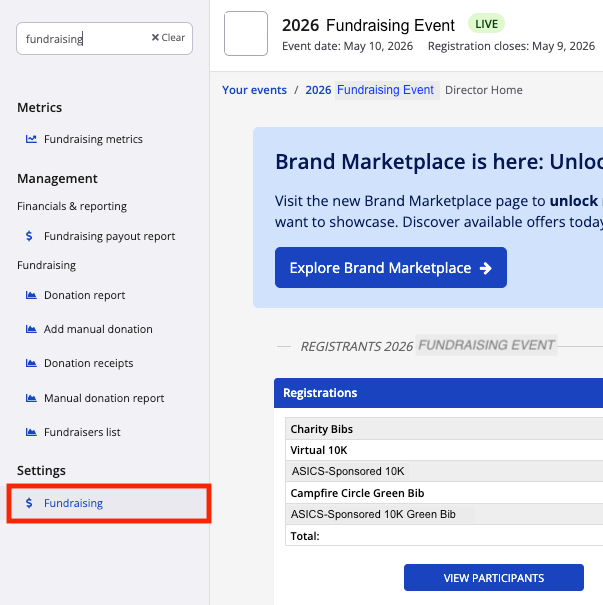
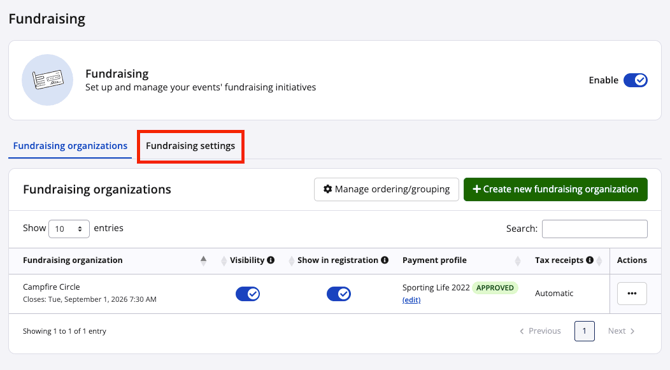
3\. From the "Fundraising" page, navigate to the "Fundraising settings" tab, and then select **Manage your fundraising achievements settings** on the right-hand side.
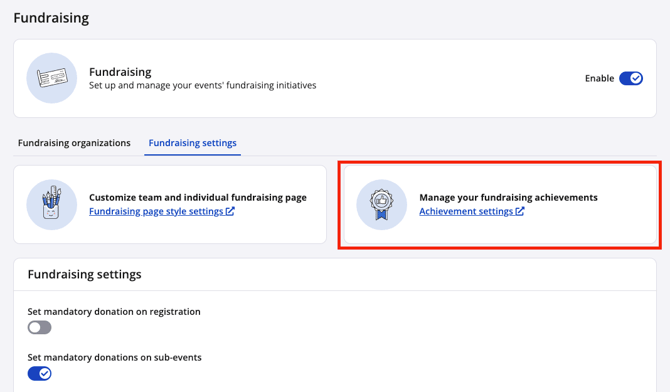
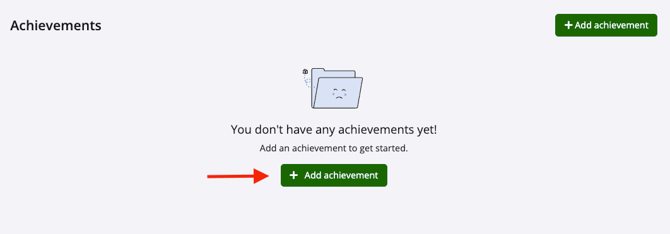
4\. From the "Achievements" page, click the green "**Add achievement**" button to create your first fundraising achievement.
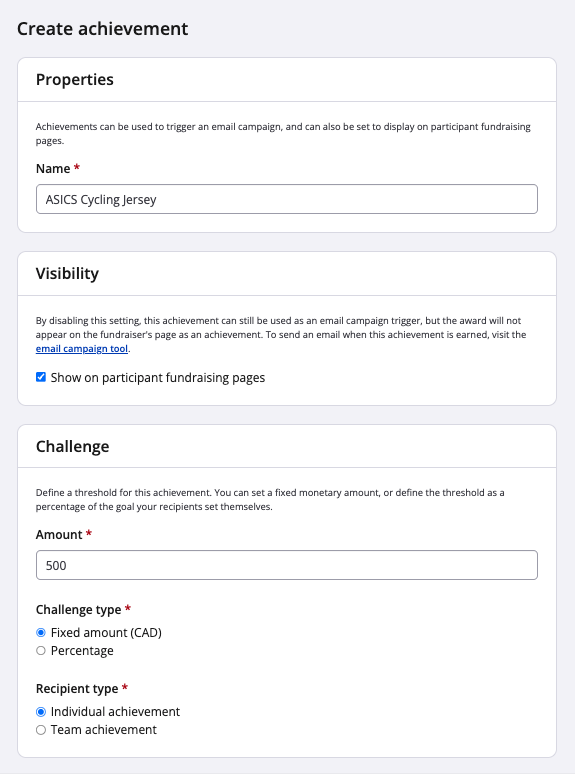
5\. From the "Create achievement" page, fill in the fields and options:
- **Name -** Enter a name for the fundraising achievement. For example, you may denote **milestones for the sum of collected donations**, such as *Bronze Fundraiser*, *Silver Fundraiser* and *Gold Fundraiser*. As another example, you may indicate the **rewards earned by the fundraiser**, such as *Cycling Jersey*, *Cycling Bib Shorts* and *Bike Shop Gift Certificate*. As a final example, you may reveal **how the collected donations will be used toward the charitable cause**, such as *10 Soup Kitchen Meals*, *20 Soup Kitchen Meals*, *30 Soup Kitchen Meals*). **Note:** this name will be visible to the fundraiser on their participant dashboard if a badge is also uploaded in Step 7.
- **Show on participant fundraising pages -** Select this checkbox if you want the fundraising achievement to be visible on the public fundraising pages (*i.e.,* the individual or team fundraising pages linked from the event details page) when you upload a badge in Step 7 below. If you do not select this checkbox, you may still use the achievements to trigger email campaigns and show them on the participant dashboard, but without there being public visibility.
- **Amount -** Enter a number corresponding to the achievement.
- **Challenge type -** Select **"Fixed amount"** if the number you entered indicates a currency amount (*e.g.,* minimum 500 Canadian Dollars ($) raised, minimum 58000 Japanese Yen (¥) raised, *etc*). Select **"Percentage"** if the number indicates a percentage of the individual or team fundraising goal (for the goal, that can be set by the participant/team captain or by you as the event organizer or fundraising coordinator).
- **Recipient type -** Select **"Individual achievement"** if it applies to individual fundraisers. Select **"Team achievement"** if it applies to fundraising team. **Note:** If you have a fundraising achievement that applies to both individuals and teams, you must create two separate achievements, as the email campaign triggers must be differentiated in order to function correctly.
6\. Be sure to click the blue **"Save & exit"** button on the bottom right.
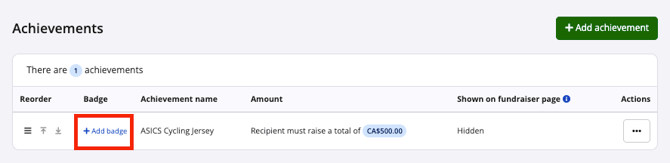
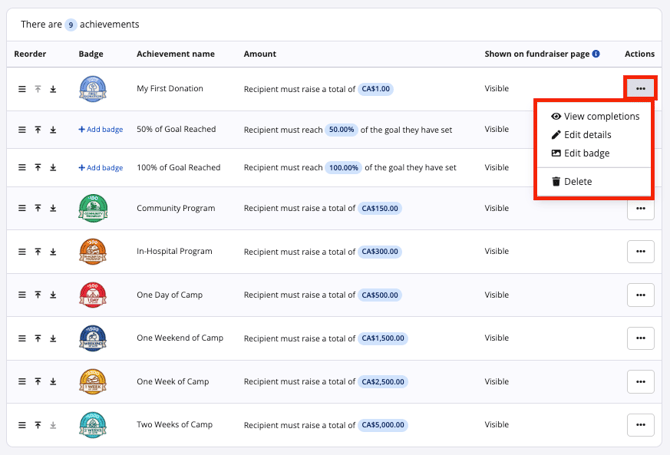
7\. Back on the "Achievements" page, you will see a table with columns summarizing the achievement. Leaving it as is, the system will allow you to use it for email campaigns.
Optionally, you may select **"Add badge"** to allow you to upload an image that corresponds to the achievement. This badge allows for visibility on the participant dashboard and, if enabled in Step 5, on public fundraising pages.
****
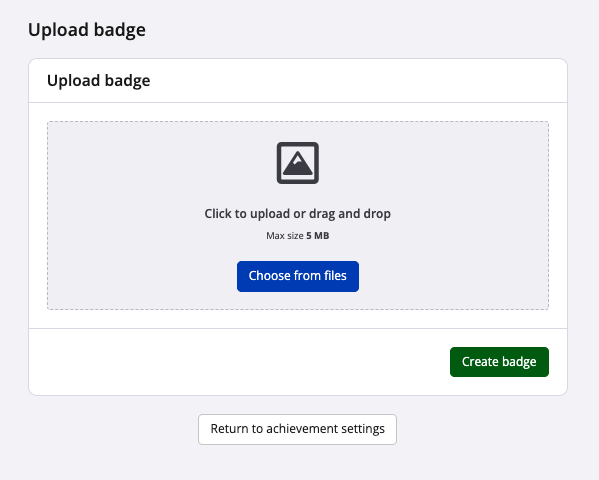
If you select to add a badge, on the next page there will be a button to upload an image file. The maximum size is 5 MB. You may crop or replace this image, if needed.
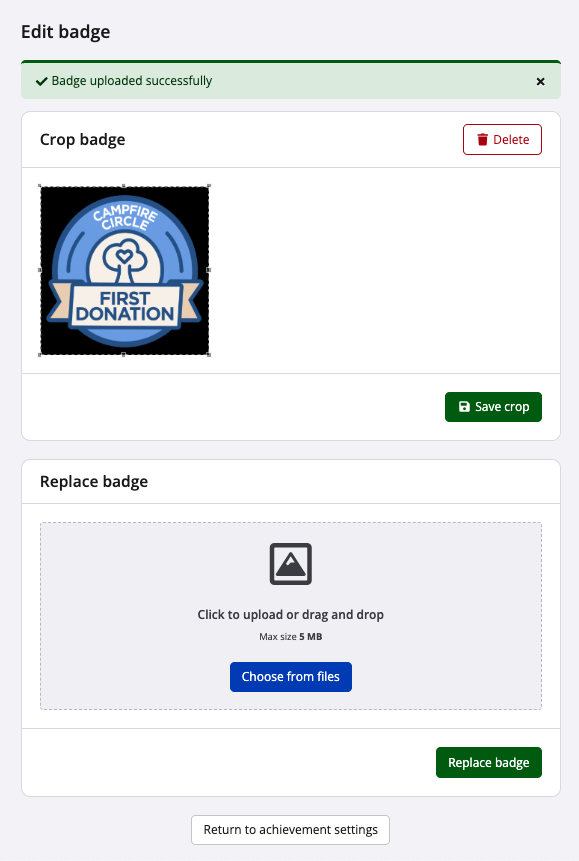
**The outcome from this:** you'll *both* be able to use the achievement in an email campaign *and* to proudly display it for your participants to see!
8\. Select the white **"Return to achievements settings"** button at the bottom right to return to the "Achievements" page.
9\. Repeat Steps 4 through 8 until you have created all of your event's fundraising achievements. Once back on the "Achievements" page, you will see them listed in the table with their respective summaries. A "..." actions button will be available should you want to do any of the following:
- view the list of all fundraisers who have completed the achievement requirements
- edit the details (name, challenge parameters)
- edit the badge
- delete the achievement
### Creating achievements-based email campaigns
Now that you have created achievements, **you can create email campaigns** to correspond with the challenge parameters being met by the fundraising teams or individuals. Please read our other article, [**Creating an email campaign**](https://help.raceroster.com/en-us/knowledge-base/creating-an-email-campaign?hsLang=en-us), to learn the whole process from start to finish.
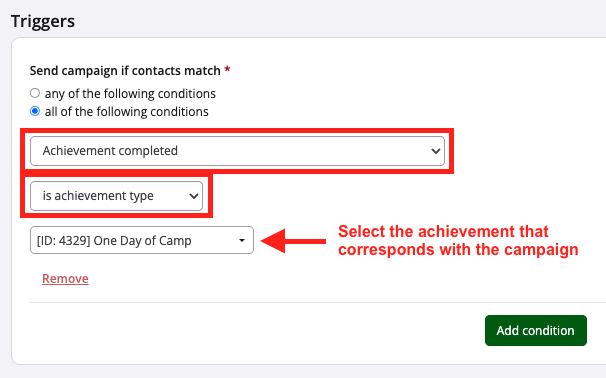
Now, within the **"Triggers"** step, select the "Achievement completed" condition, then "is achievement type" and finally the applicable achievement per its name.
Later, within the **"Recipients"** step, select *both* "Current contacts who match set triggers" and "Future contacts who match set triggers".
As always, click **"Save"** or **"Save & continue"** for your changes to stick. Be sure to complete the setup of the email campaign. Finally, be sure to **start the campaign**.
**The outcome from this:** When a team or individual has fulfilled the challenge parameters (*e.g.,* raised a minimum of $500 through their page on Race Roster), they will receive your email campaign!
### Public and participant visibility of achievements
Achievements can be set up to appear under the "Fundraising" section of the participant dashboard.
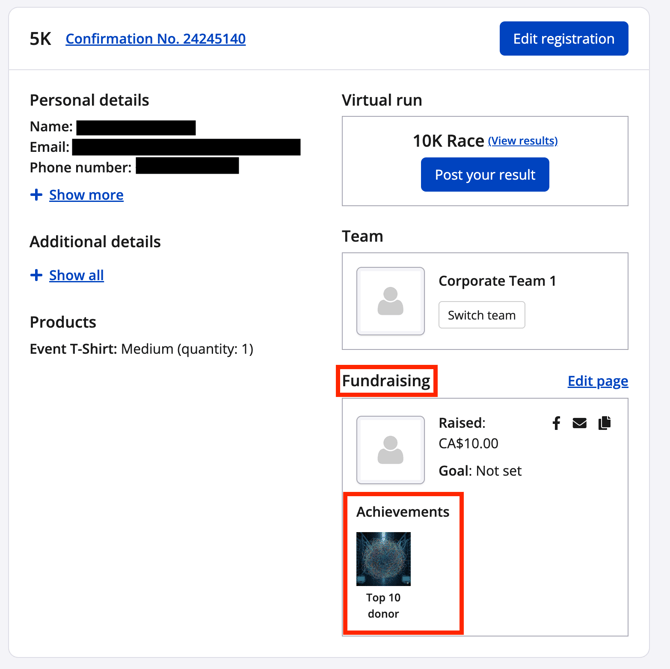
The participant may click on the badge to see a small modal with details of their achievement.
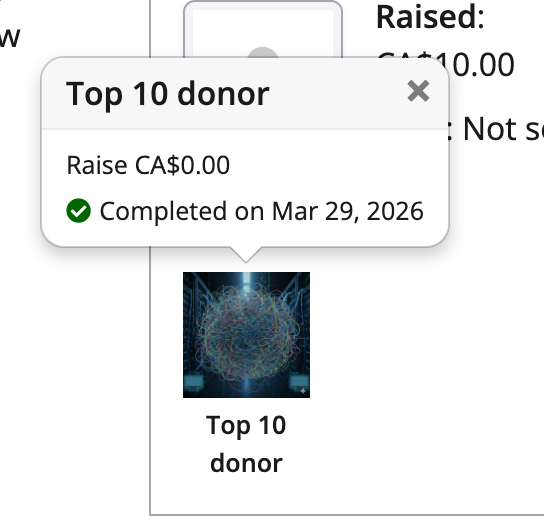
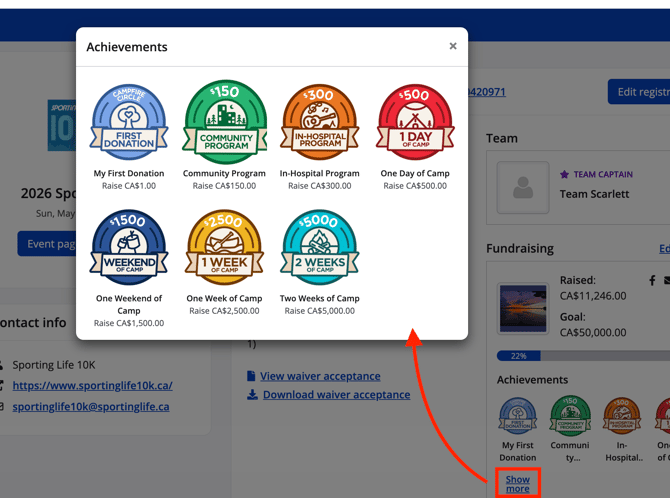
A maximum of four achievement badges can appear in this section. If the fundraising participant has completed more than four, they may click **"Show more"** to view a large modal containing all achievement badges, names and challenge parameters.
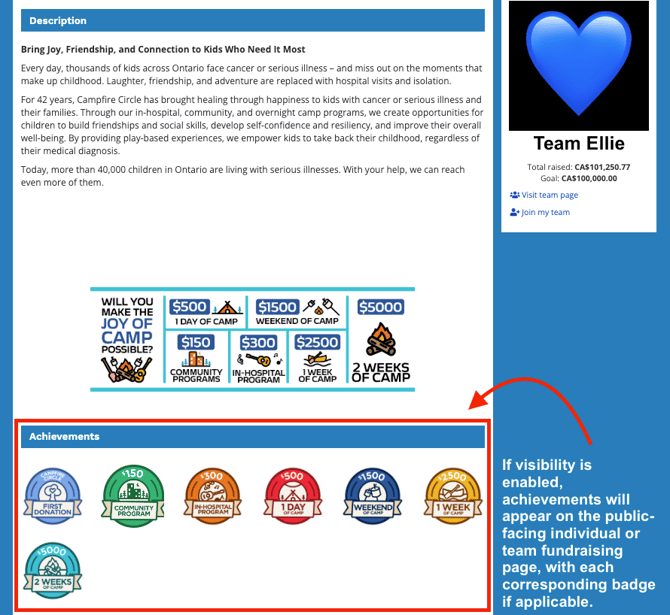
Achievements can also appear respectively on individual and team fundraising pages, in a dedicated section.
#### Summary of achievement visibility settings
*I want to use the achievement for email campaigns, and for it to show on the participant dashboard and the public-facing pages.*
- Upload badge + enable "Show on participant fundraising page"
*I want to use the achievement for email campaigns, and for it to show on the participant dashboard only.*
- Upload badge + disable "Show on participant fundraising page"
*I only want to use the achievement for email campaigns.*
- Don't upload a badge
**---**
**For more information on setting up and managing your fundraising organization settings, please visit:**
[**https://help.raceroster.com/en-us/knowledge-base/fundraising-coordinators**](https://help.raceroster.com/en-us/knowledge-base/fundraising-coordinators?hsLang=en-us)
- [Event Organizers and Race Directors](https://help.raceroster.com/en-us/knowledge-base/event-organizers-and-race-directors?hsLang=en-us#main-content)
- [Participant Management](https://help.raceroster.com/en-us/knowledge-base/event-organizers-and-race-directors?hsLang=en-us#participant-management)
- [Financials](https://help.raceroster.com/en-us/knowledge-base/event-organizers-and-race-directors?hsLang=en-us#financials)
- [Marketing & Promotions](https://help.raceroster.com/en-us/knowledge-base/event-organizers-and-race-directors?hsLang=en-us#marketing-promotions)
- [Email Campaigns, MailChimp Integration](https://help.raceroster.com/en-us/knowledge-base/event-organizers-and-race-directors?hsLang=en-us#email-campaigns-mailchimp-integration)
- [Products](https://help.raceroster.com/en-us/knowledge-base/event-organizers-and-race-directors?hsLang=en-us#products)
- [Team Management and Settings](https://help.raceroster.com/en-us/knowledge-base/event-organizers-and-race-directors?hsLang=en-us#team-management-and-settings)
- [Onsite App](https://help.raceroster.com/en-us/knowledge-base/event-organizers-and-race-directors?hsLang=en-us#onsite-app)
- [Registration Questions](https://help.raceroster.com/en-us/knowledge-base/event-organizers-and-race-directors?hsLang=en-us#registration-questions)
- [Fundraising Settings and Receipts](https://help.raceroster.com/en-us/knowledge-base/event-organizers-and-race-directors?hsLang=en-us#fundraising-settings-and-receipts)
- [Promo Codes, Discounts, and Gifting Codes](https://help.raceroster.com/en-us/knowledge-base/event-organizers-and-race-directors?hsLang=en-us#promo-codes-discounts-and-gifting-codes)
- [Virtual](https://help.raceroster.com/en-us/knowledge-base/event-organizers-and-race-directors?hsLang=en-us#virtual)
- [Results](https://help.raceroster.com/en-us/knowledge-base/event-organizers-and-race-directors?hsLang=en-us#results)
- [Access codes](https://help.raceroster.com/en-us/knowledge-base/event-organizers-and-race-directors?hsLang=en-us#access-codes)
- [Director Access and Settings](https://help.raceroster.com/en-us/knowledge-base/event-organizers-and-race-directors?hsLang=en-us#director-access-and-settings)
- [Pricing](https://help.raceroster.com/en-us/knowledge-base/event-organizers-and-race-directors?hsLang=en-us#pricing)
- [Event Page Settings](https://help.raceroster.com/en-us/knowledge-base/event-organizers-and-race-directors?hsLang=en-us#event-page-settings)
- [Your Dashboard](https://help.raceroster.com/en-us/knowledge-base/event-organizers-and-race-directors?hsLang=en-us#your-dashboard)
- [Sub-events](https://help.raceroster.com/en-us/knowledge-base/event-organizers-and-race-directors?hsLang=en-us#sub-events)
- [Other FAQs](https://help.raceroster.com/en-us/knowledge-base/event-organizers-and-race-directors?hsLang=en-us#other-faqs)
- [Volunteers](https://help.raceroster.com/en-us/knowledge-base/event-organizers-and-race-directors?hsLang=en-us#volunteers)
- [Create, Edit or Take Your Event Live](https://help.raceroster.com/en-us/knowledge-base/event-organizers-and-race-directors?hsLang=en-us#create-edit-or-take-your-event-live)
- [Waivers](https://help.raceroster.com/en-us/knowledge-base/event-organizers-and-race-directors?hsLang=en-us#waivers)
- [Reports](https://help.raceroster.com/en-us/knowledge-base/event-organizers-and-race-directors?hsLang=en-us#reports)
- [Participants and Fundraisers](https://help.raceroster.com/en-us/knowledge-base/participants-and-fundraisers?hsLang=en-us#main-content)
- [Participant FAQs](https://help.raceroster.com/en-us/knowledge-base/participants-and-fundraisers?hsLang=en-us#participant-faqs)
- [Fundraising](https://help.raceroster.com/en-us/knowledge-base/participants-and-fundraisers?hsLang=en-us#fundraising)
- [Gift Registrations](https://help.raceroster.com/en-us/knowledge-base/participants-and-fundraisers?hsLang=en-us#gift-registrations)
- [Sign In and Manage Registration](https://help.raceroster.com/en-us/knowledge-base/participants-and-fundraisers?hsLang=en-us#sign-in-and-manage-registration)
- [Transfer Registration](https://help.raceroster.com/en-us/knowledge-base/participants-and-fundraisers?hsLang=en-us#transfer-registration)
- [Access Codes](https://help.raceroster.com/en-us/knowledge-base/participants-and-fundraisers?hsLang=en-us#access-codes)
- [Teams](https://help.raceroster.com/en-us/knowledge-base/participants-and-fundraisers?hsLang=en-us#teams)
- [Security & Compliance](https://help.raceroster.com/en-us/knowledge-base/participants-and-fundraisers?hsLang=en-us#security-compliance)
- [Promo Codes](https://help.raceroster.com/en-us/knowledge-base/participants-and-fundraisers?hsLang=en-us#promo-codes)
- [Race Roster CRM](https://help.raceroster.com/en-us/knowledge-base/race-roster-crm?hsLang=en-us#main-content)
- [Organizations](https://help.raceroster.com/en-us/knowledge-base/race-roster-crm?hsLang=en-us#organizations)
- [Contact Management and Validation Lists](https://help.raceroster.com/en-us/knowledge-base/race-roster-crm?hsLang=en-us#contact-management-and-validation-lists)
- [Reporting](https://help.raceroster.com/en-us/knowledge-base/race-roster-crm?hsLang=en-us#reporting)
- [Events and Event Groups](https://help.raceroster.com/en-us/knowledge-base/race-roster-crm?hsLang=en-us#events-and-event-groups)
- [Campaigns and Marketing](https://help.raceroster.com/en-us/knowledge-base/race-roster-crm?hsLang=en-us#campaigns-and-marketing)
- [Non-profit Organizations](https://help.raceroster.com/en-us/knowledge-base/race-roster-crm?hsLang=en-us#non-profit-organizations)
- [Fundraising Coordinators](https://help.raceroster.com/en-us/knowledge-base/fundraising-coordinators?hsLang=en-us#main-content)
- [Resources](https://help.raceroster.com/en-us/knowledge-base/fundraising-coordinators?hsLang=en-us#resources)
- [Participant and Team Fundraising](https://help.raceroster.com/en-us/knowledge-base/fundraising-coordinators?hsLang=en-us#participant-and-team-fundraising)
- [Reporting](https://help.raceroster.com/en-us/knowledge-base/fundraising-coordinators?hsLang=en-us#reporting)
- [Timers](https://help.raceroster.com/en-us/knowledge-base/timers?hsLang=en-us#main-content)
- [Account settings](https://help.raceroster.com/en-us/knowledge-base/timers?hsLang=en-us#account-settings)
- [Results](https://help.raceroster.com/en-us/knowledge-base/timers?hsLang=en-us#results)
- [Timing Tools](https://help.raceroster.com/en-us/knowledge-base/timers?hsLang=en-us#timing-tools)
- [Bib Assignment](https://help.raceroster.com/en-us/knowledge-base/timers?hsLang=en-us#bib-assignment)
- [Participant Data and Reports](https://help.raceroster.com/en-us/knowledge-base/timers?hsLang=en-us#participant-data-and-reports)
- [The ASICS Runkeeper™ app](https://help.raceroster.com/en-us/knowledge-base/the-asics-runkeeper-app?hsLang=en-us#main-content)
- [The ASICS Runkeeper™ app](https://help.raceroster.com/en-us/knowledge-base/the-asics-runkeeper-app?hsLang=en-us#the-asics-runkeeper-app)
[](https://raceroster.com)
Copyright © 2026, Race Roster