
1. Having already registered for the event and opted in to fundraise, return to the event details page on Race Roster.
2. Click the blue "Sign in" button on the top right hand corner.
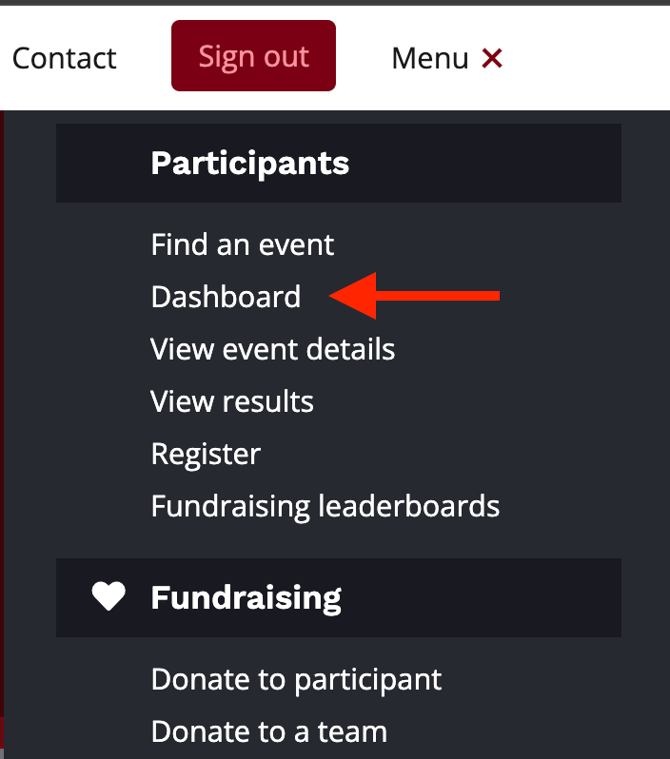
3. Once you sign in, click the Menu button (or hamburger icon) on the top right hand corner and select Participants > Dashboard.
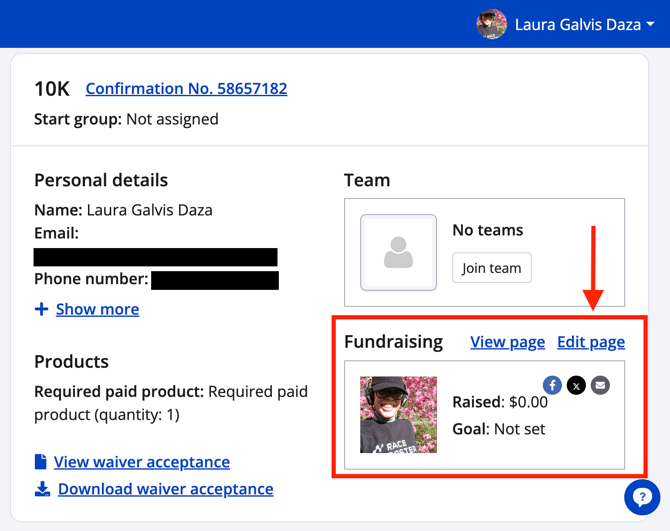
4. From the participant dashboard, navigate to your registration and click "Edit page" under the Fundraising section.
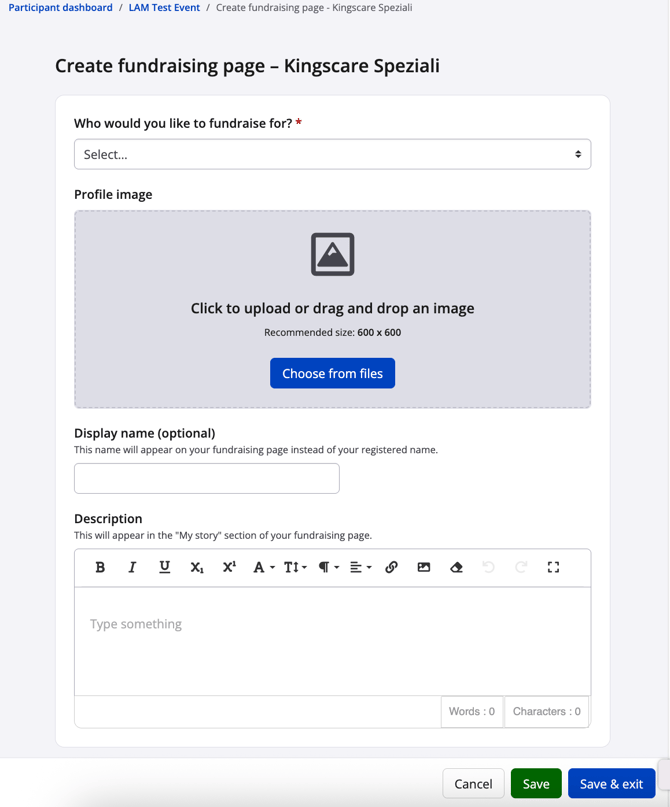
5. From the Edit fundraising page, fill in the fields.
-
Who would you like to fundraise for? You will see your chosen non-profit/charity organization in the dropdown menu. If you have not collected any donations and/or your registration was not part of a spot pool, you may change the organization in the dropdown if needed. Otherwise, the organization will be greyed out and locked as part of your fundraising commitment.
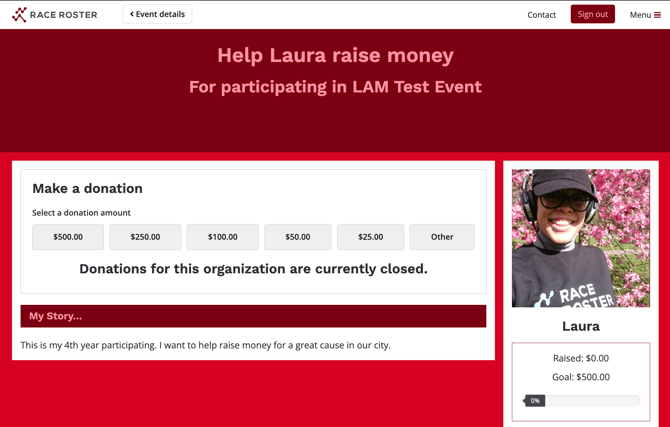
- Profile image - Optionally, you may upload a 600 x 600 pixel image (jpeg or png file types recommended) to display on your fundraising page. For example, you may choose a photo of yourself or a logo design that fosters confidence for the potential donors visiting your page.
- Display name - Optionally, you may overwrite your first and last name (as entered when your registered) with a display name.
- Your fundraising goal - Optionally, you may enter a numerical value for how much you want to fundraise through this event. If the non-profit/charity has established a required fundraising minimum as part of their spot pool, we recommend entering that number here as your goal.
- Description - The "My story" section of your individual fundraising can be used to tell potential donors about your involvement with this fundraising event and why the cause is important to you. It allows you to provide context and a personal touch that can often encourage more donations.
6. Be sure to click "Save" or "Save & exit" for your changes to stick.
7. Next, click to view the fundraising page to review the edits you made.
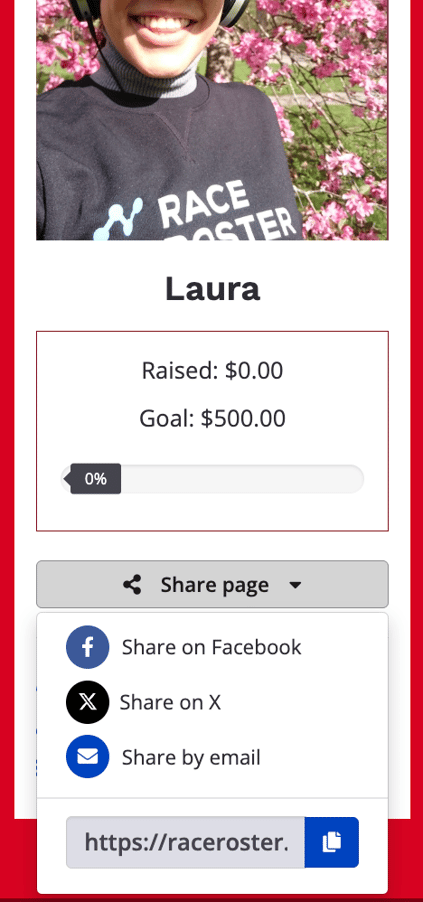
8. From there, you may use the "Share page" dropdown to distribute your individual fundraising page as a post on social media, by writing an email to friends and family, or simply copying the link to later paste elsewhere and share.
If you have any questions or comments about managing your individual fundraising page, please contact us at support@raceroster.com.