Before importing results, please review our key article outlining how to set up your Timer Dashboard and results tools HERE.
To access the Timer Dashboard, a user must first sign in (or create a timer account), request/receive timer access, and then create a timing company profile. Once the company profile is completed and saved, the Timer Dashboard is automatically enabled, giving access to timing tools and results management features.
Note: Results cannot be created or updated if the event is in DRAFT status or has been deleted. DEMO or PRIVATE statuses will work for creating results 'Races' before going LIVE
Manually Import Results
1. Export a CSV or TXT file from the external timing software, ensuring all required result fields are included. Race Roster default columns are listed HERE
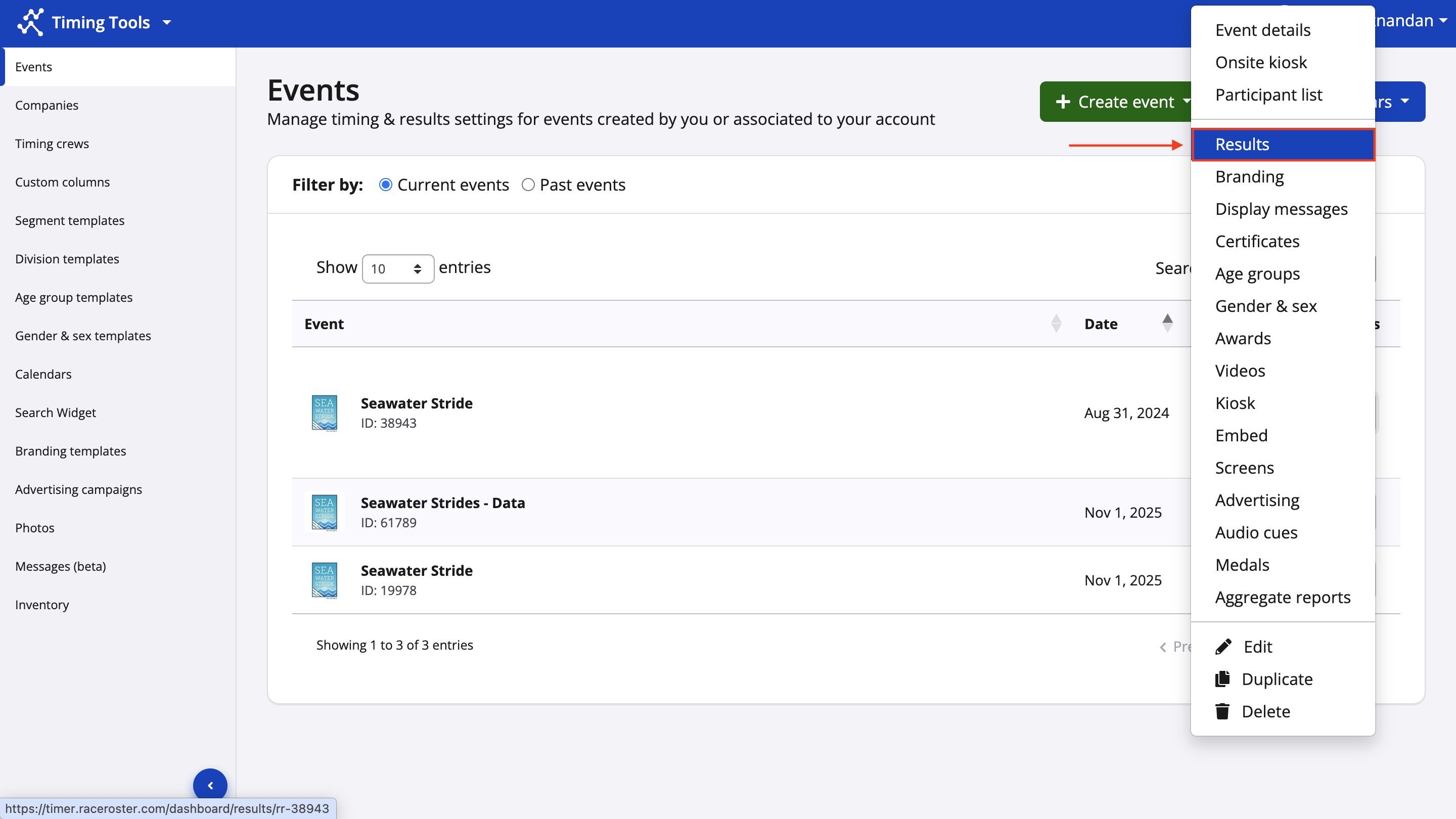
2. From the Timer Dashboard, navigate to Current Events and select the Results link beside the relevant event (three dots in the Action column).
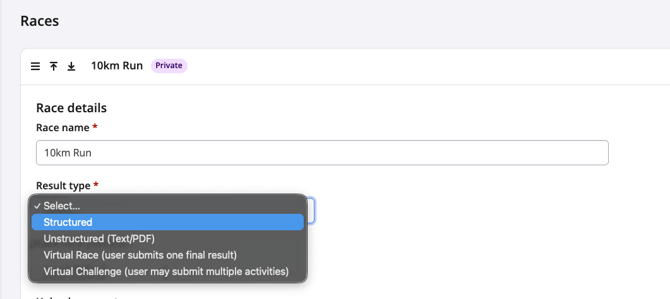
3. Add a new race by selecting the green button.
The Race name typically reflects the race distance or sub-event name and the Result type is Structured.
4. Select the Import Results button on the left hand side of the screen.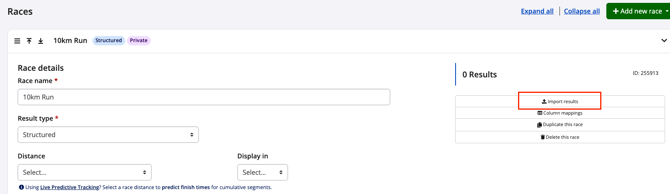
5. Select one of the import options: Copy/Paste From Excel or Import from a CSV.
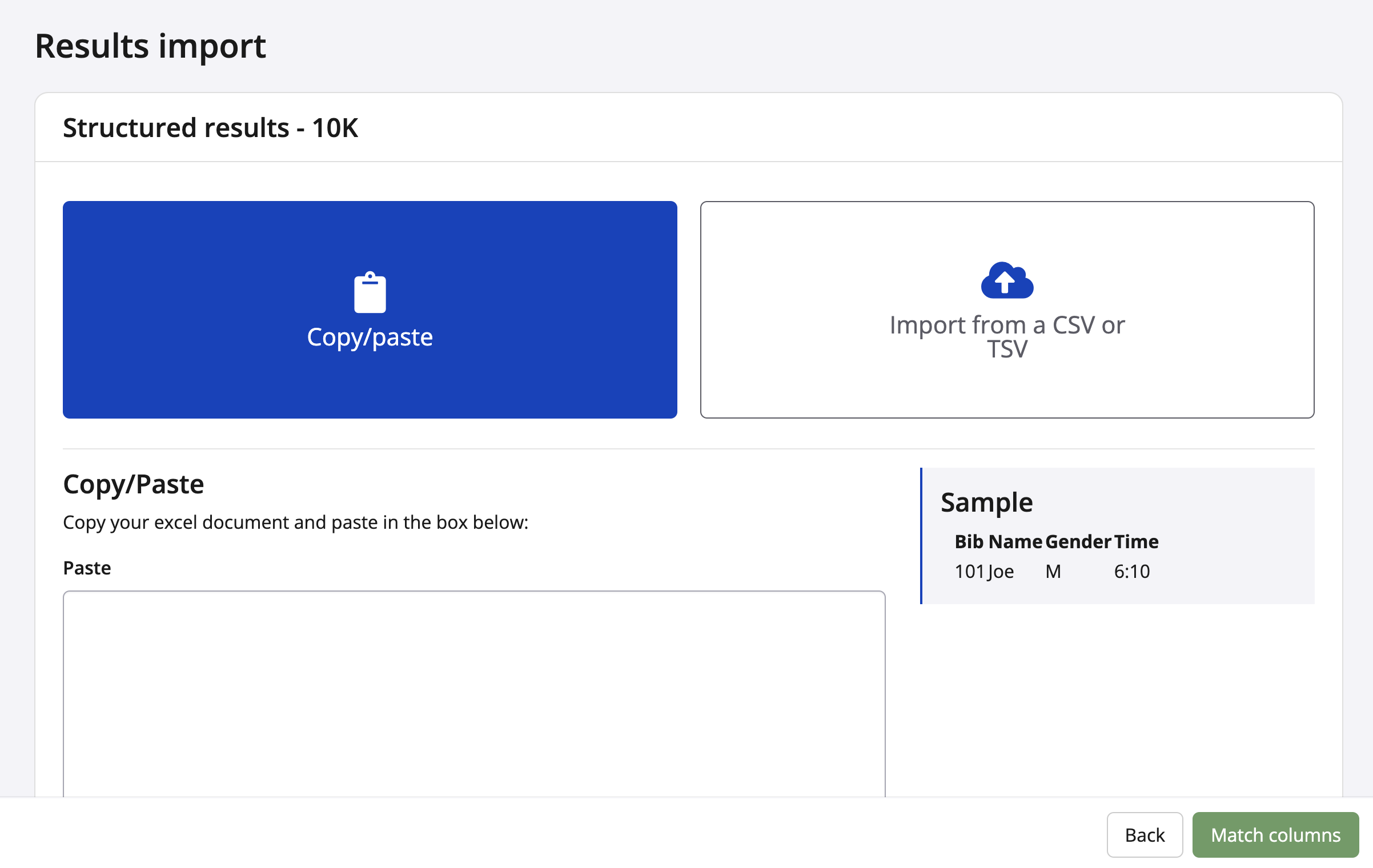
6. Once the data is uploaded or pasted, select Match Columns to align the file data with the correct result fields.
 7. Cross check each column has mapped to the correct field. If there is any discrepancies use the Column type dropdown to make the appropriate selection.
Then scroll down and click the Import & continue: Display settings. This button will only be accessible if you have matched all your columns.
Tip: Column matching only needs to be completed once. The system will retain these mappings for faster imports in future.
8. On Display Settings, column names can be updated, the order adjusted, and visibility toggled across Results listing, Results listing (mobile), Individual results pages, and Awards. Select Save & exit when presentation is finalised.

9. Back on the Results page, configure Result settings as needed, including visibility, status (official/unofficial), metrics display, and print options.

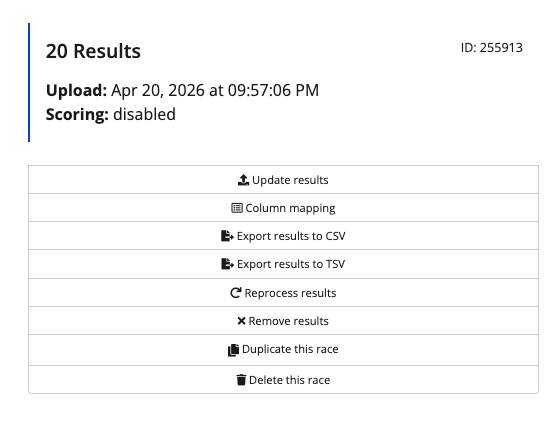
10. Lastly, imported results can be updated, reprocessed, exported (CSV or TSV), duplicated, or removed entirely using the available actions in the results panel.