
Adding a new event organizer
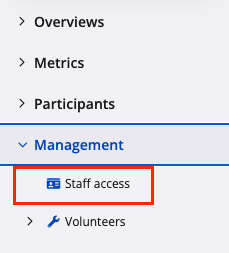
1. From the event dashboard, navigate to the left-hand menu and select Management, then Staff access.
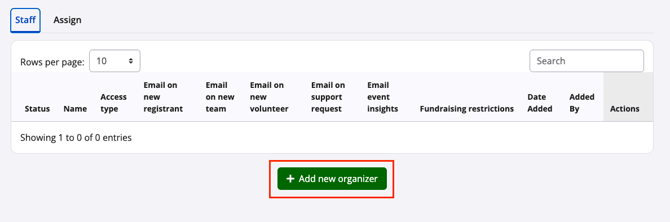
2. Click the green "Add new organizer" button and enter the staff member’s email address. The system will indicate whether the email is already associated with an existing Race Roster account. An invitation will be sent to this email address at the end of the process.
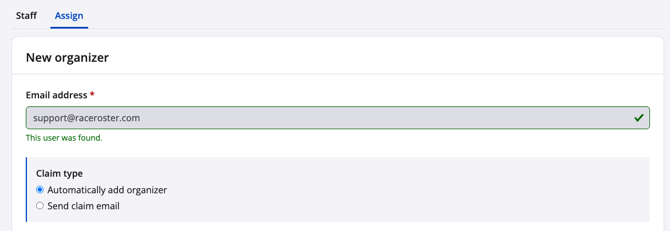
It is recommended to confirm whether the user already has a Race Roster account, as a single account can be used across multiple events and helps reduce confusion.
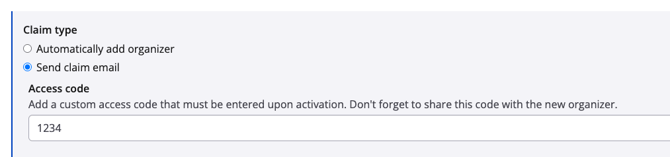
3. Select the Claim type for the invitation:
-
Automatically add organizer - This sends a direct link to the dashboard. The user will only need to sign in.
-
Send claim email - This adds an additional layer of security by requiring the user to enter an access code before gaining access.
4. Toggle Event creator on if the staff member should have full access to delete or duplicate the event.

5. Select the event(s) to assign to the staff member. By default, the current event will be selected, but additional events can be added if necessary. Note: Only event IDs to which you yourself have a high staff access level will appear in the dropdown search.

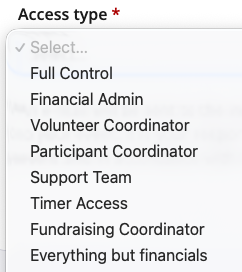
6. Select the appropriate staff Access type. Each Access type controls what areas of the dashboard the user can view, edit, or export from. There are ten default access types, along with a Custom option that allows specific permissions to be selected.
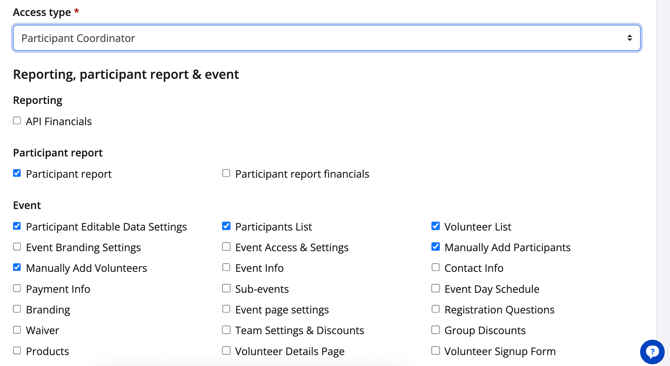
Each default access type comes with its own set of permissions, represented by selected checkboxes. Note: If you change selections, the default access type changes to "Custom".
7. Under Email notifications, be sure to select which system-generated emails you want the new event staff member to receive, if any.

8. Once the Access type and permissions are confirmed, click the green "Add" button at the very bottom of the page. An invitation email will be sent immediately. If an access code is required, it should be shared with the recipient directly.
The recipient will follow the email prompt, sign in, and enter the access code if applicable. If they do not already have an account, they will be prompted to create one.
Staff access types
Below is a breakdown of the available staff access types and how they are typically used:
Full Control
Grants the highest level of access. Suitable for race directors or senior event officials who need full control over registration, participant data and financials. Some email notification settings may need to be manually enabled.
Financial Admin
Provides access to all payment-related settings and reports. Suitable for staff managing reconciliations and remittance. Does not allow changes to core registration settings.
Volunteer Coordinator
Access is limited to volunteer-related reports, lists and settings. No access to participant data or financials.
Participant Coordinator
Designed for customer support roles. Allows access to participant information and the ability to process refunds. Additional permissions may be required for transfers or team management.
For operations-focused roles, this access type can be extended with additional permissions such as check-in, onsite tools and event day features. Some financial-related permissions can also be removed where not required.
Timer Access
Designed for timing partners. Provides access to participant lists, bib management and onsite tools. Does not include access to financials or registration settings.
Fundraising Coordinator
Used for charity partners. Allows updates to fundraising pages, access to fundraising reports and management of charity-specific settings. Access can be restricted to individual charities/non-profits where required.
Everything but financials
Provides broad administrative access across the event without exposing financial data. Suitable for senior support staff.
Vendor
Provides limited access to participant information. Typically used for third-party contractors where data sharing has been agreed to by participants.
API Financials
Used when granting API access to a developer or webmaster. This permission must be enabled to allow access to Race Roster API endpoints.
Custom
Allows fully customized access by selecting specific permissions. This is commonly used for marketing teams or specialized roles that require a tailored combination of tools, reports and settings.
If further assistance is required when assigning staff access, you may contact Race Roster support (director@raceroster.com or director@raceroster.com.au) for guidance.