---
title: How do I edit pricing for my event?
description: Learn how to update sub-event pricing, manage pricing descriptions, and reorder pricing strategies on your Race Roster event page, including how pricing changes are displayed to participants.
---
[Skip to content](https://help.raceroster.com/en-us/knowledge-base/how-do-i-edit-pricing-for-my-event#main-content)
[Submit a knowledge article idea](https://help.raceroster.com/en-us/knowledge-base/kb-tickets/new?hsLang=en-us)

Open main navigation
Close main navigation
- [Submit a knowledge article idea](https://help.raceroster.com/en-us/knowledge-base/kb-tickets/new)
How can we help you?
- There are no suggestions because the search field is empty.
1. [Race Roster Knowledge Base](https://help.raceroster.com/en-us/knowledge-base?hsLang=en-us)
2. [Event Organizers and Race Directors](https://help.raceroster.com/en-us/knowledge-base/event-organizers-and-race-directors?hsLang=en-us)
3. [Pricing](https://help.raceroster.com/en-us/knowledge-base/event-organizers-and-race-directors?hsLang=en-us#pricing)
June 16, 2026
# How do I edit pricing for my event?
Event pricing can be updated at any time, including while registration is open. This article explains how to edit sub-event prices, manage pricing descriptions displayed to participants, and reorder pricing strategies to control how registration fees appear on the event page and registration form.
---
1\. From the Event Organizer Dashboard, confirm that the correct event is selected in the white bubble located within the blue navigation bar at the top of the screen. If the incorrect event is displayed, search for and select the event that requires editing.
2\. From the left-hand navigation menu, expand the **Settings** section and select **Pricing**.
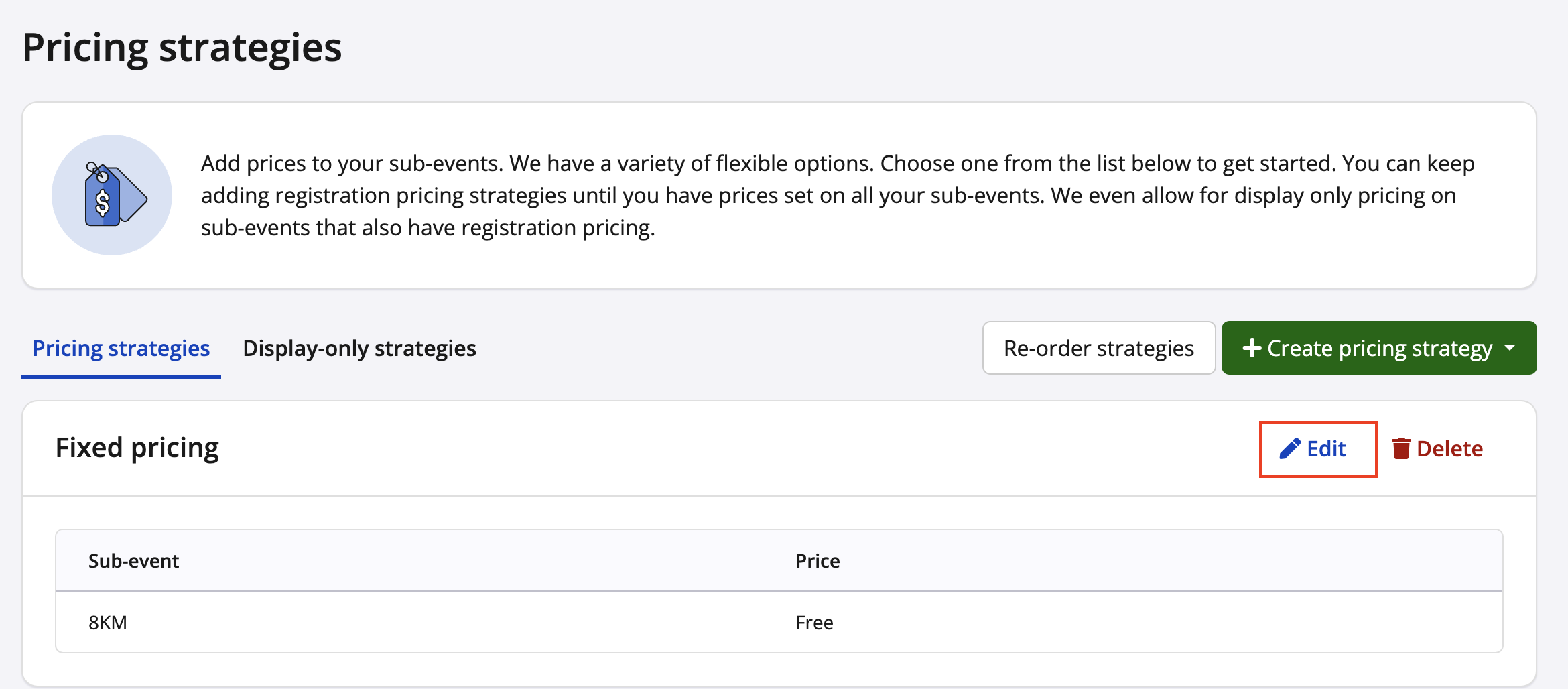
3\. This will open the **Pricing Strategies** page will be displayed. Locate the pricing strategy that requires updating and click Edit in the upper-right corner of the corresponding pricing strategy card.
4\. To change the price of the sub-event, go to the **Price** field and enter the new price. Be sure to save.
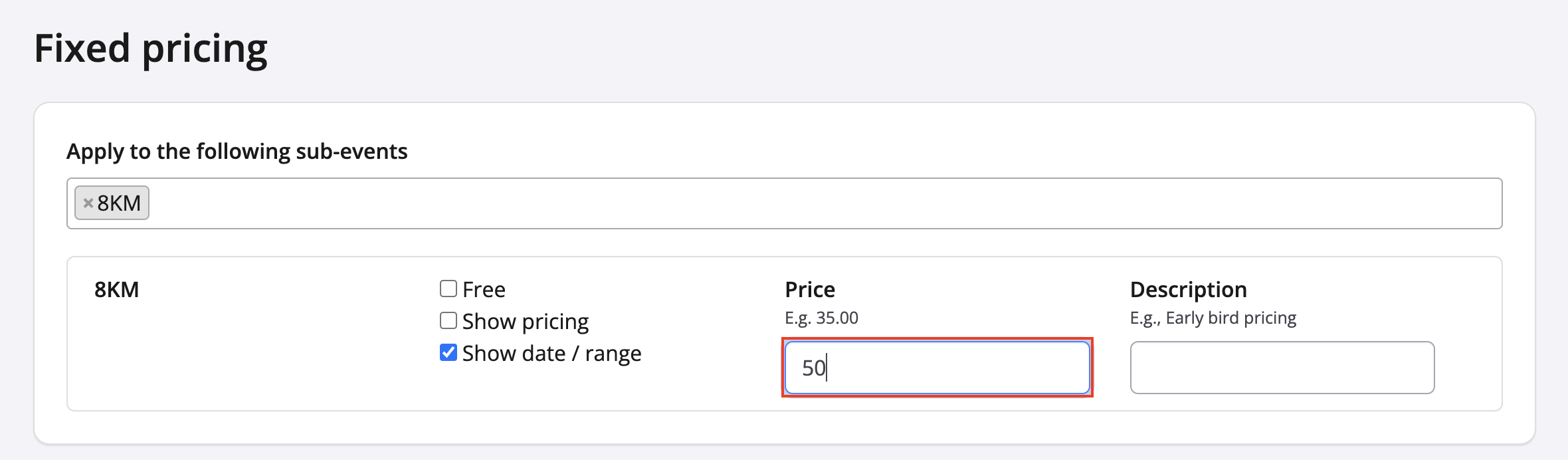
*The price of each amended sub-event will change for any new online transactions. Pricing can be adjusted even when an event is live.*
Effective March 2025, when the **Show pricing** checkbox is selected, all text in the **Description** field will be displayed in two locations:
- under the **Registration fees** section of the event details page
- within the **Sub-event** radio button or dropdown menu option in the registration form
Among other use cases, the **Description** field works well for showing a breakdown of the sub-event price [when single prominent pricing is in effect](https://hubspot.raceroster.com/en-us/knowledge-base/understanding-the-single-prominent-pricing-tab?hsLang=en-us), should you want your participants to have this visibility.
---
### How to Reorder Pricing Display on the Event Page
1. From the **Pricing Strategies** page click **Re-order Strategies**, located beside the green Create Pricing Strategy button.

2\. To adjust the display order of pricing options on the event page, use the up and down arrows to move individual items, or click and drag the hamburger icon (three horizontal lines) to reposition them. If multiple pricing strategies are being used, such as a combination of Fixed and Scheduled Pricing, the entire pricing strategy group can be dragged and reordered as a single unit.
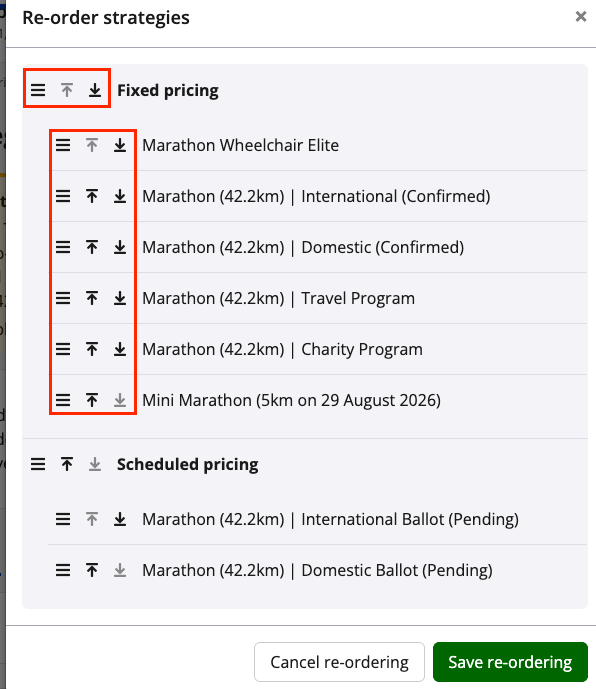
3\. Once the desired order has been configured, click **Save re-ordering** to apply the changes.
- [Event Organizers and Race Directors](https://help.raceroster.com/en-us/knowledge-base/event-organizers-and-race-directors?hsLang=en-us#main-content)
- [Participant Management](https://help.raceroster.com/en-us/knowledge-base/event-organizers-and-race-directors?hsLang=en-us#participant-management)
- [Financials](https://help.raceroster.com/en-us/knowledge-base/event-organizers-and-race-directors?hsLang=en-us#financials)
- [Marketing & Promotions](https://help.raceroster.com/en-us/knowledge-base/event-organizers-and-race-directors?hsLang=en-us#marketing-promotions)
- [Email Campaigns, MailChimp Integration](https://help.raceroster.com/en-us/knowledge-base/event-organizers-and-race-directors?hsLang=en-us#email-campaigns-mailchimp-integration)
- [Products](https://help.raceroster.com/en-us/knowledge-base/event-organizers-and-race-directors?hsLang=en-us#products)
- [Team Management and Settings](https://help.raceroster.com/en-us/knowledge-base/event-organizers-and-race-directors?hsLang=en-us#team-management-and-settings)
- [Onsite App](https://help.raceroster.com/en-us/knowledge-base/event-organizers-and-race-directors?hsLang=en-us#onsite-app)
- [Registration Questions](https://help.raceroster.com/en-us/knowledge-base/event-organizers-and-race-directors?hsLang=en-us#registration-questions)
- [Fundraising Settings and Receipts](https://help.raceroster.com/en-us/knowledge-base/event-organizers-and-race-directors?hsLang=en-us#fundraising-settings-and-receipts)
- [Promo Codes, Discounts, and Gifting Codes](https://help.raceroster.com/en-us/knowledge-base/event-organizers-and-race-directors?hsLang=en-us#promo-codes-discounts-and-gifting-codes)
- [Virtual](https://help.raceroster.com/en-us/knowledge-base/event-organizers-and-race-directors?hsLang=en-us#virtual)
- [Results](https://help.raceroster.com/en-us/knowledge-base/event-organizers-and-race-directors?hsLang=en-us#results)
- [Access codes](https://help.raceroster.com/en-us/knowledge-base/event-organizers-and-race-directors?hsLang=en-us#access-codes)
- [Director Access and Settings](https://help.raceroster.com/en-us/knowledge-base/event-organizers-and-race-directors?hsLang=en-us#director-access-and-settings)
- [Pricing](https://help.raceroster.com/en-us/knowledge-base/event-organizers-and-race-directors?hsLang=en-us#pricing)
- [Event Page Settings](https://help.raceroster.com/en-us/knowledge-base/event-organizers-and-race-directors?hsLang=en-us#event-page-settings)
- [Your Dashboard](https://help.raceroster.com/en-us/knowledge-base/event-organizers-and-race-directors?hsLang=en-us#your-dashboard)
- [Sub-events](https://help.raceroster.com/en-us/knowledge-base/event-organizers-and-race-directors?hsLang=en-us#sub-events)
- [Other FAQs](https://help.raceroster.com/en-us/knowledge-base/event-organizers-and-race-directors?hsLang=en-us#other-faqs)
- [Volunteers](https://help.raceroster.com/en-us/knowledge-base/event-organizers-and-race-directors?hsLang=en-us#volunteers)
- [Create, Edit or Take Your Event Live](https://help.raceroster.com/en-us/knowledge-base/event-organizers-and-race-directors?hsLang=en-us#create-edit-or-take-your-event-live)
- [Waivers](https://help.raceroster.com/en-us/knowledge-base/event-organizers-and-race-directors?hsLang=en-us#waivers)
- [Reports](https://help.raceroster.com/en-us/knowledge-base/event-organizers-and-race-directors?hsLang=en-us#reports)
- [Participants and Fundraisers](https://help.raceroster.com/en-us/knowledge-base/participants-and-fundraisers?hsLang=en-us#main-content)
- [Participant FAQs](https://help.raceroster.com/en-us/knowledge-base/participants-and-fundraisers?hsLang=en-us#participant-faqs)
- [Fundraising](https://help.raceroster.com/en-us/knowledge-base/participants-and-fundraisers?hsLang=en-us#fundraising)
- [Gift Registrations](https://help.raceroster.com/en-us/knowledge-base/participants-and-fundraisers?hsLang=en-us#gift-registrations)
- [Sign In and Manage Registration](https://help.raceroster.com/en-us/knowledge-base/participants-and-fundraisers?hsLang=en-us#sign-in-and-manage-registration)
- [Transfer Registration](https://help.raceroster.com/en-us/knowledge-base/participants-and-fundraisers?hsLang=en-us#transfer-registration)
- [Access Codes](https://help.raceroster.com/en-us/knowledge-base/participants-and-fundraisers?hsLang=en-us#access-codes)
- [Teams](https://help.raceroster.com/en-us/knowledge-base/participants-and-fundraisers?hsLang=en-us#teams)
- [Security & Compliance](https://help.raceroster.com/en-us/knowledge-base/participants-and-fundraisers?hsLang=en-us#security-compliance)
- [Promo Codes](https://help.raceroster.com/en-us/knowledge-base/participants-and-fundraisers?hsLang=en-us#promo-codes)
- [Race Roster CRM](https://help.raceroster.com/en-us/knowledge-base/race-roster-crm?hsLang=en-us#main-content)
- [Organizations](https://help.raceroster.com/en-us/knowledge-base/race-roster-crm?hsLang=en-us#organizations)
- [Contact Management and Validation Lists](https://help.raceroster.com/en-us/knowledge-base/race-roster-crm?hsLang=en-us#contact-management-and-validation-lists)
- [Reporting](https://help.raceroster.com/en-us/knowledge-base/race-roster-crm?hsLang=en-us#reporting)
- [Events and Event Groups](https://help.raceroster.com/en-us/knowledge-base/race-roster-crm?hsLang=en-us#events-and-event-groups)
- [Campaigns and Marketing](https://help.raceroster.com/en-us/knowledge-base/race-roster-crm?hsLang=en-us#campaigns-and-marketing)
- [Non-profit Organizations](https://help.raceroster.com/en-us/knowledge-base/race-roster-crm?hsLang=en-us#non-profit-organizations)
- [Fundraising Coordinators](https://help.raceroster.com/en-us/knowledge-base/fundraising-coordinators?hsLang=en-us#main-content)
- [Resources](https://help.raceroster.com/en-us/knowledge-base/fundraising-coordinators?hsLang=en-us#resources)
- [Participant and Team Fundraising](https://help.raceroster.com/en-us/knowledge-base/fundraising-coordinators?hsLang=en-us#participant-and-team-fundraising)
- [Reporting](https://help.raceroster.com/en-us/knowledge-base/fundraising-coordinators?hsLang=en-us#reporting)
- [Timers](https://help.raceroster.com/en-us/knowledge-base/timers?hsLang=en-us#main-content)
- [Account settings](https://help.raceroster.com/en-us/knowledge-base/timers?hsLang=en-us#account-settings)
- [Results](https://help.raceroster.com/en-us/knowledge-base/timers?hsLang=en-us#results)
- [Timing Tools](https://help.raceroster.com/en-us/knowledge-base/timers?hsLang=en-us#timing-tools)
- [Bib Assignment](https://help.raceroster.com/en-us/knowledge-base/timers?hsLang=en-us#bib-assignment)
- [Participant Data and Reports](https://help.raceroster.com/en-us/knowledge-base/timers?hsLang=en-us#participant-data-and-reports)
- [The ASICS Runkeeper™ app](https://help.raceroster.com/en-us/knowledge-base/the-asics-runkeeper-app?hsLang=en-us#main-content)
- [The ASICS Runkeeper™ app](https://help.raceroster.com/en-us/knowledge-base/the-asics-runkeeper-app?hsLang=en-us#the-asics-runkeeper-app)
[](https://raceroster.com)
Copyright © 2026, Race Roster