
As manual/offline donations are added to an event, the manual donation report will allow event organizers to view and edit these donations.
Editing a manual donation
1. Sign in and visit the event dashboard.
2. Navigate to the search box on the left, then search and select Manual donation report. Alternatively, select Management → Fundraising → Manual donation report.
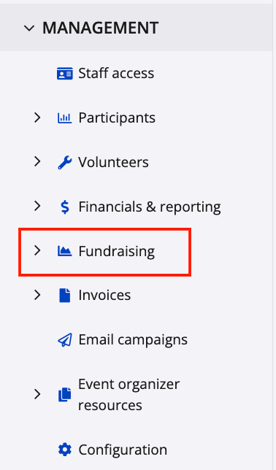
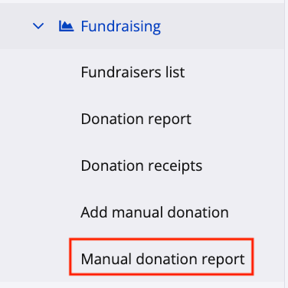
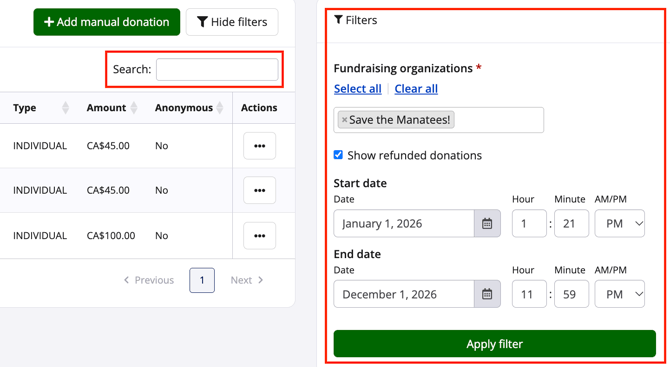
3. In the Manual donation report, use the search box and find the donation to be edited, or use the filters on the right to narrow down the search.
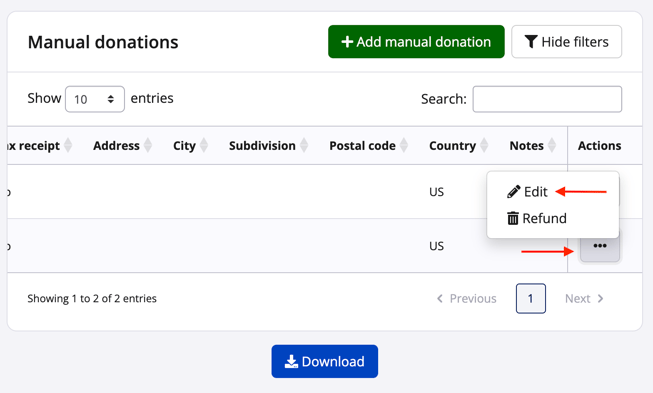
4. Select the three dots to the right in the Actions column and Edit to update.
6. The manual donation details will populate. Most of the information previously added can be updated, except for the amount. Update as needed, then select and Save or Save & exit.
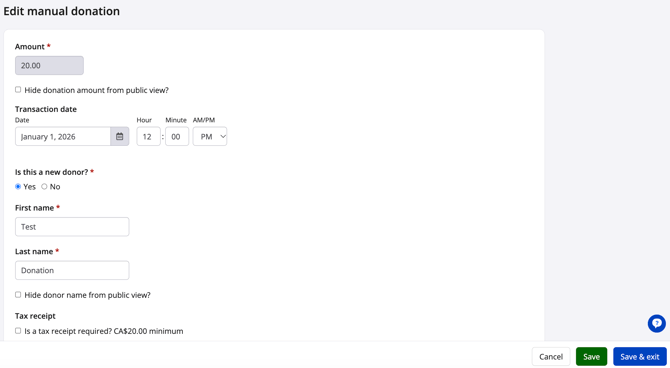
Note: Manual donations cannot be deleted. If the Refund option is selected, this will allow the event organizer to mark this donation as refunded offline. The donation will then be removed from the fundraising organizations total amount raised. An organizer will need to have access to the Refund tool to complete this step.
Downloading the manual donation report
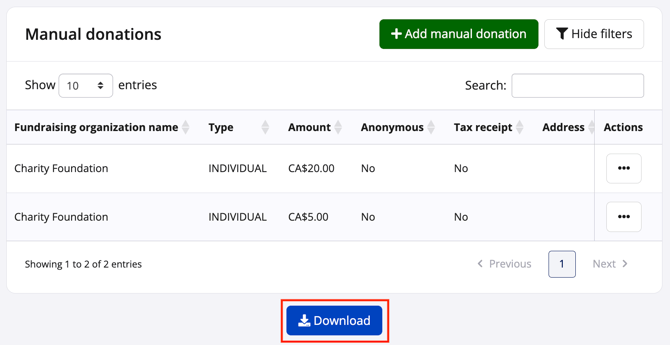
In the manual donation report, select Download at the bottom of the page to export a file including all donations or filtered results.

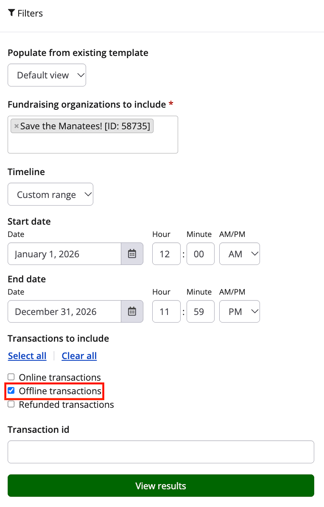
Manual donations can also be viewed and downloaded from the Donation report. Search the menu for Management → Fundraising → Donation report. Use the filters on the filter to include only Offline transactions.
For information on adding manual donations, please reference the article How to add manual (offline) donations. For further assistance editing manual donations and viewing the manual donation report, please contact our team.