Race Roster CRM is the home of organizations. An organization is a company or entity responsible for a set of events, and summarizes the registration, revenue and contact data stemming from those events. A user may have access to one or more organizations, comprising some or all of their events.
For the events that get pulled into an organization, event groups can be created. An event group allows an event organizer to compare the registration counts across the selected events in handy graphics. There are two types of event groups: year over year and custom.
By placing a set of events in an event group, an event organizer can:
- zoom into the exact registrant counts they are interested in comparing (e.g., if the organization has had an annual summer event for the last four years, and also a fall event for the last two years, they can group the four summer events together and then two fall events together, to treat and analyze the two groups separately)
- (upcoming release) can save time when creating and managing custom reports for later exports and data management tasks
- (upcoming release) can save time when creating and managing a CRM email campaign
This article explains the types of event groups, how to create a custom event group, and how to manage an event group.
Types of event groups
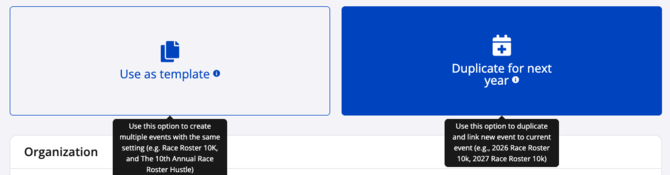
Year over year event groups are automatically generated within the organization when at least two of its events have a parent-child year-over-year relationship. That relationship would have been established during the event copy process by selecting Duplicate for next year.
For all of the organization's events with this type of relationship, the Race Roster CRM tool automatically groups them:
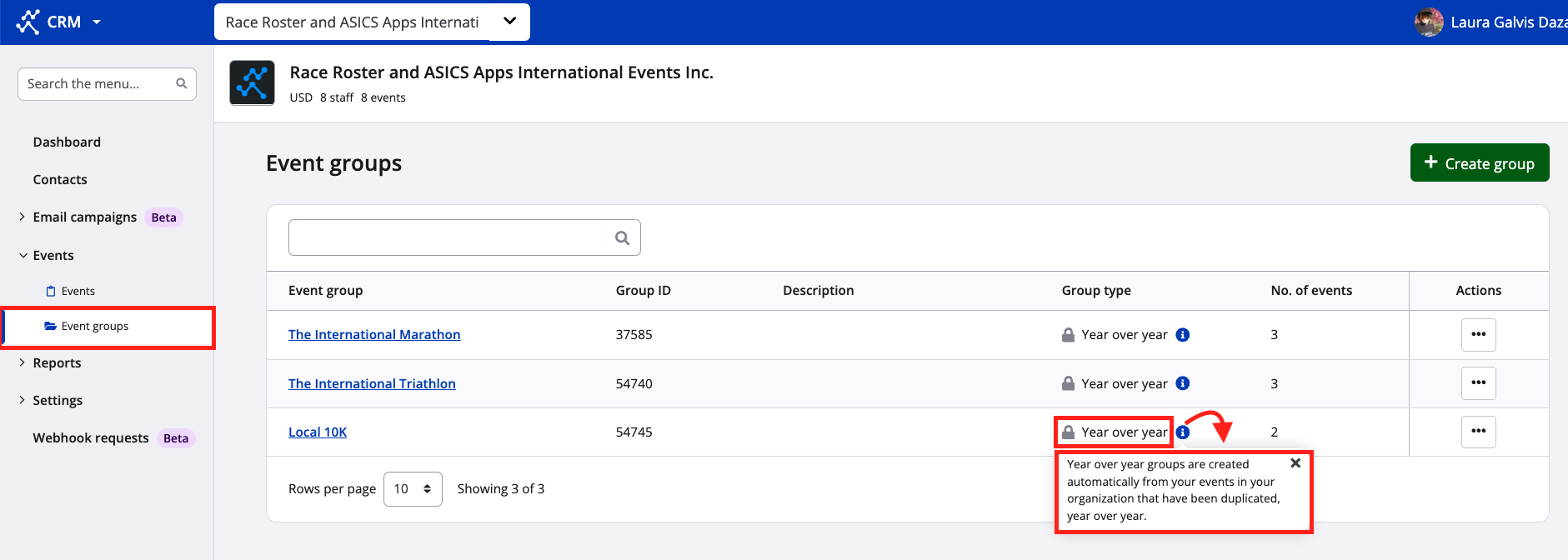
Note: Year over year event groups cannot be edited or deleted from within the organization. To add or remove an event from a group, please contact our team to assist with this.
How to create an event group
Custom event groups are created by organization staff members. Unlike year over year event groups, they can be edited at any given time, or deleted if no longer relevant.
To create a custom event group within an organization in the CRM, follow these instructions:
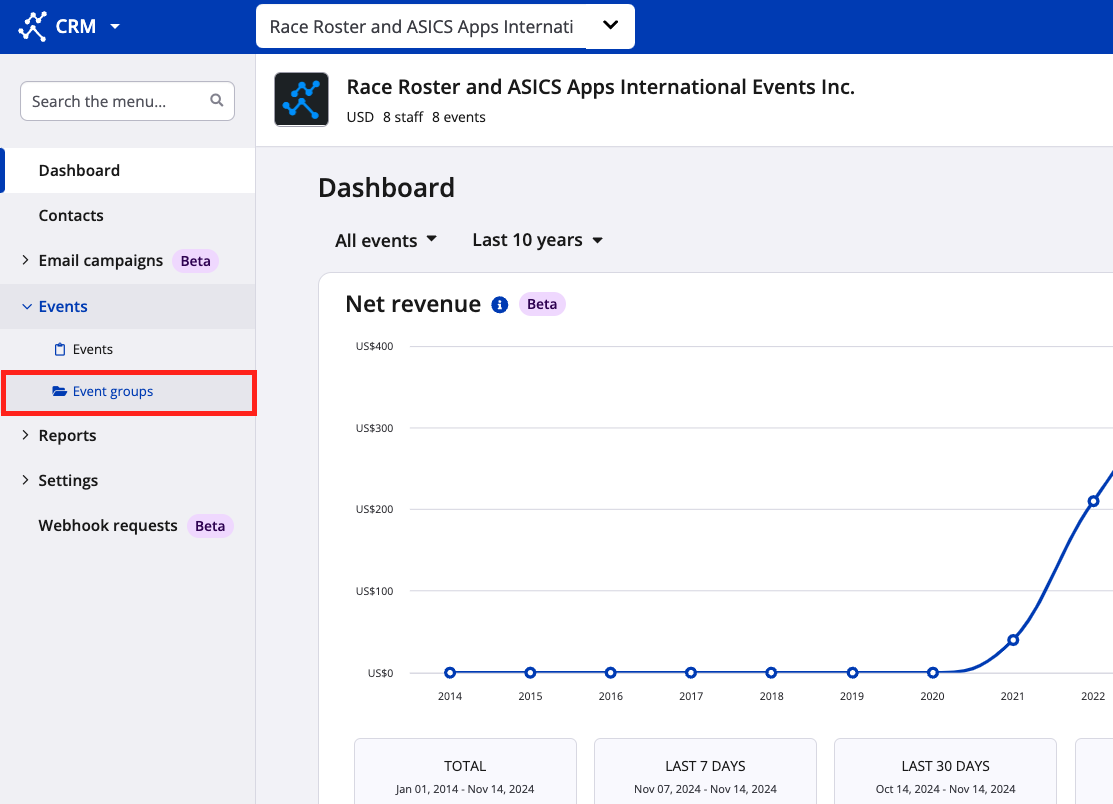
1. From the organization dashboard, navigate to the left sidebar and click on Events → Event groups.
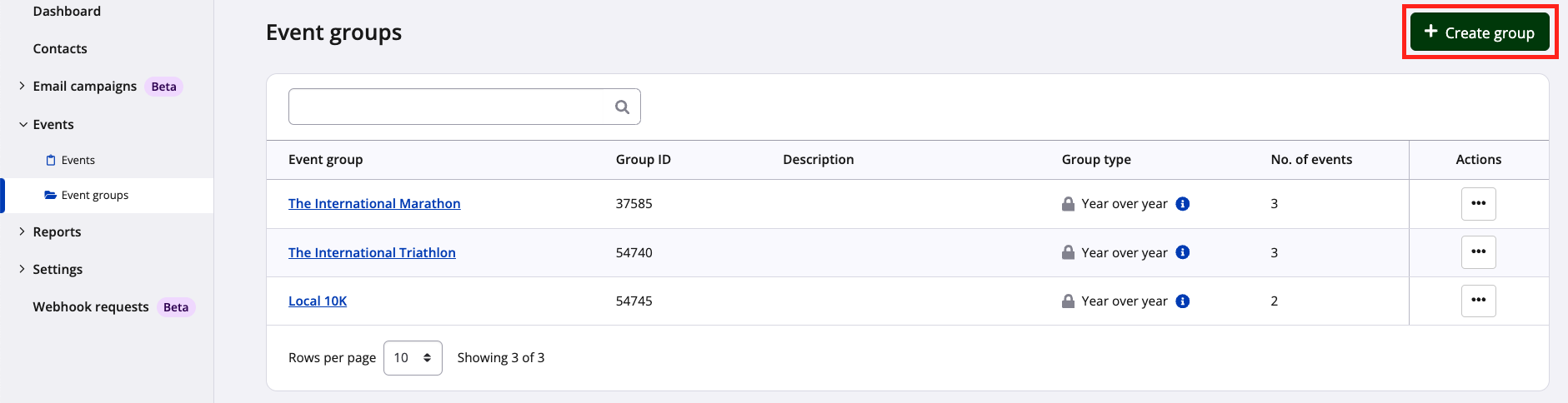
2. From the event groups page, click on the green + Create group button on the top right.
3. Fill out the create event group fields:
- Event group name - Enter a specific yet succinct name to distinguish this new event group from existing or future groups
- Description (optional) - Provide a description so that organization staff members are clear on what belongs within the group
- Selected events - Use the dropdown menu to select from among the events currently belonging to the organization, to group together a specific selection
- Automatically add duplicated events - If this is selected, when an event in this custom group is duplicated and added to the organization, the newly imported event will also be added to the group automatically
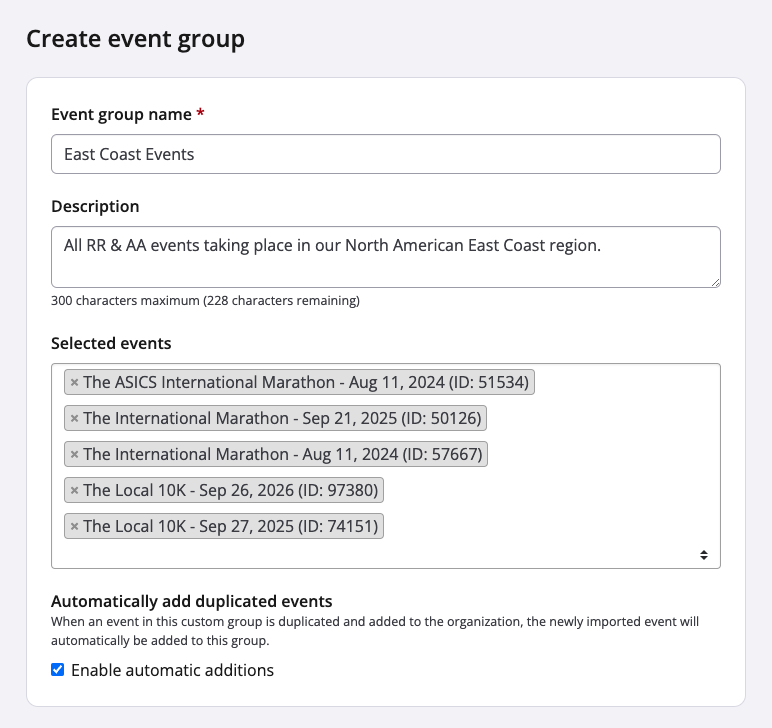
Be sure to select Save & exit at the bottom right of the page.
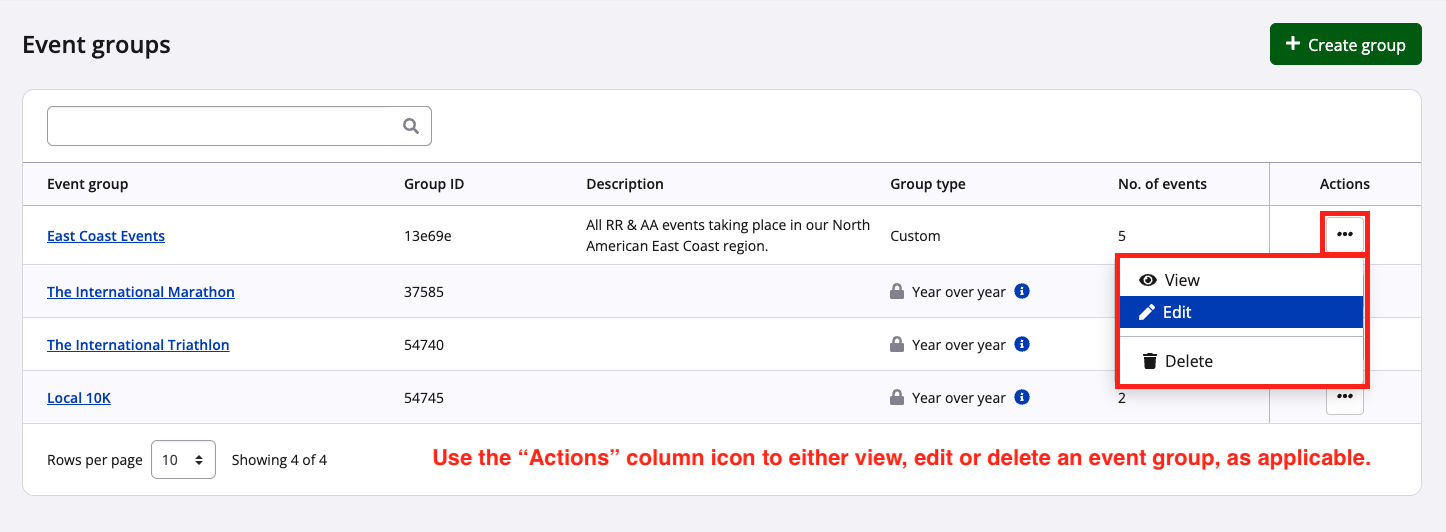
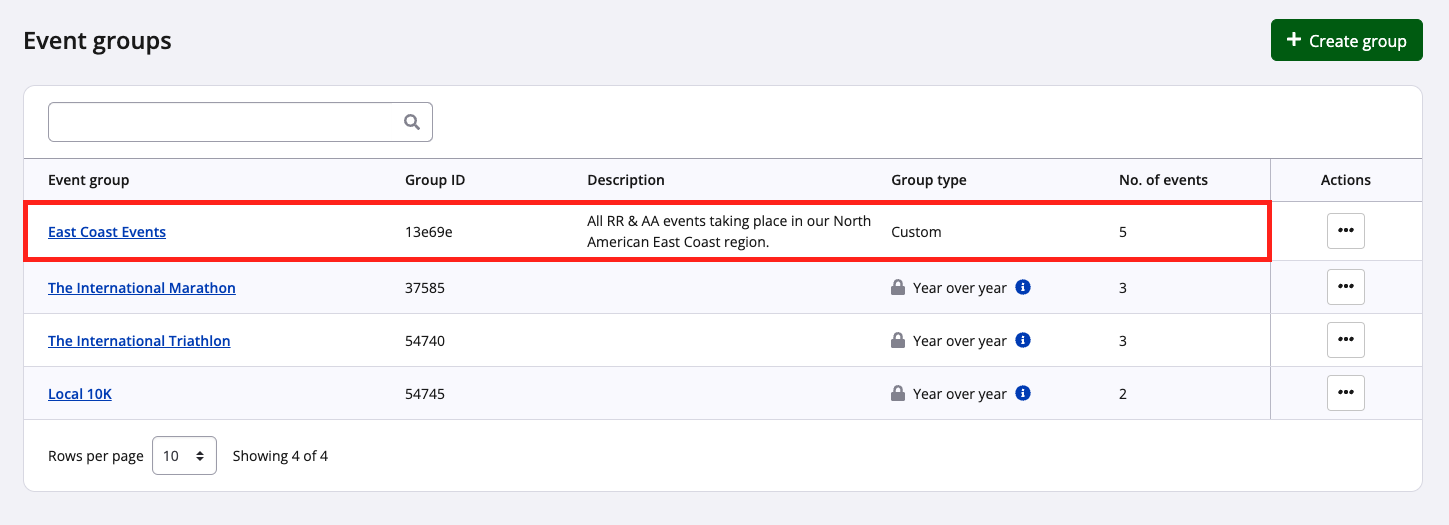
4. Once back on the event groups page, the newly-created group will be listed in the summary chart.
How to use and manage an event group
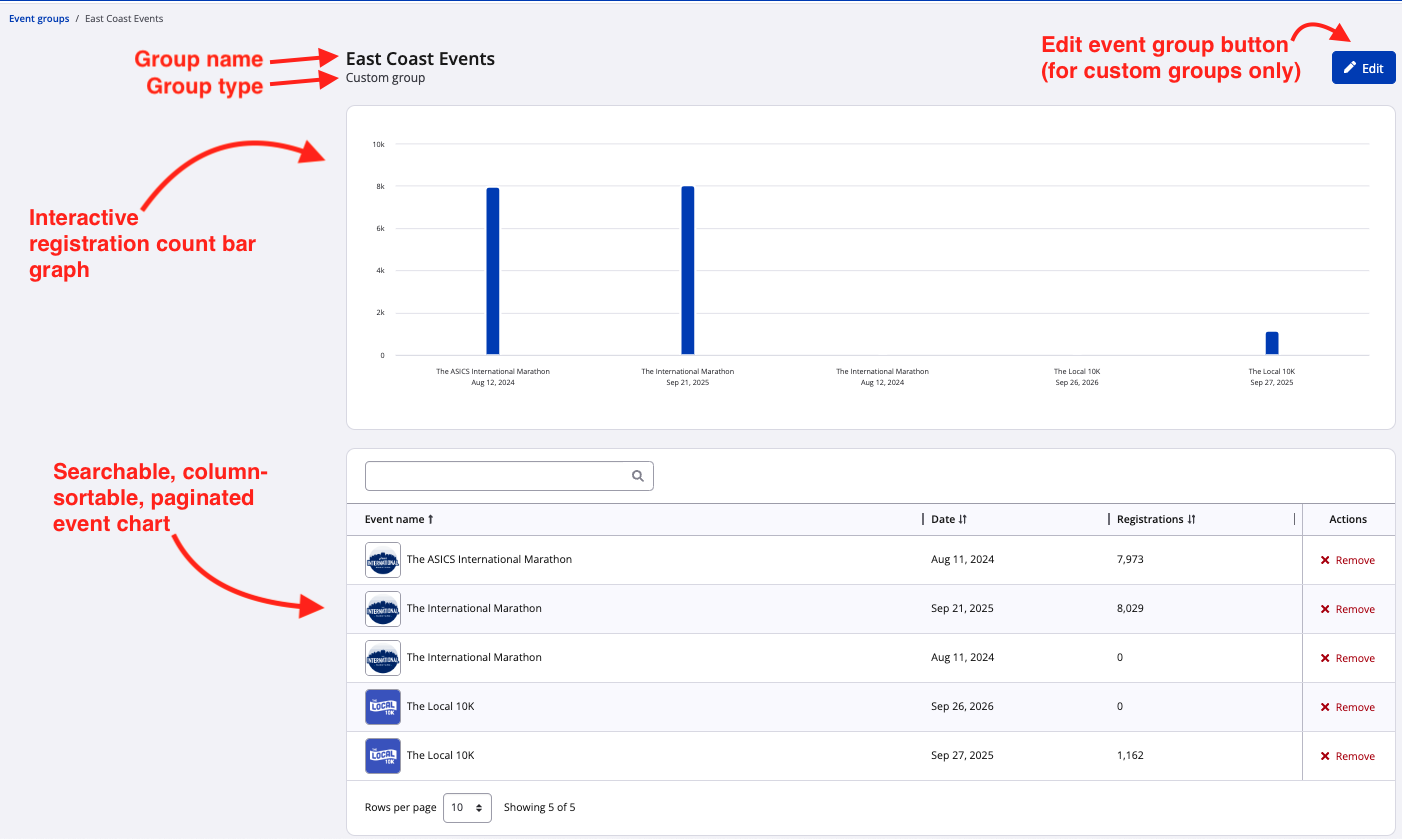
Custom event groups can be edited or deleted as needed. Both custom and year over year groups can be viewed for a close look at registration numbers and graphics. To view the event registration count bar graph and the event chart, select Actions → View. An event organizer can analyze this data to better manage that subset of events.