
Creating a sender is an important part of setting up an email campaign. After following through the steps below, the user will receive a verification email that must be completed before being able to activate any campaigns.
Step 1
1. Sign in to the dashboard as an Event Organizer
2. Navigate to the left-hand side and select Management → Email campaigns
3. Select the Senders tab at the top of the page
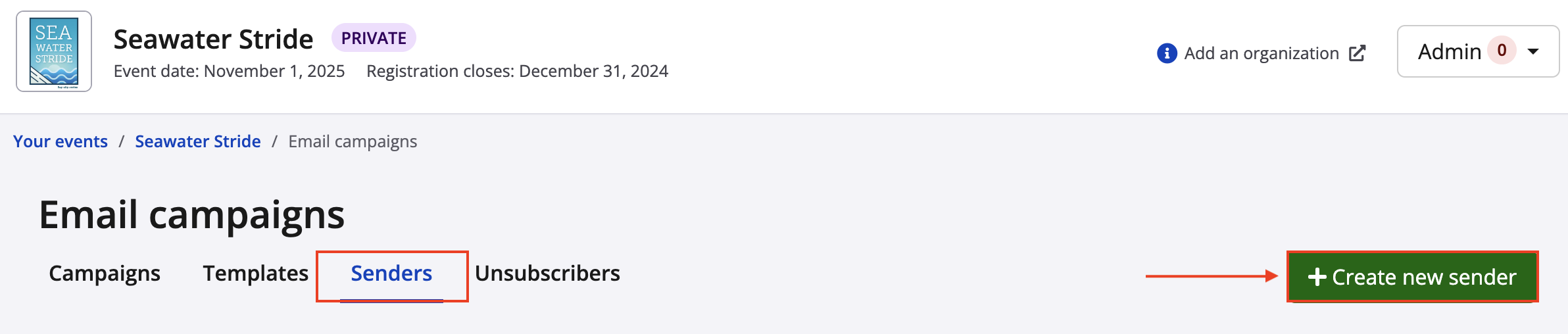
5. Click + Create new sender
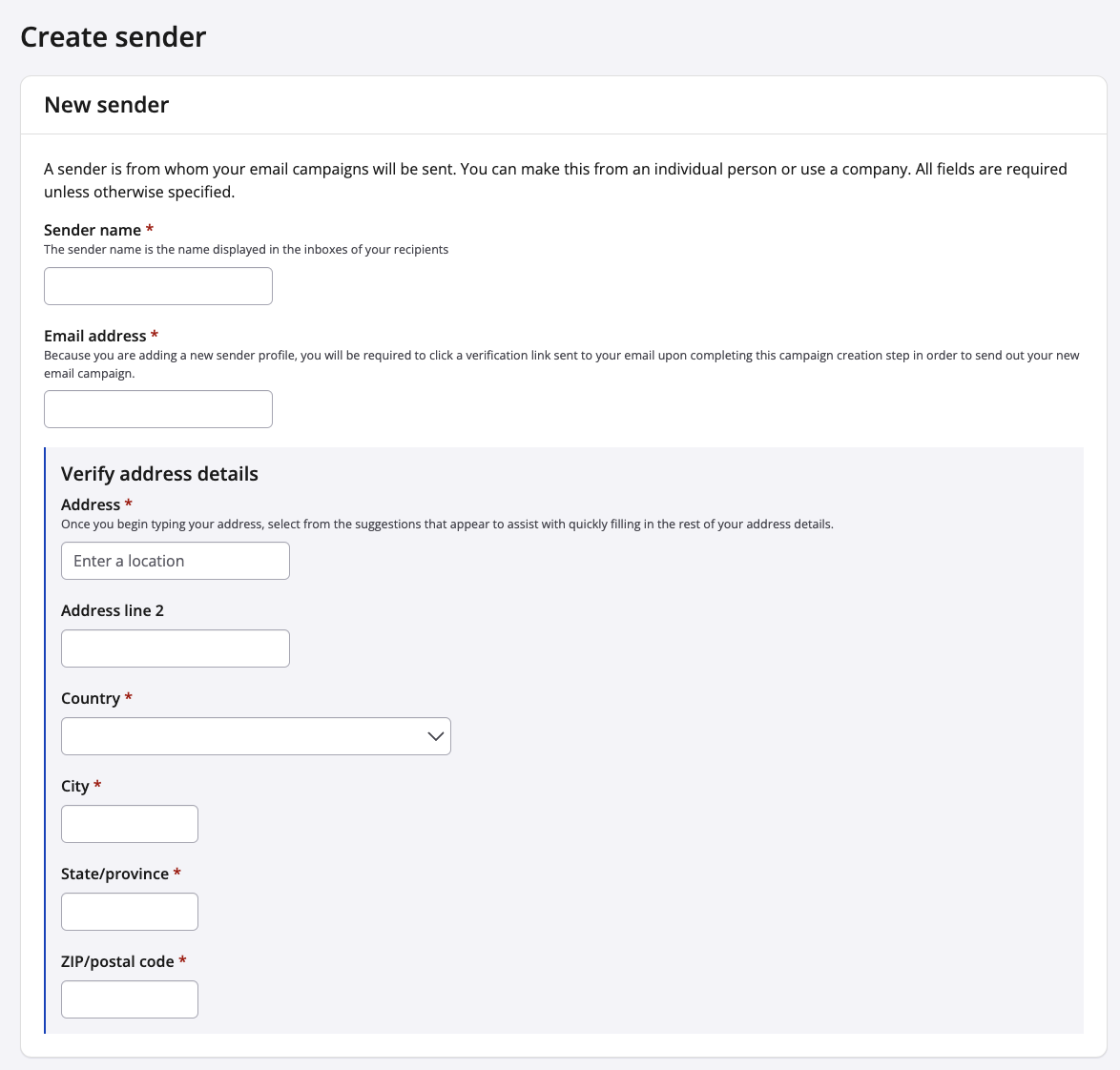
6. Fill out the form including:
- Name
- Email address
- Address
In the Address field, begin typing in the sender address and options will populate. Select the correct address and verify the address details below. In the Address line 2 field, the user is able to add an apartment number, etc.
7. Click Save & exit
Step 2
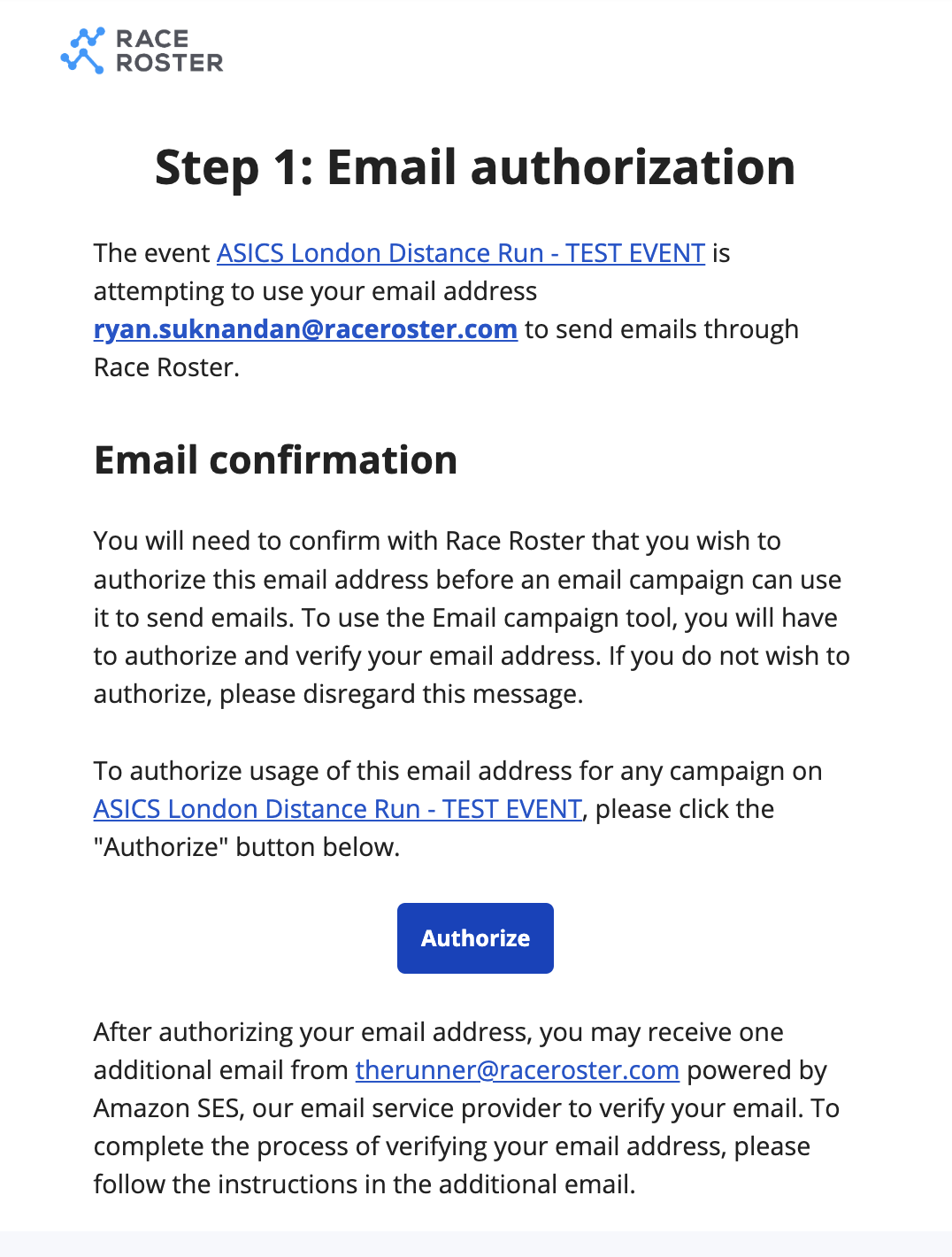
1. Once a sender has been added, the user will receive 2 verification emails - one from Race Roster and one from our Amazon mail server
2. Follow the verification process:
Verification email for Race Roster
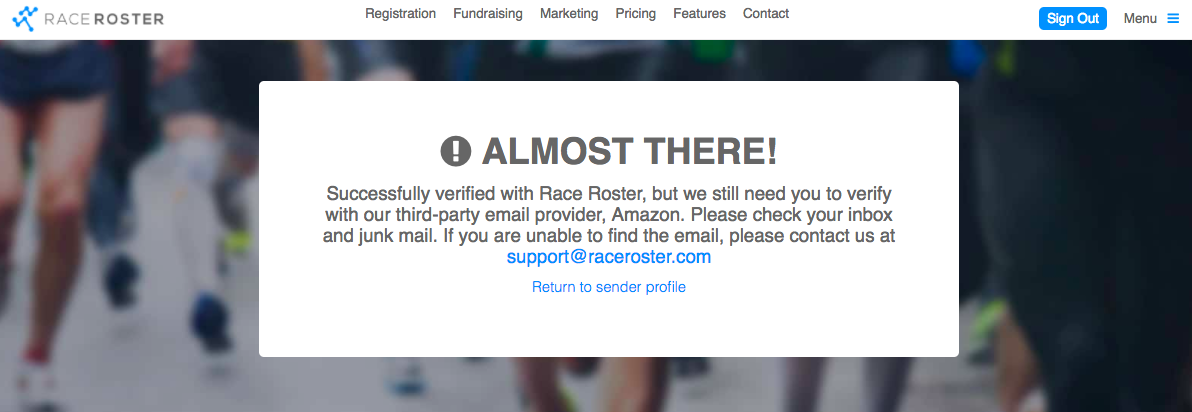
The next screen will confirm that the second verification email has been sent
The verification email from Amazon will include a verification link
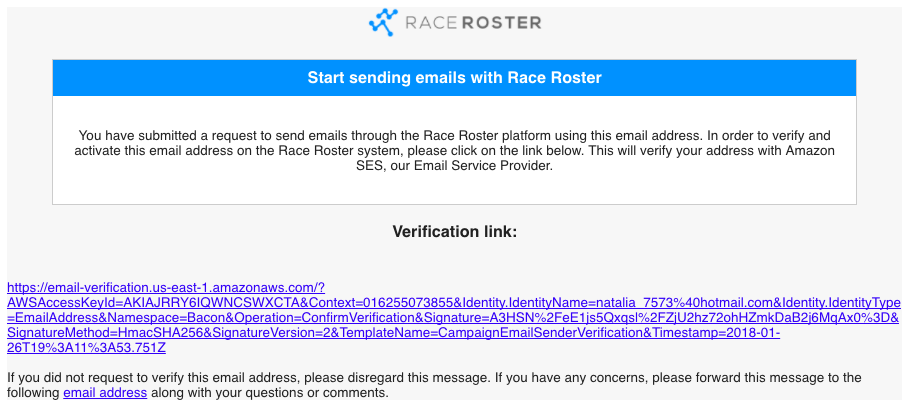
Going through the 2 emails will complete the verification process
Sender statuses:
-
Not verified: A sender that has been added and the verification has not yet been completed.
-
Domain pending: The additional verification for a custom domain (i.e. info@seawaterstride.com) has not been completed.
- Account exclusive: The sender is associated to the staff member's account used to create the sender, and they can also use that sender on other events. Another user would need to recreate the sender to use this on another event. If this status is not displayed, that sender belongs to the event and any organizer on the event can use it.
For additional support adding a sender, please contact our team. For information on adding a custom domain, please visit the articles Bulk email sender guidelines for the Race Roster email campaign tool Part 1 & Part 2.